> For the complete documentation index, see [llms.txt](https://support.onlogic.com/llms.txt). Markdown versions of documentation pages are available by appending `.md` to page URLs; this page is available as [Markdown](https://support.onlogic.com/product-documentation/components-and-expansion/dio/adp130-isolated-dio-module.md).
# ADP130 Isolated DIO Module
Guide to the ADP130/ADP102 Isolated DIO Module, covering its features, configuration via shell, and programming.
An optional DIO add-in card is available. The add-in card has an NXP i.MX1050-series microcontroller that can communicate with the host processor over USB. The card provides an interactive shell for configuration on a virtual COM port.
Supported VIN/Input/Output Voltage: 5-48V
### Connector Type
Due to the wide variety of potential applications, OnLogic does not supply a mating connector. Below is an example list of connectors compatible with this module.
{% embed url="" %}
{% embed url="" %}
## Configuration
The add-in card is configured interactively through its shell using a serial terminal emulator program. The shell is accessed differently depending on operating system.
### **Windows Shell Access**
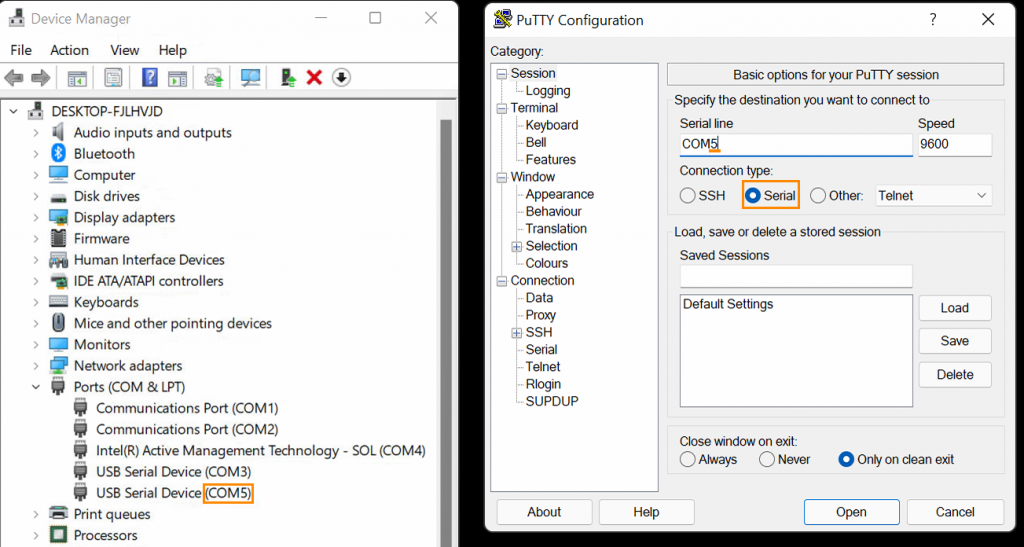
1. Open Device Manager by pressing Win+X M. Open the “Ports (COM & LPT)” menu.
2. Note the “COM#” numbers on each port listed.
3. Download and install PuTTY from the link above.
4. Open PuTTY. When prompted, enter the COM port number in the “Serial line” text box, then click “Open”.
5. If the port number was correct, a “uart:\~$” prompt should appear. If not, try a different port.
### **Linux Shell Access**
1. Install picocom, e.g. “sudo apt install picocom” on Ubuntu.
2. Open the shell’s virtual COM port with picocom by running “picocom /dev/serial/by-id/usb-OnLogic\_DIO-\*-if00”.
3. Some Linux distributions may not configure udev to produce by-id links. If those links are missing, try /dev/ttyACM0 and similar devices.
Once the shell is open, type “help” for usage information. A description of available shell commands can also be found [**here**](https://static.onlogic.com/resources/firmware/documentation/shell.html).
While the microcontroller shell is intended for human interaction, it can be used to programmatically control the MCU. To avoid a number of pitfalls when doing so, observe the following best practices:
* On Linux, use the symlinked device nodes inside `/dev/serial/by-id` instead of hardcoding `/dev/ttyACMx` device names. `/dev/ttyACMx` numbering is
* unstable; `/dev/serial/by-id/usb-OnLogic_-if00` will reliably point to the terminal interface.
* When writing Linux shell scripts, ensure that the echo flag is disabled on the TTY by running `stty -F /dev/serial/by-id/ -echo` before
* interacting with the shell. Most serial libraries (pyserial, serialport-rs, etc.) will automatically disable this flag.
* When sending a command, precede it with a ‘\x03’ byte to clear the terminal’s line buffer and ensure that the command is interpreted correctly. Follow the command with a ‘\r’ or ‘\n’ character to execute the command.
* Send less than 64 bytes at a time. To send longer commands, explicitly flush the port’s output buffer in between each block of 64 bytes.
### **Connection Diagrams**
External Connector Pinout - Note the key notch at pins 7 & 9
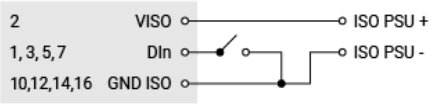
Digital Input (Active-Low)
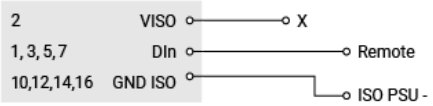
Digital Input (Active-High)
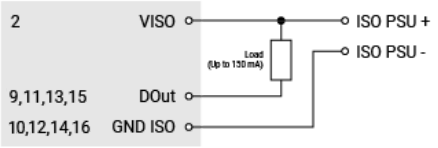
Digital Output (Low-Side/Sinking)