> For the complete documentation index, see [llms.txt](https://support.onlogic.com/llms.txt). Markdown versions of documentation pages are available by appending `.md` to page URLs; this page is available as [Markdown](https://support.onlogic.com/product-documentation/components-and-expansion/wireless-connectivity/nwk500.md).
# NWK500
Revision History
| Date | |
| ---------- | ---------------------- |
| 2026/01/29 | Draft Document Created |
## Product Description
The OnLogic NWK500 is a SIM carrier board paired with the Telit FN990A28 Cellular Modem to provide 5G LTE connectivity.
## Specifications
| Feature | Specification |
| ----------------------------------------------------------------------- | -------------------------------------------------------------------------------------------------------------------------------------------------------------------------------------------------------------------------- |
| SKU | NWK500 |
| Carriers | Regional: EMEA, US |
| 5G FR1 bands |
|
| Interface | M.2 B-Key |
| SIM Card Socket Size | 4FF |
| Signal Type | PCIe/USB |
| Expansion Options | 2 x 4FF SIM |
| Operating Temperature Range | -40°C to +85°C |
| Dimensions | 1.18x2.047x0.088 in |
| IP Multimedia Subsystem (IMS) | VoLTE (Voice over LTE), VoNR (Voice over New Radio), SMS over IMS, VoWiFi (Voice over WiFi), E911/E112 |
| Antennas | 4x4 MIMO Supported |
## Antenna RF interfaces
Antenna RF interfaces (ANT0 - ANT3) NWK500 is based on the Telit FN990A28 module and provides 4 RF interfaces for connecting the external antennas: MAIN represents the primary RF input/output for transmission and reception of LTE RF signals.
The ANT0 - ANT3 pins of the NWK500 has a nominal characteristic impedance of 50 Ω and must be connected to the primary Tx / Rx antenna's through a 50 Ω transmission line to allow proper RF transmission and reception.
The GNSS pin represents the gpsOne Gen 9 Band L1 receiver antenna connection location. The GNSS pin of NWK500 has a nominal characteristic impedance of 50 Ω and must be connected to the secondary Rx antenna through a 50 Ω transmission line to allow proper RF reception.
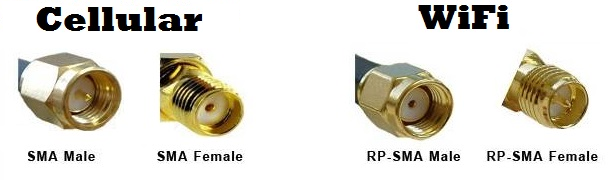
When installed in an OnLogic computer, ANT0 - ANT3 RF interfaces are connected to external antenna mounts. The external mounts each use an SMA (female) connector. Our line of compatible cellular antennas all use a standard SMA (male) connector.
## FAQ (Frequently Asked Questions) Which antenna connectors are for WiFi and which are for 5G?What impedance is required for antennas and cabling?
50 Ω. Maximum antenna gain 6dBi. Antenna must be installed 20cm from system.
Known limitations
* The GPS functionality is not supported by OnLogic.
* Static IP assignment depends on carrier network and may not be possible or consistent. Talk with your carrier/network provider for details.
## Drivers
* If you purchased Windows from OnLogic, drivers for the modem are pre-installed.
* If you self install Windows, you can download drivers from the page linked below. Note that you will need to register for a free account to download.
* Most recent Linux operating systems will include functional drivers for the FN990A28. If you experiencing any issues please see the below linked Linux drivers. Note that you will need to register for a free account to download.
\
[Windows/Linux drivers link](https://www.telit.com/fn990axx-download-zone/)
## SIM cards and Activation
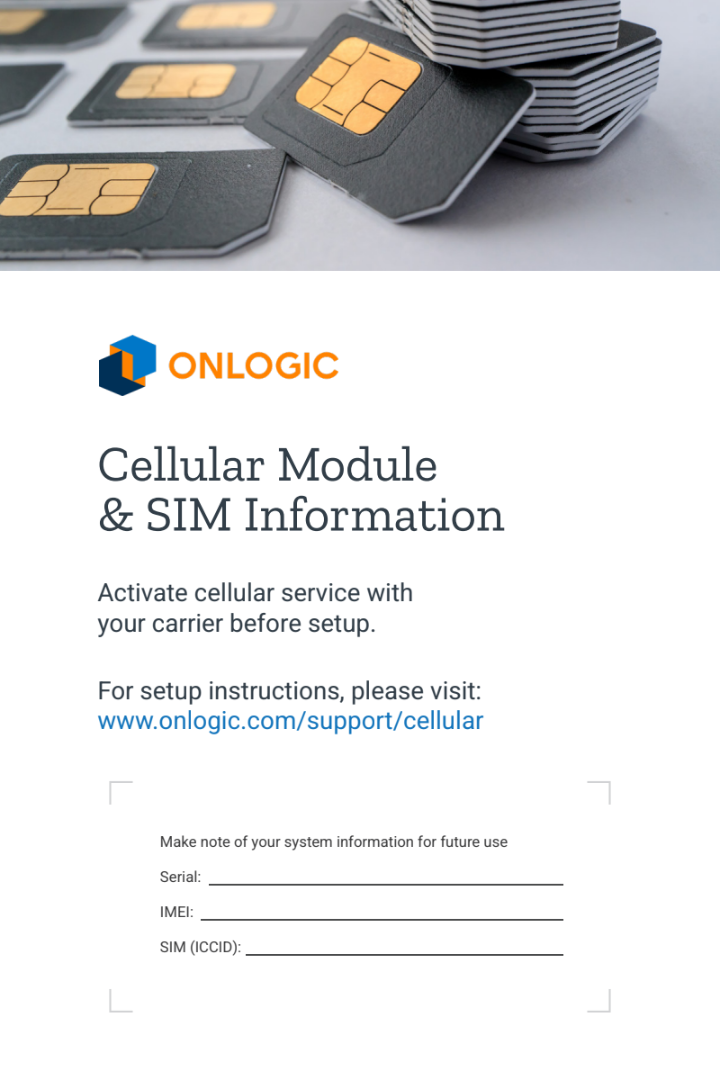
* Locate the Cellular Module booklet that came with your system.
* If an ICCID number is listed, your system already has a SIM card installed internally and is ready to activate. If not, you will need to provide a SIM card. See: [Using an External SIM Slot](#using-the-external-sim-slot)
* Contact your wireless carrier. State that you want to activate an embedded 5G modem and provide the numbers on the front of the booklet.
DCT114 Cellular Insert
## Modem Setup
* Ensure you are in an area with good signal coverage
* Connect both antennas and boot up the OnLogic PC
* Allow the PC to sit for a few minutes and see if a 5G connection is established. If not, continue with the steps below for [Windows](#nwk300-windows-setup-guide) or [Linux](#nwk300-linux-setup-guide)
## Updating the Firmware
Firmware updates can be downloaded from the Telit website linked below.
* [FN990AXX approved FW Packages](https://www.telit.com/fn990axx-download-zone/#:~:text=Download-,FN990A28,-TC_FN990A28_45.00.106_TFI.zip)
* Run the executable and let it complete. Then, power down and unplug the system from power for 10 seconds. When you power it back up, the new firmware will be active.
## Accessing the SIM card
The NWK500 has its own SIM slots on the top side of the carrier card. This is the preferred location to install a SIM card. OnLogic installs any SIM cards here by default.
* Locate the technical resources for your specific model using the OnLogic [support site](https://support.onlogic.com/)
* Use the search box at the top of the site to locate the technical resources page for your model such as "K801", for example.
* Disassemble the PC using the support site instructions to gain access to the modem.
* Once inside locate the NWK500 (Pictured, Note: carrier board color may differ from shown)
* Remove the 1x retaining screw from the top of the modem
* The modem will pop up to a 45 degree angle. Gently remove it from the slot.
* The SIM slots are on the top side of the NWK500 carrier board
* Using the M.2 connector as the bottom reference point, insert, or remove the installed, Nano/4FF SIM into the right SIM slot for SIM0 and left slot for SIM1.
* Note: a SIM card will be pre-installed only if included in your order. You can check the ICCID using the instructions provide in [SIM cards and Activation](#sim-cards-and-activation) without having to physically access an installed SIM card
## Windows Setup Guide
* Ensure you have downloaded and installed [drivers](#drivers)
* Ensure you are in an area with good signal coverage
* Connect both antennas and boot up the OnLogic PC
* Allow the PC to sit for a few minutes and see if a 5G connection is established. If not, continue with the steps below.
### Opening the AT Command Terminal
* Download and install the latest version of the PuTTY tool. [Download Link](https://www.chiark.greenend.org.uk/~sgtatham/putty/)
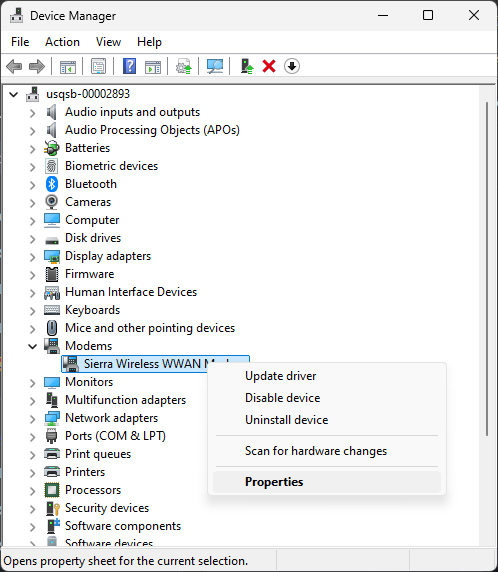
* Open device manager and look for the "Telit USB Modem" under the "Modem" flyout.
{% hint style="info" %}
The modem supports x2 AT port interfaces, which have the same functionality. For this reason you will see two entries for the Telit USB Modem in the Device Manager.
{% endhint %}
* Right click and open Properties
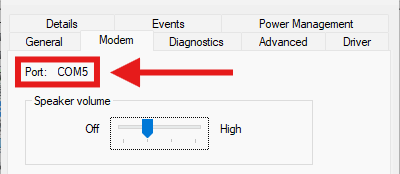
* Go to the Modem tab and note the COM number.
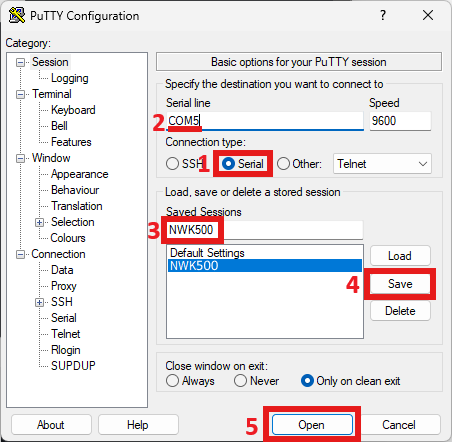
* Open PuTTY and configure these options in the Terminal Category
1. Select the 'Serial' option
2. Change the COM number to match Device Manager
3. Type NWK500 into the Saved Sessions text window
4. Click Save
5. Click Open
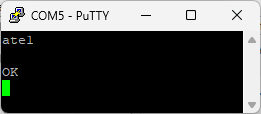
* Begin by typing `ate1` and pressing enter. The terminal should respond with OK. This indicates the modem is ready for commands
## Linux Setup Guide
* Ensure you are in an area with good signal coverage
* Connect both antennas and boot up the OnLogic PC
### Opening the AT Command Terminal (Ubuntu Desktop 24.04)
{% hint style="info" %}
While running AT configuration commands ModemManager will need to be disabled, you can do this with the command `sudo systemctl stop ModemManager.service` . To start ModemManager back up, run the command `sudo systemctl start ModemManager.service` .
{% endhint %}
* Open a terminal window (ctrl+alt+t)
* Install minicom with `sudo apt update && sudo apt install minicom`
* Run minicom setup via the command `sudo minicom -s`
* Select the "Serial port setup" menu option
* Press the 'a' key and modify serial device from "/dev/modem" to "/dev/ttyUSB2". Press enter twice to exit this submenu
{% hint style="info" %}
/dev/ttyUSB2 is the default for a system with no other USB serial devices. You can identify the correct AT port using the `cat /proc/tty/driver/usbserial` the AT port will be the highest numbered QUALCOMM USB modem. In the below image this is '2', corresponding to /dev/ttyUSB2
{% endhint %}
* Select "Save setup as dfl" from the menu, look for the "Configuration Saved" popup
* Select "Exit from Minicom" to return to the shell
* Open the AT port with the `sudo minicom`
* Begin by typing `ate1` and pressing enter. The terminal should respond with OK. This indicates the modem is ready for commands
## Troubleshooting
* Before performing any troubleshooting, ensure you have completed all steps to configure your modem and have activated your SIM card.
### Diagnostic AT Commands
* Open an AT command terminal by following the instructions linked for your operating system
* Windows: [Opening the AT Command Terminal](#opening-the-at-command-terminal)
* Linux: [Opening the AT Command Terminal](#opening-the-at-command-terminal-ubuntu-desktop-24.04)
The commands below can help diagnose various modem issues. OnLogic technical support may request screenshots of the output of each of these commands. If you have reached this point and require additional help, please email and include a copy of these screenshots as well as your system serial number.
Command
Description
ATE1
Enables Echo mode for AT commands, showing the output to the terminal
AT#GETFW
Display firmware information
AT#/
Re-runs the last AT command
AT#SIMSELECT=X
Sets the SIM slot to X (available values: 1,2)
AT#REBOOT
Restarts the modem. Useful when changing firmware mode/version and troubleshooting
AT#SIMPR
Enables/disables the SIM presence status unsolicited indication. Useful for testing SIM card slots and insertion.
AT#ENSIM2=X
Enable/Disable SIM slot 2 by setting X to the following values: 0: Disable 1: Enable
AT+COPS
Check for available networks
AT+CSQ
Display signal quality. Scale from 0-31, 31 being best signal. 99= no signal
AT+ICCID
Print SIM card number. If error, SIM is not configured correctly or not installed.
AT+CGDCONT?
Shows the active APN
AT+CGSN
Prints the IMEI of the modem
{% hint style="info" %}
AT commands using '#' are Telit specific commands. Commands using '+' are base AT commands available to any modem that implements AT commands.
{% endhint %}