> For the complete documentation index, see [llms.txt](https://support.onlogic.com/llms.txt). Markdown versions of documentation pages are available by appending `.md` to page URLs; this page is available as [Markdown](https://support.onlogic.com/product-documentation/industrial-products/cl200-series/cl260/cl260-bios-manual.md).
# CL260 BIOS Manual
BIOS Version 1.04
## 1- Getting Started
### 1.1 - Introduction
The UEFI BIOS is a small program which runs when your computer starts and configures its basic functions. That configuration is automatic, and most users will be satisfied with the default configuration. If the default configuration is not sufficient, the BIOS has setup menus which can be used to reconfigure the computer.
The purpose of this manual is to document the function of the BIOS and its available configuration options. The text of this document lists the BIOS menus and options exactly as they appear in the BIOS menus: in the correct order, with the correct default values for this BIOS version. Some options are hidden based on how other options are set and which hardware is detected in the system, so some options may not appear on all systems. Informative screenshots are also provided throughout, but their contents may not exactly match this BIOS version.
### 1.2 - Navigating the Setup Menu
To access the BIOS setup menu, hold the DEL key on the keyboard while turning on the system. After a few seconds, the BIOS front page menu is shown:
On each menu, the selected option is shown in white, other options are shown in blue, and read-only options are shown in gray. Some menus have multiple screens, which are shown at the top of the screen. The active screen is shown with a gray background and inactive screens are shown with blue backgrounds.
BIOS menus are navigated by pressing keys on the keyboard:
* F1 shows help on available keyboard shortcuts
* ↑/↓ arrow keys select the option above or below the currently-selected option
* →/← arrow keys activate the screen to the right or left of the currently-activated screen
* Enter activates the selected option. If that option is a menu, it is opened. If it is a configuration option, a dialog is opened to select a new value.
* F5/F6 change the selected option to its previous or next value
* Esc returns to the previous menu
* F9 restores all options to their factory default values
* F10 saves all options and restarts the system
### 1.3 - Boot manager
To access the BIOS boot manager, hold the F10 key on the keyboard while turning on the system. After a few seconds, the BIOS boot manager is shown:
## 2- Onlogic Features
### 2.1 - Secure Boot
To access the Secure Boot Menu, hold the **Ctrl+Alt+F4** key on the keyboard while turning on the system. After a few seconds, the Secure Boot menu is shown:
* The system will prompt you to set admin passwords to configure secure boot for the first time.
* Enter the admin password to access the secure boot setting page.
### 2.2 - Error LED
The Error LED is effectively controlled by BIOS based on the following conditions:
| **Faulty condition** | **Error LED** | **When to detect** |
| ---------------------------- | ------------- | ------------------ |
| DIMM error | Constant on | At BIOS boot-up |
| No boot device found | Slow blinking | At BIOS boot-up |
| RTC coin cell battery < 2.5V | Fast blinking | At BIOS boot-up |
Blinking frequencies:
* Slow blinking: 0.5 Hz (Blinks once every two seconds)
* Medium blinking: 1 Hz (Blinks once every second)
* Fast blinking: 4 Hz (Blinks four times every second)
### 2.3 - Low RTC Battery Voltage Warning
When RTC battery is low, BIOS will display "Warning: Low RTC battery" for 30 seconds during the BIOS POST.
### 2.4 - Crisis Recovery
If a BIOS update is interrupted, your system may fail to boot. The system will attempt to recover in two ways:
**1. Automatic Recovery**
The system will automatically try to restore the original BIOS image.
* Look for the text "Crisis Recovery" on your screen.
* This indicates the repair is in progress.
**2. Manual Recovery (USB Method)**
If the system keeps rebooting and does not recover automatically, follow these steps:
1. Save a valid BIOS image file onto a USB flash drive.
2. Rename the file to: `CL260.bin`
3. Insert the USB drive into the computer.
4. The system will automatically find the file and repair the BIOS.
### 2.5 - Factory Reset Button
You can enable the Factory Reset Button under Onlogic Feature Configuration of the BIOS setup menu
#### How to Perform a Factory Reset
1. Turn off the system completely.
2. Press and hold the Factory Reset button.
3. While still holding Reset, press the Power button to turn the system on.
4. Wait 5 seconds after the system powers up, then release the Factory Reset button.
The Result:
* All BIOS settings return to default.
* Admin passwords are deleted.
### 2.5 - SSD S.M.A.R.T Health Check
SSD S.M.A.R.T Health Check is enabled by default in the Onlogic Feature Configuration
BIOS will check the SSD health status and display warnings if the status is bad for 30 seconds
### 2.6 - System Watchdog Timer
* Normal Operation: Once the computer boots to an OS, the BIOS constantly resets a hidden countdown timer to prove the system is still running smoothly.
* If the system freezes ("hangs") and stops working, it fails to reset that timer.
* When the timer runs out (hits zero), it automatically forces the computer to restart to recover from the freeze.
### 2.7 - To Enable In-Band ECC
To enable In-Band ECC in the memory configuration page, Intel Trusted Execution Technology must be disabled in the CPU configuration page.
## 3 - Main Menu
Several options are available on the Main page:
* Platform information: a comprehensive summary of the computer's hardware components and firmware details
* Language: Select which language to display
* System Time: adjust RTC time
* System Date: adjust RTC date
## 4 - Advanced Menu
The Advanced menu contains the following options:
* BT
* Enable/Disable BT module
* WIFI
* Enable/Disable WiFi module
* LAN WAKE
* Enable/Disable LAN WAKE
* USB Type-A S4/S5 keep power
* Enabled to make USB A continue to supply power in S4/S5
* Serial Port
* Select RS485/RS422/RS232/Loopback function
* Hardware Monitor
* Display voltage information
* Onlogic Feature Configuration
* Onlogic features described in Section 2 above
* **RC Advanced Menu**
* Advanced settings on platform
* **Boot Configuration**
* Configure boot settings
* Advanced Platform Information
* Console Redirection Configuration
* Console redirection allows the input and output of a computer's console to be rerouted to another device or location, often for remote management or troubleshooting.
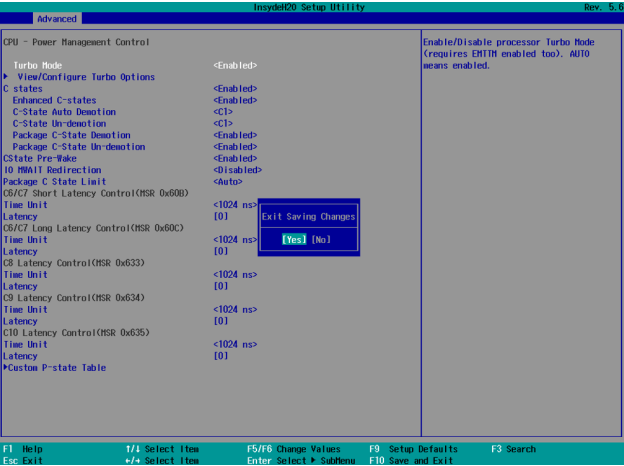
### 4.1 - RC Advanced Menu - Turbo Mode
Enabling Turbo Mode on the CL260 Description By default, Turbo Mode is disabled in the shipping BIOS to prevent total power consumption from exceeding the maximum output of the power adapter, particularly when Power over Ethernet (PoE) is utilized to power external devices.
If you are not using PoE as a power source, you may follow the instructions in this guide to enable Turbo Mode via the BIOS Setup Utility.
#### Instructions for Enabling Turbo Mode
1. Power on the system and press \[DEL] to enter the BIOS Setup Utility. Navigate to the \[Advanced] tab and select \[RC Advanced Menu].
2. Within the \[RC Advanced Menu], select \[Power & Performance].
3. In the \[Power & Performance] menu, select \[CPU Power Management Control].
4\. Locate \[Turbo mode] at the top of the menu. Select this item and press \[ENTER] to change the value from \[Disabled] to \[Enabled]. No other settings need to be modified.
5\. Press \[F10] to save your changes and exit the BIOS Setup Utility. Turbo Mode is now enabled on your CL260.
## 5 - Security Menu

The Security menu contains the following options:
* **Current TPM Device** (read-only; possible values: Not Detected, TPM 1.2, TPM 2.0)
* **TPM Active PCR Hash Algorithm** (read-only)
* **TPM Hardware Supported Hash Algorithm** (read-only)
* **BIOS Supported Hash Algorithm** (read-only)
* **TrEE Protocol Version** (default value: 1.1; possible values: 1.0, 1.1)
* **TPM Availability** (default value: Available; possible values: Available, Hidden) When Hidden, don’t exposes TPM to OS
* TPM Operation - a command setting that tells the computer what to do with the security chip the next time it reboots.
## 4 - Power Management Menu
The Power menu contains the following options:
* **Wake on RTC from S5**
* Auto wake on S5, By Day of Month or Fixed time of every day
* **Restore AC Power Loss**
* Select Power Off/ Power On/ Last State after power loss restore
## 5 - Boot Menu
The Boot menu contains the following options:
* **Network Stack**
* Network Stack Support: Windows 8 BitLocker Unlock, UEFI IPv4/IPv6 PXE, Legacy PXE OPROM
* **PXE Boot capability**
* Disabled : Support Network Stack
* UEFI PXE : IPv4/IPv6
* Legacy : Legacy PXE OPROM only
* **Boot Device Type Order**
* Change boot device type order
* **Hard Disk Drive**
* Change hard drive boot order
* **Others**
* Changer other device boot order
## 6 - Exit Options

The exit screen provides options to leave the setup utility and to load and save settings.
* **Exit Saving Changes**: saves the current configuration and restarts the system to apply it
* **Save Change Without Exit**: saves the current configuration but does not restart the system
* **Exit Discarding Changes**: returns to the front page without saving or applying the current configuration
* **Load Optimal Defaults**: loads the factory default configuration
* **Load Custom Defaults**: loads a previously saved custom configuration
* **Save Custom Defaults**: saves the current configuration so it can be loaded later
* **Discard Changes**: restores the current configuration to its original state