# HX520 / K520 MCU Manual

![](/files/OEEMY9Of1YtKuf95zR2R)

## <mark style="color:blue;">1- Revision History</mark> <a href="#hy89qvvxkgqp" id="hy89qvvxkgqp"></a>

| **Revision** | **Description**                 | **Date**   |
| ------------ | ------------------------------- | ---------- |
| 1.0          | Initial Release                 | 05/27/2025 |
| 1.5          | Updated for K520 Series Release | 07/23/2025 |

## <mark style="color:blue;">2- Documents and Downloads</mark> <a href="#myyqqv1vfsmi" id="myyqqv1vfsmi"></a>

| **Description**                                     | **Link**                                                                                                                                                                |
| --------------------------------------------------- | ----------------------------------------------------------------------------------------------------------------------------------------------------------------------- |
| LPMCU Tool and Python Package                       | [Download](https://support.onlogic.com/product-documentation/industrial-products/helix-hx500-series/hx520-k520/pages/Y0xmfzaTih3yofxTdQgr#id-4.2-drivers-and-downloads) |
| CAN BUS Driver Installation and Program Environment | [Instructions and Repository Link](#wsq9cgkcl6uf)                                                                                                                       |

## <mark style="color:blue;">3- Feature Overview</mark> <a href="#ftqocti3l9mb" id="ftqocti3l9mb"></a>

The Helix 520 and Karbon 520 Series have an embedded power sequencing controller and support isolated Digital Input Output (DIO) and Controller Area Network (CAN) add-in-cards. OnLogic may provide updates for the embedded sequencing controller over the product’s lifetime for feature enablement or product improvements.

The DIO module has 8 input and 8 output pins, an intrusion detection pin, two contact modes, and supports firmware updates. OnLogic provides a Low Power Micro Controller Unit (LPMCU) command line utility to interact with the DIO microcontroller. Additionally, a custom Python package is provided in [Section 2 ](#myyqqv1vfsmi)to natively embed the LPMCU tool functionality in scripting environments.

The Helix 520 and Karbon 520 Series CAN add-in-card supports a 2 channel CAN 2.0 A/B interface with configurable bitrates from 100k – 1M. CAN bus control can be programmatically automated on Linux using the [SocketCAN](https://docs.kernel.org/networking/can.html) interface or on Windows via a custom C++ API. More information can be found on the CAN module in [Section 5](#evkgwy9effdz).

### <mark style="color:blue;">3.1- MCU Firmware Update Process</mark> <a href="#aqb85cjeb8kq" id="aqb85cjeb8kq"></a>

The Helix 520 and Karbon 520 Series support In-System Firmware Updates to both the DIO and power sequence microcontroller using the LPMCU tool from the download link provided in [Section 2](#myyqqv1vfsmi). To update the embedded sequence controller, the communications port must be enabled in the BIOS (see 3.1.1) before running either the Windows or Linux tool (3.1.2 / 3.1.3). The DIO controller VCOM port is always enabled when the add-in card is installed.

#### <mark style="color:blue;">3.1.1- Enable Communication Port in Sequence MCU</mark> <a href="#go4nsroj45j7" id="go4nsroj45j7"></a>

1. Power on the system and repeatedly press the “Delete” key to access the “Front Page” menu
2. Choose “Setup Utility”
3. Navigate to Advanced > PCH-IO Configuration > Serial IO Configuration
4. Locate “UART0 Controller”
5. Change it to “Communication port \<COM>” to enable communication port.
6. Press F10 to Save & Exit

#### <mark style="color:blue;">3.1.2- Using Windows command prompt:</mark> <a href="#khn4bnvztorz" id="khn4bnvztorz"></a>

```bash
$$ lpmcu-tool.exe -p COMx version 
[yyyy-mm-ddThh:mm:ssZ INFO  lpmcu_actions] Opening COMx...
[yyyy-mm-ddThh:mm:ssZ INFO  lpmcu_actions::connection] Reading the firmware version...
0.0.2

$ lpmcu-tool.exe -p COMx flash path-to-binary/xxxx.bin
[yyyy-mm-ddThh:mm:ssZ INFO  lpmcu_actions] Opening COMx...
[yyyy-mm-ddThh:mm:ssZ INFO  lpmcu_actions] Reading update file: "path-to-binary/xxxx.bin"
[yyyy-mm-ddThh:mm:ssZ INFO  lpmcu_actions::connection] Erasing flash region 000xxxxx-000yyyyy
[yyyy-mm-ddThh:mm:ssZ INFO  lpmcu_actions::connection] Writing binary
[yyyy-mm-ddThh:mm:ssZ INFO  lpmcu_actions::connection] Requesting MCU reset at next reboot
Done! Shut down system to apply the update.

```

After completing the firmware update, the system must be shut down (reaching S5 state) in order to allow the new firmware to be loaded and executed properly.

#### <mark style="color:blue;">3.1.3- Using Linux-Ubuntu Terminal</mark> <a href="#id-2jqgr035q8qo" id="id-2jqgr035q8qo"></a>

```bash
// access the lpmcu-tool tool
$ chmod +x ./lpmcu-tool
// to find the ttyS number at MMIO that has baud rate 115200
$ dmesg | grep -i ttyS 
$ ./lpmcu-tool -p /dev/ttySx version 
$ ./lpmcu-tool -p /dev/ttySx flash xxxx.bin
```

## <mark style="color:blue;">4- Helix 520 / Karbon 520 Series Isolated DIO Module</mark>

The optional digital input/output (DIO) add-in-card (USB-16DIO-01) adds 8 digital inputs, 8 digital outputs, and an additional intrusion (INT) pin to the system.

### <mark style="color:blue;">4.1- DIO Pinouts and Definitions</mark> <a href="#jtj6zwgti8m" id="jtj6zwgti8m"></a>

| Pin | Definition          | Pin   | Definition           |
| --- | ------------------- | ----- | -------------------- |
| -   | ISO\_GND            | +     | Power (VIN)/VIO+     |
| DI0 | Digital input pin 0 | DO0   | Digital output pin 0 |
| DI1 | Digital input pin 1 | DO1   | Digital output pin 1 |
| DI2 | Digital input pin 2 | DO2   | Digital output pin 2 |
| DI3 | Digital input pin 3 | DO3   | Digital output pin 3 |
| DI4 | Digital input pin 4 | DO4   | Digital output pin 4 |
| DI5 | Digital input pin 5 | DO5   | Digital output pin 5 |
| DI6 | Digital input pin 6 | DO6   | Digital output pin 6 |
| DI7 | Digital input pin 7 | DO7   | Digital output pin 7 |
| INT | Intrusion           | GND\* | ISO\_GND             |

*\*GND is provided as a return path for the intrusion detection switch. It is shared with the DIO - pin (ISO\_GND).*

### <mark style="color:blue;">4.2- DIO Functionality</mark> <a href="#c47rrukiaho5" id="c47rrukiaho5"></a>

The outputs function as open drains. The inputs are high impedance. Both DI and DO can be configured in two modes as detailed in the table below.

|    | **Wet contact mode (default)**                         | **Dry contact mode**                                 |
| -- | ------------------------------------------------------ | ---------------------------------------------------- |
| DI | <p>logic 0 - 10 to 30VDC</p><p>logic 1 - 0 to 3VDC</p> | <p>logic 0 - shorted to GND</p><p>logic 1 - Open</p> |
| DO | power is supplied externally (5 - 30V)                 | internal powered                                     |

#### <mark style="color:blue;">DO Wet Contact Mode (Suitable for Inductive Load Operation)</mark> <a href="#iu6j1yp81b4j" id="iu6j1yp81b4j"></a>

To function properly, pin V+ of the module should be connected to external power and ground. The high side of the load should be connected to the external power source, and the low side to the module DO pin. Load current should not exceed 150 mA. Voltage ranges should be 5 V to 30 V.

Setup required for Output:

![](/files/RTYUpVS39vBdxf9jO7Ne)

#### <mark style="color:blue;">DO Dry-Contact Mode</mark> <a href="#jljkwj6ia4p7" id="jljkwj6ia4p7"></a>

Voltage is provided by the system. Each DO will output 11 V - 12.6 V when active.

Setup required for Output:

<figure><img src="/files/quF7rbqtUptovDnKyZSQ" alt="" width="375"><figcaption></figcaption></figure>

#### <mark style="color:blue;">DI Wet Contact Mode</mark> <a href="#zi5tgwt8j9l" id="zi5tgwt8j9l"></a>

There is no internal pull up to the DI\[0:7] pins when set to WET mode. Externally supplied 5 - 30V is recognized as logic 0 and 0 - 3V as logic 1 when DI\[0:7] pins are set to wet contact mode.

Setup required for Input:

![](/files/mcl5E3Gd7Vp5It8Vn0lA)

#### <mark style="color:blue;">DI Dry Contact Mode</mark> <a href="#nqpt31k2bs6b" id="nqpt31k2bs6b"></a>

When the contact type is set to DRY mode, DI\[0:7] are pulled up to the internal isolated \~12V supply. An open/floating connection is recognized as logic 0 and a short to GND as logic 1 when DI\[0:7] pins are set to dry contact mode.

Setup required for Input:

<figure><img src="/files/iBaAy19bEVZnLl5lEl6v" alt="" width="366"><figcaption></figcaption></figure>

### <mark style="color:blue;">4.3- Device Usage</mark> <a href="#id-67wgvkoksn6o" id="id-67wgvkoksn6o"></a>

The DIO card uses the USB-CDC communication protocol. On Windows, it will show up as “USB Serial Device (COMx)” in the device manager. On Linux, it will show up as “/dev/ttyACMx” in the serial device list.

#### <mark style="color:blue;">DIO Programming</mark> <a href="#qe2ckg8wihpa" id="qe2ckg8wihpa"></a>

The pin states and contact types of DIO add-in-card can be controlled and read from using the LPMCU tool and Python API.

**Command Summary of LPMCU**

| **Command**    | **Description**                    | **Parameters**                                | **Returns**                    |
| -------------- | ---------------------------------- | --------------------------------------------- | ------------------------------ |
| get-di         | Read digital input pin state       | Pin val (0-7)                                 | (false:logic 0, true: logic 1) |
| get-do         | Read digital output pin state      | Pin val (0-7)                                 | (false:logic 0, true: logic 1) |
| set-do         | Set digital output pin state       | Pin val (0-7) \| state (false:low, true:high) |                                |
| set-di-contact | Set digital input contact type\*   | (false:wet, true:dry)                         |                                |
| set-do-contact | Set digital output contact type\*  | (false:wet, true:dry)                         |                                |
| get-di-contact | Read digital input contact type\*  |                                               | (false:wet, true:dry)          |
| get-do-contact | Read digital output contact type\* |                                               | (false:wet, true:dry)          |

*\*See section 4.2 for mode definitions.*

**From Windows Command Prompt:**

```bash
// Set digital output contact type as dry
lpmcu-tool.exe -p COMx set-do-contact true

// Set digital output 0 
lpmcu-tool.exe -p COMx set-do 0 true

// Clear digital output 0 
lpmcu-tool.exe -p COMx set-do 0 false

// Read the state of digital input 0 
lpmcu-tool.exe -p COMx get-di 0
```

**Using Ubuntu Terminal:**

```bash
// Access the lpmcu-tool tool
$ chmod +x ./lpmcu-tool

// Read the state of digital output 0
$ ./lpmcu-tool -p /dev/ttyACMx get-do 0
```

**Python API Link:**

Example code, setup instructions, and API specific documentation for the Python DIO utility are available below:

**Full Link:** <https://github.com/onlogic/onlogic-m031-manager>

### <mark style="color:blue;">4.4- Intrusion Detection</mark> <a href="#id-1tbbv1qtokfx" id="id-1tbbv1qtokfx"></a>

The Helix 520 / Karbon 520 Series provide an intrusion detection feature which is disabled by default. The DIO INT signal is assigned for intrusion detection. The intrusion detection feature must be enabled from the BIOS setup menu.

#### <mark style="color:blue;">Enable Intrusion Detection Steps in BIOS</mark> <a href="#qjohpkbsjm7b" id="qjohpkbsjm7b"></a>

1. Navigate to the BIOS **Setup Utility Menu**.
2. Select **Advanced**.
3. Choose **OnLogic Feature Configuration**.
4. Go to **Intrusion Detect**.
5. Set to **Enabled**.

#### <mark style="color:blue;">Intrusion Alert Mode</mark> <a href="#azn53damtgcr" id="azn53damtgcr"></a>

Power Button Emulation (SCI#)

When an intrusion event is detected in the Operating System environment by shorting the INT pin to ground, a power button press is triggered. The resulting action can be a shutdown, hibernation, sleep or nothing, depending on the OS configuration for power button events.

Perform Power Cycle (SMI#)

As soon as an intrusion event is detected, the system will shut down immediately.

### <mark style="color:blue;">4.5- DIO Firmware Update</mark> <a href="#id-5xlxq0soxr1s" id="id-5xlxq0soxr1s"></a>

The Helix 520 / Karbon 520 Series support In-System Firmware Updates for the DIO add-in-card using the lpmcu-tool which can be accessed within the link provided in Section 2. The commands are shown below with example outputs:

#### <mark style="color:blue;">Using Windows Command Prompt</mark> <a href="#b7au0zh0uaa8" id="b7au0zh0uaa8"></a>

```bash
$ lpmcu-tool.exe -p COMx version 
[yyyy-mm-ddThh:mm:ssZ INFO  lpmcu_actions] Opening COMx...
[yyyy-mm-ddThh:mm:ssZ INFO  lpmcu_actions::connection] Reading the firmware version...
0.0.2

$ lpmcu-tool.exe -p COMx flash path-to-binary/xxxx.bin
[yyyy-mm-ddThh:mm:ssZ INFO  lpmcu_actions] Opening COMx...
[yyyy-mm-ddThh:mm:ssZ INFO  lpmcu_actions] Reading update file: "path-to-binary/xxxx.bin"
[yyyy-mm-ddThh:mm:ssZ INFO  lpmcu_actions::connection] Erasing flash region 000xxxxx-000yyyyy
[yyyy-mm-ddThh:mm:ssZ INFO  lpmcu_actions::connection] Writing binary
[yyyy-mm-ddThh:mm:ssZ INFO  lpmcu_actions::connection] Requesting MCU reset at next reboot
Done! Shut down system to apply the update.

```

#### <mark style="color:blue;">Using Ubuntu-Linux Terminal</mark> <a href="#id-32l6w2ayanxv" id="id-32l6w2ayanxv"></a>

```bash
// access the lpmcu-tool tool
$ chmod +x ./lpmcu-tool
$ dmesg | grep -i ttyACM 
$ ./lpmcu-tool -p /dev/ttyACMx version 
$ ./lpmcu-tool -p /dev/ttyACMx flash xxxx.bin
```

After updating the firmware, an AC power cycle is required to allow the new firmware to be loaded and executed properly.

## <mark style="color:blue;">5- Helix 520 / Karbon 520 CAN Module</mark> <a href="#evkgwy9effdz" id="evkgwy9effdz"></a>

### <mark style="color:blue;">5.1- CAN-Bus Overview</mark> <a href="#geqclmt6lccy" id="geqclmt6lccy"></a>

The optional Helix 520 / Karbon 520 Series CAN (Controller Area Network) add-in card (USB-02CAN-01) provides a two-channel CAN 2.0 A/B interface. The CAN bus consists of two main signal lines: CAN High and CAN Low. CAN High is biased at a high voltage potential of \~3.5 Volts and CAN Low is biased at a low voltage potential of \~1.5 Volts. A nominal voltage measured between the two signal lines will default to \~2.5 Volts, serving as a reliable indicator of the Helix 520 / Karbon 520 Series CAN bus operational status. Additionally, the CAN bus operates in two states: dominant and recessive. The dominant state is represented by logic level 0, while the recessive state is represented by logic level 1. The CAN interface supports configurable bitrates from 10k – 1M.

![](/files/P0MqUjS1Nz1LGBLRZ47C)

**Diagram of a simplified CAN bus network.**

The figure above shows: 1) One termination resistor at each end of the bus, 2) required endpoints of the bus acting as either transmitters or receivers, 3) High and Low CAN bus lines, and 4) additional (optional) network members connected on the same signal lines.

### <mark style="color:blue;">5.2- Driver Installation and Program Environment Setup</mark> <a href="#wsq9cgkcl6uf" id="wsq9cgkcl6uf"></a>

**GitHub Repository Location:** Driver installation instructions, program environment setup instructions, and example source code are found in [this GitHub repository](https://github.com/onlogic/onlogic-f81604n-utilities).

**Full Link:** <https://github.com/onlogic/onlogic-f81604n-utilities>

**Linux:** The driver for the CAN add-in-card is included in the Linux kernel and should automatically be present on Linux Kernel 2.6.2+. If not, refer to the GitHub README in the link above for instructions on installation and usage.

**Windows:** Helix 520 / Karbon 520 Series systems purchased with Windows pre-installed ship with the drivers pre-installed as well. To install the CAN add-in-card driver on non-OEM provided Windows images, please refer to the README in the link above.

## <mark style="color:blue;">6- Automotive Ignition Timings (Karbon 520 Series Only)</mark> <a href="#bsznw5su3mm9" id="bsznw5su3mm9"></a>

### <mark style="color:blue;">6.1- Feature Overview</mark> <a href="#mom2vvqi5mly" id="mom2vvqi5mly"></a>

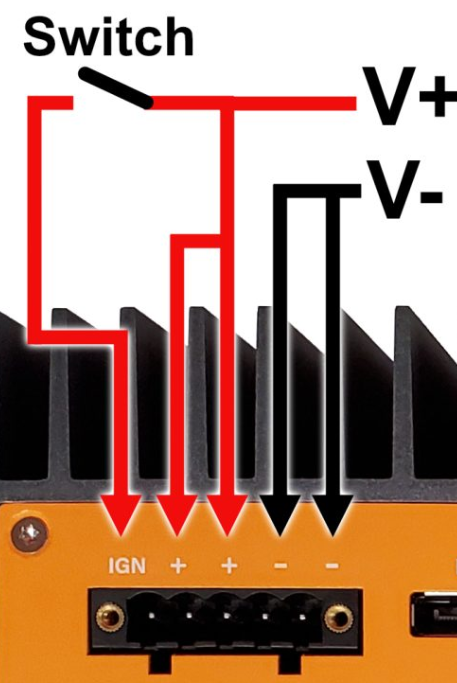
The ignition sense feature can be used to turn Karbon 520 Series units on and off with a battery, or vehicle’s ignition. It can also be used in non-automotive applications using a switch instead.

An example configuration is shown below. The switch connects positive DC power to the IGN pin. The unit will turn on when power is applied to the IGN pin, and turn off when power is removed. These events have configurable delays.

![](/files/NnZe5iWXphpS5HKEl6mx)

### <mark style="color:blue;">6.2- Enabling and Controlling Ignition Sense</mark> <a href="#cs4gmnh2fx2y" id="cs4gmnh2fx2y"></a>

The Karbon 520 Series has three options for controlling automotive settings. The simplest method is to set them through the dedicated BIOS page. The LPMCU command-line tool can also configure automotive settings, provided that the access port in Windows is correctly enabled as described in [Section 3.1.1](#go4nsroj45j7). Additionally, the custom Python package provided in Section 2 can programmatically embed ignition sensing feature control within scripting environments.

**Accessing Automotive Settings** in the BIOS

* Power on the system and repeatedly press the Del to access the BIOS
* Arrow down and choose “Setup Utility” by pressing enter

![](/files/uKa77szlDhM8OhBLApku)

* Navigate to the Advanced tab and open the Automotive Ignition menu.

![](/files/2s3lg17fy1xMstxRxL0z)

* Set Automotive Mode Enabled

![](/files/x9fhvL6oTYDMzHOLi9N0)

* The menu reveals the configurable options that can be set by the user

![](/files/VJ5H8GXFNoV90FXUWNAz)

* Press F10 to save and exit.

**Change Windows Power Button Settings**

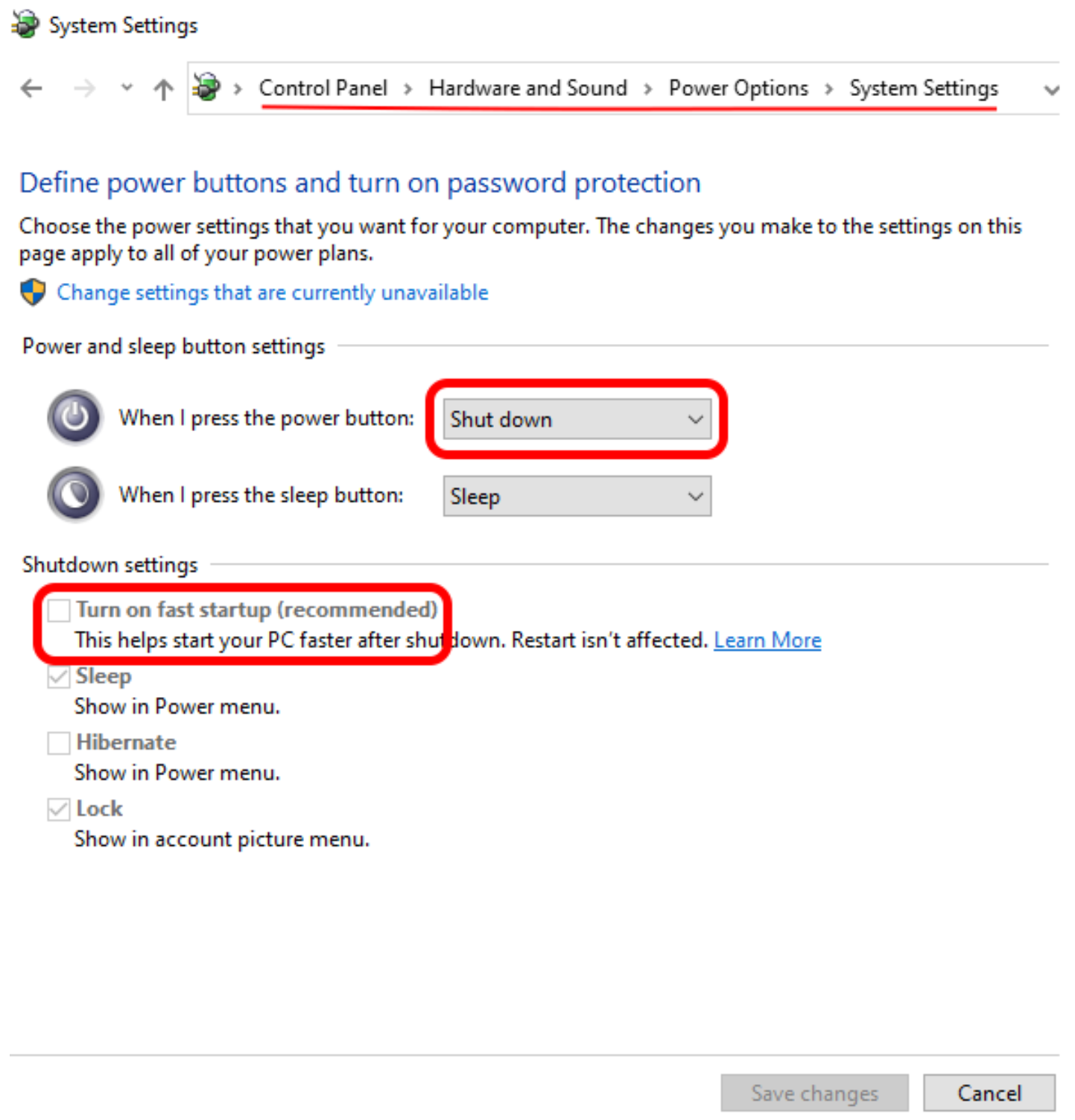
* Ignition sensing simulates a power button press. In Windows, the default behavior of the power button press is to put the system into Sleep mode. Change the power button press behavior to “Shut Down” instead.
* Windows “fast startup” will interfere with ignition sensing, so this should be disabled.&#x20;

  <figure><img src="/files/X4SeNPoxucViOK9YBYzV" alt=""><figcaption></figcaption></figure>

### <mark style="color:blue;">6.3- Ignition Sensing Commands</mark> <a href="#id-3rnq0854qfhz" id="id-3rnq0854qfhz"></a>

| **Command**       | **Description**                                                                                                                                                            | **Possible Values**                       | **Default** |
| ----------------- | -------------------------------------------------------------------------------------------------------------------------------------------------------------------------- | ----------------------------------------- | ----------- |
| automotive-mode   | Enable or disable system automotive ignition mode                                                                                                                          | <p>true:enabled,</p><p>false:disabled</p> | disabled    |
| low-power-enable  | <p>Enter a low-power state when the system powers off.</p><p>The system can only wake from the power button or ignition switch in this power state.</p>                    | <p>true:enabled,</p><p>false:disabled</p> | enabled     |
| startup-timer     | The number of seconds that ignition input must be stable before the system will power on, and input voltage must be recovered from low-voltage shutdown before power on.   | 1-36000 (seconds)                         | 10          |
| soft-off-timer    | The number of seconds until the MCU requests that the system power down via a virtual power button event.                                                                  | 1-36000 (seconds)                         | 10          |
| hard-off-timer    | The number of seconds until the MCU forces the system to power down. This starts only after the soft-off timer or low-voltage-timer expires.                               | 1-36000 (seconds)                         | 30          |
| low-voltage-timer | The number of seconds that the input voltage can be lower than the shutdown threshold before the MCU requests that the system power down via a virtual power button event. | 1-36000 (seconds)                         | 300         |
| shutdown-voltage  | The threshold of input voltage level for triggering a low-voltage shutdown event.                                                                                          | 1.0-48.2 (volts)                          | 10.5        |
| input-voltage     | The current input voltage level of the system.                                                                                                                             | 0-48 (volts)                              |             |

### <mark style="color:blue;">6.4- Example Ignition Settings</mark> <a href="#c3j7lk2dk4cu" id="c3j7lk2dk4cu"></a>

The following shows an example configuration for automotive timings by the LPMCU command line utility. Enter each command consecutively.

The **set** and **get** commands featured within the LPMCU tool are used to configure and retrieve settings:

* **`lpmcu set`**` ``[command] [value]`. This command is used to set or configure parameters related to the LPMCU.
* **`lpmcu get`**` ``[command]`. This command is used to retrieve the current value of a specific LPMCU command.

For further help text, type **lpmcu set help** or **lpmcu get help**

**From Windows Command Prompt:**

```bash
// Enables system automotive ignition mode
lpmcu-tool.exe -p COMx set automotive-mode true

// Set the number of seconds that ignition input must be stable before system will power on as 60 seconds
lpmcu-tool.exe -p COMx set startup-timer 60

// Set the number of seconds until MCU requests system to power down via a virtual power button event as 30 seconds
lpmcu-tool.exe -p COMx set soft-off-timer 30

// Set the number of seconds until MCU forces system to power down as 180 seconds. This starts only after soft-off timer or low-voltage-timer expires
lpmcu-tool.exe -p COMx set hard-off-timer 180

// Set the threshold of input voltage level for triggering low-voltage shutdown event as 12.5 volts
lpmcu-tool.exe -p COMx set shutdown-voltage 12.5

// Set the number of seconds that the input voltage can be lower than the shutdown threshold before MCU requests system to power down via a virtual power button event as 120 sec
lpmcu-tool.exe -p COMx set low-voltage-timer 120

// Get the current input voltage level of the system
lpmcu-tool.exe -p COMx get input-voltage
```


---

# Agent Instructions: Querying This Documentation

If you need additional information that is not directly available in this page, you can query the documentation dynamically by asking a question.

Perform an HTTP GET request on the current page URL with the `ask` query parameter:

```
GET https://support.onlogic.com/product-documentation/industrial-products/helix-hx500-series/hx520-k520/hx520-k520-mcu-manual.md?ask=<question>
```

The question should be specific, self-contained, and written in natural language.
The response will contain a direct answer to the question and relevant excerpts and sources from the documentation.

Use this mechanism when the answer is not explicitly present in the current page, you need clarification or additional context, or you want to retrieve related documentation sections.