# MC510-10 / MC610-10 / MC610-50

## <mark style="color:blue;">Technical Resources</mark>

### Internal Access

The MC610 can be opened by the user. This does not void the warranty, however, any damage caused by doing so will not be covered.

The following steps will walk you through opening your MC610 case, as well as auto-powering on and clearing CMOS.

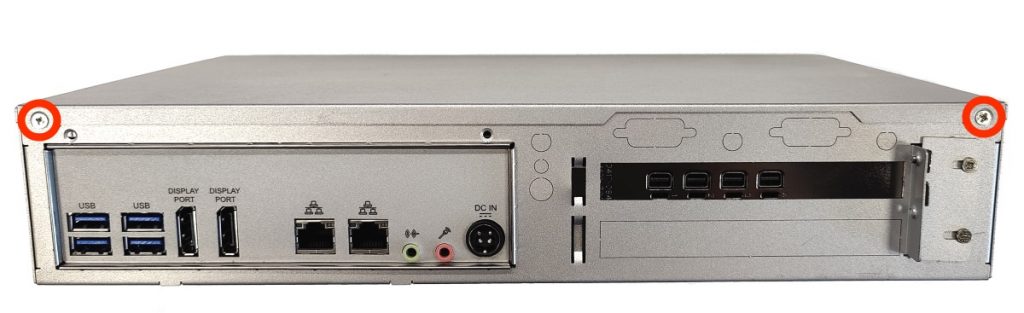
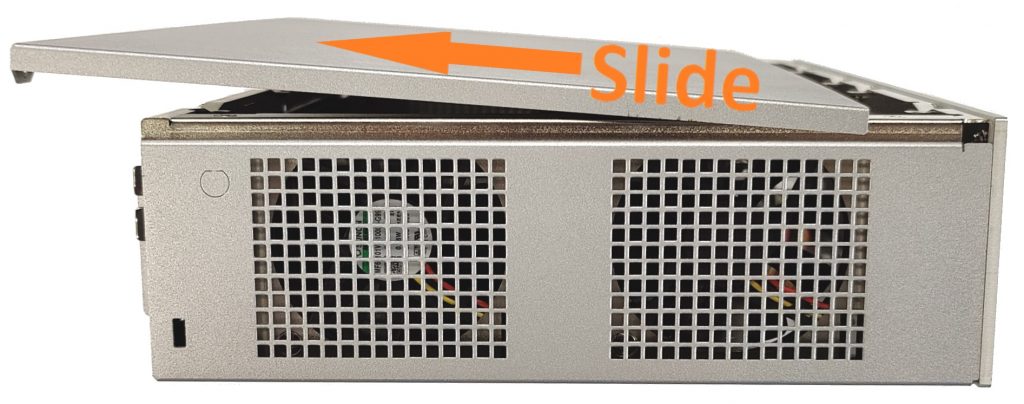
The case is very simple to open. To do so, remove the two screws from the back and slide the lid off towards the rear.

<figure><img src="https://3062424488-files.gitbook.io/~/files/v0/b/gitbook-x-prod.appspot.com/o/spaces%2FlLHqs7kbNoKOFTwGOfH6%2Fuploads%2FKmG20XzU0Hmy1LIpyDSA%2Fimage.png?alt=media&#x26;token=077b89b1-2727-45ec-b476-aaa788be2f0a" alt=""><figcaption></figcaption></figure>

## <mark style="color:blue;">MC510-10 / MC610-10</mark>

### Motherboard

Access the official [Motherboard manual & OEM Resources](https://www.asrockind.com/en-gb/IMB-156) from ASRock. This external link provides access to the complete motherboard manual, along with the latest BIOS updates and specific drivers for your system's motherboard (IMB-156).

### BIOS

**Warning:** Never interrupt a BIOS update. If the update is interrupted, the system may become irreparable. Damage caused as a result of BIOS updates may not be covered by the system's warranty.

You can follow this [<mark style="color:blue;">how-to guide</mark>](https://support.onlogic.com/support-articles/how-tos/firmware-bios-drivers/asrock-bios-update-procedure) for installation instructions.

### Auto Power On

1. Locate the PWR\_JP1 jumper indicated by the orange circle
2. Move PWR\_JP1 over by 1 pin
3. The unit is now configured for auto power on

<figure><img src="https://3062424488-files.gitbook.io/~/files/v0/b/gitbook-x-prod.appspot.com/o/spaces%2FlLHqs7kbNoKOFTwGOfH6%2Fuploads%2F4eUgelvD0HKQhm9ESYCY%2Fimage.png?alt=media&#x26;token=be6eaa6e-8c7f-475d-be9f-91d56f9202a2" alt=""><figcaption></figcaption></figure>

### Clear CMOS <a href="#motherboard-reset-clear-the-cmos-2" id="motherboard-reset-clear-the-cmos-2"></a>

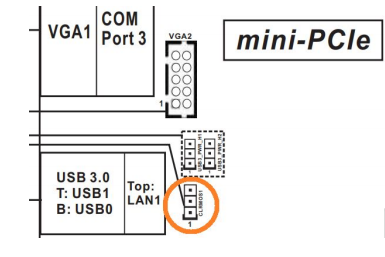
1. Locate the clear CMOS jumper
2. Move the jumper over by 1 pin
3. Wait 30 seconds
4. Restore the jumper to its original position
5. The CMOS is now clear

<figure><img src="https://3062424488-files.gitbook.io/~/files/v0/b/gitbook-x-prod.appspot.com/o/spaces%2FlLHqs7kbNoKOFTwGOfH6%2Fuploads%2FroI9dR7ZJc2u2XBD9RGa%2Fimage.png?alt=media&#x26;token=592dc36b-d241-4e00-af34-2fe9cb2a38ce" alt=""><figcaption></figcaption></figure>

***

## <mark style="color:blue;">MC610-50</mark>

### Motherboard

Access the official [Motherboard manual & OEM Resources](https://www.asrockind.com/en-gb/IMB-1212) from ASRock. This external link provides access to the complete motherboard manual, along with the latest BIOS updates and specific drivers for your system's motherboard (IMB-1212).

#### Using multiple displays <a href="#using-multiple-displays" id="using-multiple-displays"></a>

By default, only the Mini DP ports in the expansion bay are enabled. The motherboard’s onboard HDMI and VGA ports can be enabled in the BIOS to support additional displays.

{% code overflow="wrap" %}

```
Press the Del and F2 keys at startup to access the BIOS.

Navigate to Advanced > Chipset Configuration. Set the following options: 

Primary Graphics Adapter   [Onboard]
IGPU Multi-Monitor   [Enabled]
Active LVDS  [Disabled]

Press F10 to Save & Exit. 
The onboard HDMI/VGA are now used as the primary display ports and all ports are enabled. 
```

{% endcode %}

### BIOS

**Warning:** Never interrupt a BIOS update. If the update is interrupted, the system may become irreparable. Damage caused as a result of BIOS updates may not be covered by the system's warranty.

You can follow this [how-to guide](https://support.onlogic.com/support-articles/how-tos/firmware-bios-drivers/asrock-bios-update-procedure) for installation instructions.

### Auto Power On

1. Locate the PWR\_JP1 jumper indicated by the orange circle
2. Move PWR\_JP1 over by 1 pin
3. The unit is now configured for auto power on

<figure><img src="https://3062424488-files.gitbook.io/~/files/v0/b/gitbook-x-prod.appspot.com/o/spaces%2FlLHqs7kbNoKOFTwGOfH6%2Fuploads%2F4eUgelvD0HKQhm9ESYCY%2Fimage.png?alt=media&#x26;token=be6eaa6e-8c7f-475d-be9f-91d56f9202a2" alt=""><figcaption></figcaption></figure>

### Clear CMOS <a href="#motherboard-reset-clear-the-cmos-2" id="motherboard-reset-clear-the-cmos-2"></a>

1. Locate the clear CMOS jumper
2. Move the jumper over by 1 pin
3. Wait 30 seconds
4. Restore the jumper to its original position
5. The CMOS is now clear

<figure><img src="https://3062424488-files.gitbook.io/~/files/v0/b/gitbook-x-prod.appspot.com/o/spaces%2FlLHqs7kbNoKOFTwGOfH6%2Fuploads%2FroI9dR7ZJc2u2XBD9RGa%2Fimage.png?alt=media&#x26;token=592dc36b-d241-4e00-af34-2fe9cb2a38ce" alt=""><figcaption></figcaption></figure>

### DC Jack Installation (TM610)

<figure><img src="https://3062424488-files.gitbook.io/~/files/v0/b/gitbook-x-prod.appspot.com/o/spaces%2FlLHqs7kbNoKOFTwGOfH6%2Fuploads%2Fgit-blob-5f8ac7bdddfff8f132421418e51131e8c5534589%2F2f3c68fc9b4cbfe0d9a29ae087a1311f97e6678171844c589eb1e6d997ba1256.png?alt=media" alt="" width="375"><figcaption></figcaption></figure>

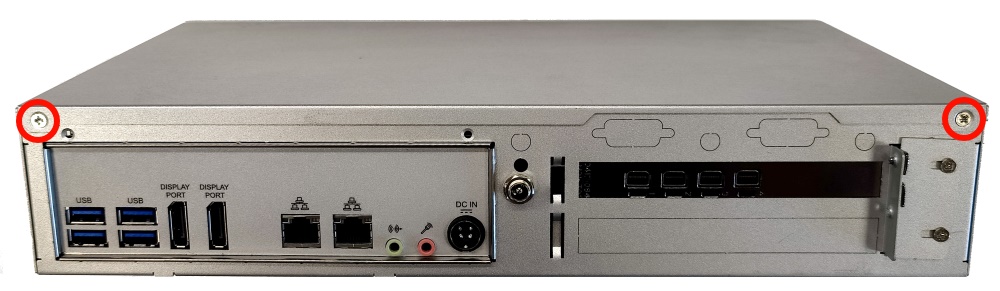
* Begin by removing the top 2 screws from the back of the unit.

<figure><img src="https://3062424488-files.gitbook.io/~/files/v0/b/gitbook-x-prod.appspot.com/o/spaces%2FlLHqs7kbNoKOFTwGOfH6%2Fuploads%2Fgit-blob-4f0b14bc12fe4a47760479a1b90095560e112d25%2F11cf4bc90029dbefa0285f4aff4cab3f5a2aa6ed0cb4814816edf4fd19836995.png?alt=media" alt="" width="375"><figcaption></figcaption></figure>

* Slide the lid off towards the back

<figure><img src="https://3062424488-files.gitbook.io/~/files/v0/b/gitbook-x-prod.appspot.com/o/spaces%2FlLHqs7kbNoKOFTwGOfH6%2Fuploads%2Fgit-blob-71116e3466d601ba3a722688cbb7486b1c2a2d35%2F5838114fc26a3c7fcba3ee854a50bff26ef8d8734aaabc3e679de0611cb1ab82.png?alt=media" alt="" width="375"><figcaption></figcaption></figure>

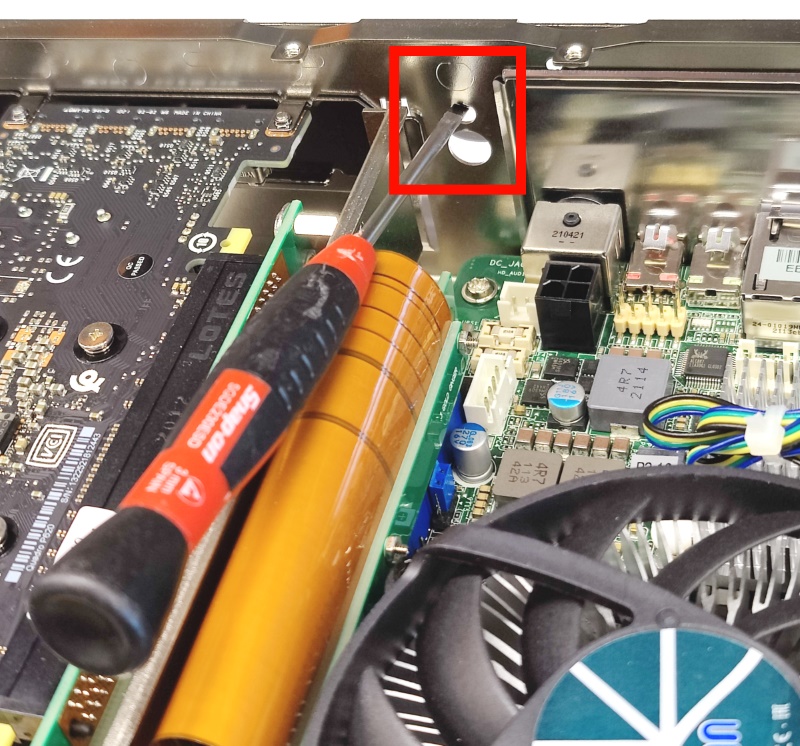
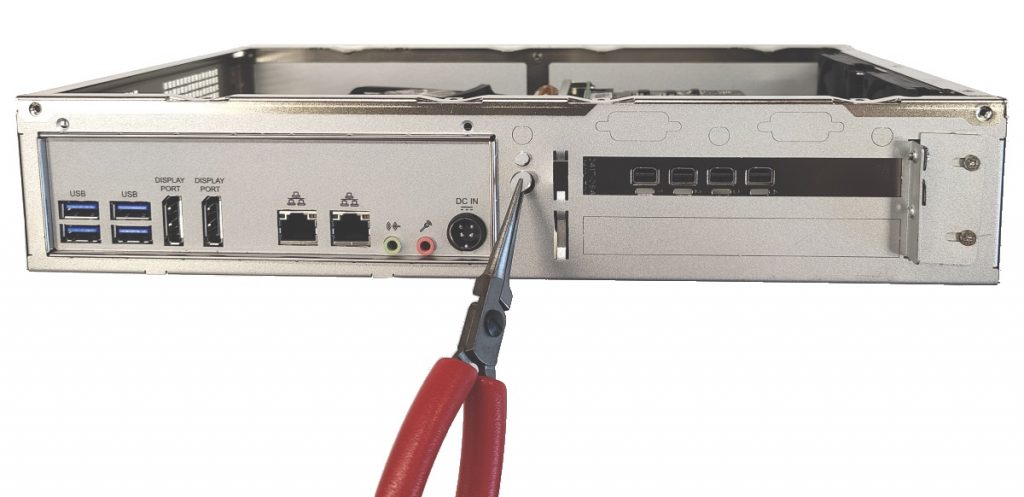
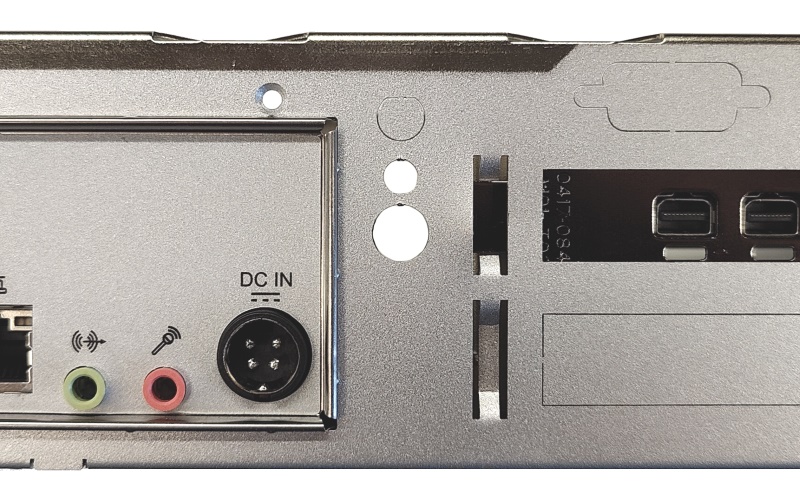
* Use a screwdriver to push out the two knockouts shown

<figure><img src="https://3062424488-files.gitbook.io/~/files/v0/b/gitbook-x-prod.appspot.com/o/spaces%2FlLHqs7kbNoKOFTwGOfH6%2Fuploads%2Fgit-blob-70400d379180043ee6b853eee3358ca4825b6aa6%2Fa5e378320deb41d68ecd3f57c42ee013ab7d68b429ed36c72e4065af276a13a1.png?alt=media" alt="" width="375"><figcaption></figcaption></figure>

* Grab the knockouts with pliers and twist to remove

<figure><img src="https://3062424488-files.gitbook.io/~/files/v0/b/gitbook-x-prod.appspot.com/o/spaces%2FlLHqs7kbNoKOFTwGOfH6%2Fuploads%2Fgit-blob-c9211ff3abcad4f914c214a2f7e0f6f3fbe4cc71%2Fd802eb5799e8bf61038abd702c10f5d3fa67cc9baf50b93706a39b5becefda9b.png?alt=media" alt="" width="375"><figcaption></figcaption></figure>

* final result shown

<figure><img src="https://3062424488-files.gitbook.io/~/files/v0/b/gitbook-x-prod.appspot.com/o/spaces%2FlLHqs7kbNoKOFTwGOfH6%2Fuploads%2Fgit-blob-3b9bcf43b1c5021bffbc8cf8eee1ea105579b764%2Ff5f490a5b53dd91651b3fb16cc91c4d5398e8e14bbc6a8158ac1e5754003be37.png?alt=media" alt="" width="375"><figcaption></figcaption></figure>

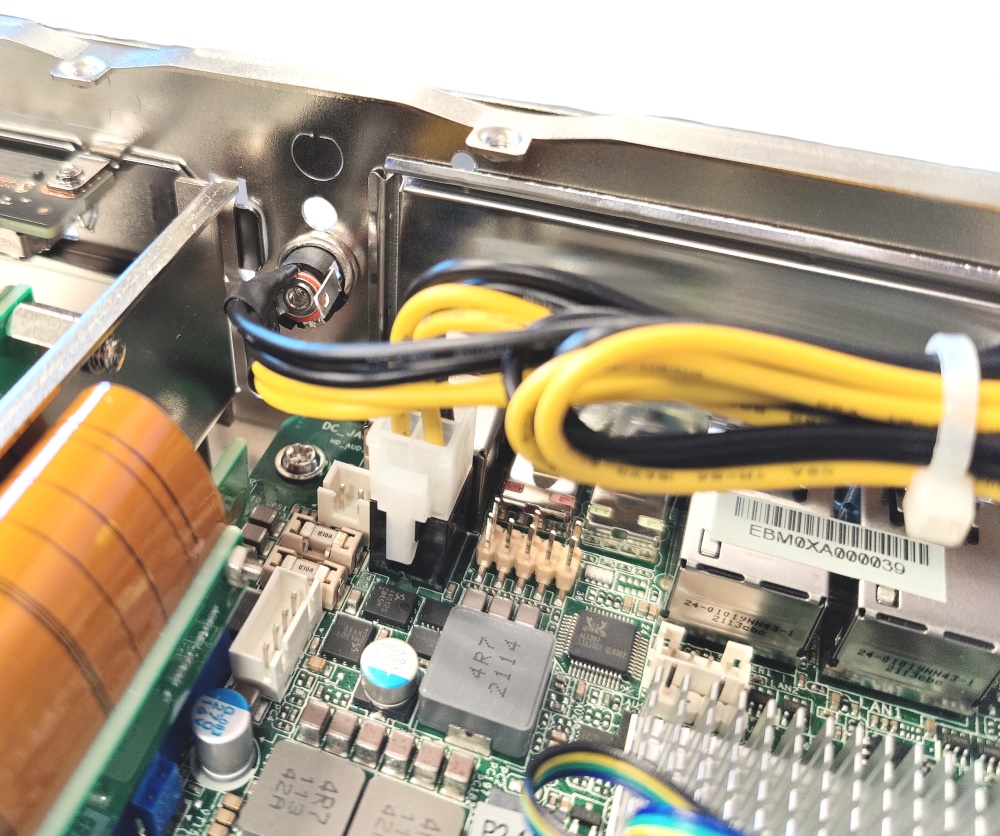
* Connect the 4 pin plug to the motherboard. It only fits 1 way. Push down gently until it clicks in.
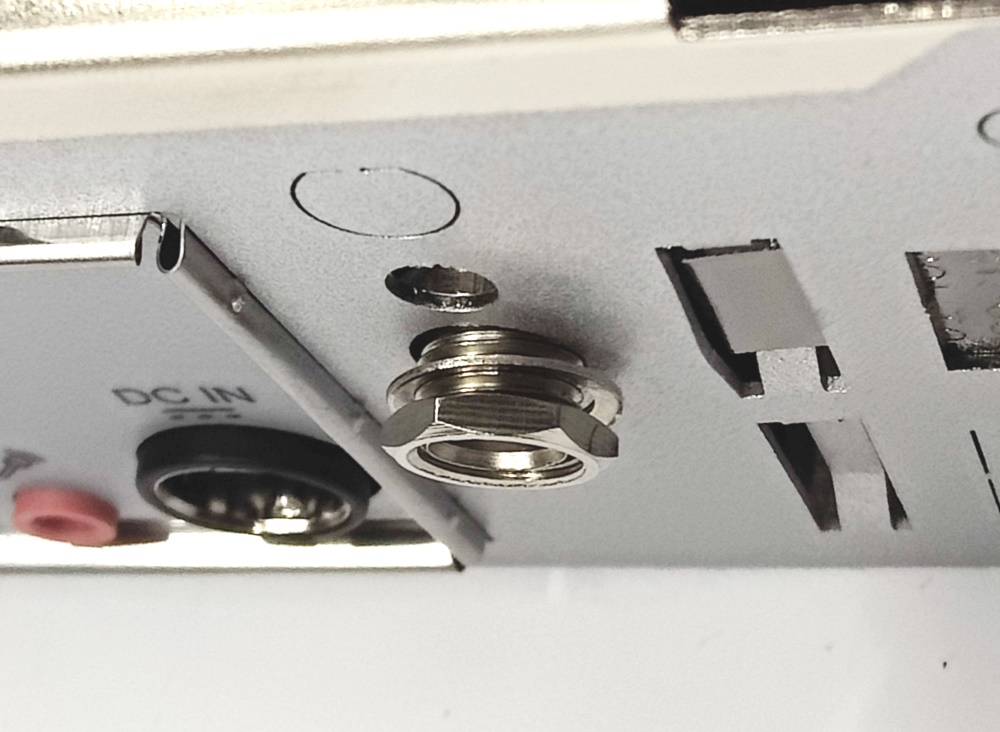
* Remove the nut and washer from the DC jack.
* Push the DC jack through the larger of the 2 holes.

<figure><img src="https://3062424488-files.gitbook.io/~/files/v0/b/gitbook-x-prod.appspot.com/o/spaces%2FlLHqs7kbNoKOFTwGOfH6%2Fuploads%2Fgit-blob-07744422936c43eab5967ce7e16cd10ff13a38bf%2F60cc9c122acb0308ba80cf6740fbc06602aff31665c3076e4757d00a071e923f.png?alt=media" alt="" width="375"><figcaption></figcaption></figure>

* Install the washer and then the nut onto the DC jack from the outside of the case.
* Hand tighten.

<figure><img src="https://3062424488-files.gitbook.io/~/files/v0/b/gitbook-x-prod.appspot.com/o/spaces%2FlLHqs7kbNoKOFTwGOfH6%2Fuploads%2Fgit-blob-53ba7d7adfa6cd804b284b2601bec6c670f5b76f%2F648b8e081d8f53bdbfd1b996cb55fcdbb105c773177d5980ff41861c55e058be.png?alt=media" alt="" width="375"><figcaption></figcaption></figure>

* Slide the lid back on and reinstall the two screws

<figure><img src="https://3062424488-files.gitbook.io/~/files/v0/b/gitbook-x-prod.appspot.com/o/spaces%2FlLHqs7kbNoKOFTwGOfH6%2Fuploads%2Fgit-blob-6a0df6e7c356b2121ffb54e642abd17e28b78ad9%2F00270416329417393ffa775d4009f1f5215caa867ba76e0e6c1e3efdefdaa59c.png?alt=media" alt="" width="375"><figcaption></figcaption></figure>

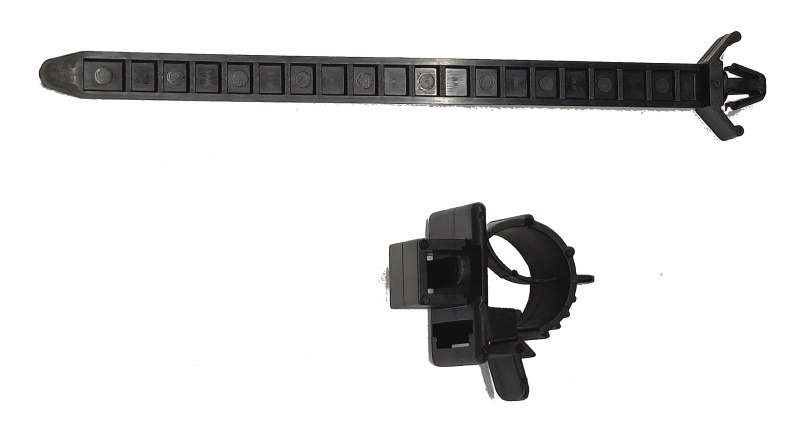
* Grab the retaining zip tie kit

<figure><img src="https://3062424488-files.gitbook.io/~/files/v0/b/gitbook-x-prod.appspot.com/o/spaces%2FlLHqs7kbNoKOFTwGOfH6%2Fuploads%2Fgit-blob-e5d2acee740909385b743c119a43b7f91cbbc6ef%2F88da68d81eb32b9ccbc98b1b77817b1fc815d5ef4f83e6cf646282263a621bd2.png?alt=media" alt="" width="375"><figcaption></figcaption></figure>

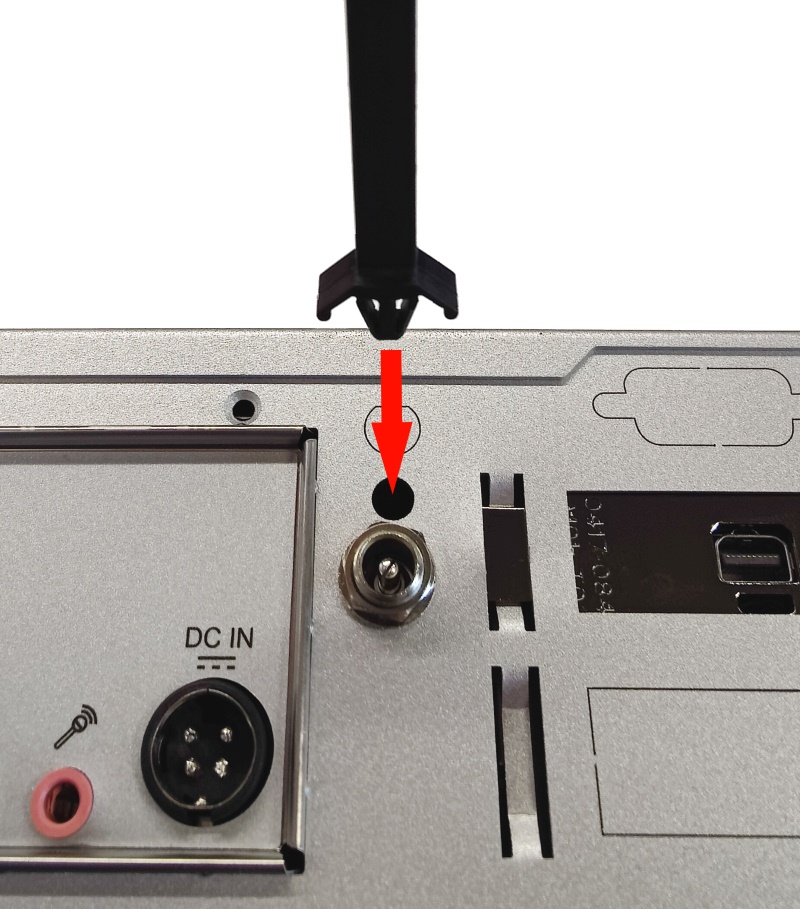
* Push the zip tie into the hole

<figure><img src="https://3062424488-files.gitbook.io/~/files/v0/b/gitbook-x-prod.appspot.com/o/spaces%2FlLHqs7kbNoKOFTwGOfH6%2Fuploads%2Fgit-blob-ef68af964a5c93ea0e01422df2a83756c7331f6c%2F216f2f7e8ae17d686fc3784326bbfe60b17f27340575df74d72dfba7e270a8ca.png?alt=media" alt="" width="375"><figcaption></figcaption></figure>

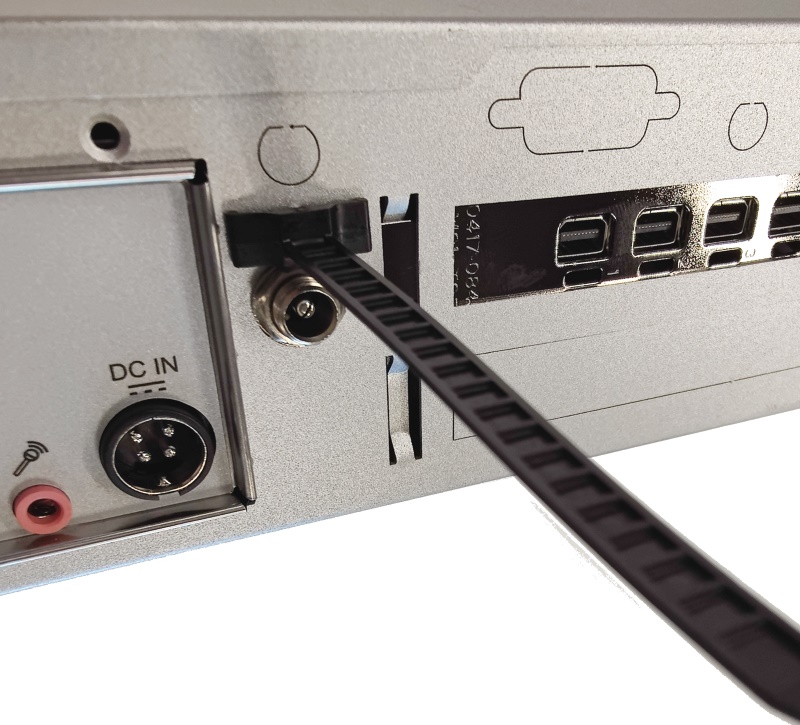
* Face the ribbed side upward

<figure><img src="https://3062424488-files.gitbook.io/~/files/v0/b/gitbook-x-prod.appspot.com/o/spaces%2FlLHqs7kbNoKOFTwGOfH6%2Fuploads%2Fgit-blob-1a158ceaf36e5445d465dcb2cdca4706000555e6%2F6ce388cf8ab4a2d3426f3668ffa92c480a2e7ff24af1dbd4ec6d6f3b9abf1559.png?alt=media" alt="" width="375"><figcaption></figcaption></figure>

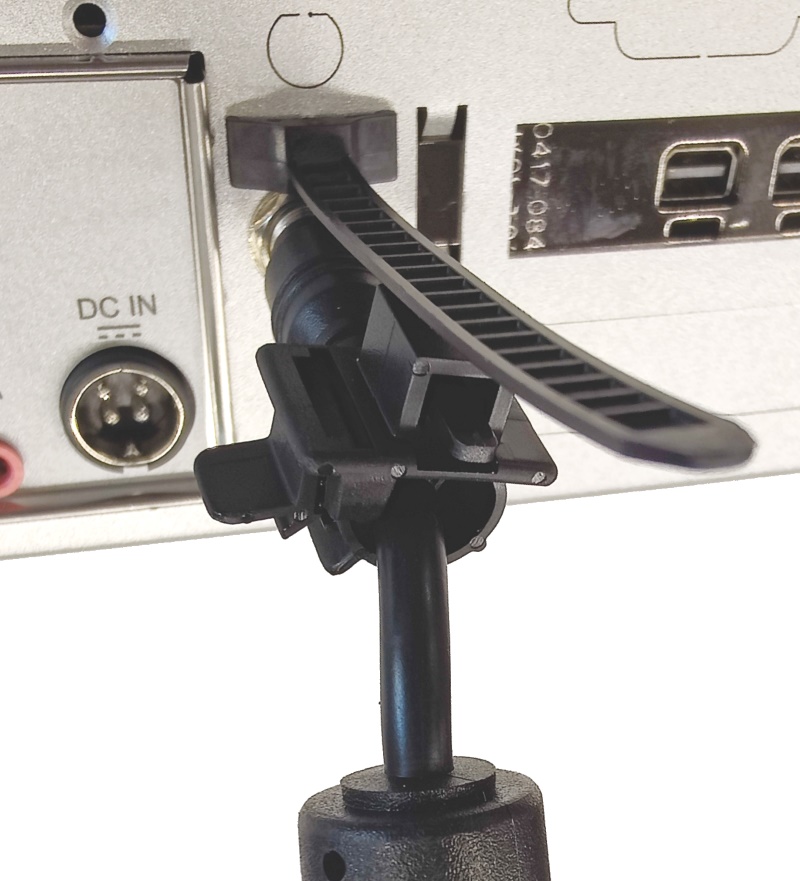
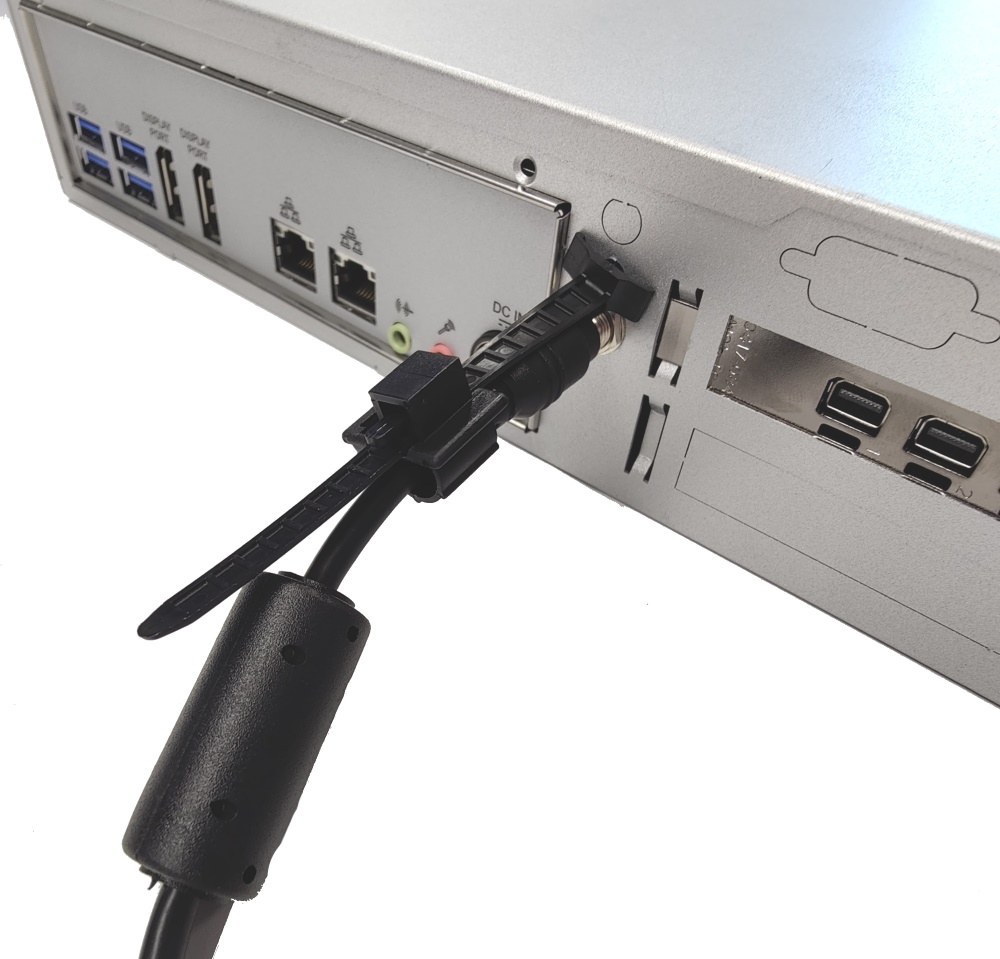
* Attach the clip to the power supply’s cable

<figure><img src="https://3062424488-files.gitbook.io/~/files/v0/b/gitbook-x-prod.appspot.com/o/spaces%2FlLHqs7kbNoKOFTwGOfH6%2Fuploads%2Fgit-blob-7f3de6a30b03557679edaf6aa50662932841ce7e%2F5a21ba8f4e24b06912e4118843f4f387109a9e1898fe06bcdc0bba9db3781576.png?alt=media" alt="" width="375"><figcaption></figcaption></figure>

* Thread the zip tie through the clip’s hole and snug into place.

<figure><img src="https://3062424488-files.gitbook.io/~/files/v0/b/gitbook-x-prod.appspot.com/o/spaces%2FlLHqs7kbNoKOFTwGOfH6%2Fuploads%2Fgit-blob-4659323f24b07649a04e34963f9d262d15abd666%2F0e05c0cfdfb144dcaaca0e20bb6cf560c640cb44d76d55fc42508133dec3c9f4.png?alt=media" alt="" width="375"><figcaption></figcaption></figure>

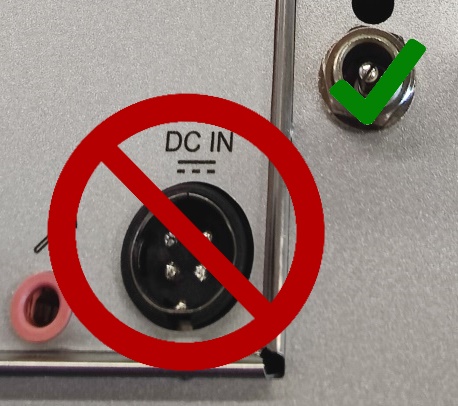
* Use only the newly installed DC barrel jack to power the unit.
* NEVER connect both power connectors at once.

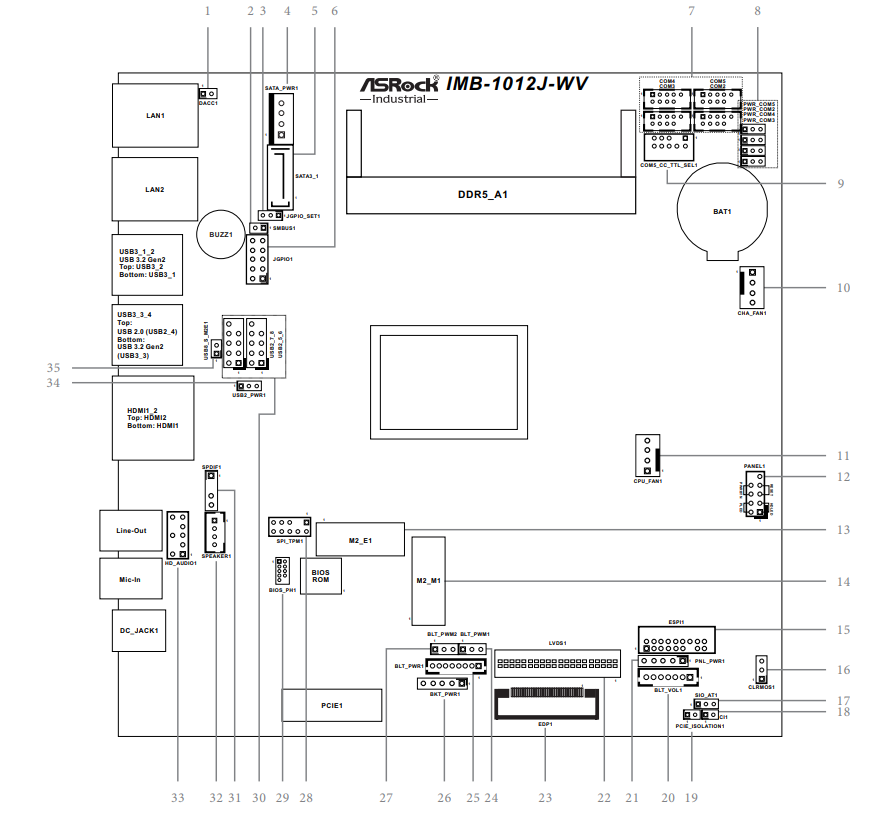
## <mark style="color:blue;">IMB-1012J-WV</mark>

<figure><img src="https://3062424488-files.gitbook.io/~/files/v0/b/gitbook-x-prod.appspot.com/o/spaces%2FlLHqs7kbNoKOFTwGOfH6%2Fuploads%2FMPmVdEjhUf1afqe9G98c%2Fimage.png?alt=media&#x26;token=833831fd-4e1d-44e4-8779-1bf1b1c5bd0a" alt=""><figcaption></figcaption></figure>

### Motherboard

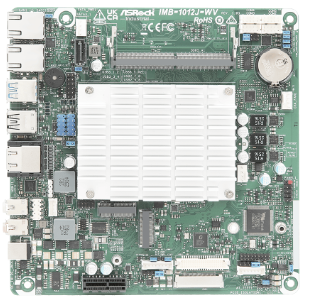
Access the official [Motherboard manual & OEM Resources](https://www.asrockind.com/en-gb/IMB-1012J-WV) from ASRock. This external link provides access to the complete motherboard manual, along with the latest BIOS updates and specific drivers for your system's motherboard (IMB-1012J-WV).

<figure><img src="https://3062424488-files.gitbook.io/~/files/v0/b/gitbook-x-prod.appspot.com/o/spaces%2FlLHqs7kbNoKOFTwGOfH6%2Fuploads%2FvUZSoz7XQqwS34nCXzbI%2Fimage.png?alt=media&#x26;token=da26ce35-e568-4b78-bf4c-8596c5bf655f" alt=""><figcaption></figcaption></figure>

### BIOS

**Warning:** Never interrupt a BIOS update. If the update is interrupted, the system may become irreparable. Damage caused as a result of BIOS updates may not be covered by the system's warranty.

You can follow this [how-to guide](https://support.onlogic.com/support-articles/how-tos/firmware-bios-drivers/asrock-bios-update-procedure) for installation instructions.

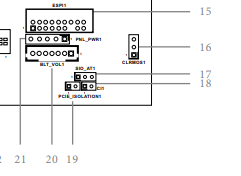
### Auto Power On

1. Locate the SIO\_AT1 (#17) jumper indicated by the orange circle
2. Move SIO\_AT1 over by 1 pin
3. The unit is now configured for auto power on

<figure><img src="https://3062424488-files.gitbook.io/~/files/v0/b/gitbook-x-prod.appspot.com/o/spaces%2FlLHqs7kbNoKOFTwGOfH6%2Fuploads%2FS4BaQga7eXI55vqz55pB%2Fimage.png?alt=media&#x26;token=e8203526-61ef-42c2-821a-5203987c3ed3" alt=""><figcaption></figcaption></figure>

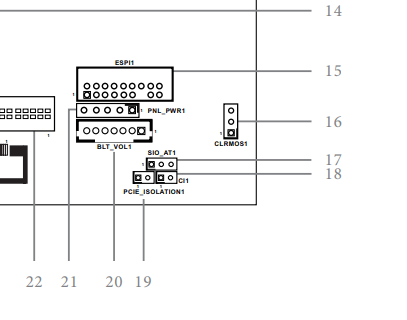
### Clear CMOS <a href="#motherboard-reset-clear-the-cmos-2" id="motherboard-reset-clear-the-cmos-2"></a>

1. Locate the CLRMOS1 (#16) jumper
2. Move the jumper over by 1 pin
3. Wait 30 seconds
4. Restore the jumper to its original position
5. The CMOS is now clear

<figure><img src="https://3062424488-files.gitbook.io/~/files/v0/b/gitbook-x-prod.appspot.com/o/spaces%2FlLHqs7kbNoKOFTwGOfH6%2Fuploads%2FTMeCNqbBtd7l84R7A8bF%2Fimage.png?alt=media&#x26;token=a73b3b06-53a5-45d1-b25c-6c3be1a040b6" alt=""><figcaption></figcaption></figure>

## <mark style="color:blue;">Regulatory</mark>

{% file src="<https://3062424488-files.gitbook.io/~/files/v0/b/gitbook-x-prod.appspot.com/o/spaces%2FlLHqs7kbNoKOFTwGOfH6%2Fuploads%2Fe00LBqzVfxTDdskXS8Mb%2FMC610-50%20OnLogic%20FCC%20ISED%20Declaration.pdf?alt=media&token=94eb753b-5411-4cb1-9b58-94674c5f8b6e>" %}

{% file src="<https://3062424488-files.gitbook.io/~/files/v0/b/gitbook-x-prod.appspot.com/o/spaces%2FlLHqs7kbNoKOFTwGOfH6%2Fuploads%2F7QPy33jR2HiT8DmLhZwW%2FMC610-50%20OnLogic%20RoHS%20Declaration%20-%20signed.pdf?alt=media&token=8123e6ca-90df-4d05-a8b6-9424588dddb6>" %}

{% file src="<https://3062424488-files.gitbook.io/~/files/v0/b/gitbook-x-prod.appspot.com/o/spaces%2FlLHqs7kbNoKOFTwGOfH6%2Fuploads%2FpA2DMRtPUxapHFegwwu5%2FMC610-50%20OnLogic%20CE%20Declaration.pdf?alt=media&token=d142a764-dacb-4d29-91bb-23efdc27cade>" %}

## <mark style="color:blue;">Security Advisory</mark>

For the latest security advisories concerning OnLogic products, including vulnerability disclosures and necessary updates, please refer to our official Security Advisories page. It is recommended to regularly check this resource for critical security information.\
[**Access Security Advisories**](https://support.onlogic.com/support-articles/security-advisories)