# ML210 Series

## <mark style="color:blue;">Technical Resources</mark> <a href="#documentation-index" id="documentation-index"></a>

Select a model of ML210 from the contents pane on the right to view the technical resources. The model number can be found on the bottom of the unit.

### Internal Access <a href="#opening-the-case" id="opening-the-case"></a>

The ML210 can be opened by the user. This does not void the warranty, however, any damage caused by doing so will not be covered.

* Ensure your body is discharged of any static electricity by touching a grounded metal surface.
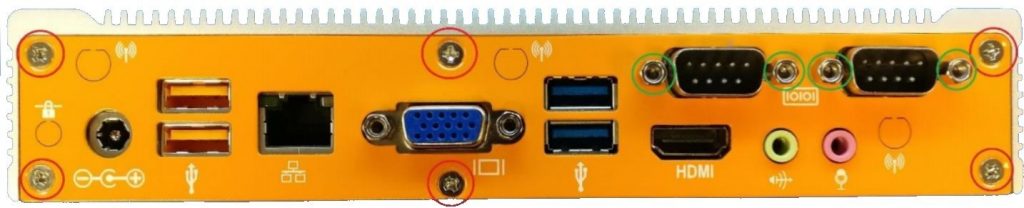
* Remove the 6x phillips screws on the outside of the case.
* If your unit has COM ports, remove the standoffs for those as well.
* The backplate will then be loose and can be removed.

<figure><img src="https://3062424488-files.gitbook.io/~/files/v0/b/gitbook-x-prod.appspot.com/o/spaces%2FlLHqs7kbNoKOFTwGOfH6%2Fuploads%2Fgit-blob-012ec2aa0cead7d7bccfdc7add449935d5af1bb5%2Fc36df5e4e1912ab3719edd80046d8884f0c92667919d1ea7ede91268d6629bc3.png?alt=media" alt="" height="115" width="570"><figcaption><p>Note: Pull gently as to not tear the EMI gaskets.</p></figcaption></figure>

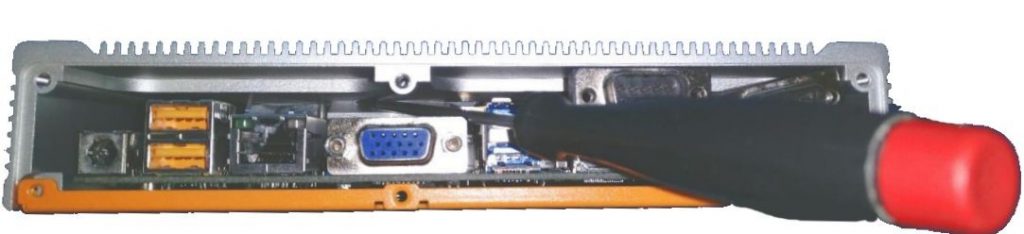
* Note the ridge between the lid and the heat block on the processor

<figure><img src="https://3062424488-files.gitbook.io/~/files/v0/b/gitbook-x-prod.appspot.com/o/spaces%2FlLHqs7kbNoKOFTwGOfH6%2Fuploads%2Fgit-blob-f28fa4667a2b81c28cc20c13ec3b2683adb2a187%2Fdfef7be897d99e82bd1f16a9528773fdc7f9c67583aaf506624ef2e073ab481b.png?alt=media" alt="" height="98" width="504"><figcaption></figcaption></figure>

* Insert a flathead screwdriver into the ridge and pry them apart using a twisting motion.

<figure><img src="https://3062424488-files.gitbook.io/~/files/v0/b/gitbook-x-prod.appspot.com/o/spaces%2FlLHqs7kbNoKOFTwGOfH6%2Fuploads%2Fgit-blob-4e2e8d1035c877828ea42c5b5192b987d22994a2%2F1ea87ed5795db96ee4a5abc513d063253026e00181555bb2b06144ad5934b8eb.png?alt=media" alt="" height="117" width="514"><figcaption></figcaption></figure>

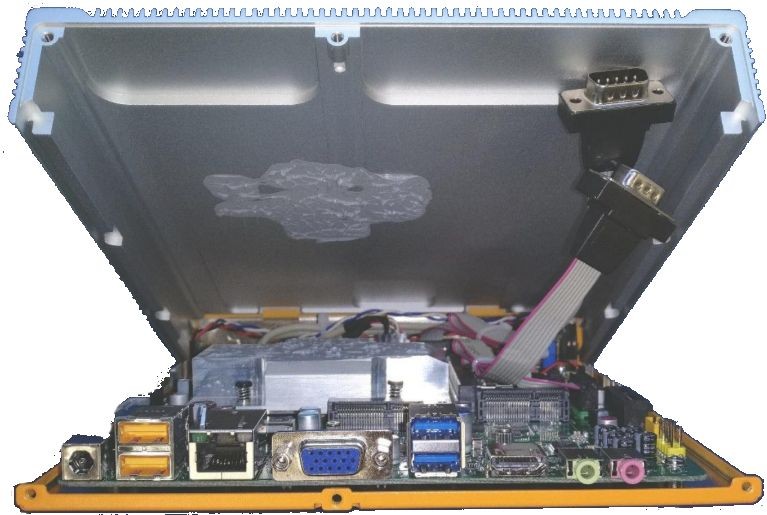
* Tilt the lid to a 45 degree angle and pull it loose from the rest of the case.
* You now have full access to the internals

<figure><img src="https://3062424488-files.gitbook.io/~/files/v0/b/gitbook-x-prod.appspot.com/o/spaces%2FlLHqs7kbNoKOFTwGOfH6%2Fuploads%2Fgit-blob-6941276cc1a5cae0838466af8e349f9ab0f72812%2Fee5000bc495a443143497c53daf907cba00d74e979d134a256995ca41e282a96.png?alt=media" alt="" height="264" width="394"><figcaption></figcaption></figure>

***

## <mark style="color:blue;">ML210G-10 / TM200</mark> <a href="#ml210g-10-tm200" id="ml210g-10-tm200"></a>

### Manuals & Downloads

### Manuals, Drivers

#### Product Manual <a href="#product-manual" id="product-manual"></a>

<https://drive.google.com/open?id=1WBrh4LQuMyYY_Tr93q21alaeRNu6rNt0>

Mitac PD10B motherboard

#### Drivers <a href="#drivers" id="drivers"></a>

<https://drive.google.com/open?id=1eRuRkf04GJgetcXScZrmqeE3NRmvD5uW>

### Auto Power On <a href="#enable-auto-power-on" id="enable-auto-power-on"></a>

● Power on the unit and press the Del key repeatedly to access the BIOS\
● Once in the BIOS, navigate to the Chipset tab\
● Arrow down to the “Restore AC Power Loss” option\
● Enable it\
● Save & Exit\
● Auto power on is now enabled

### Clear CMOS <a href="#clear-the-cmos" id="clear-the-cmos"></a>

Disconnect the system from all wire connections (power, ethernet, video, etc), then:

<figure><img src="https://3062424488-files.gitbook.io/~/files/v0/b/gitbook-x-prod.appspot.com/o/spaces%2FlLHqs7kbNoKOFTwGOfH6%2Fuploads%2Fgit-blob-7d33dea6887b0ab4908bb2f74fdc0ac345ddd50b%2F4961af7c2494a6ff2742ccdb08dcd4bfe054efafd5ee8bb809abbf8d467a0014.png?alt=media" alt="" width="493"><figcaption></figcaption></figure>

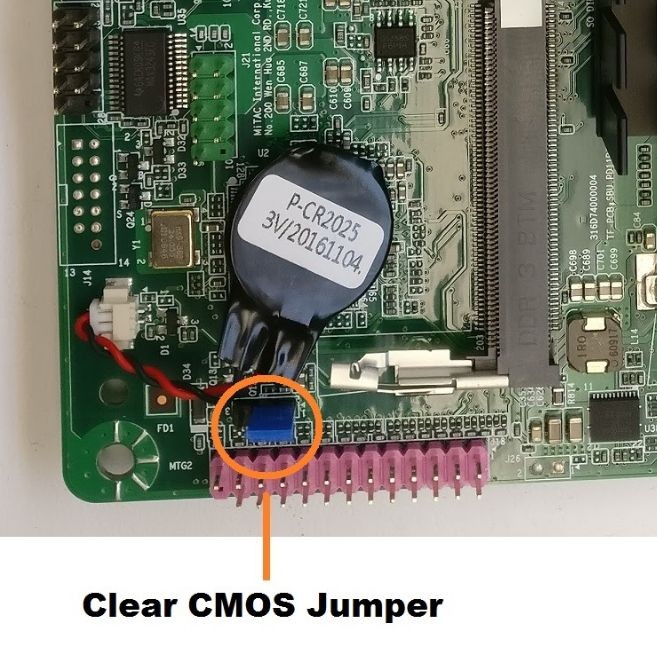
● Locate the clear CMOS jumper next to the purple header\
● Move the jumper over by 1 pin\
● Wait 30 seconds\
● Restore the jumper to the original position\
● The CMOS is now clear. Reassemble the unit and power on.\
● It may reboot several times to reconfigure itself.

***

## <mark style="color:blue;">ML210G-12</mark> <a href="#ml210g-12" id="ml210g-12"></a>

### Manuals, Drivers

#### Product Manual <a href="#product-manual-2" id="product-manual-2"></a>

<https://drive.google.com/open?id=1TtHgHIty4b3MH6nvSg-l89T9jYTJz1xO>

ASRock IMB-155 motherboard

ASRock IMB-155 motherboard

#### Drivers <a href="#drivers-2" id="drivers-2"></a>

<https://drive.google.com/open?id=1QwP5iTUc2SwTKVPQyKKvrXJFgGtmXfNy>

### Auto Power On <a href="#enable-auto-power-on-2" id="enable-auto-power-on-2"></a>

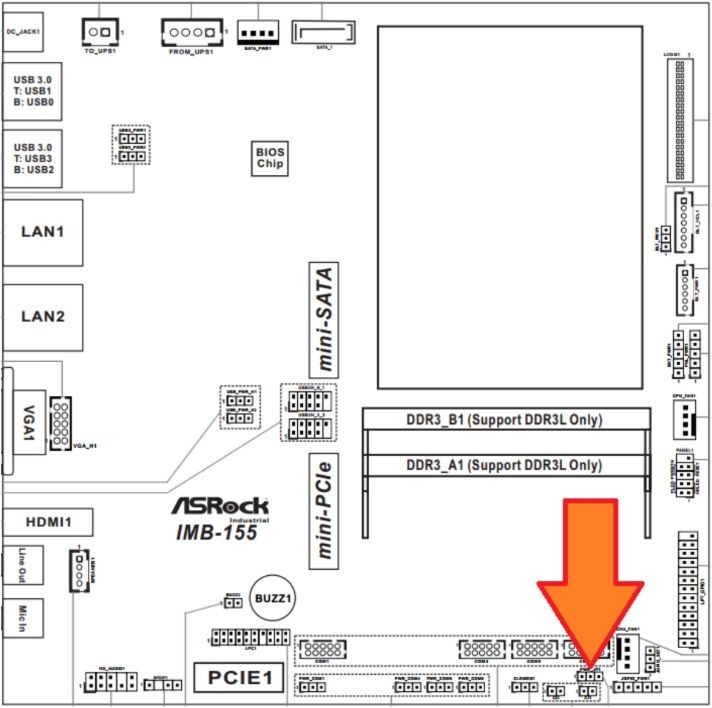
Disconnect the system from all wire connections (power, ethernet, video, etc), then:

<figure><img src="https://3062424488-files.gitbook.io/~/files/v0/b/gitbook-x-prod.appspot.com/o/spaces%2FlLHqs7kbNoKOFTwGOfH6%2Fuploads%2Fgit-blob-b142981510202cc974fde2d9555e61fd2b7d46a7%2F95547331679d58eba2202e7f8dfecd26878d200ae413f3ce2a867fcf79ce55fd.png?alt=media" alt="" width="563"><figcaption></figcaption></figure>

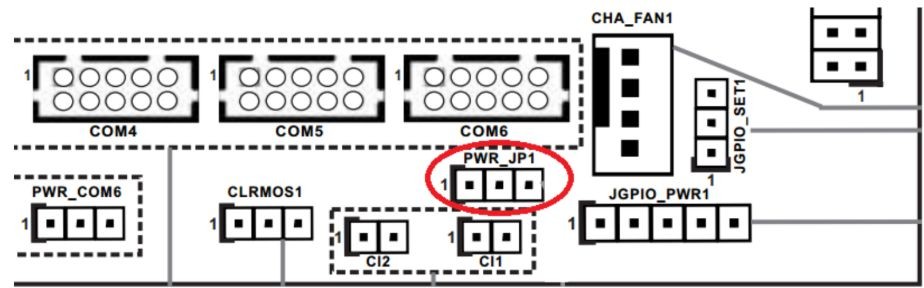
● Locate the PWR\_JP1 jumper indicated by the orange\
arrow and red circle\\

<figure><img src="https://3062424488-files.gitbook.io/~/files/v0/b/gitbook-x-prod.appspot.com/o/spaces%2FlLHqs7kbNoKOFTwGOfH6%2Fuploads%2Fgit-blob-bfeaa69401521a7892d1c6b48d7ef8f76ac0c02f%2F541cb06e250a1aec92bd18378324f5a12b22d9531ad1f1a50b4d6e1e4245d3ea.png?alt=media" alt="" width="563"><figcaption></figcaption></figure>

* Move PWR\_JP1 over by 1 pin
* The unit is now configured for auto power on

### Clear CMOS <a href="#motherboard-reset-clear-the-cmos" id="motherboard-reset-clear-the-cmos"></a>

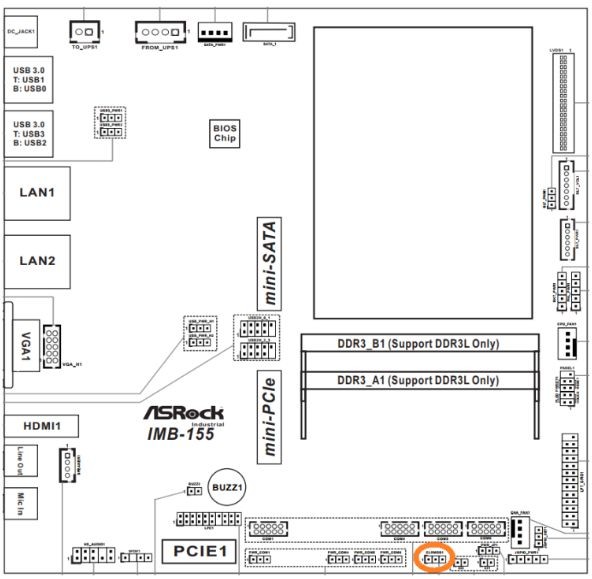
Disconnect the system from all wire connections (power, ethernet, video, etc), then:

<figure><img src="https://3062424488-files.gitbook.io/~/files/v0/b/gitbook-x-prod.appspot.com/o/spaces%2FlLHqs7kbNoKOFTwGOfH6%2Fuploads%2Fgit-blob-d6a3b39afbc9b915c4fada5e84b428138cc4fe99%2Fdb52b1619e5cf283bf33495310c7951ecc2b90e4339058ee5dfd14b29c440b44.png?alt=media" alt="" width="563"><figcaption></figcaption></figure>

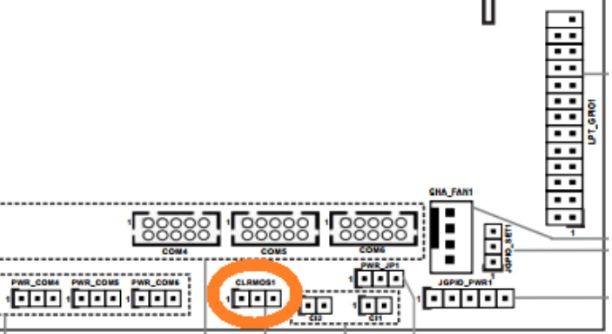
● Locate the clear CMOS jumper

<figure><img src="https://3062424488-files.gitbook.io/~/files/v0/b/gitbook-x-prod.appspot.com/o/spaces%2FlLHqs7kbNoKOFTwGOfH6%2Fuploads%2Fgit-blob-f8b7e29dd43151e8cec53569a784b4fa2c7f25bf%2F5013995e2f2129a8142420819672e741b3cad6e8ca15b569e4e4aeb54f143b22.png?alt=media" alt="" width="563"><figcaption></figcaption></figure>

* Move the jumper over by 1 pin
* Wait 30 seconds
* Restore the jumper to its original position
* The CMOS is now clear

***

## <mark style="color:blue;">ML210G-50</mark> <a href="#ml210g-50" id="ml210g-50"></a>

### Manuals, Drivers

#### Product Manual <a href="#product-manual-3" id="product-manual-3"></a>

<https://drive.google.com/open?id=1xuo3h04jCT-49kdsB9PA31hZAZ67K2SI>

ASRock IMB-186-4300U motherboard

ASRock IMB-186-4300U motherboard

#### Drivers <a href="#drivers-3" id="drivers-3"></a>

<https://drive.google.com/open?id=1RJPoD0gRRcAV-xkuIT6r_qmpW1V_BBh7>

### Auto Power On <a href="#enable-auto-power-on-3" id="enable-auto-power-on-3"></a>

### Enabling Auto Power On

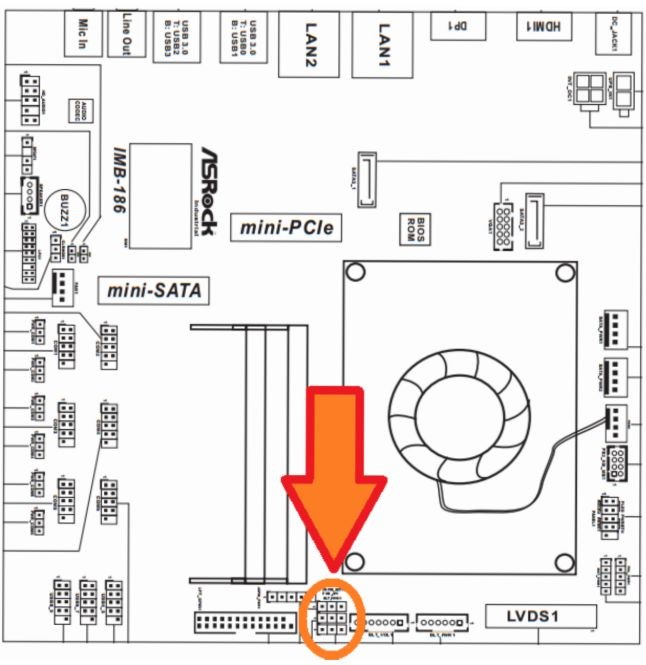
<figure><img src="https://3062424488-files.gitbook.io/~/files/v0/b/gitbook-x-prod.appspot.com/o/spaces%2FlLHqs7kbNoKOFTwGOfH6%2Fuploads%2Fgit-blob-0213dc5a2d6e12581b24868c59aae9f5ddad4f5e%2F01190040423f31ad1c6448697d3b369c7860bc01a51a90215bfae07d5800e693.png?alt=media" alt="" width="563"><figcaption></figcaption></figure>

● Locate the PWR\_JP1 jumper indicated by the\
orange arrows

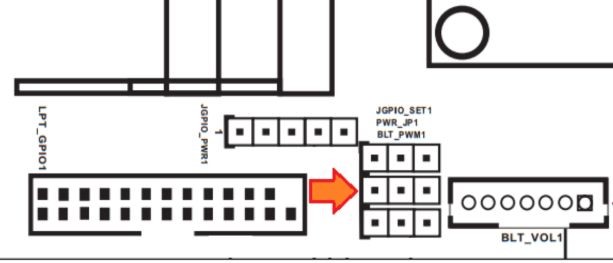
<figure><img src="https://3062424488-files.gitbook.io/~/files/v0/b/gitbook-x-prod.appspot.com/o/spaces%2FlLHqs7kbNoKOFTwGOfH6%2Fuploads%2Fgit-blob-fdb4d790c8b240ff0f95e36af7432e7db3ab23c0%2F34738a43e3c4d0545e5006d45ffe1d0a127dcddb3ddff2e999cd7ba2eebfacfa.png?alt=media" alt="" width="563"><figcaption></figcaption></figure>

● Move PWR\_JP1 over by 1 pin\
● The unit is now configured for auto power on

### Clear CMOS <a href="#motherboard-reset-clear-the-cmos-2" id="motherboard-reset-clear-the-cmos-2"></a>

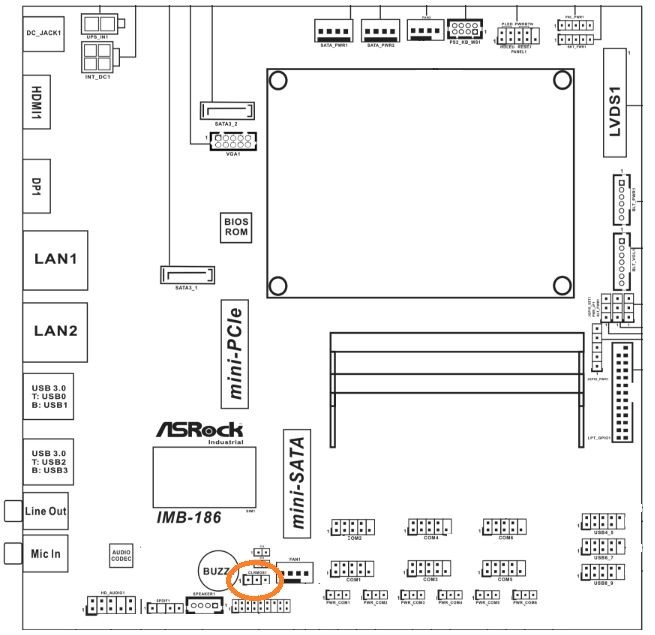
<figure><img src="https://3062424488-files.gitbook.io/~/files/v0/b/gitbook-x-prod.appspot.com/o/spaces%2FlLHqs7kbNoKOFTwGOfH6%2Fuploads%2Fgit-blob-4577f6de6dfc9fa89ad6b73c0a4df68250b65793%2F889e400425f997540440899ae121293b5935658861be2495d052cef0b9a3eac7.png?alt=media" alt="" width="563"><figcaption></figcaption></figure>

* Locate the clear CMOS jumper

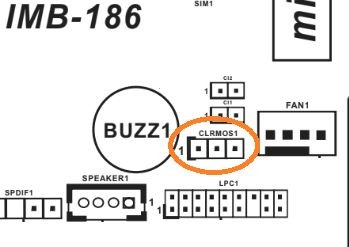
<figure><img src="https://3062424488-files.gitbook.io/~/files/v0/b/gitbook-x-prod.appspot.com/o/spaces%2FlLHqs7kbNoKOFTwGOfH6%2Fuploads%2Fgit-blob-82bc9d05ad0a3bd24703c934137223b3bc65b5d2%2Fe26e489e5a62fd2ebe3bb1ce3807111ca17bdd515d9bef2c80283cbfd4aaa8be.png?alt=media" alt="" width="563"><figcaption></figcaption></figure>

● Move the jumper over by 1 pin\
● Wait 30 seconds\
● Restore the jumper to its original position\
● The CMOS is now clear

## <mark style="color:blue;">Security Advisory</mark>

For the latest security advisories concerning OnLogic products, including vulnerability disclosures and necessary updates, please refer to our official Security Advisories page. It is recommended to regularly check this resource for critical security information.\
[**Access Security Advisories**](https://support.onlogic.com/support-articles/security-advisories)