> For the complete documentation index, see [llms.txt](https://support.onlogic.com/llms.txt). Markdown versions of documentation pages are available by appending `.md` to page URLs; this page is available as [Markdown](https://support.onlogic.com/product-documentation/industrial-products/ml300-series/ml340g-51.md).
# ML340G-51
## Technical Resources
### Motherboard
Access the official Motherboard Manual & OEM Resources from ASRock. This external link provides access to the complete motherboard manual, along with the latest BIOS updates and specific drivers for your system's motherboard (SBC-330M)
{% embed url="" %}
### Internal Access
The ML340 can be opened by the user. This does not void the warranty, however, any damage caused by doing so will not be covered.
1\. Ensure your body is discharged of any static electricity by touching a grounded metal surface.
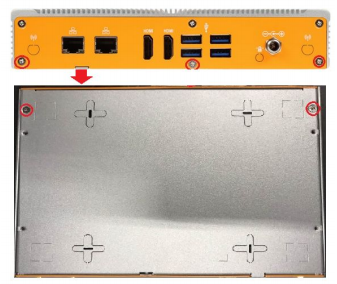
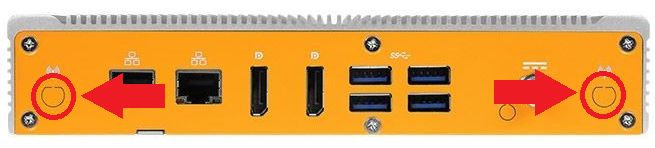
2\. Begin by removing the 3x Phillips case screws on the back and the 2x Phillips screws from the bottom, circled in red below:
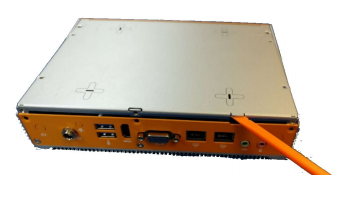
3\. Use the tab for leverage to pull the bottom panel off as shown below:
4\. You now have complete access to the internals.
### Enabling Auto Power On
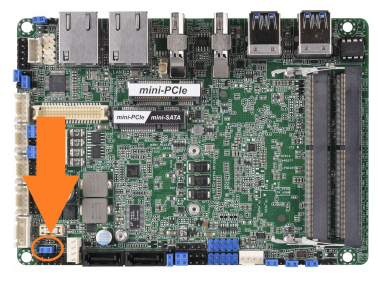
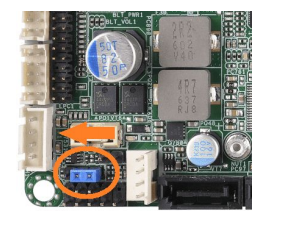
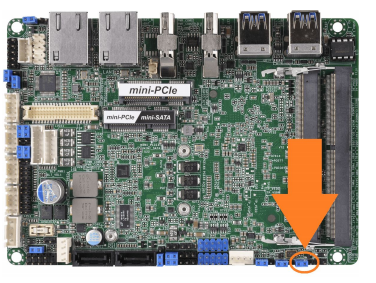
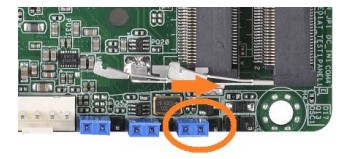
1. Locate the AT/ATX jumper.
2. Move it over by 1 pin, closer to the edge of the board.
3. Auto power on is now enabled.
### Clear CMOS
1. Locate the CLRMOS1 jumper.
2. Move the jumper over by 1 pin.
3. Wait 30 seconds.
4. Restore the jumper to its original position. The CMOS is now clear.
### WiFi Card Installation
* Ensure your body is discharged of any static electricity by touching a grounded metal surface.
* Begin by removing the 3x Phillips case screws on the back and the 2x Phillips screws from the bottom, circled in red below:
* Use the tab for leverage to pull the bottom panel off as shown
* Using needle nose pliers or similar, push out the knockouts for the WiFi antenna cables.
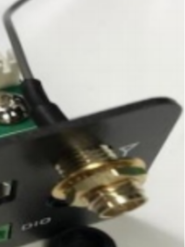
* Insert the antenna cables into the knockouts from the inside of the case. Apply the washer and nut to the outside. Tighten down.
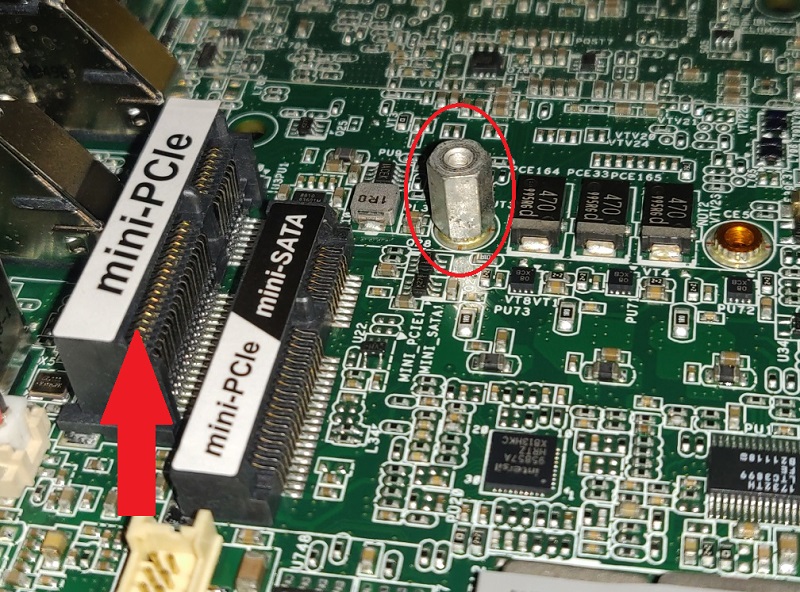
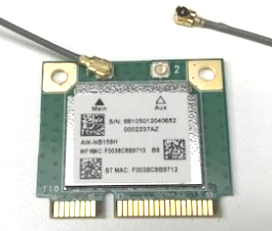
* Insert the WiFi card into the mini-PCIe slot at a 45 degree angle.
* Push down and install m2 screw to secure card
* Attach the antenna cables to the WiFi card. OnLogic standard is to connect the leftmost antenna cable to Main, the and the rightmost to AUX – with the rear of the system facing you right side up.
### DIN Mounting
## Security Advisory
For the latest security advisories concerning OnLogic products, including vulnerability disclosures and necessary updates, please refer to our official Security Advisories page. It is recommended to regularly check this resource for critical security information.\
[**Access Security Advisories**](/support-articles/security-advisories.md)