# ML350G-10

## <mark style="color:blue;">Technical Resources</mark> <a href="#documents-and-downloads" id="documents-and-downloads"></a>

### Product Manuals

{% file src="<https://3062424488-files.gitbook.io/~/files/v0/b/gitbook-x-prod.appspot.com/o/spaces%2FlLHqs7kbNoKOFTwGOfH6%2Fuploads%2Ft0yqeIfYsC66cvradTEQ%2FOnLogic%20ML350G-10%20Manual.pdf?alt=media&token=50c4bebe-bf2c-4837-9a21-d3e862cb7cca>" %}

#### [MK022 Fanless Rackmount Adapter Manual](https://support.onlogic.com/product-documentation/components-and-expansion/mounting/mk022-fanless-rackmount-adapter)

#### [BIOS Manual](http://static.onlogic.com/resources/manuals/ML350_BIOS_Manual_1.0.pdf)

#### [ADP107 CEC Module Manual](https://support.onlogic.com/product-documentation/components-and-expansion/adp107-cec-module)

### Drivers <a href="#drivers" id="drivers"></a>

[System Drivers](https://static.onlogic.com/resources/drivers/ML350G-10_64_bit_System_Drivers.zip)

[Wireless Drivers](https://static.onlogic.com/resources/drivers/ML350G-10_WiFi.zip)

### BIOS Updates <a href="#bios-updates" id="bios-updates"></a>

| Bios Version | Link                                                                      |
| ------------ | ------------------------------------------------------------------------- |
| A09          | [Download](https://static.onlogic.com/resources/bios/ML350/ML350_A09.zip) |

***

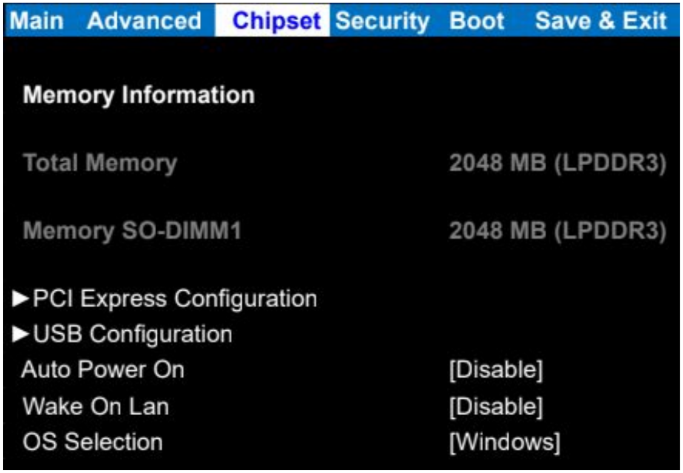
### Auto Power On <a href="#auto-power-on" id="auto-power-on"></a>

<figure><img src="https://3062424488-files.gitbook.io/~/files/v0/b/gitbook-x-prod.appspot.com/o/spaces%2FlLHqs7kbNoKOFTwGOfH6%2Fuploads%2Fgit-blob-38147f9a1c49cf78298f38fbcbecffb0dc0a84f3%2Fffa98925524d9adb25e1ccf0191026582a624fca2815cd5503bb7fcbe42c4883.png?alt=media" alt="" height="473" width="683"><figcaption></figcaption></figure>

* Power on the ML350 and press the Esc key a few times to access the BIOS
* Navigate to the Chipset tab
* Change auto power on to \[enable]
* Save & Exit
* The ML350 will now automatically turn on when power is connected

### Internal Access <a href="#opening-the-ml350" id="opening-the-ml350"></a>

The ML350 can be opened by the user. This does not void the warranty, however, any damage caused by doing so will not be covered. Here are the steps to opening your ML350:

1. Ensure your body is discharged of any static electricity by touching a grounded metal surface.
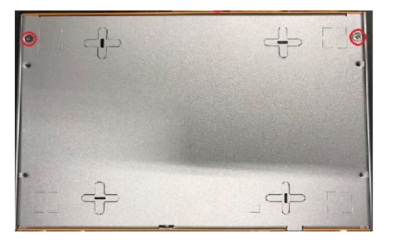
2. Remove the two silver Phillips screws from the bottom of the unit as circled in red below:

<figure><img src="https://3062424488-files.gitbook.io/~/files/v0/b/gitbook-x-prod.appspot.com/o/spaces%2FlLHqs7kbNoKOFTwGOfH6%2Fuploads%2Fgit-blob-8b9469d0a655c344ee0aeaf5945eb45d4cecc392%2Fe26f703142f094702b8252b10fe629b250e027cb2661739561e678cb54f55d86.png?alt=media" alt="" height="244" width="393"><figcaption></figcaption></figure>

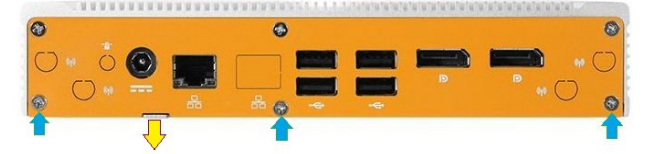
3. Remove the bottom 3 Phillips screws from the back plate (blue arrows shown below).
4. Using your fingernail or a Flathead screwdriver, pry the bottom plate off using the provided leverage tab (yellow arrow shown below).

<figure><img src="https://3062424488-files.gitbook.io/~/files/v0/b/gitbook-x-prod.appspot.com/o/spaces%2FlLHqs7kbNoKOFTwGOfH6%2Fuploads%2Fgit-blob-38be47b273245267058395aa4f4a0a2f506cf7ba%2F32871bd26afde06fc51b62895fd6c81df3f028a281d3beb01df968656b9aaf03.png?alt=media" alt="" height="154" width="664"><figcaption></figcaption></figure>

### Clear CMOS <a href="#how-to-clear-the-cmos" id="how-to-clear-the-cmos"></a>

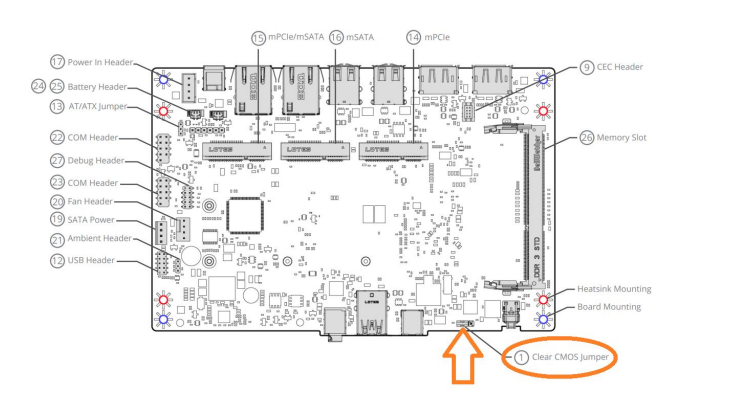
1. Locate the Clear CMOS jumper as shown below:

<figure><img src="https://3062424488-files.gitbook.io/~/files/v0/b/gitbook-x-prod.appspot.com/o/spaces%2FlLHqs7kbNoKOFTwGOfH6%2Fuploads%2Fgit-blob-cf7c7206fd1c241d8c72bad285ecc31d5c2d1ace%2F4d9e110940301ebdae857882dbdaf953580f0acfe6558f37b0346f3df57a7187.png?alt=media" alt="" height="403" width="732"><figcaption></figcaption></figure>

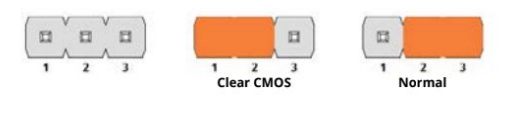
2. Remove the jumper from pins 2 and 3.
3. Install it onto pins 1 and 2, moving it over by 1 pin.
4. Wait 30 seconds.
5. Restore the jumper to its original 2-3 position. The CMOS is now clear.

<figure><img src="https://3062424488-files.gitbook.io/~/files/v0/b/gitbook-x-prod.appspot.com/o/spaces%2FlLHqs7kbNoKOFTwGOfH6%2Fuploads%2Fgit-blob-2f81a8d50a4acfb3abe1af0cf5db2def50a09885%2F28a8062305a400e9888459c3762c31710046edcfd6c35419e80d595ec2ade2ca.png?alt=media" alt="" height="118" width="521"><figcaption></figcaption></figure>

5. Re-install the bottom plate and all 5 screws.

Note: The unit may power cycle several times before it boots up. This is normal.

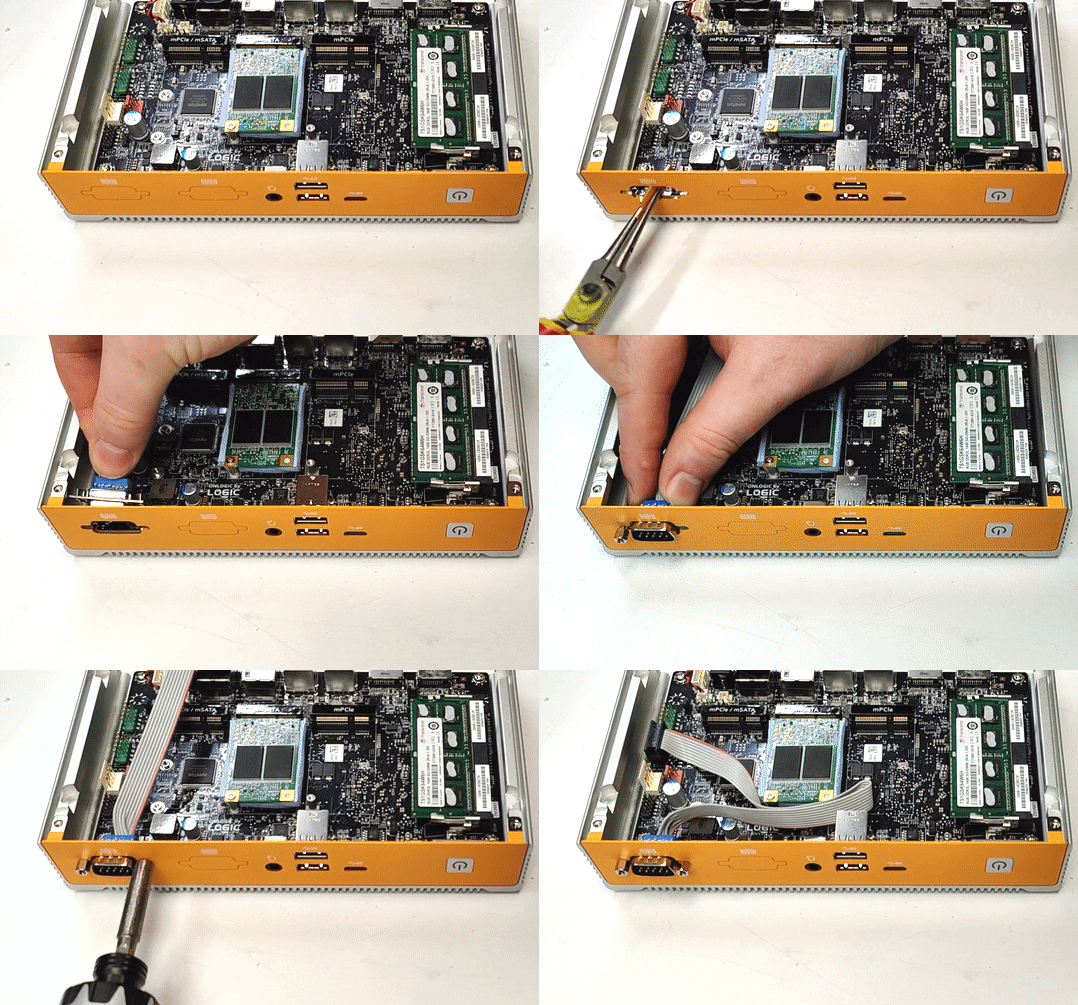
### Installing COM Ports <a href="#installing-com-ports" id="installing-com-ports"></a>

<figure><img src="https://3062424488-files.gitbook.io/~/files/v0/b/gitbook-x-prod.appspot.com/o/spaces%2FlLHqs7kbNoKOFTwGOfH6%2Fuploads%2Fgit-blob-6cc0c1d8bf7090b6e5d4cbc901b6bf679d9f1c34%2F418053b5662b205b1ae1110eec1f14c8c62b31bab9de8ee0e2bf54d9ffb6a590.png?alt=media" alt="" height="335" width="539"><figcaption></figcaption></figure>

***

### VESA Mounting <a href="#vesa-mounting" id="vesa-mounting"></a>

<figure><img src="https://3062424488-files.gitbook.io/~/files/v0/b/gitbook-x-prod.appspot.com/o/spaces%2FlLHqs7kbNoKOFTwGOfH6%2Fuploads%2Fgit-blob-90c77fa2f8bb8b5c4e37d98c8da645b15497099a%2Ff249a9af36f86d7ce7ede2e91ff365a983a75c37c0263a929f5708ef9b9d7b16.png?alt=media" alt="" height="945" width="1000"><figcaption></figcaption></figure>

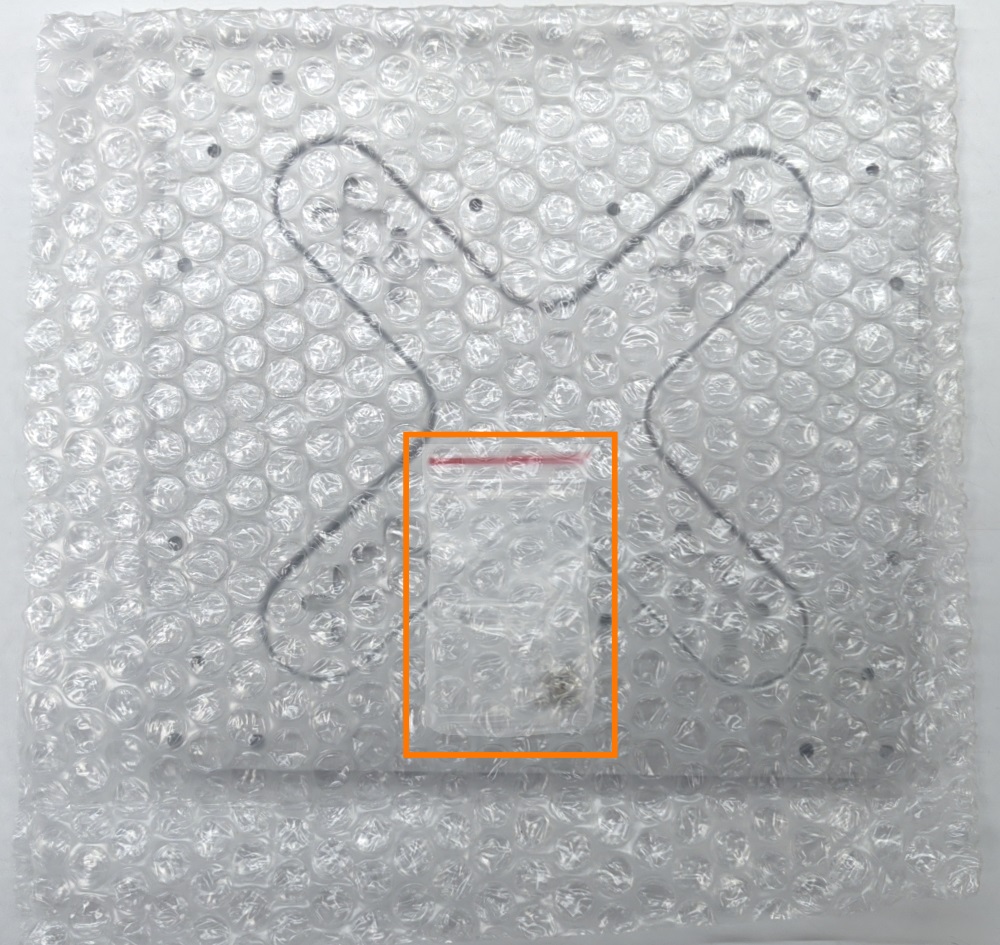
* Unpack the VESA mounting plate and remove the bubble wrap.
* Be sure not to throw away the screw bag inside.

<figure><img src="https://3062424488-files.gitbook.io/~/files/v0/b/gitbook-x-prod.appspot.com/o/spaces%2FlLHqs7kbNoKOFTwGOfH6%2Fuploads%2Fgit-blob-c1f40c1831533748898b22838fdfc11829c081bb%2F625de8522a7436a643e9f9e140de5acade1d3575fc92d45ff711bc9d4592f9ea.png?alt=media" alt="" height="730" width="1024"><figcaption></figcaption></figure>

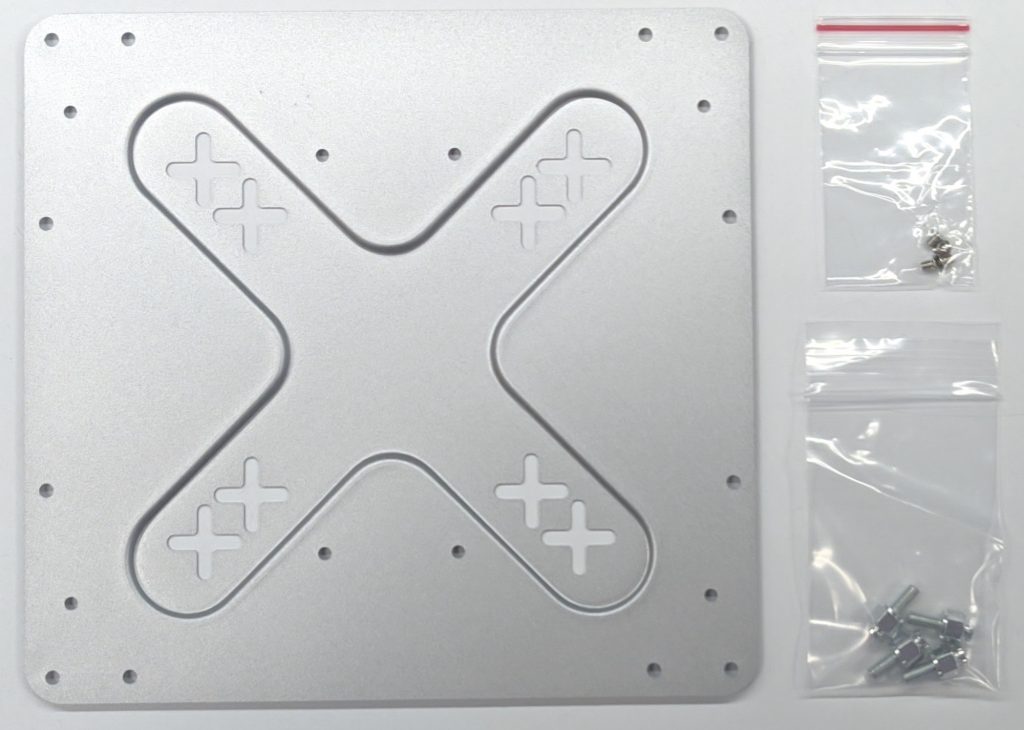
* You should have everything pictured here.

<figure><img src="https://3062424488-files.gitbook.io/~/files/v0/b/gitbook-x-prod.appspot.com/o/spaces%2FlLHqs7kbNoKOFTwGOfH6%2Fuploads%2Fgit-blob-46001fc2e899736fd6b7c68b8f1e029a1007d9ac%2Fd66a0daf5e8a403214eba3e112397598915f177316978dfda776f712d19a5ea8.png?alt=media" alt="" height="343" width="1000"><figcaption></figcaption></figure>

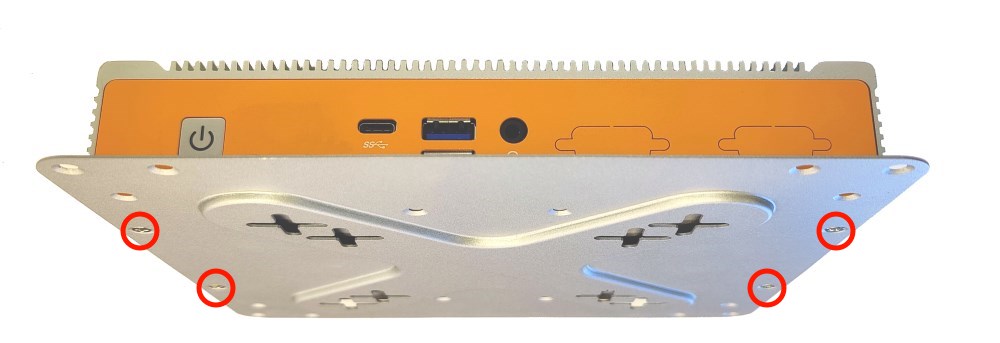
* Use the smaller of the included screws to attach the mounting plate to the bottom of your system.

<figure><img src="https://3062424488-files.gitbook.io/~/files/v0/b/gitbook-x-prod.appspot.com/o/spaces%2FlLHqs7kbNoKOFTwGOfH6%2Fuploads%2Fgit-blob-5f8cdd5180a9883d21c9810b4f16c5c9489b8831%2F403d9a584099821c8a73f3bab1784703ae233ec33f1b5051980069149ab37a75.png?alt=media" alt="" height="773" width="1024"><figcaption></figcaption></figure>

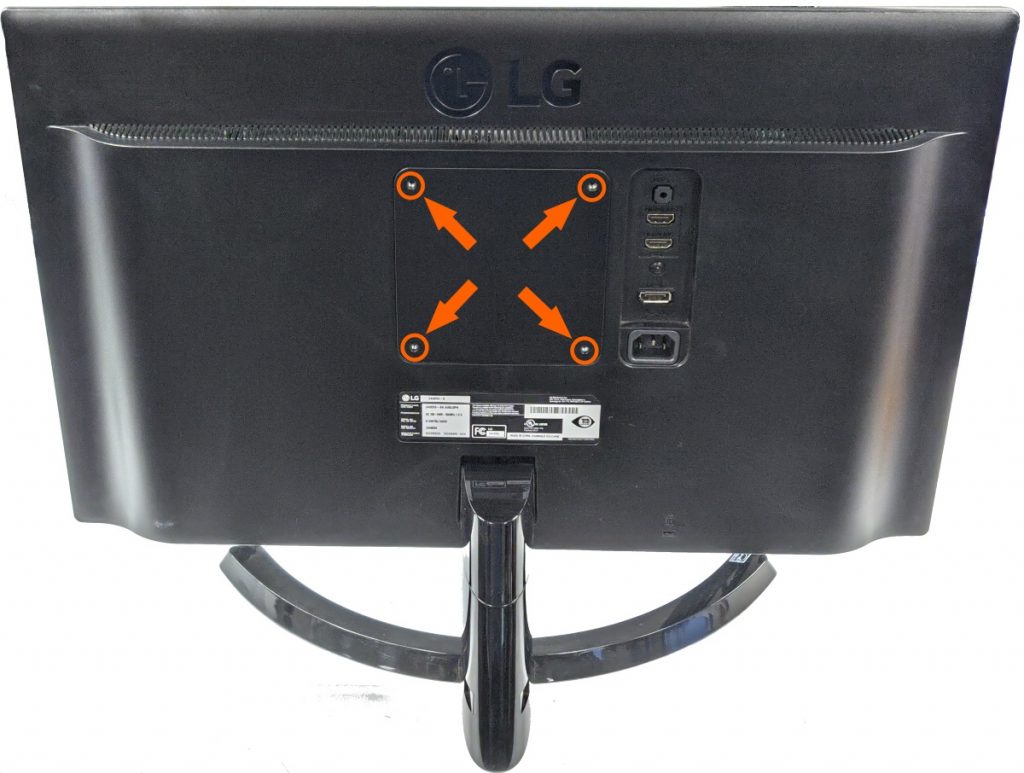
* Locate the VESA screw holes on the back of your monitor or mounting arm.

<figure><img src="https://3062424488-files.gitbook.io/~/files/v0/b/gitbook-x-prod.appspot.com/o/spaces%2FlLHqs7kbNoKOFTwGOfH6%2Fuploads%2Fgit-blob-1b8a98b15d47dec7097aa0ace95aa42354c7c635%2Fe183338494a9fa8a4a67524318135383d4777faae335c3675c98e551e0595506.png?alt=media" alt="" height="763" width="1024"><figcaption></figcaption></figure>

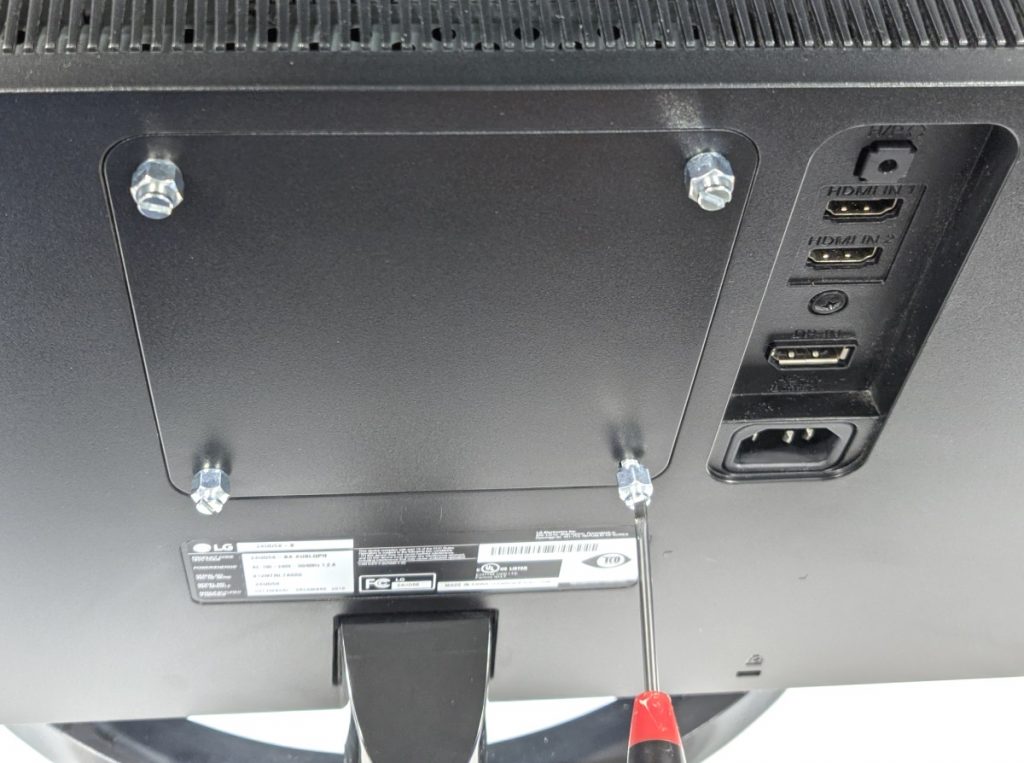
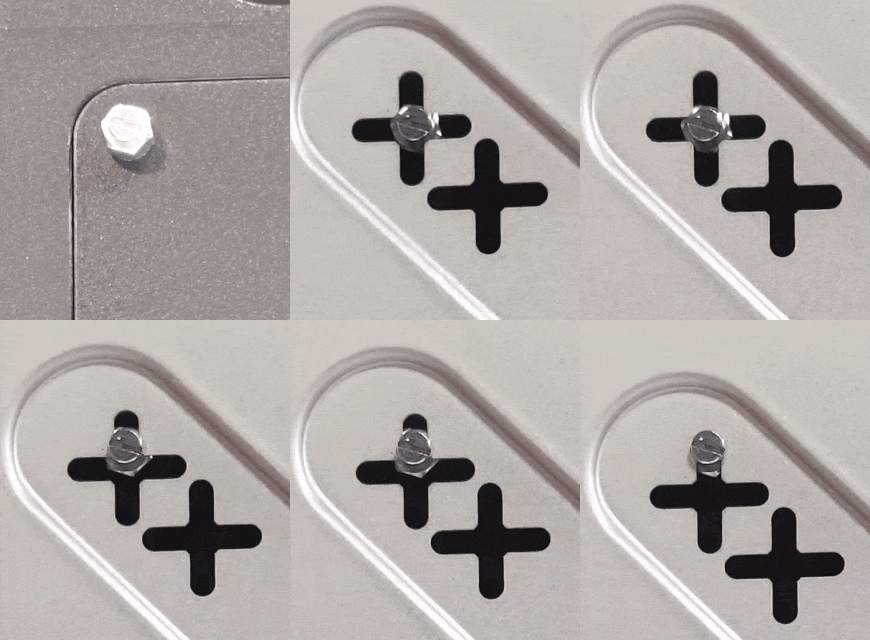
* Install the 4 bolts hand tight.
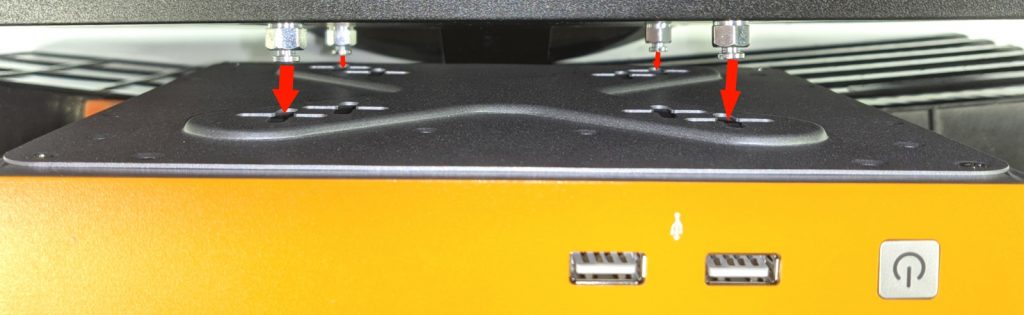
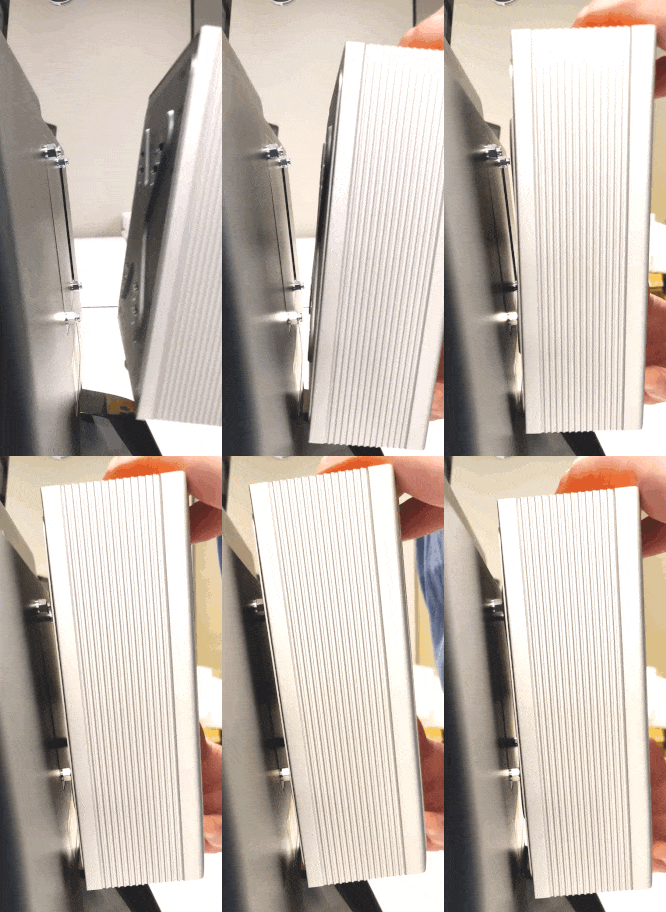
* Hang the system on the back of the display by lining up the bolts with the holes.
* Push the bolt head through the center of the + cutouts and slide the system down to lock in place.

<figure><img src="https://3062424488-files.gitbook.io/~/files/v0/b/gitbook-x-prod.appspot.com/o/spaces%2FlLHqs7kbNoKOFTwGOfH6%2Fuploads%2Fgit-blob-e01743b2d37530804baa3cf02c77eb6fb00fbb88%2Fbd20826724ead3c14fc0a2d1777b5c709ea293dee55b336fb087f0b6c8553852.png?alt=media" alt="" height="315" width="1024"><figcaption></figcaption></figure>

<figure><img src="https://3062424488-files.gitbook.io/~/files/v0/b/gitbook-x-prod.appspot.com/o/spaces%2FlLHqs7kbNoKOFTwGOfH6%2Fuploads%2Fgit-blob-e498d2c715a7e6f5d4a284156c22bc830de40f6e%2F2a50895ef079735f6e52cfc999cbaa397a02fae29218a66a9983b0716f229c16.png?alt=media" alt=""><figcaption></figcaption></figure>

* Mounting plate shown without PC for illustration purposes

<figure><img src="https://3062424488-files.gitbook.io/~/files/v0/b/gitbook-x-prod.appspot.com/o/spaces%2FlLHqs7kbNoKOFTwGOfH6%2Fuploads%2Fgit-blob-75949dd724c2102855b56fbc344b7fd737d0ef57%2F0e73105c53bec86dad9f751f7c34284d319c816b899c682ff3ea6a19bd94c9e4.png?alt=media" alt=""><figcaption></figcaption></figure>

* Make sure the PC slides downward and all 4 bolts are engaged.

## <mark style="color:blue;">Regulatory</mark>

{% file src="<https://3062424488-files.gitbook.io/~/files/v0/b/gitbook-x-prod.appspot.com/o/spaces%2FlLHqs7kbNoKOFTwGOfH6%2Fuploads%2FziXS3aJ9L7ovCPWj38Cq%2FUL%20Listing%20Card%20(2).pdf?alt=media&token=da348216-69f2-4b79-ad28-bd38b30f7512>" %}

{% file src="<https://3062424488-files.gitbook.io/~/files/v0/b/gitbook-x-prod.appspot.com/o/spaces%2FlLHqs7kbNoKOFTwGOfH6%2Fuploads%2FtBC0jCWejVBsXdIcEgbx%2FCE%20Declaration.pdf?alt=media&token=86455b4d-8983-49c0-8373-3785166b9c89>" %}

{% file src="<https://3062424488-files.gitbook.io/~/files/v0/b/gitbook-x-prod.appspot.com/o/spaces%2FlLHqs7kbNoKOFTwGOfH6%2Fuploads%2FRfPGz9dk5lyYafmRk0WC%2FFCC%20%26%20ISED%20Declaration.pdf?alt=media&token=fccbb433-aa19-4bd4-88f3-b406a79ccd8c>" %}

{% file src="<https://3062424488-files.gitbook.io/~/files/v0/b/gitbook-x-prod.appspot.com/o/spaces%2FlLHqs7kbNoKOFTwGOfH6%2Fuploads%2FkAdhP4Pb044dI7OfPHC0%2FUKCA%20Declaration.pdf?alt=media&token=d56f3081-a5ad-4e35-b5e1-cac9aefdb50e>" %}

## <mark style="color:blue;">Security Advisory</mark>

For the latest security advisories concerning OnLogic products, including vulnerability disclosures and necessary updates, please refer to our official Security Advisories page. It is recommended to regularly check this resource for critical security information.\
[**Access Security Advisories**](https://support.onlogic.com/support-articles/security-advisories)