# DA-1100

### <mark style="color:blue;">Manual, Drivers, Datasheet</mark>

As a certified OnLogic solution, all detailed product documentation, including user manuals, technical specifications, regulatory information, and software downloads, is available directly on the manufacturer support site linked below.

{% embed url="<https://www.cincoze.com/en/goods_info.php?id=258#tab-4>" %}

### <mark style="color:blue;">Replacement Power Connector</mark> <a href="#replacement-power-connector" id="replacement-power-connector"></a>

If you need an additional mating connector for your system’s power port, you can acquire our CBP123 component from our website, [here](https://www.onlogic.com/store/cbp123/).

### <mark style="color:blue;">Auto Power On</mark> <a href="#how-to-enable-auto-power-on" id="how-to-enable-auto-power-on"></a>

The DA-1100 has two options for auto power on. In this section we will go over the two options step by step.

#### Option 1: Hardware <a href="#option-1-hardware" id="option-1-hardware"></a>

The easiest of the two methods to auto power on the DA-1100 is to use the switch on the front side of the unit. Follow these steps to do so:

1. Remove the two Torx T10 screws shown by the arrows below:

   <figure><img src="https://3062424488-files.gitbook.io/~/files/v0/b/gitbook-x-prod.appspot.com/o/spaces%2FlLHqs7kbNoKOFTwGOfH6%2Fuploads%2F0UqDKEy0fKt4mS6x3xvR%2Fimage-136.png?alt=media&#x26;token=fa211ced-2242-4aa5-ae38-c4a8ea8bd96b" alt=""><figcaption></figcaption></figure>
2. Slide the AT/ATX switch over to AT.
3. Auto power on is now enabled.

   <figure><img src="https://3062424488-files.gitbook.io/~/files/v0/b/gitbook-x-prod.appspot.com/o/spaces%2FlLHqs7kbNoKOFTwGOfH6%2Fuploads%2FSPO48EY3FXEAh1jRwM0t%2Fimage-137.png?alt=media&#x26;token=0d675255-47db-4321-9d1c-88afbfe63903" alt=""><figcaption></figcaption></figure>

The downside of this method is that the power button is completely disabled. If you shut down the PC, you will need to cycle power to restart it. If that is an issue for your use case, use option 2 instead.

#### Option 2: BIOS <a href="#option-2-bios" id="option-2-bios"></a>

1. Power on the system and immediately press the Del key a few times to access the BIOS.
2. Navigate over to the Chipset tab and open the South Bridge menu.
3. Change the option REstore AC Power Loss to \[Power on]
4. Navigate to the Save & Exit tab and choose “Save Changes and Reset”

<figure><img src="https://3062424488-files.gitbook.io/~/files/v0/b/gitbook-x-prod.appspot.com/o/spaces%2FlLHqs7kbNoKOFTwGOfH6%2Fuploads%2F8bg4T8S7OQZTLVeZ1mSO%2Fimage-138.png?alt=media&#x26;token=a01c1dd6-41a8-4bb1-baa9-2c18910fb858" alt=""><figcaption></figcaption></figure>

3. If the system contains a 2.5″ storage drive it will need to be removed. Remove the 3 phillips screws and slide the drive bracket outward as indicated by the arrow.

### <mark style="color:blue;">Troubleshooting</mark> <a href="#clearing-the-cmos" id="clearing-the-cmos"></a>

#### <mark style="color:blue;">Internal Access</mark>

The DA-1100 can be opened by the user. This does not void the warranty, however, any damage caused by doing so will not be covered.

#### <mark style="color:blue;">Clear CMOS</mark> <a href="#clearing-the-cmos" id="clearing-the-cmos"></a>

1. Disconnect the unit from all connections (power, USB, ethernet, etc.)
2. Remove the two Torx T10 screws shown by the orange arrows below:

   <figure><img src="https://3062424488-files.gitbook.io/~/files/v0/b/gitbook-x-prod.appspot.com/o/spaces%2FlLHqs7kbNoKOFTwGOfH6%2Fuploads%2F0UqDKEy0fKt4mS6x3xvR%2Fimage-136.png?alt=media&#x26;token=fa211ced-2242-4aa5-ae38-c4a8ea8bd96b" alt=""><figcaption></figcaption></figure>
3. Press the clear CMOS switch for 30 seconds.
4. The CMOS is now clear. Reassemble and re-test the system.

   <figure><img src="https://3062424488-files.gitbook.io/~/files/v0/b/gitbook-x-prod.appspot.com/o/spaces%2FlLHqs7kbNoKOFTwGOfH6%2Fuploads%2Fm2vhQ4SQb8E9GDuQoRqe%2Fimage-8.png?alt=media&#x26;token=f12dce74-6a1c-4d5e-8a5d-8afd7369e48b" alt="" width="297"><figcaption></figcaption></figure>

#### <mark style="color:blue;">mSATA Storage is not Detected</mark> <a href="#msata-storage-is-not-detected" id="msata-storage-is-not-detected"></a>

If your system has an mSATA installed, the mSATA drive is installed into an mPCIe/mSATA slot. This slot has a BIOS setting selector to set how the device is detected, and needs to match. If an installed mSATA is not detected in the BIOS or OS installer, check to make sure the BIOS setting is set to mSATA.\
\**This does not apply to 2.5″ storage drives.*

<figure><img src="https://3062424488-files.gitbook.io/~/files/v0/b/gitbook-x-prod.appspot.com/o/spaces%2FlLHqs7kbNoKOFTwGOfH6%2Fuploads%2FOyZX3udq1oWK4gw8ogUy%2Fimage-43.png?alt=media&#x26;token=bc9d2f9d-a1aa-4bec-b9e5-af7ea2f40ac0" alt=""><figcaption></figcaption></figure>

1. Go to **Chipset** -> **South Bridge** -> **Mini PCIE2/mSATA Switch** -> Set this to “**mSATA**“
2. Press **F10** to Save & Exit

### <mark style="color:blue;">Installing the SIDE02 DIN mount</mark>

<figure><img src="https://3062424488-files.gitbook.io/~/files/v0/b/gitbook-x-prod.appspot.com/o/spaces%2FlLHqs7kbNoKOFTwGOfH6%2Fuploads%2Fgit-blob-2af4c2d22a6e9514864e38f0ae85decb5ffb6142%2F0ea450603603cdac0f600854c8dd33e7224aea1442912aa8e7c2c8b23ab76a6b.png?alt=media" alt="" height="491" width="900"><figcaption></figcaption></figure>

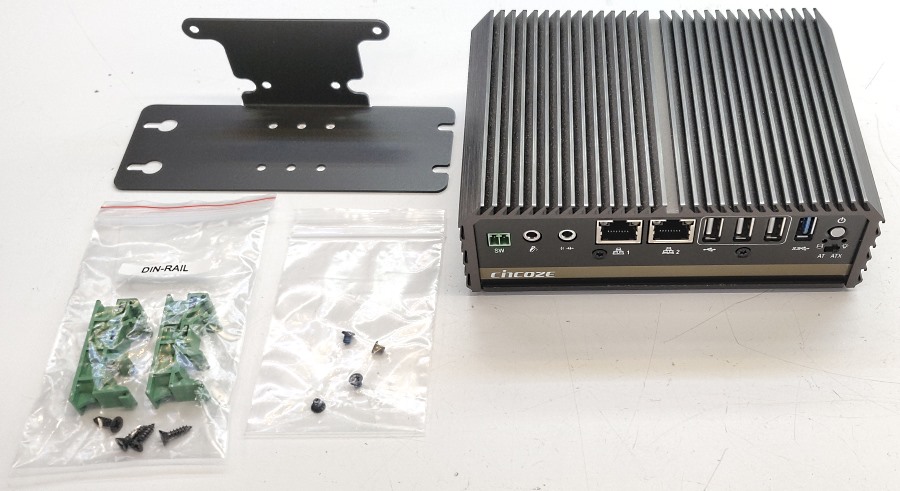
* Remove the mounting hardware from the box

<figure><img src="https://3062424488-files.gitbook.io/~/files/v0/b/gitbook-x-prod.appspot.com/o/spaces%2FlLHqs7kbNoKOFTwGOfH6%2Fuploads%2Fgit-blob-985d17c2cb5e7369be7bf59985629e20890ed6e2%2Fa08d2d6102878f19ba7271d2861ff8e9bb6d2aa3d3b5429b6998a466a1821626.png?alt=media" alt="" height="428" width="500"><figcaption></figcaption></figure>

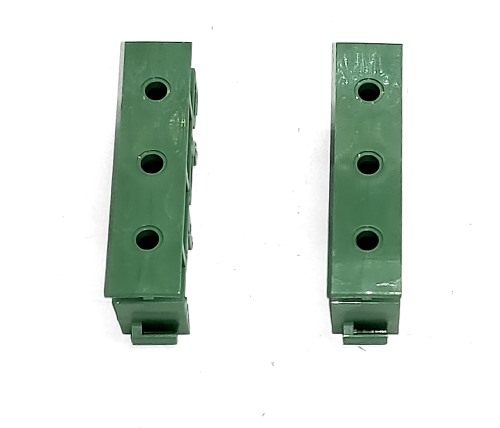
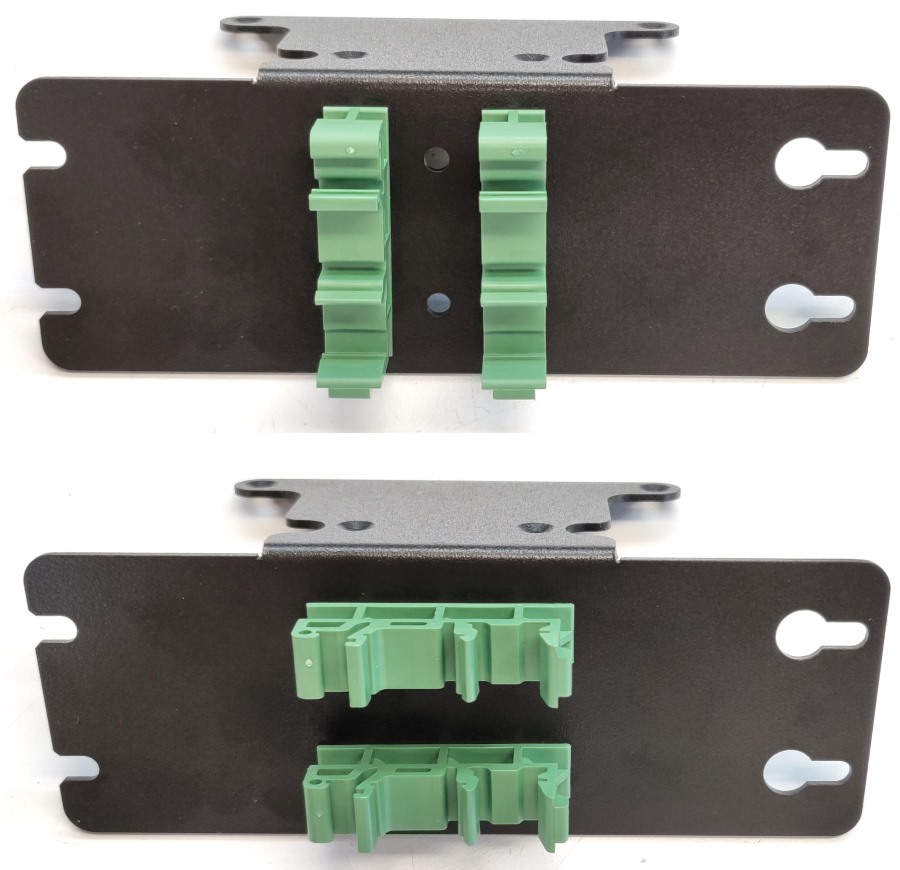
* Set the green DIN clips on your worksurface, ensuring the plastic tabs are facing the same way.

<figure><img src="https://3062424488-files.gitbook.io/~/files/v0/b/gitbook-x-prod.appspot.com/o/spaces%2FlLHqs7kbNoKOFTwGOfH6%2Fuploads%2Fgit-blob-a6236dbc6a4e1c8d17de33293c80bb96c6c879a5%2F18b67866cd8be863e33cf225ae59d473a1908b3f2672c9afc082a49a1e66f907.png?alt=media" alt="" height="663" width="800"><figcaption></figcaption></figure>

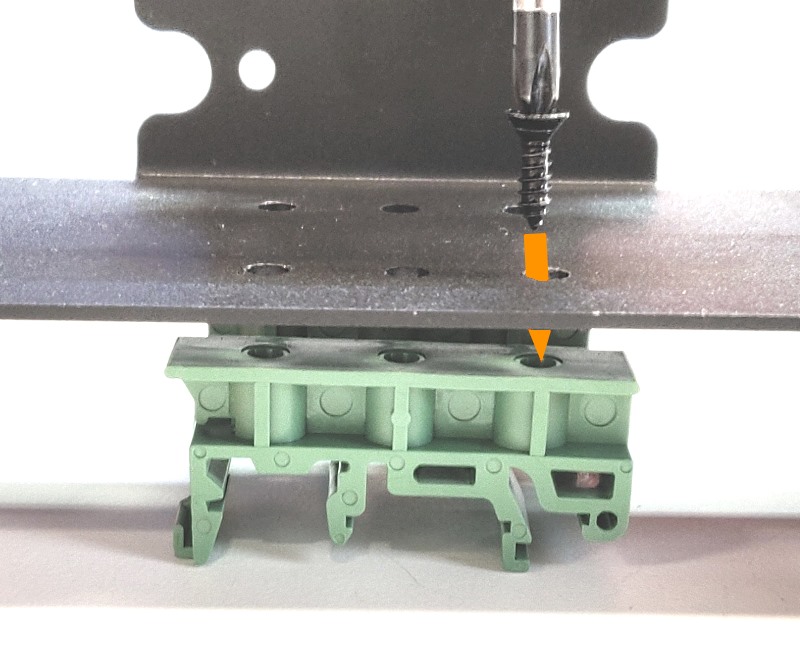
* Using the screws that came in the bag with the DIN clips, install them onto the mounting bracket.

<figure><img src="https://3062424488-files.gitbook.io/~/files/v0/b/gitbook-x-prod.appspot.com/o/spaces%2FlLHqs7kbNoKOFTwGOfH6%2Fuploads%2Fgit-blob-5ad45575d680fd081c5c4ae85859f0c53ce092cf%2F976f8229b3234443f3030809ab5a64607739f1477b31dea283e2ea71871b2d84.png?alt=media" alt="" height="571" width="800"><figcaption></figcaption></figure>

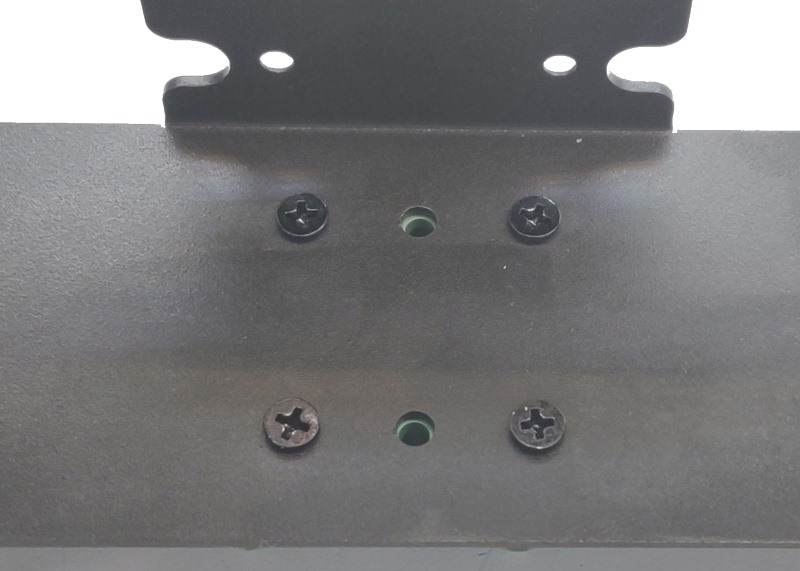
* Install 4 screws total, leaving the middle hole open

<figure><img src="https://3062424488-files.gitbook.io/~/files/v0/b/gitbook-x-prod.appspot.com/o/spaces%2FlLHqs7kbNoKOFTwGOfH6%2Fuploads%2Fgit-blob-d376bb973e6ab8373406ac968cacd4e8ed77ece4%2Fee2381b50ade14ad1fe317e18d0a81407c395de61b2ae06b6853066cc60b1d6e.png?alt=media" alt="" height="870" width="900"><figcaption></figcaption></figure>

* Either orientation is acceptable, it can be rotated depending on your installation needs.

<figure><img src="https://3062424488-files.gitbook.io/~/files/v0/b/gitbook-x-prod.appspot.com/o/spaces%2FlLHqs7kbNoKOFTwGOfH6%2Fuploads%2Fgit-blob-b6ac2810cd0ff1c0789e3f23b3edc38a08404a4e%2F8548b30c34b2452e161a1f24e174b1212a15923854d9c4698335303489d67d3e.png?alt=media" alt="" height="479" width="800"><figcaption></figcaption></figure>

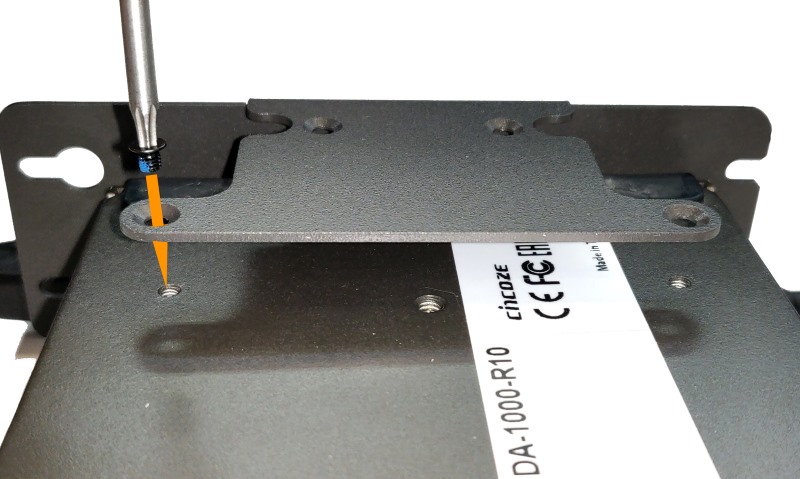
* Mount the bracket to the bottom of the system using the 4 included M3 Torx T10 screws

<figure><img src="https://3062424488-files.gitbook.io/~/files/v0/b/gitbook-x-prod.appspot.com/o/spaces%2FlLHqs7kbNoKOFTwGOfH6%2Fuploads%2Fgit-blob-f37f65800c97afd92250ef712b04eedccba2958d%2Fe7deeac2f5f1f6dae2d2fd8f6809ae64b08da9eb6cb6c989dc93a46b3c145279.png?alt=media" alt="" height="499" width="800"><figcaption></figcaption></figure>

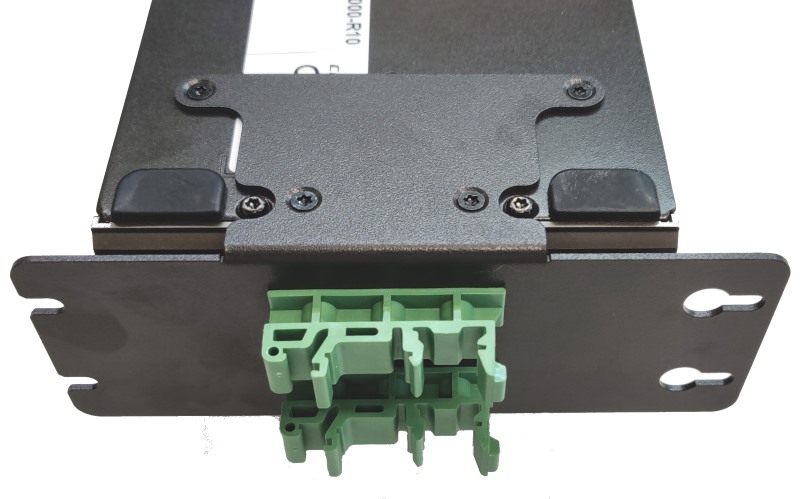
* The bracket is now installed and ready for use.