> For the complete documentation index, see [llms.txt](https://support.onlogic.com/llms.txt). Markdown versions of documentation pages are available by appending `.md` to page URLs; this page is available as [Markdown](https://support.onlogic.com/product-documentation/rugged-products/rugged-by-cincoze/dc-1100.md).
# DC-1100
This page also applies to the TM300 ThinManager Ready platform.
### Manual, Drivers, Datasheet
As a certified OnLogic solution, all detailed product documentation, including user manuals, technical specifications, regulatory information, and software downloads, is available directly on the manufacturer support site linked below.
{% embed url="" %}
### Replacement Power Connector
If you need an additional mating connector for your system’s power port, you can acquire our CBP123 component from our website, [here](https://www.onlogic.com/store/cbp123/).
### Troubleshooting
#### Internal Access
The DC series of products can be opened by the user. This does not void the warranty, however, any damage caused by doing so will not be covered.
The following guide will take you through disassembling and clearing CMOS for your DC-1100 unit. *This article also applies to the TM300*.
#### Opening the DC-1100 Case and Clearing CMOS
If your DC-1100 fails to boot, a CMOS reset may help. You will need to open the unit. This does not void your warranty, however, any damage caused by doing so will not be covered. Ensure your body is discharged of any static electricity by touching a grounded metal surface.
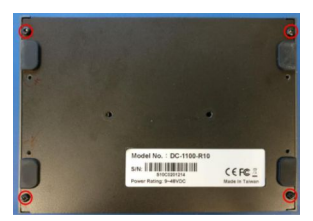
1. Remove the 4x Torx T9 screws from the bottom plate.
2. The plate is now loose and can be lifted off.
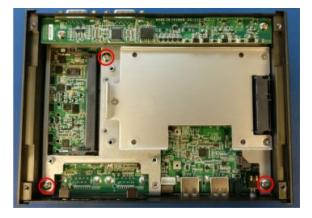
The storage and RAM are now accessible.
3. To continue with the CMOS reset, remove the 3 circled phillips screws.
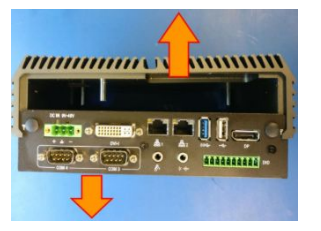
4. The lid can now be pulled apart from the rest of the system. This may take a moderate amount of force but can be done using only your hands. It can be helpful to grab the COM ports for leverage.
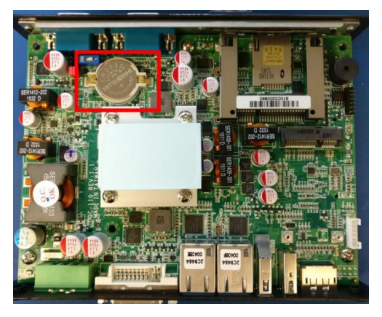
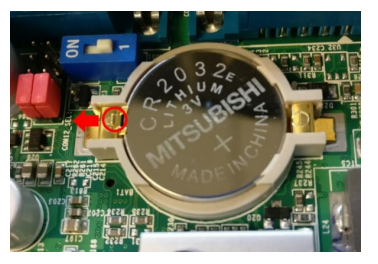
5. With the lid separated, you can now access the CMOS reset switch and battery.
6. Flip the blue switch to the ON position for 30 seconds and then return it to the 1 position. The CMOS is now clear.
7. If you would like to replace the CMOS battery, you may do so now. Slide the gold tab to release the battery.
8. Reassemble the unit and test it again. If you continue to have issues, contact technical support.
**Note:** if you unit has WiFi, be cautious of the WiFi pigtail routing during re-assembly. Ensure the cables are away from the screw holes so they do not get damaged by the screws.