# Cincoze BIOS Update Procedure

*Applies to: DI-Series, DS-Series, DX-Series, P2000-Series*

<figure><img src="https://3062424488-files.gitbook.io/~/files/v0/b/gitbook-x-prod.appspot.com/o/spaces%2FlLHqs7kbNoKOFTwGOfH6%2Fuploads%2Fgit-blob-70fbdb64bec716b2c6552b4d52542fe61d2c0acd%2F9ea8e39d8a2b6227237c03ff605f5fe8a5de5eda2323e62b9303a535393f2c7d.png?alt=media" alt="" height="286" width="527"><figcaption></figcaption></figure>

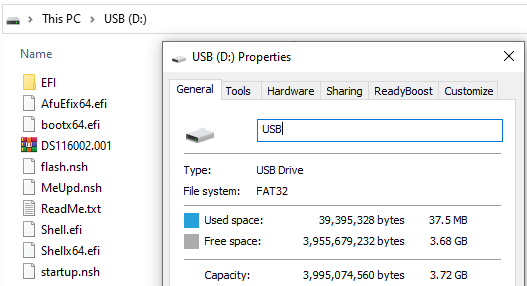
* Copy the BIOS files to a FAT32 formatted flash drive

<figure><img src="https://3062424488-files.gitbook.io/~/files/v0/b/gitbook-x-prod.appspot.com/o/spaces%2FlLHqs7kbNoKOFTwGOfH6%2Fuploads%2Fgit-blob-27e73d00f3857df709d6aacc90602729c6aa7007%2Fdf9e58832856aacbf4abfd2133e21ef9c9107fa1d10af2ab711cc8e07c498dde.png?alt=media" alt="" height="445" width="1024"><figcaption></figcaption></figure>

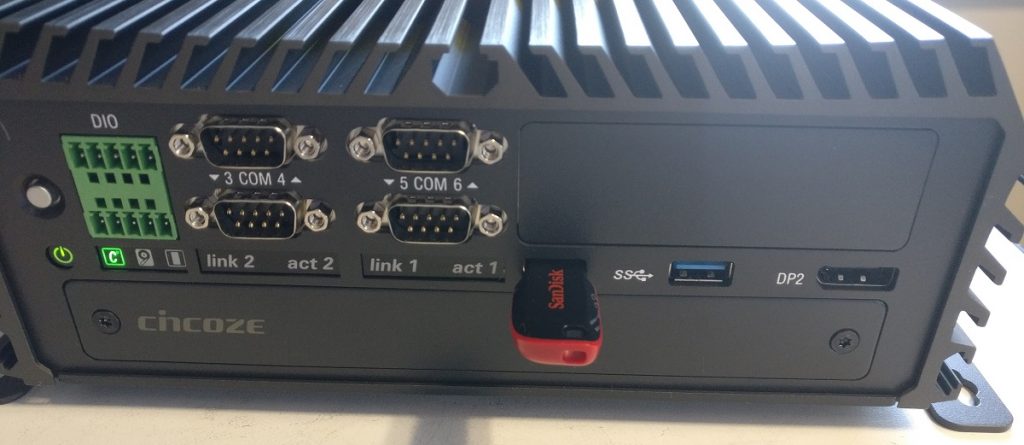
* Insert the flash drive into the Cincoze unit
* Power on the unit, and press the Del key a few times until the blue BIOS menu appears

*BIOS Navigation: Use the arrow keys to move around, press enter to select/open, press Esc to go back.*

<figure><img src="https://3062424488-files.gitbook.io/~/files/v0/b/gitbook-x-prod.appspot.com/o/spaces%2FlLHqs7kbNoKOFTwGOfH6%2Fuploads%2Fgit-blob-1135f30e2fe12d16ce675e89e7f6bfd45be44939%2Fc66d9c25791ec08cdd9b26a0f58727c88c96e9a883c18f7f2c70c09e14736d68.png?alt=media" alt="" height="550" width="900"><figcaption></figcaption></figure>

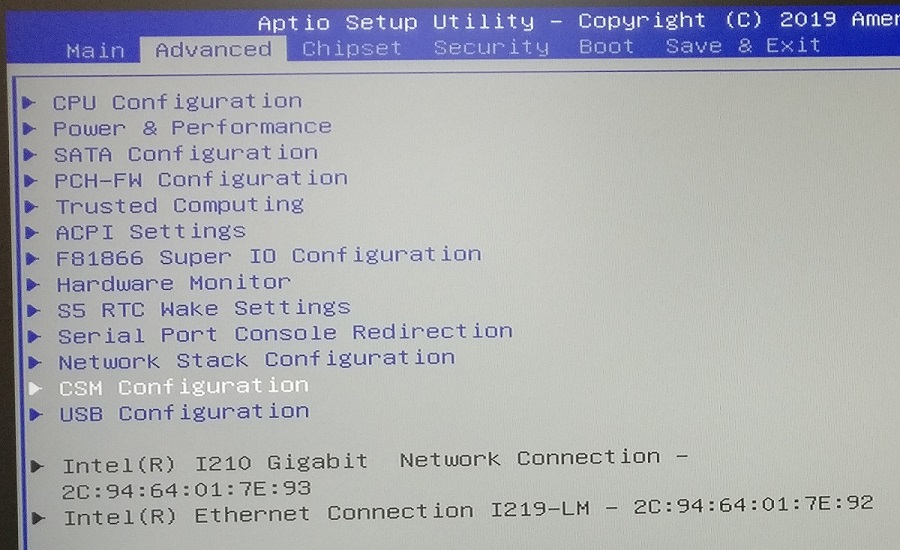
* Under the Advanced tab, open the CSM Configuration menu

<figure><img src="https://3062424488-files.gitbook.io/~/files/v0/b/gitbook-x-prod.appspot.com/o/spaces%2FlLHqs7kbNoKOFTwGOfH6%2Fuploads%2Fgit-blob-bbd6d36e60da8ed0946624ef43c142859e7af5db%2Ff99fedf80b459d77d4800c36510875930a09966bdcfe3055f420019a4115c470.png?alt=media" alt="" height="466" width="800"><figcaption></figcaption></figure>

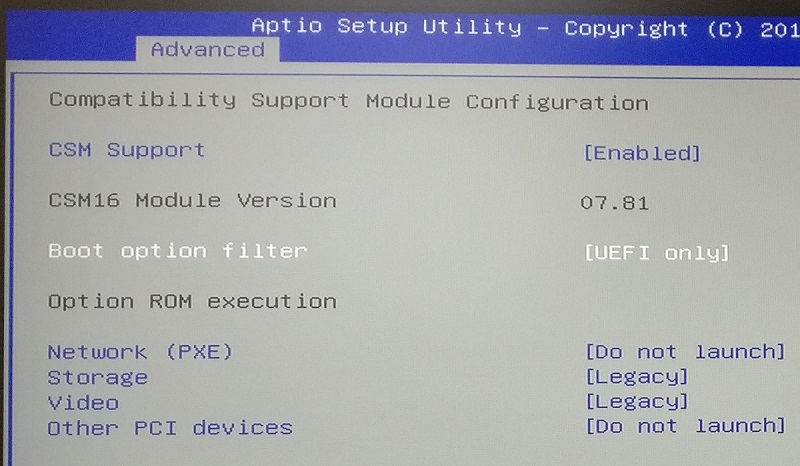
* Change the Boot option filter to UEFI only

<figure><img src="https://3062424488-files.gitbook.io/~/files/v0/b/gitbook-x-prod.appspot.com/o/spaces%2FlLHqs7kbNoKOFTwGOfH6%2Fuploads%2Fgit-blob-979a59fe03ac8917512ab50cbf0d0a09921b9780%2Facf36817e745d596579a4f098a016b27072d08c016759ad54456666d1a627814.png?alt=media" alt="" height="412" width="1024"><figcaption></figcaption></figure>

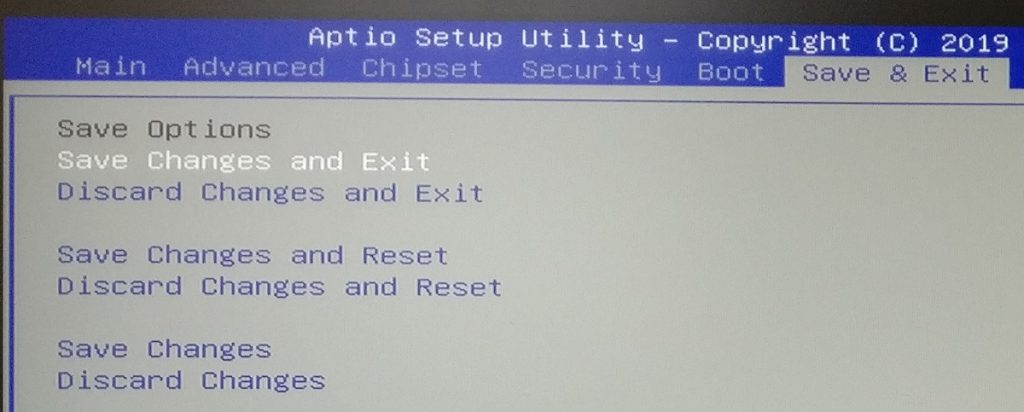
* Go back to the main menu
* Save Changes and Exit

<figure><img src="https://3062424488-files.gitbook.io/~/files/v0/b/gitbook-x-prod.appspot.com/o/spaces%2FlLHqs7kbNoKOFTwGOfH6%2Fuploads%2Fgit-blob-7319bc00c91e838d69d7c27ecca9aeaff0e67ab2%2Fc440122b72cd1a557f455cd534e8d5693252a668bc45ad2091773e9043d0135b.png?alt=media" alt="" height="480" width="1024"><figcaption></figcaption></figure>

* Press Del again to get back into the BIOS
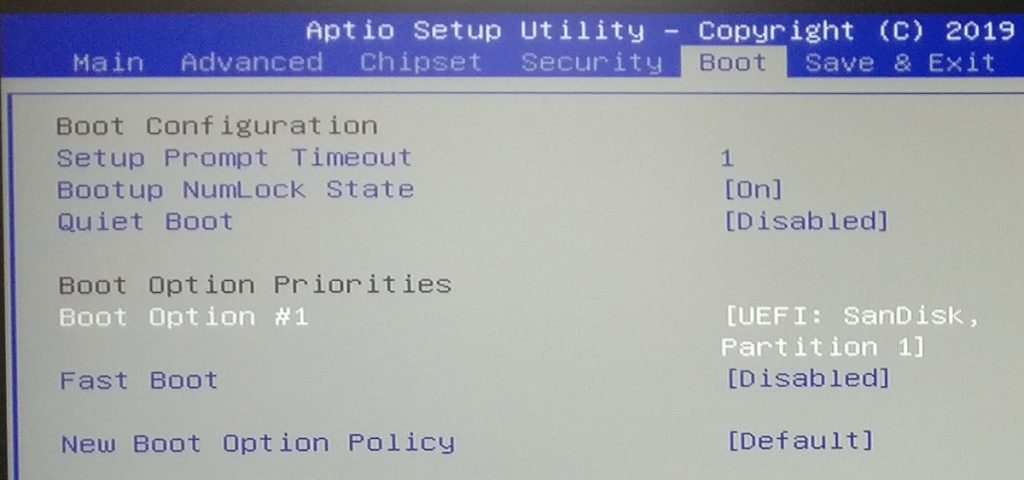
* Your flash drive should now be listed under the boot tab. Make sure Boot Option #1 is set to the flash drive.

Note: The next 3 steps are only relevant for larger Cincoze units. Smaller units such as the DA-1000 and DC-1100 may not have the PCH-FW Configuration menu. If the menu is missing, skip ahead to the Save & Exit step.

<figure><img src="https://3062424488-files.gitbook.io/~/files/v0/b/gitbook-x-prod.appspot.com/o/spaces%2FlLHqs7kbNoKOFTwGOfH6%2Fuploads%2Fgit-blob-e9725ea48576c47da0c32adc00f02bf22aa65a51%2Fb67b5def11df23722468556270f645c0750c9cfff384cbb2b367570f3884a8d5.png?alt=media" alt="" height="560" width="1024"><figcaption></figcaption></figure>

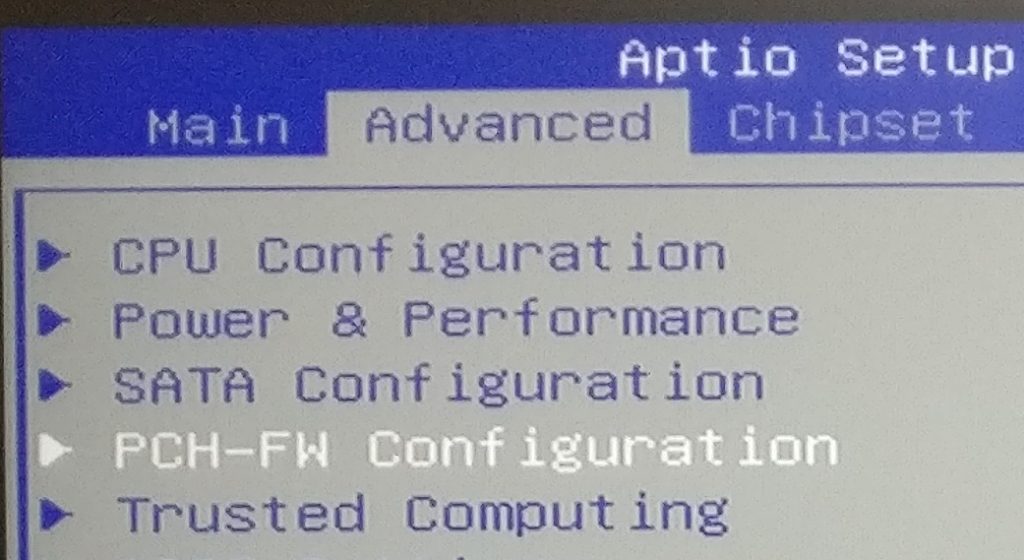
* Now head back over to the Advanced tab and open the PCH-FW Configuration menu

<figure><img src="https://3062424488-files.gitbook.io/~/files/v0/b/gitbook-x-prod.appspot.com/o/spaces%2FlLHqs7kbNoKOFTwGOfH6%2Fuploads%2Fgit-blob-8f5e57395039ba2203e3881ccf0508e6a84538f8%2Fe9c147e7e270d3a320a646cbff3bc954e863c0e17e06b20e0378306eb122fdb2.png?alt=media" alt="" height="244" width="1024"><figcaption></figcaption></figure>

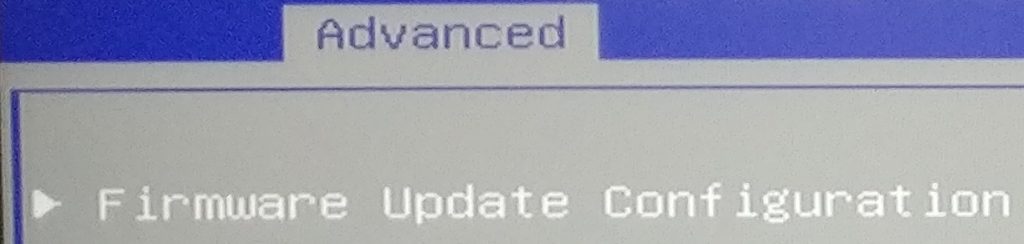
* Select the only option

<figure><img src="https://3062424488-files.gitbook.io/~/files/v0/b/gitbook-x-prod.appspot.com/o/spaces%2FlLHqs7kbNoKOFTwGOfH6%2Fuploads%2Fgit-blob-005ee2da090309d245a42c2c63fd8fa8f4ec46d2%2Fb90b61a7c23aa22d726703d7398e0e701052dee29b5dd7870bc8c50a7f27aaa2.png?alt=media" alt="" height="491" width="1024"><figcaption></figcaption></figure>

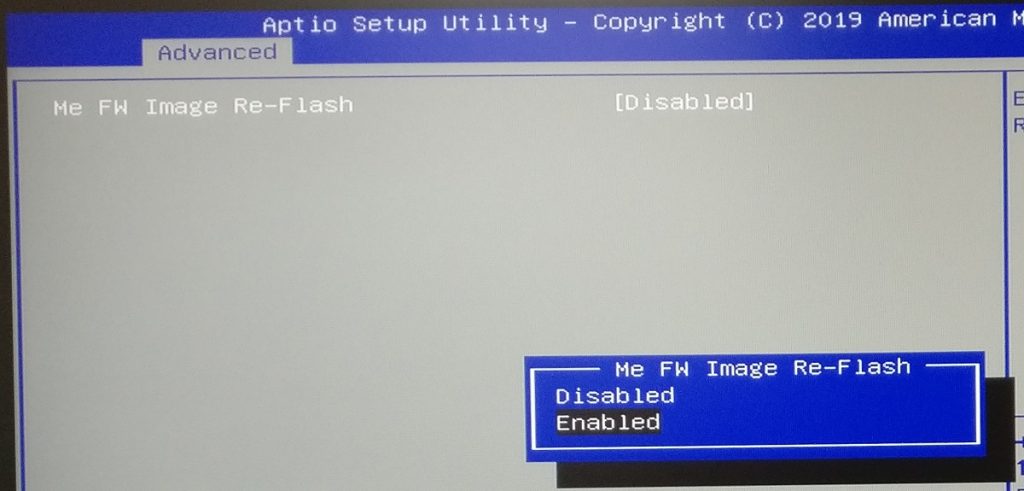
* Enable Me FW Image Re-Flash

<figure><img src="https://3062424488-files.gitbook.io/~/files/v0/b/gitbook-x-prod.appspot.com/o/spaces%2FlLHqs7kbNoKOFTwGOfH6%2Fuploads%2Fgit-blob-979a59fe03ac8917512ab50cbf0d0a09921b9780%2Facf36817e745d596579a4f098a016b27072d08c016759ad54456666d1a627814.png?alt=media" alt="" height="412" width="1024"><figcaption></figcaption></figure>

* Save Changes and Exit
* The unit will now reboot and boot to the flash drive. If it reboots more than once, you will need to go back and enable Me FW Image Re-flash again. It only remains active for 1 reboot. This is a security feature.

<figure><img src="https://3062424488-files.gitbook.io/~/files/v0/b/gitbook-x-prod.appspot.com/o/spaces%2FlLHqs7kbNoKOFTwGOfH6%2Fuploads%2Fgit-blob-be7bb9806a89882035673edd4c2ef0ebd28d9847%2F919c6a05677304c1d76514644894670ad60ac9f395db7e2f496603ce659ba3fa.png?alt=media" alt="" height="444" width="900"><figcaption></figcaption></figure>

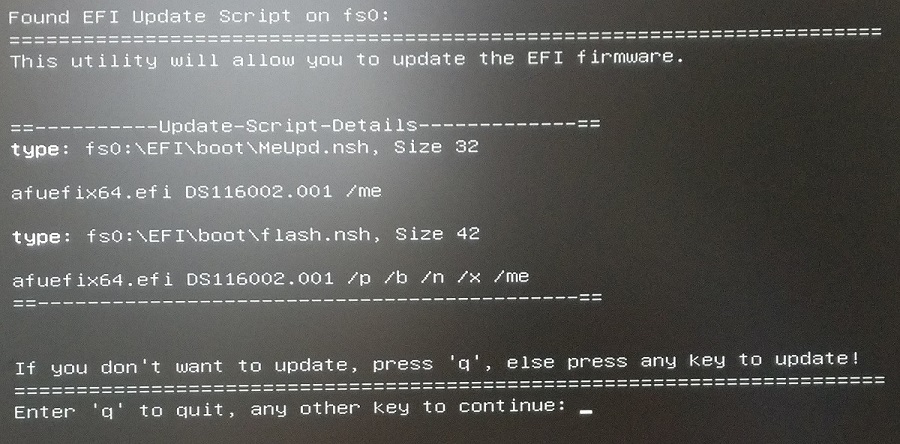
* Press enter at the prompt to begin the flashing process
* Do not unplug the unit during the process

<figure><img src="https://3062424488-files.gitbook.io/~/files/v0/b/gitbook-x-prod.appspot.com/o/spaces%2FlLHqs7kbNoKOFTwGOfH6%2Fuploads%2Fgit-blob-c71f3d74f7cbf78c52594519c3873dd5cbcaf25b%2F814fcb77df29cf570c645c322e1ad1f3fd3576c8519774c34b8a7d991cab3850.png?alt=media" alt="" height="281" width="1024"><figcaption></figcaption></figure>

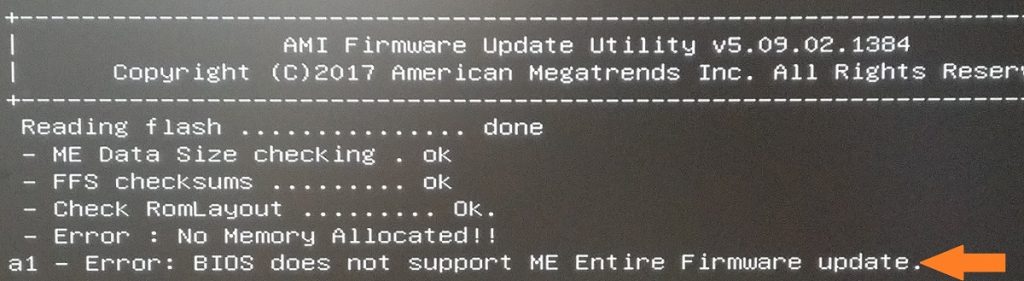
* If this error message is displayed, the firmware re-flash setting was not enabled correctly. Allow the process to complete. Go back to that step and try again.

<figure><img src="https://3062424488-files.gitbook.io/~/files/v0/b/gitbook-x-prod.appspot.com/o/spaces%2FlLHqs7kbNoKOFTwGOfH6%2Fuploads%2Fgit-blob-32de19058f8b7dadb538a563a70be3412be55501%2Fa373da605e71a1de2ad34915241c73edfd4e735414efa1f1e7d15c1ea0f52ef9.png?alt=media" alt="" height="134" width="1024"><figcaption></figcaption></figure>

* The BIOS has now been updated. Press control-alt-del to restart. The unit may restart several times to configure the new BIOS.