
# Factor Series Technical Support

<figure><img src="https://3062424488-files.gitbook.io/~/files/v0/b/gitbook-x-prod.appspot.com/o/spaces%2FlLHqs7kbNoKOFTwGOfH6%2Fuploads%2Fgit-blob-4323f95fddecf6356a390f0e0bea3c8c823b6b4f%2Fc9dc2d6e32355c12772259ecbaf97673cd2d26e56ed68d00e18d78dce40c3e35.png?alt=media" alt="" height="390" width="436"><figcaption></figcaption></figure>

<figure><img src="https://3062424488-files.gitbook.io/~/files/v0/b/gitbook-x-prod.appspot.com/o/spaces%2FlLHqs7kbNoKOFTwGOfH6%2Fuploads%2Fgit-blob-c99e10472e174bb9021b14a2460160180487f103%2F879eff770df26b2a99940ac109e307b483b04ba5edbf2a5ddcb2f28a20e32f7e.png?alt=media" alt="" height="372" width="475"><figcaption></figcaption></figure>

<figure><img src="https://3062424488-files.gitbook.io/~/files/v0/b/gitbook-x-prod.appspot.com/o/spaces%2FlLHqs7kbNoKOFTwGOfH6%2Fuploads%2Fgit-blob-694d107f5e70a85bd095eaa9b677e71e02836559%2Fedb17dd1a6f601944ebd6c4d912cd801223e65735adade81c1876c31f13c992c.png?alt=media" alt="" height="167" width="1024"><figcaption></figcaption></figure>

## <mark style="color:blue;">Manuals and Downloads</mark> <a href="#manuals-and-downloads" id="manuals-and-downloads"></a>

[Raspberry PI Imager](https://www.raspberrypi.com/software/)

[Raspberry Pi Firmware Tool (for eMMC)](https://github.com/raspberrypi/usbboot/raw/master/win32/rpiboot_setup.exe)

**Configuration Files (required when installing an OS):**

Bullseye 32bit files- [**Download**](https://static.onlogic.com/resources/firmware/utilities/FR200_OS-32/FR200_OS-32.zip)\
Bullseye 64bit files – [**Download**](https://static.onlogic.com/resources/firmware/utilities/FR200_UBUNTU-64/FR200_UBUNTU-64.zip)

Bookworm 32bit files- [**Download**](https://static.onlogic.com/resources/firmware/utilities/FR200_OS-32/BookWorm_32bit.zip)\
Bookworm 64bit files – [**Download**](https://static.onlogic.com/resources/firmware/utilities/FR200_UBUNTU-64/BookWorm_64bit.zip)

\
\*\*If installing to FR202, you will need to add the lines to the config.txt file noted in the section below for Bullseye

## <mark style="color:blue;">FAQs</mark> <a href="#frequently-asked-questions-faq" id="frequently-asked-questions-faq"></a>

<details>

<summary>How is auto power on enabled?</summary>

Auto power on is permanently enabled on this model. The unit will automatically turn on when supplied with power.

</details>

<details>

<summary>What is the default username/password?</summary>

You will be prompted to change this when logging in for the first time\
Raspberry Pi OS: pi/raspberry\
ubuntu: ubuntu/ubuntu

</details>

<details>

<summary>Which Operating Systems are supported?</summary>

The following operating systems have been validated by OnLogic. Other operating systems are not likely to work and are not eligible for support from OnLogic. Installation instructions can be found further down on this page. Refer to the contents pane on the right.

Raspberry Pi OS Lite (32bit & 64bit)\[Bullseye & Bookworm]\
Raspberry Pi OS (32bit & 64bit)\[Bullseye & Bookworm]

Ubuntu Desktop 22.04 (32bit & 64bit)\
Ubuntu Desktop 20.04 (32bit)

Ubuntu Server 22.04 (32bit & 64bit)\
Ubuntu Server 20.04 (32bit)

</details>

<details>

<summary>How do I erase the M.2 Storage?</summary>

The boot order is hardcoded. The best approach is to temporarily remove the M.2 storage drive, boot via USB, and then reconnect the M.2 storage once booted. It can then be erased.

</details>

<details>

<summary>How can I install my own Linux image?</summary>

When installing your own OS, make sure to use the OnLogic config.txt and usercfg.txt files. These allow the OnLogic designed FR200 series daughterboards to function properly. You can download the needed [files from here](https://static.onlogic.com/resources/firmware/utilities/FR200_OS-32/FR200_OS-32.zip).

</details>

<details>

<summary>How does the serial port enumerate?</summary>

The serial port typically enumerates as /dev/ttyUSB0. If you have a USB drive connected, it will use the next lowest number (i.e. /dev/ttyUSB1). The hardware ID of the serial port chip is F81439A.

</details>

<details>

<summary>What is the Config.txt file for?</summary>

Raspberry Pi modules do not use a BIOS like traditional desktop computers. Intead, they use Config.txt and Usercfg.txt files. Raspberry Pi has details about the files and use [here](https://www.raspberrypi.com/documentation/computers/config_txt.html#what-is-config-txt%E2%80%9D) .

</details>

## <mark style="color:blue;">System Setup</mark> <a href="#system-setup" id="system-setup"></a>

* To get started, connect a keyboard, mouse, and monitor before powering up the system.
* If you purchased the standard 60 watt power supply, it will be pre-wired and ready for use.

<figure><img src="https://3062424488-files.gitbook.io/~/files/v0/b/gitbook-x-prod.appspot.com/o/spaces%2FlLHqs7kbNoKOFTwGOfH6%2Fuploads%2Fgit-blob-523e43171e8e518ad1d90b7824a60639c60f6bbd%2Fffd0ed02c96da16f9c74b5bad8e4ead9cd1b1929a7176a26933397e4c032c2f2.png?alt=media" alt="" height="675" width="800"><figcaption></figcaption></figure>

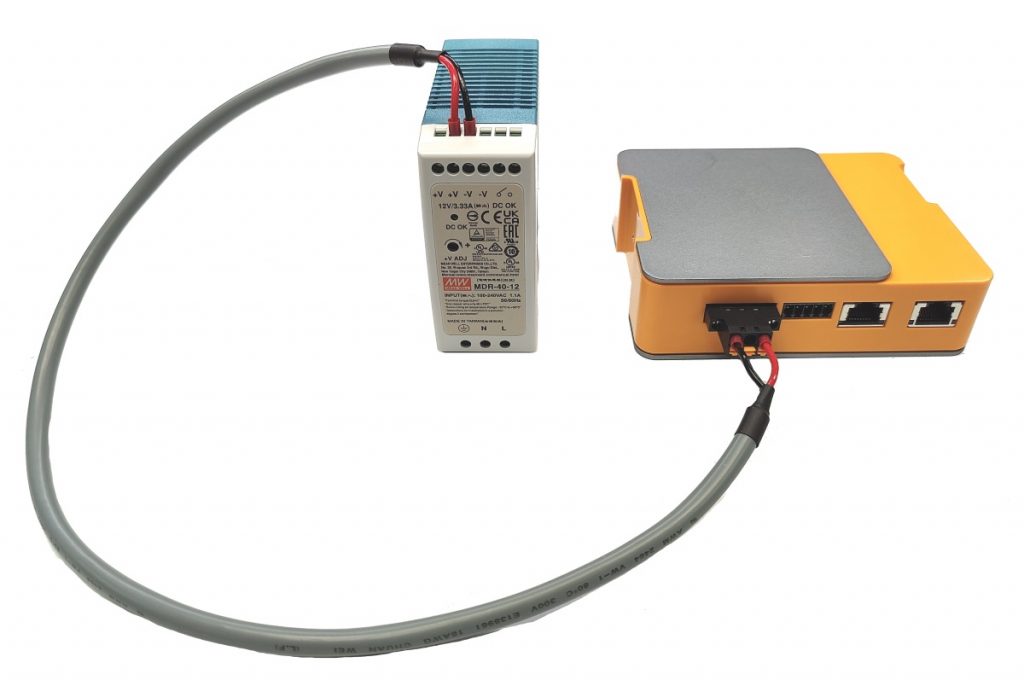
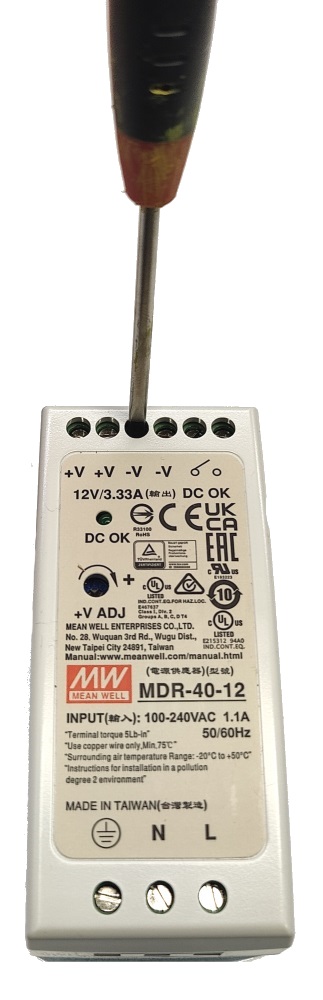
* For the Din rail power supply, connect the wires as shown below. V+ to the red wire, V- to the black.

<figure><img src="https://3062424488-files.gitbook.io/~/files/v0/b/gitbook-x-prod.appspot.com/o/spaces%2FlLHqs7kbNoKOFTwGOfH6%2Fuploads%2Fgit-blob-72d4be6434fb71f5094babdd5150e13192b888f7%2F6946fd2f11dbd2213aae4af99d85a223103d60a0862356a70966eacc992c15ee.png?alt=media" alt="" height="680" width="1024"><figcaption></figcaption></figure>

<figure><img src="https://3062424488-files.gitbook.io/~/files/v0/b/gitbook-x-prod.appspot.com/o/spaces%2FlLHqs7kbNoKOFTwGOfH6%2Fuploads%2Fgit-blob-06584d8d837f9f48172a2e475b25c8244ad379bd%2Fd7f59f978baff9e3abc4c1ff92a6066683ab646af489a699544de1df6a55d9bc.png?alt=media" alt="" height="1000" width="323"><figcaption></figcaption></figure>

* Use a flathead screwdriver to loosen the terminals to accept the wires. Insert the wires and then tighten the terminals back down.
* On the system side, depress the orange tabs and slide the wires in.

### First Boot <a href="#first-boot" id="first-boot"></a>

This section covers what to expect the first time you power your system on.

### - No OS <a href="#no-os" id="no-os"></a>

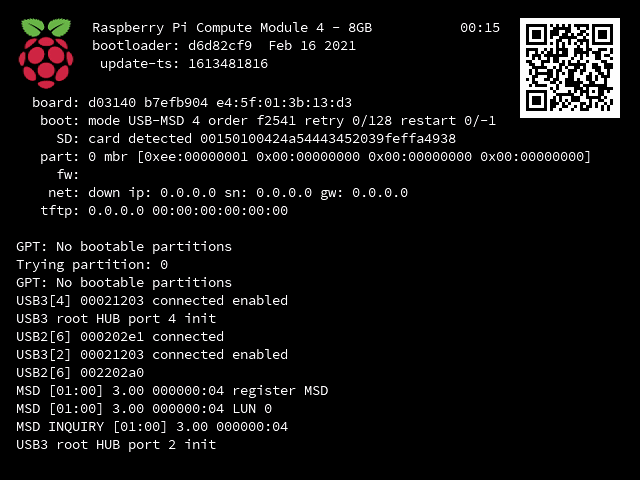
If you did not select an operating system when ordering, the system will boot up to a diagnostic splash screen. You can install an operating system using the steps further down on this page.

<figure><img src="https://3062424488-files.gitbook.io/~/files/v0/b/gitbook-x-prod.appspot.com/o/spaces%2FlLHqs7kbNoKOFTwGOfH6%2Fuploads%2Fgit-blob-b8059bad6dc24d453f6f56eb5e80b119d8871930%2F160cbeb204177ea2450b48b71b713b4b31cb4859c7c6b2d72d5e30d5c3ba4958.png?alt=media" alt="" height="480" width="640"><figcaption><p>Diagnostic screen shown when no operating system is found.</p></figcaption></figure>

#### Raspberry Pi OS <a href="#raspberry-pi-os" id="raspberry-pi-os"></a>

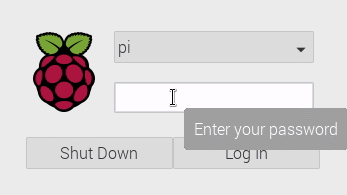
<figure><img src="https://3062424488-files.gitbook.io/~/files/v0/b/gitbook-x-prod.appspot.com/o/spaces%2FlLHqs7kbNoKOFTwGOfH6%2Fuploads%2Fgit-blob-59b23eb08244f27cce1f48b4cd74c90ec76435c1%2Ff0802c1f034fef225c9c0ae9c220789afc1a76b7a85b516bb2703ae345696eec.png?alt=media" alt="" height="195" width="347"><figcaption></figcaption></figure>

* Log in to the default pi account with the password “raspberry”

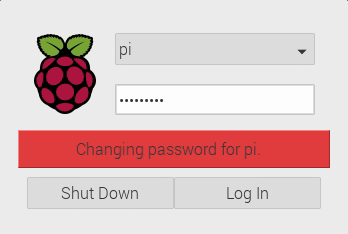
<figure><img src="https://3062424488-files.gitbook.io/~/files/v0/b/gitbook-x-prod.appspot.com/o/spaces%2FlLHqs7kbNoKOFTwGOfH6%2Fuploads%2Fgit-blob-743ca3f04a59f5a15c79db2529d72c3e916e4eb4%2F918dd0874a1a977d8935bd375a252ac365aebff2b3785e87fd284540bbc8c4fb.png?alt=media" alt="" height="234" width="348"><figcaption></figcaption></figure>

* Enter “raspberry” again (it is asking for the current password to enable changing it.)

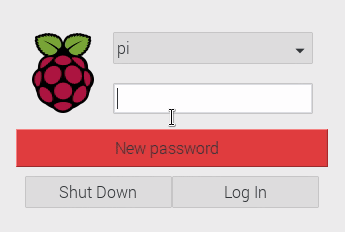
<figure><img src="https://3062424488-files.gitbook.io/~/files/v0/b/gitbook-x-prod.appspot.com/o/spaces%2FlLHqs7kbNoKOFTwGOfH6%2Fuploads%2Fgit-blob-614b6535ee4a9d1948ada925383e969f63018e2d%2F4037d2dbbd5c8bf4ed8640203bceccc887cc5ba9d06163695c002da078f317ce.png?alt=media" alt="" height="232" width="345"><figcaption></figcaption></figure>

* Enter a new password. Note that it must be different from the default or it will error out.

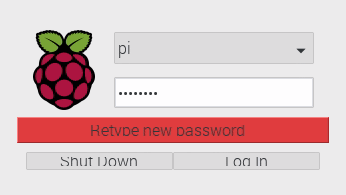
<figure><img src="https://3062424488-files.gitbook.io/~/files/v0/b/gitbook-x-prod.appspot.com/o/spaces%2FlLHqs7kbNoKOFTwGOfH6%2Fuploads%2Fgit-blob-22b11789954af68a2ea62d00f3445243a990948b%2F64f3ccaae41bc77ae10df95a938730f7f018f4bd46bfdddabaee30a5a6d7946a.png?alt=media" alt="" height="195" width="346"><figcaption></figcaption></figure>

* Enter the new password again to confirm

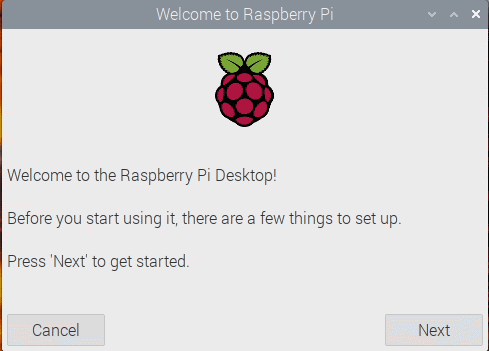
<figure><img src="https://3062424488-files.gitbook.io/~/files/v0/b/gitbook-x-prod.appspot.com/o/spaces%2FlLHqs7kbNoKOFTwGOfH6%2Fuploads%2Fgit-blob-5e1e82191db973f42bba85e4e40f0f1640f4a620%2F9b785b8ddb7dcda065086841d358f81b97d006c51fae9581c2d92d5a4f56c8ef.png?alt=media" alt="" height="351" width="489"><figcaption></figcaption></figure>

* You will be greeted with the Raspbian welcome screen.

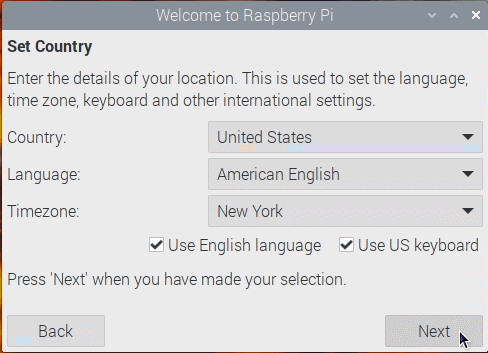
<figure><img src="https://3062424488-files.gitbook.io/~/files/v0/b/gitbook-x-prod.appspot.com/o/spaces%2FlLHqs7kbNoKOFTwGOfH6%2Fuploads%2Fgit-blob-969235328a937bae705e1485cbfcb20bd05d277e%2F9fc6fcbbca285ee6c37a235eb4bd0f7fd8a8573d7e4c0ea524b9955100e03ee6.png?alt=media" alt="" height="353" width="488"><figcaption></figcaption></figure>

* Configure localization information

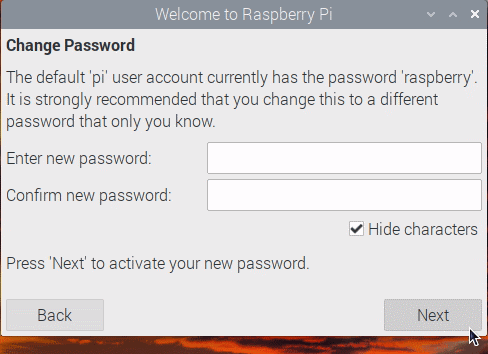
<figure><img src="https://3062424488-files.gitbook.io/~/files/v0/b/gitbook-x-prod.appspot.com/o/spaces%2FlLHqs7kbNoKOFTwGOfH6%2Fuploads%2Fgit-blob-b695eb5a5a0f3e6694f13876dbb4c79953f445b7%2F718fee9f8383f0f225898e92a9144cb5483c53da585aa04dfd4952730cc87656.png?alt=media" alt="" height="354" width="488"><figcaption></figcaption></figure>

* Click next to skip the redundant password change dialog. It will keep the password you set earlier.
* Compete the setup wizard and the unit is ready for use.

### - Raspberry Pi OS (Lite) <a href="#raspberry-pi-os-lite" id="raspberry-pi-os-lite"></a>

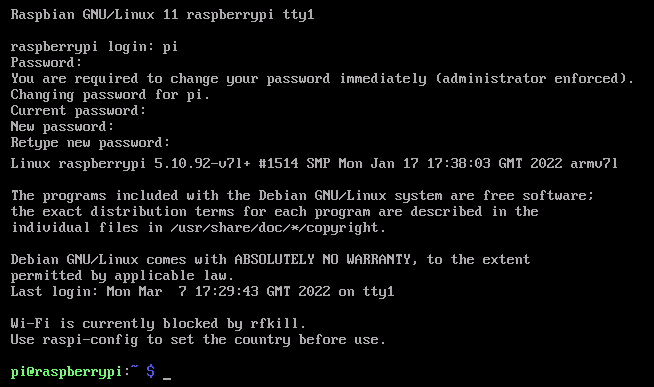
The Lite version of Raspberry PI OS (Raspbian) boots straight to a login prompt.

* Log in with the following credentials:
* username: pi
* password: raspberry
* You will be prompted to change the default password on first login. re-enter “raspberry” as the current password, and then set your new password.
* The system is now ready for use.

<figure><img src="https://3062424488-files.gitbook.io/~/files/v0/b/gitbook-x-prod.appspot.com/o/spaces%2FlLHqs7kbNoKOFTwGOfH6%2Fuploads%2Fgit-blob-e74033a21016bdad293d4437365c38860f9cb519%2F14ed443fa6fa868768d9191abbe7d05183a5067d76e88f72cc31c04e853bec52.png?alt=media" alt="" height="387" width="654"><figcaption></figcaption></figure>

### - Ubuntu Desktop <a href="#ubuntu-desktop" id="ubuntu-desktop"></a>

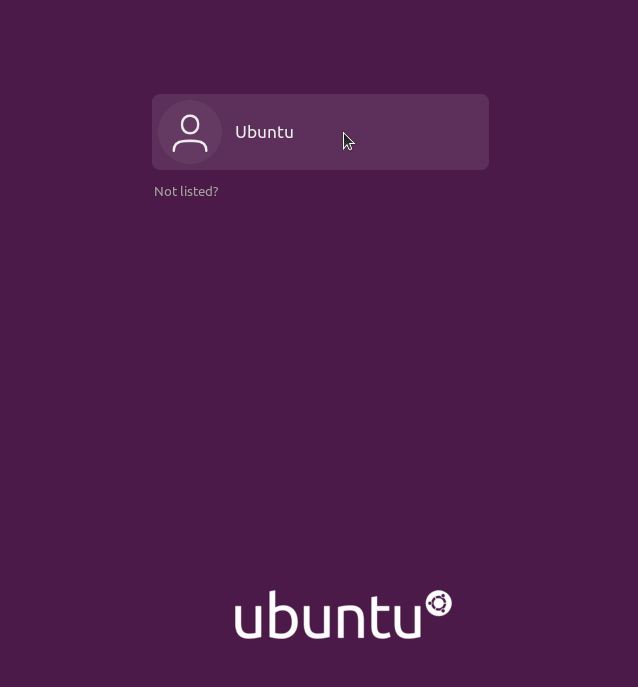
<figure><img src="https://3062424488-files.gitbook.io/~/files/v0/b/gitbook-x-prod.appspot.com/o/spaces%2FlLHqs7kbNoKOFTwGOfH6%2Fuploads%2Fgit-blob-cb1836baba4a48a6711162f3c5a43bae3e497119%2F0bf99de32a80f6598d63a9d2715bec56219357ffa792739656f69b4691fddf5b.png?alt=media" alt="" height="687" width="638"><figcaption></figcaption></figure>

* Click on the “Ubuntu” user

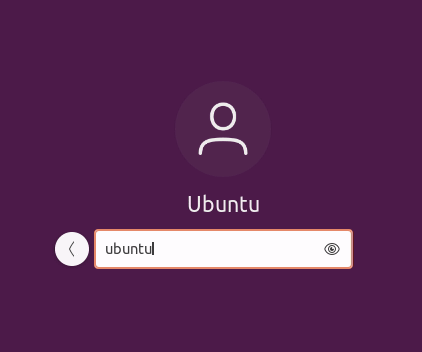
<figure><img src="https://3062424488-files.gitbook.io/~/files/v0/b/gitbook-x-prod.appspot.com/o/spaces%2FlLHqs7kbNoKOFTwGOfH6%2Fuploads%2Fgit-blob-cfc3e9aac1c6ae2b8ece8c8a6f12669d171f3cc1%2F5dd29cbefac78cddab4f95a5dd803cc815210caface283844e3de7bd5966449a.png?alt=media" alt="" height="352" width="422"><figcaption></figcaption></figure>

* Enter the default password – “ubuntu”

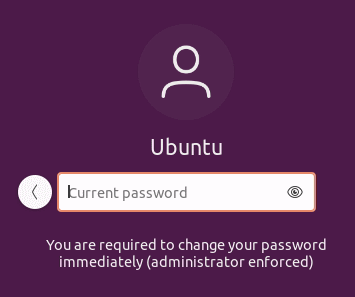
<figure><img src="https://3062424488-files.gitbook.io/~/files/v0/b/gitbook-x-prod.appspot.com/o/spaces%2FlLHqs7kbNoKOFTwGOfH6%2Fuploads%2Fgit-blob-268a044380aba030043926c71c6b9398ec5a4cdf%2F8a21e14644e6b94b6c2a1f38c2facbe5905687cf6605bb414d22e66d217d5eec.png?alt=media" alt="" height="297" width="355"><figcaption></figcaption></figure>

* Enter the default password again – “ubuntu”

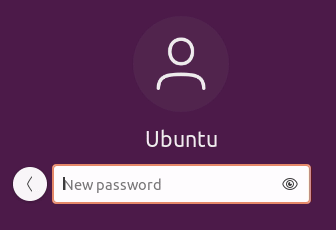
<figure><img src="https://3062424488-files.gitbook.io/~/files/v0/b/gitbook-x-prod.appspot.com/o/spaces%2FlLHqs7kbNoKOFTwGOfH6%2Fuploads%2Fgit-blob-7ec8e1c9cc5655ae102bc8f671f6e7d275e32da0%2Fe48e30265ca3081a99f2ad5c1c50ceb3871c187ea46109e17de76c1d5172fab4.png?alt=media" alt="" height="230" width="336"><figcaption></figcaption></figure>

* Create a new password

<figure><img src="https://3062424488-files.gitbook.io/~/files/v0/b/gitbook-x-prod.appspot.com/o/spaces%2FlLHqs7kbNoKOFTwGOfH6%2Fuploads%2Fgit-blob-79877fb78420b557234557172f5000314e3f954f%2Fea80704cce5da15c9b24d21cf0bb44111889b9698d75489a14f326a8ac2af1c9.png?alt=media" alt="" height="321" width="983"><figcaption></figcaption></figure>

* Click next and complete the setup wizard.
* Your system is now ready for use.

### - Ubuntu Server <a href="#ubuntu-server" id="ubuntu-server"></a>

Ubuntu server boots straight to a login prompt.

* Log in with the following credentials:
* username: ubuntu
* password: ubuntu
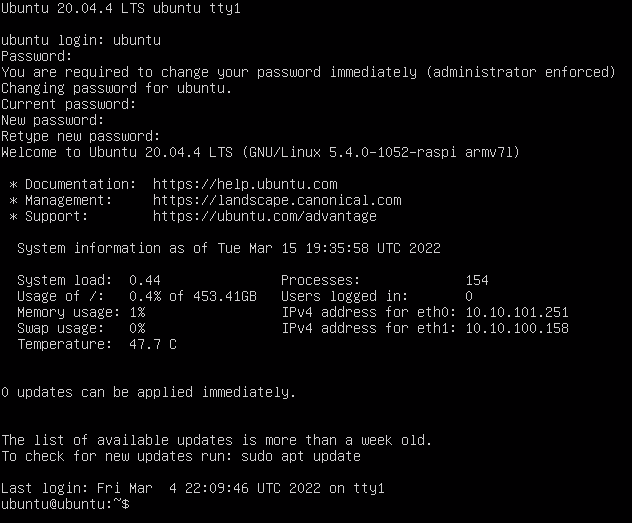
* You will be prompted to change the default password on first login. re-enter “ubuntu” as the current password, and then set your new password.
* The system is now ready for use.

<figure><img src="https://3062424488-files.gitbook.io/~/files/v0/b/gitbook-x-prod.appspot.com/o/spaces%2FlLHqs7kbNoKOFTwGOfH6%2Fuploads%2Fgit-blob-4b652f9ccbaef10c0565fff8b3b32ff0ef87d374%2F35effa88468318e05f102a9817d87923a6f89aa5f2abe8f71b160f7bea6f54e0.png?alt=media" alt="" height="523" width="632"><figcaption></figcaption></figure>

## <mark style="color:blue;">Internal Access</mark> <a href="#disassembly" id="disassembly"></a>

### FR201  <a href="#fr201-disassembly" id="fr201-disassembly"></a>

<figure><img src="https://3062424488-files.gitbook.io/~/files/v0/b/gitbook-x-prod.appspot.com/o/spaces%2FlLHqs7kbNoKOFTwGOfH6%2Fuploads%2FU8OcDNfTRr9PQmDuhHGz%2Fimage.png?alt=media&#x26;token=0b309a22-0797-44d2-a622-35f07fcfb37b" alt=""><figcaption></figcaption></figure>

* Remove the 3 M3x4mm screws from the bottom of the system.

<figure><img src="https://3062424488-files.gitbook.io/~/files/v0/b/gitbook-x-prod.appspot.com/o/spaces%2FlLHqs7kbNoKOFTwGOfH6%2Fuploads%2Fgit-blob-21c4e7cd25800391671c37f61a113d30f4eafa10%2Fb90648d84a7b0946ec16b3a827d10cd6756093cf8a1de07390e2f3cd34d3119d.png?alt=media" alt="" height="678" width="1000"><figcaption></figcaption></figure>

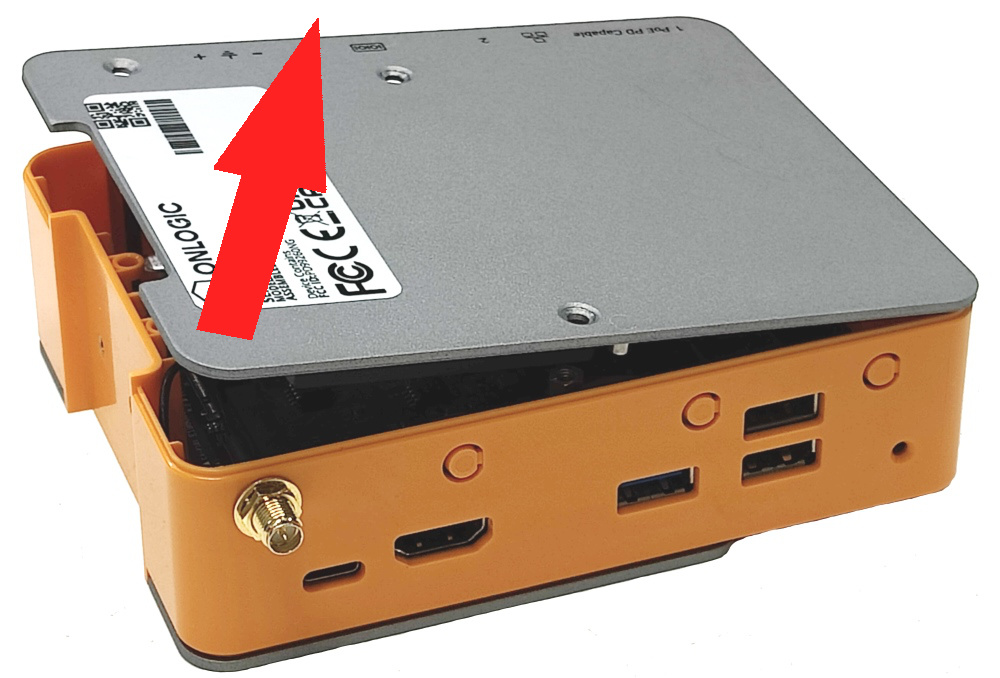
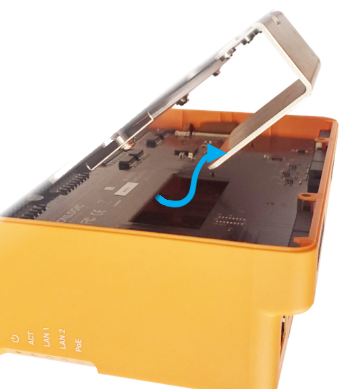
* Lift up the bottom lid starting from the side with the OnLogic label
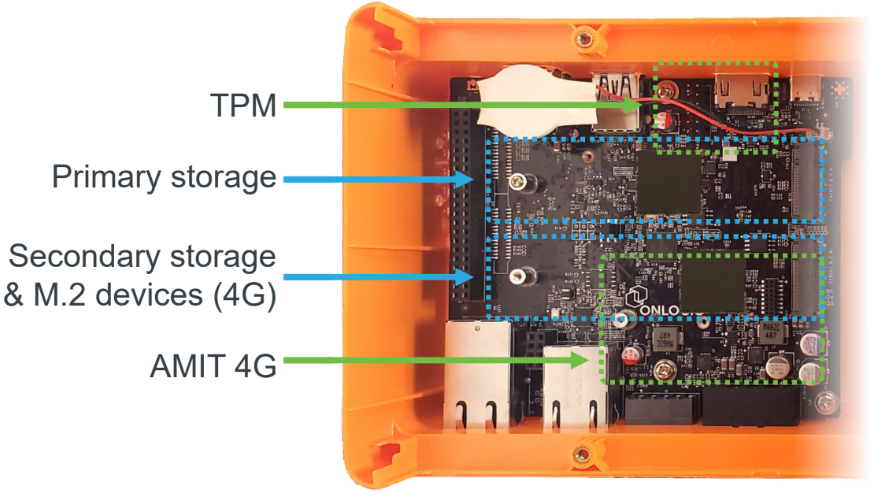
* You now have access to the FR200 motherboard. Components such as the TPM, storage drives, and wireless modules

<figure><img src="https://3062424488-files.gitbook.io/~/files/v0/b/gitbook-x-prod.appspot.com/o/spaces%2FlLHqs7kbNoKOFTwGOfH6%2Fuploads%2Fgit-blob-4e1911d68e62c4f63ffba36ce3c4a4b64ff98167%2F5d37be343f3ea492e5111d5cb050e4f4229fb45a0fe092b7ab82e394d83f71ec.png?alt=media" alt="" height="500" width="892"><figcaption></figcaption></figure>

* **It is recommended not to disassemble the unit any further unless absolutely necessary. Further disassembly has greater potential to cause warranty voiding damage. Use caution.**

<figure><img src="https://3062424488-files.gitbook.io/~/files/v0/b/gitbook-x-prod.appspot.com/o/spaces%2FlLHqs7kbNoKOFTwGOfH6%2Fuploads%2Fgit-blob-5562b6dd95f7679b9d6d2a48ed8097a97a0eec4a%2F1e51d6ffce7a92fc84968a9131ae1a0b8ed95c82f4e3a8dfa487213cb3f295b3.png?alt=media" alt="" height="627" width="1000"><figcaption></figcaption></figure>

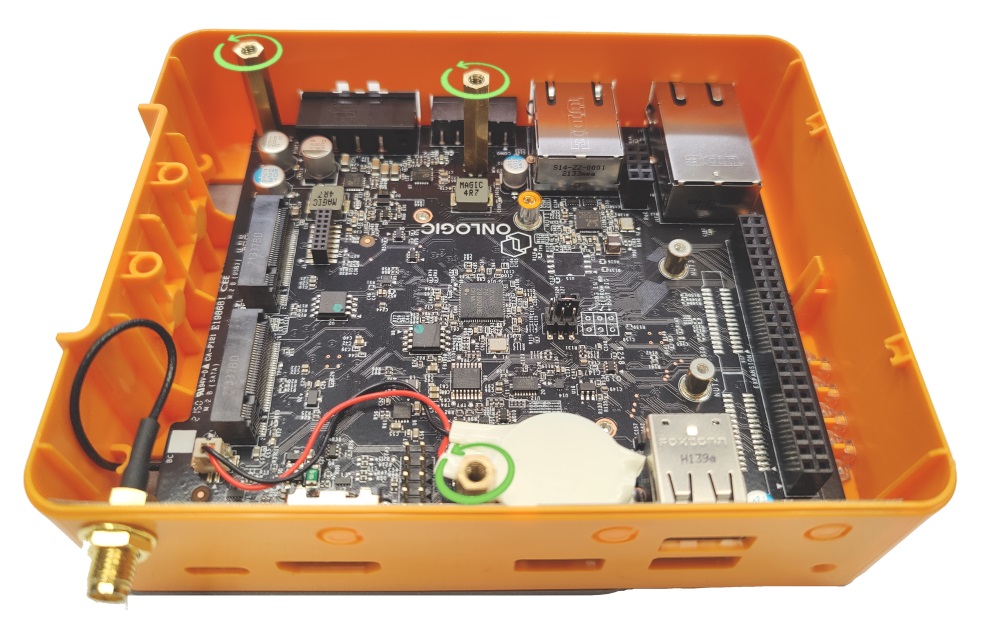
* Remove the 3 5mm standoffs from the system.

<figure><img src="https://3062424488-files.gitbook.io/~/files/v0/b/gitbook-x-prod.appspot.com/o/spaces%2FlLHqs7kbNoKOFTwGOfH6%2Fuploads%2Fgit-blob-2d69d3f54a0fbbdee59b5d81155b2f21649c498c%2F1005bd970b58886d574eda4bd8c5643916811d8b3f820b2aee4525fcc8e4c36d.png?alt=media" alt="" height="442" width="556"><figcaption></figcaption></figure>

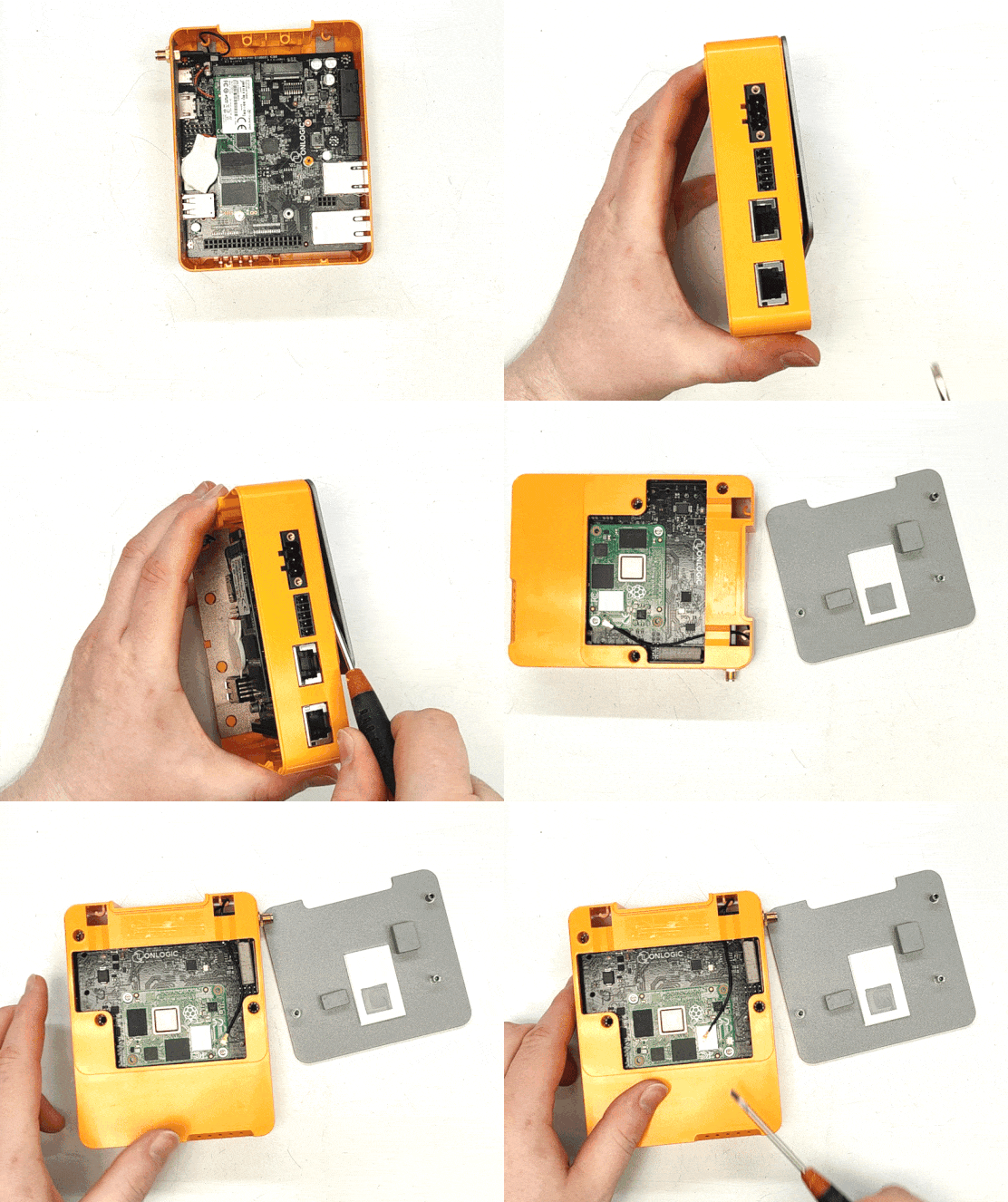
* Gently pop the bottom plate off and gently remove the WiFi pigtail (if equipped)

<figure><img src="https://3062424488-files.gitbook.io/~/files/v0/b/gitbook-x-prod.appspot.com/o/spaces%2FlLHqs7kbNoKOFTwGOfH6%2Fuploads%2Fgit-blob-2b899707b31b3019fe2b6952ffc77cd1ea82a8b2%2F9cf8056600af767bd14d875717b32cf5b889c75d35dfabefc9f7f4b02eb4709e.png?alt=media" alt="" height="997" width="800"><figcaption></figcaption></figure>

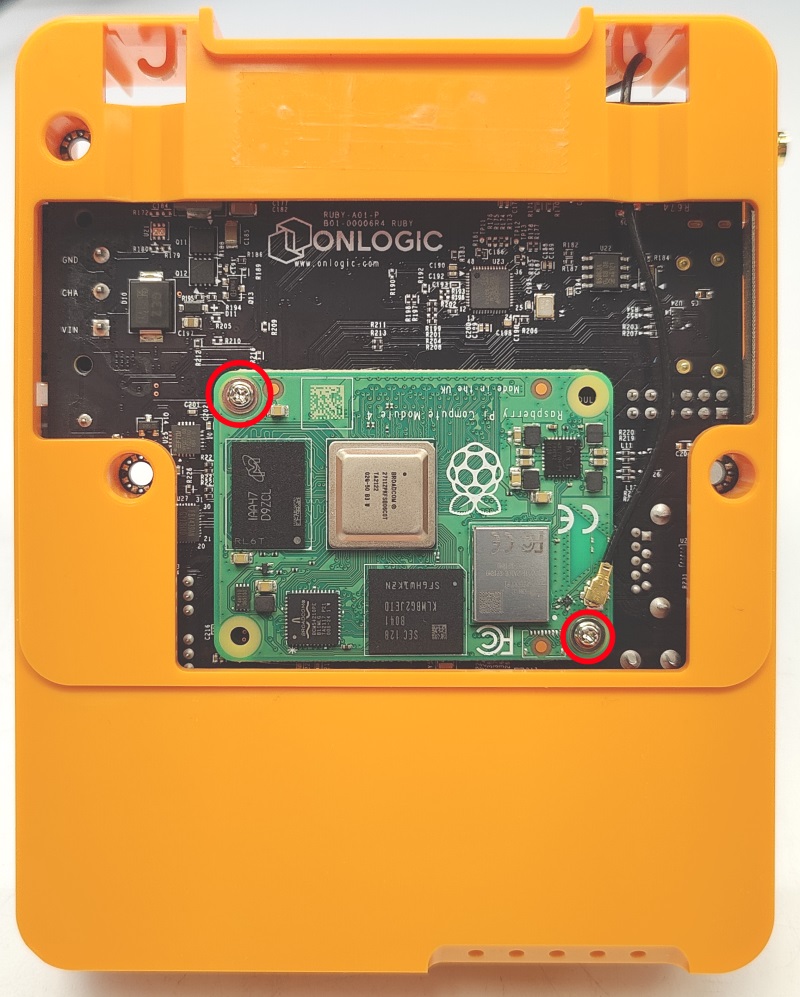
* The CM4 module is held in by x2 M2 screws.
* To remove the module, remove the x2 screws and lift straight up.
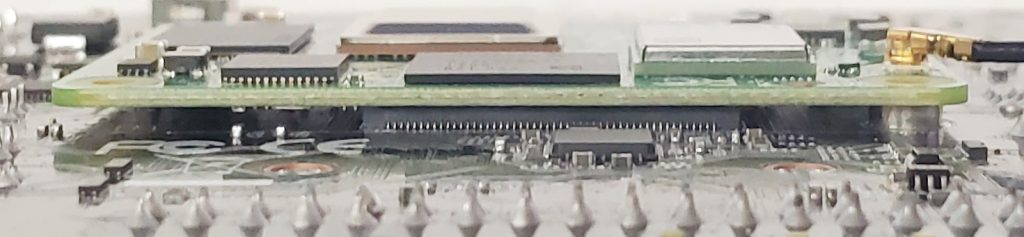
* Use caution as the connector is fragile.
* Re-install the module by lining up the screw holes. Gently pop it down into the sockets.
* Note: the screws will not line up if the module is rotate 180 degrees.

<figure><img src="https://3062424488-files.gitbook.io/~/files/v0/b/gitbook-x-prod.appspot.com/o/spaces%2FlLHqs7kbNoKOFTwGOfH6%2Fuploads%2Fgit-blob-87c8cc33db215d0886b42558c95d8d78f1f18aa2%2F4d4d342e80e9b81572261602ca9453e27cea33e7eaed4c7a6958615b5c56fa57.png?alt=media" alt="" height="237" width="1024"><figcaption></figcaption></figure>

<figure><img src="https://3062424488-files.gitbook.io/~/files/v0/b/gitbook-x-prod.appspot.com/o/spaces%2FlLHqs7kbNoKOFTwGOfH6%2Fuploads%2Fgit-blob-8d18672a2acef4a9721ce529ebf231dd45843570%2F853d26902166d207fbc49f1bca27735f38552d2a5aa63dbac6aa9e6a0e3d47d0.png?alt=media" alt="" height="776" width="1024"><figcaption></figcaption></figure>

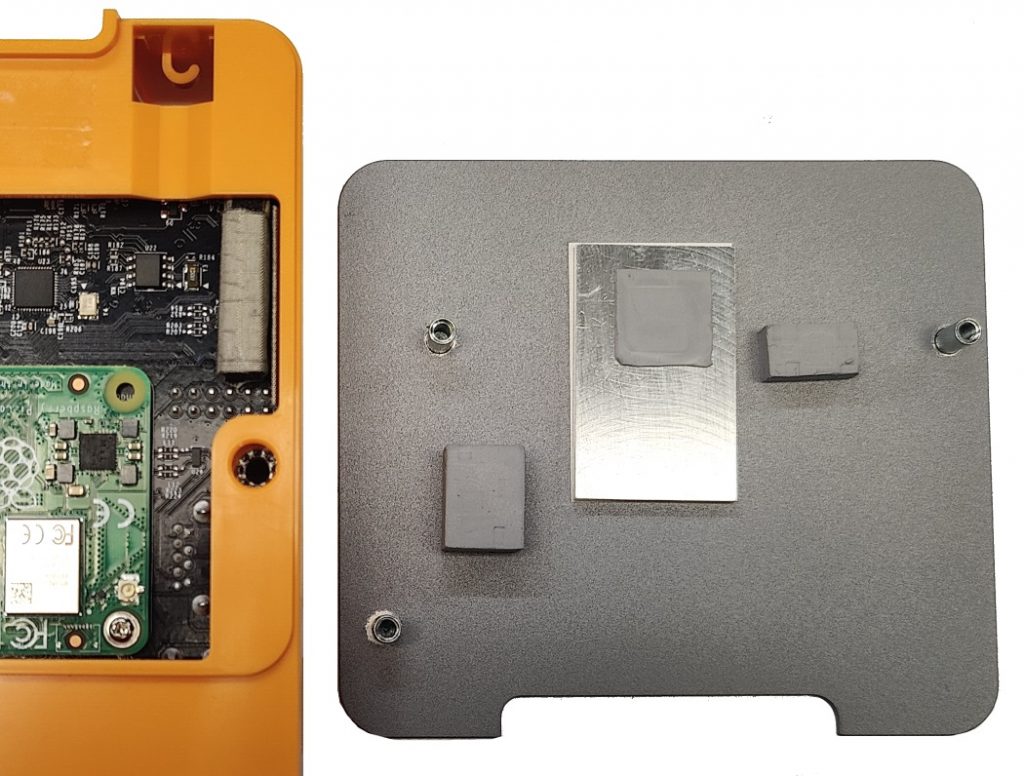
* Ensure the thermal pads and EMI gasket are still attached and in the shown locations.
* Set the system onto the bottom plate, aligning the screw holes.

<figure><img src="https://3062424488-files.gitbook.io/~/files/v0/b/gitbook-x-prod.appspot.com/o/spaces%2FlLHqs7kbNoKOFTwGOfH6%2Fuploads%2Fgit-blob-f7a587c54fcb8c148d28c6c589b2b2d4899b68bb%2Fbe1cfb448af0f274ec77a4ffbd6eff7cee877d760d9d66bdbf4d954c18087311.png?alt=media" alt="" height="599" width="941"><figcaption></figcaption></figure>

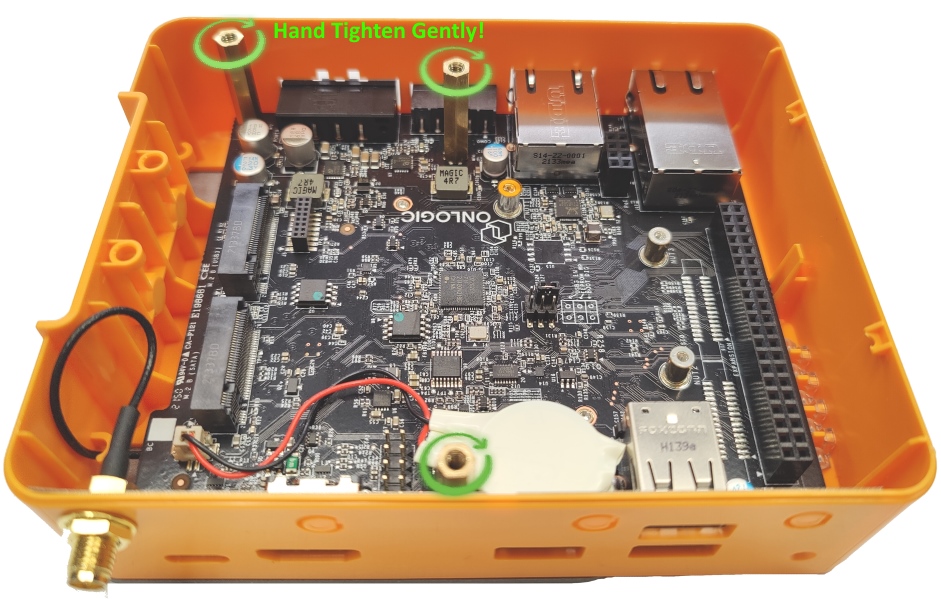
* Re-install the x3 brass standoffs. Hand tighten and do not over torque. They can sheer off if too much force is applied.

<figure><img src="https://3062424488-files.gitbook.io/~/files/v0/b/gitbook-x-prod.appspot.com/o/spaces%2FlLHqs7kbNoKOFTwGOfH6%2Fuploads%2Fgit-blob-2eb80f0918187f6fd17a32c773640f035ee7209b%2F45420221518a06984ba096af939dc073b9969dfe9e127042f4c5547b2a6567dc.png?alt=media" alt="" height="1024" width="975"><figcaption></figcaption></figure>

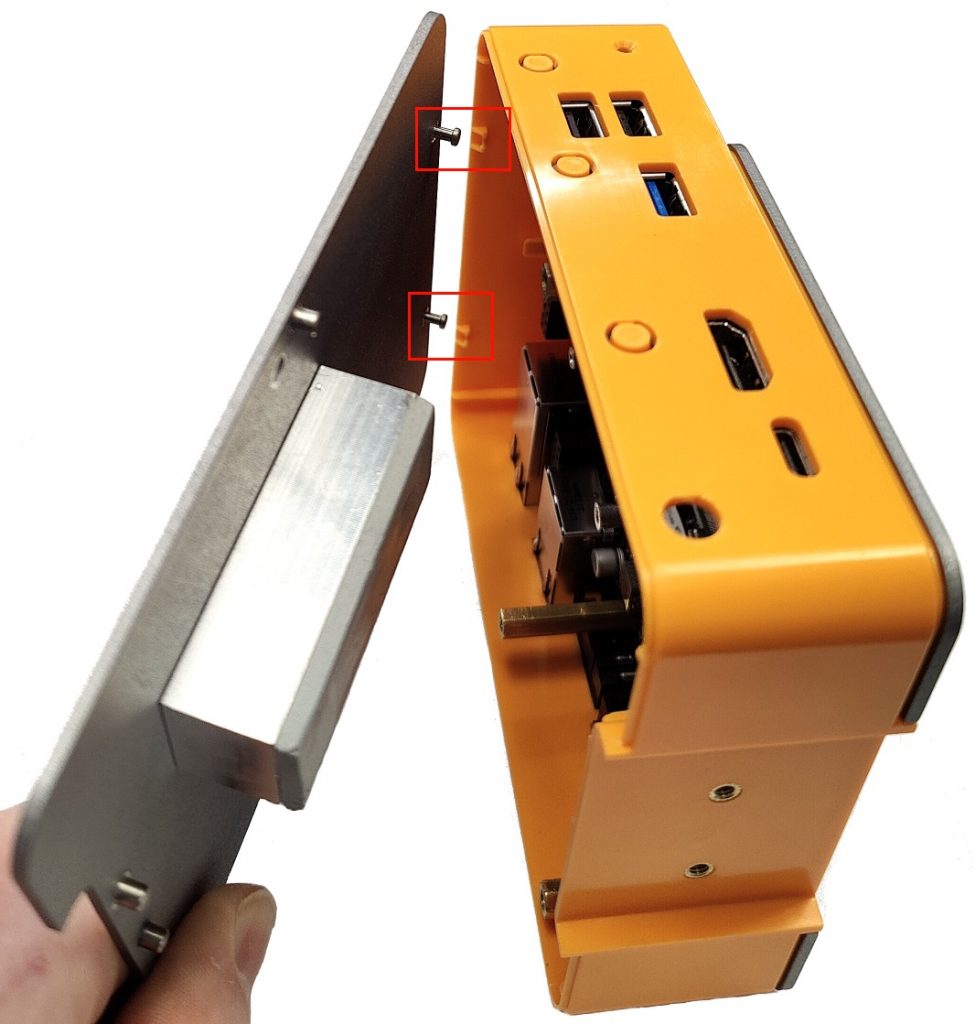
* Line up the two pegs of the bottom plate first, then hinge it into place.

<figure><img src="https://3062424488-files.gitbook.io/~/files/v0/b/gitbook-x-prod.appspot.com/o/spaces%2FlLHqs7kbNoKOFTwGOfH6%2Fuploads%2FB74zSMgn9J44c5swBpY9%2Fimage.png?alt=media&#x26;token=43d6ef5f-ef14-492e-b9f3-6c7e287be414" alt=""><figcaption></figcaption></figure>

* Re-install the M3 screws into the bottom of the chassis.

### FR202 <a href="#fr202-disassembly" id="fr202-disassembly"></a>

<figure><img src="https://3062424488-files.gitbook.io/~/files/v0/b/gitbook-x-prod.appspot.com/o/spaces%2FlLHqs7kbNoKOFTwGOfH6%2Fuploads%2Fgit-blob-9658fab2659209902fc2463e34135ed4f74ae331%2Fc57713d48f731ca8f462749aee2b1a4b49807f6d560a8170094f29c6ab83c08b.png?alt=media" alt="" height="425" width="648"><figcaption></figcaption></figure>

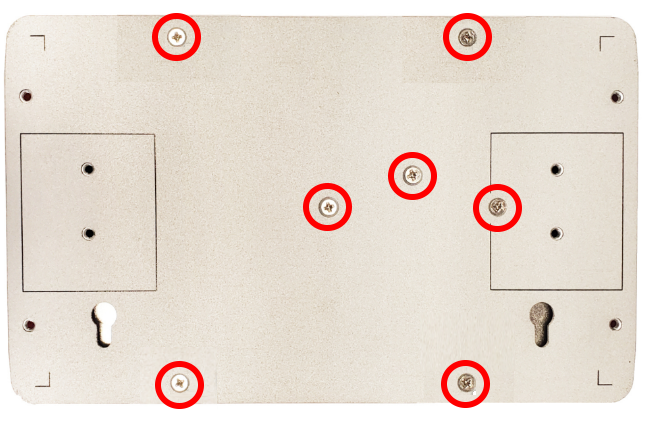
* Remove the 7 M3x4mm screws from the bottom of the system.
* Remove the bottom bottom lid by lifting straight up.

<figure><img src="https://3062424488-files.gitbook.io/~/files/v0/b/gitbook-x-prod.appspot.com/o/spaces%2FlLHqs7kbNoKOFTwGOfH6%2Fuploads%2Fgit-blob-6a33bb4002e2cf7327ba78e44ddf9dfd25ce086a%2Fe6ef3fcebea622bf9930959534d743613605c2ae1c3732996f8613c23df4665d.png?alt=media" alt="" height="389" width="348"><figcaption></figcaption></figure>

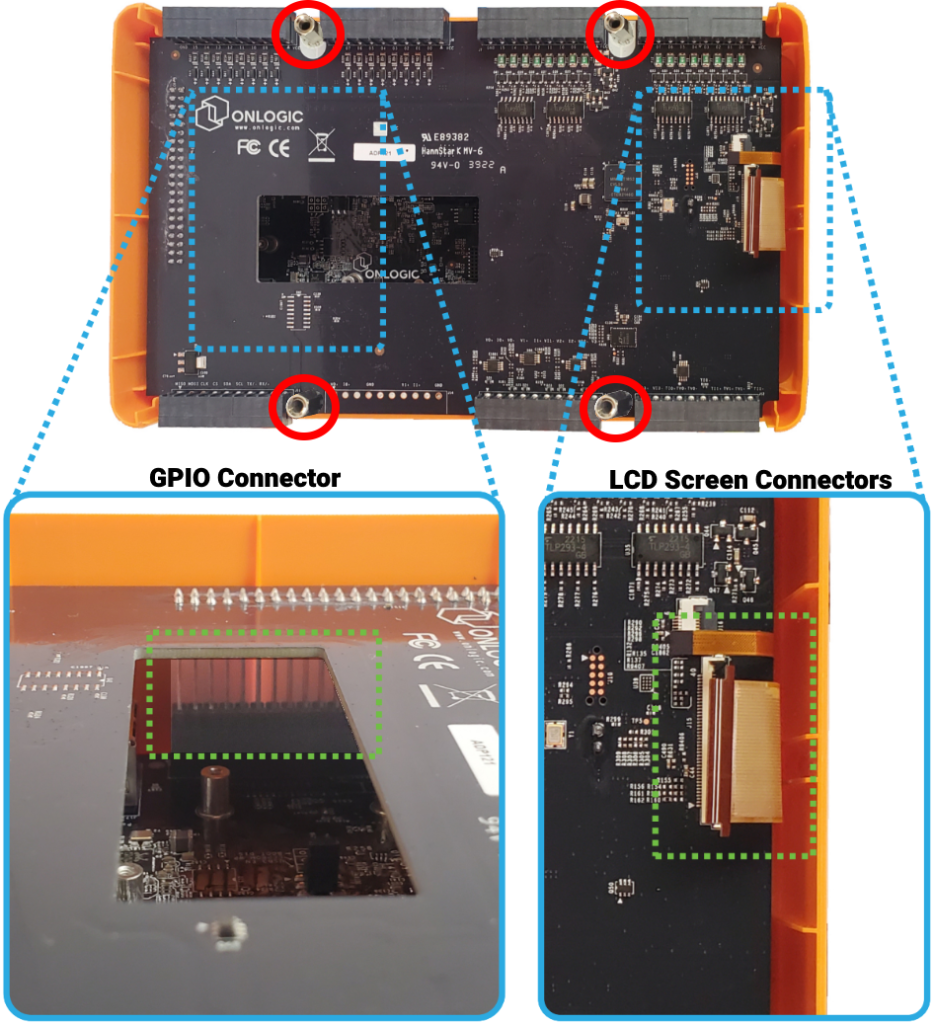
* Remove the internal storage cooler. Note that it “hooks” around the I/O board.
* You will now have access to the I/O board. This connects to the FR202 motherboard via the Raspberry Pi GPIO connector (shown below on the LEFT). Note that models with LCD screens will have the x2 additional connectors (shown below on the RIGHT).\
  \
  Remove the x4 5mm hex standoffs to loosen the I/O board. You can now disconnect the GPIO connector to get access to the FR202 motherboard.\
  \
  \&#xNAN;***\*Note: If your system has an LCD, be careful of the x2 additional connectors on the right.***

<figure><img src="https://3062424488-files.gitbook.io/~/files/v0/b/gitbook-x-prod.appspot.com/o/spaces%2FlLHqs7kbNoKOFTwGOfH6%2Fuploads%2Fgit-blob-4b4338b26f41c43184c2c247ef5254519ac18011%2F14310e63adb5c09cb34d092fb082e3ff0c8f02776b992e338d30e5c0c5d0eb08.png?alt=media" alt="" height="1024" width="933"><figcaption></figcaption></figure>

* You now have access to the FR200 motherboard. Components such as the TPM, storage drives, and wireless modules

<figure><img src="https://3062424488-files.gitbook.io/~/files/v0/b/gitbook-x-prod.appspot.com/o/spaces%2FlLHqs7kbNoKOFTwGOfH6%2Fuploads%2Fgit-blob-4e1911d68e62c4f63ffba36ce3c4a4b64ff98167%2F5d37be343f3ea492e5111d5cb050e4f4229fb45a0fe092b7ab82e394d83f71ec.png?alt=media" alt="" height="500" width="892"><figcaption></figcaption></figure>

## <mark style="color:blue;">OS Installation</mark> <a href="#installing-operating-systems" id="installing-operating-systems"></a>

Factor series systems currently support Ubuntu 20.04, Ubuntu 22.04, Ubuntu 24.04, and Raspberry Pi OS (Bullseye and Bookworm) OSes. Other OSes or versions may not install or function properly.

Follow the steps below to install one of these operating systems. Make sure to verify if your system has eMMC storage or not. Many systems shipped from OnLogic have the OS installed onto the M.2 SATA drive.

{% hint style="warning" %}
For USB drive installations, make sure to use a USB 3.0 or newer.
{% endhint %}

### **Raspberry PI OS (SATA M.2)** <a href="#installing-raspberry-pi-os-to-sata-m-2-storage" id="installing-raspberry-pi-os-to-sata-m-2-storage"></a>

A USB flash drive smaller than the system’s storage is required for this method. Example: The Factor system has 32GB storage. The flash drive must be 16GB or smaller.

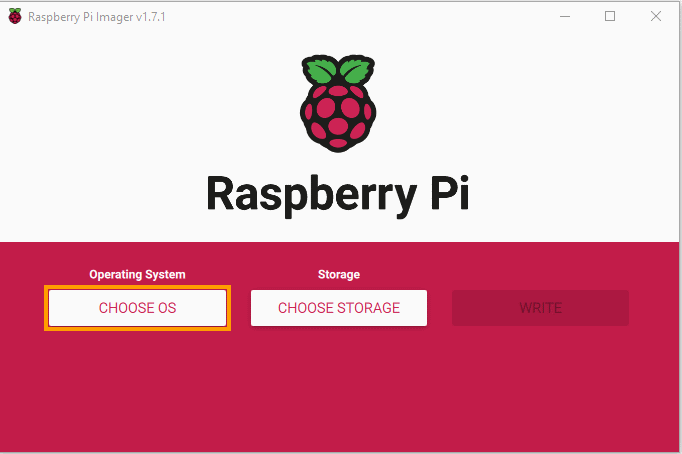
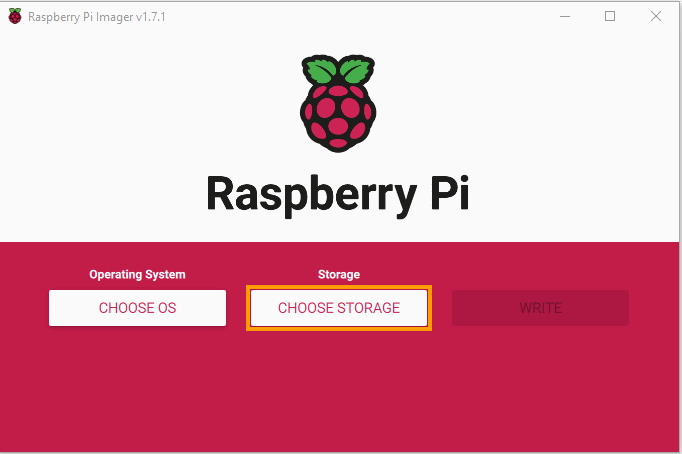
* Begin by downloading the [Raspberry Pi imager](https://www.raspberrypi.com/software/).&#x20;

<figure><img src="https://3062424488-files.gitbook.io/~/files/v0/b/gitbook-x-prod.appspot.com/o/spaces%2FlLHqs7kbNoKOFTwGOfH6%2Fuploads%2Fgit-blob-f64267684f20d7ac1672ca5048ad73b9caac4dcd%2Fb0c3a58886a0e3b6a47c3f5f9050805b0232527dbd7b6ee19e0482ddeb23d8de.png?alt=media" alt="" height="454" width="682"><figcaption></figcaption></figure>

* Click on “CHOOSE OS”

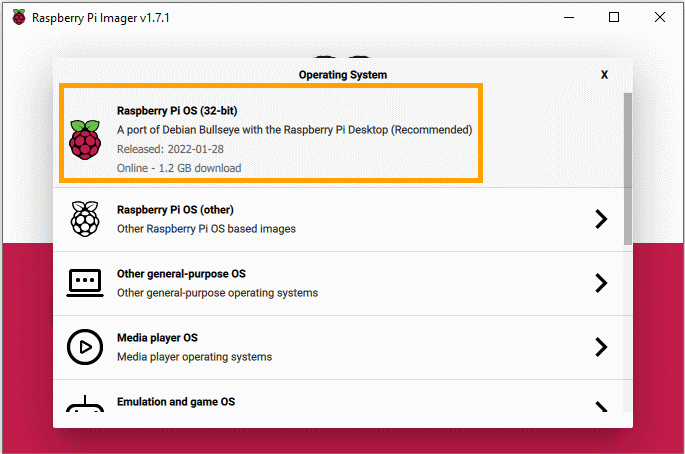
<figure><img src="https://3062424488-files.gitbook.io/~/files/v0/b/gitbook-x-prod.appspot.com/o/spaces%2FlLHqs7kbNoKOFTwGOfH6%2Fuploads%2Fgit-blob-32f4e25cac82722c02353c39182eaaa0ba26631b%2F831c96438631179c66c037dc48908bb341c0251bff2a3025330b07b5c0b49ac7.png?alt=media" alt="" height="454" width="685"><figcaption></figcaption></figure>

* Select your desired image. In most cases, you will want the default “Raspberry Pi OS

<figure><img src="https://3062424488-files.gitbook.io/~/files/v0/b/gitbook-x-prod.appspot.com/o/spaces%2FlLHqs7kbNoKOFTwGOfH6%2Fuploads%2Fgit-blob-4074c25c446e964486b07501911f16bd220a6b7f%2F8d6705f9e909964dbdfaea51e1cad55fb487f6722ceea3e21b3af98dace79a29.png?alt=media" alt="" height="454" width="682"><figcaption></figcaption></figure>

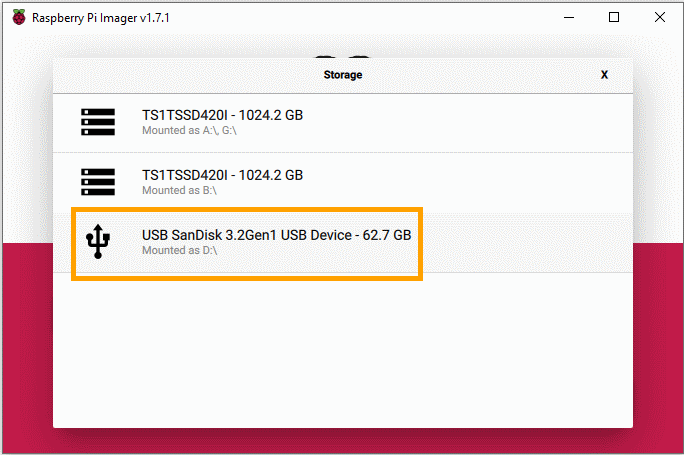
* Click on “CHOOSE STORAGE”

<figure><img src="https://3062424488-files.gitbook.io/~/files/v0/b/gitbook-x-prod.appspot.com/o/spaces%2FlLHqs7kbNoKOFTwGOfH6%2Fuploads%2Fgit-blob-e20f5184276929e98fdfa5b3dc4acba9ce949b43%2F2c1a4ec3b79c2f0f7697148446bedcef440cbb85794ca8e67e414865ec11e8d2.png?alt=media" alt="" height="455" width="684"><figcaption></figcaption></figure>

* Select your flash drive from the list

<figure><img src="https://3062424488-files.gitbook.io/~/files/v0/b/gitbook-x-prod.appspot.com/o/spaces%2FlLHqs7kbNoKOFTwGOfH6%2Fuploads%2Fgit-blob-5c0a7fcd7b9d00a5cf423a04c427bc3b606f447f%2F790a1b4d90c93473f2489c74a701bf45a591e190ee8d904c042f67b977e37704.png?alt=media" alt="" height="453" width="683"><figcaption></figcaption></figure>

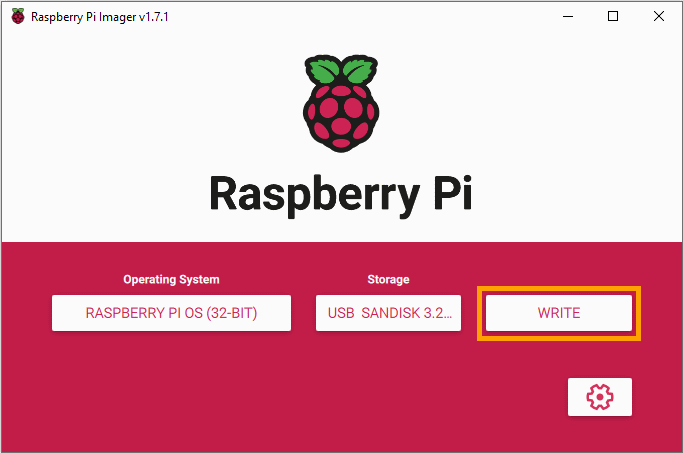
* Click “WRITE”

<figure><img src="https://3062424488-files.gitbook.io/~/files/v0/b/gitbook-x-prod.appspot.com/o/spaces%2FlLHqs7kbNoKOFTwGOfH6%2Fuploads%2Fgit-blob-e0fcbbe15ae4b9c7a75f99e6ac492d10e64ec99c%2F12b485001a58cf45aaf2ab8e50d6a5d2550d84178b097e4e625eea0fd7fea834.png?alt=media" alt="" height="458" width="687"><figcaption></figcaption></figure>

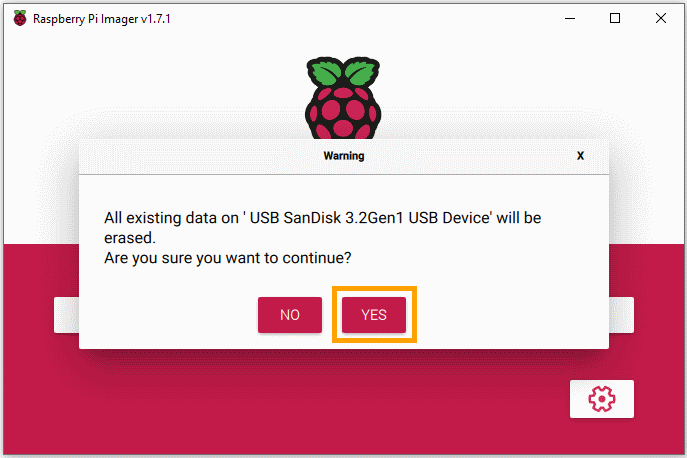
* Double check that this is the correct drive and choose “YES”

<figure><img src="https://3062424488-files.gitbook.io/~/files/v0/b/gitbook-x-prod.appspot.com/o/spaces%2FlLHqs7kbNoKOFTwGOfH6%2Fuploads%2Fgit-blob-4e4c119576ab3e00063d8dd2257d8f391087377b%2F99d95ebcfeea054f3ddc3e82ad64a75c6297b5667bfd6578f729cfd421429296.png?alt=media" alt="" height="457" width="687"><figcaption></figcaption></figure>

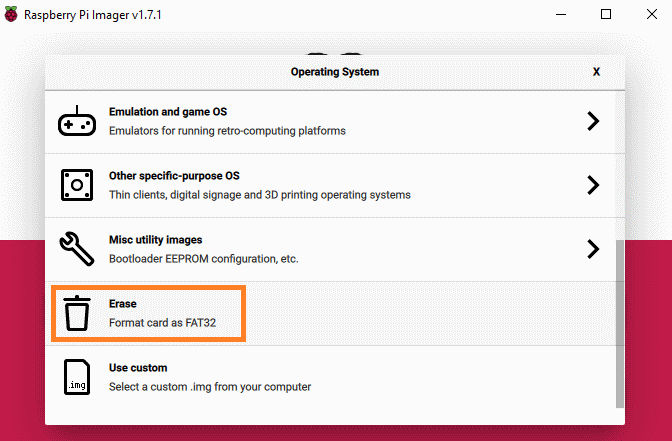
* If an error occurs, try using the erase function from the imager’s “operating system” menu

<figure><img src="https://3062424488-files.gitbook.io/~/files/v0/b/gitbook-x-prod.appspot.com/o/spaces%2FlLHqs7kbNoKOFTwGOfH6%2Fuploads%2Fgit-blob-d0e47508d7ff9a98e878cef3ab680906a4abb11a%2F2e127850f570bc5fc083a5644675abc1af7c3f418c20958204056e96046ae75f.png?alt=media" alt="" height="441" width="672"><figcaption></figcaption></figure>

* Erase function shown

<figure><img src="https://3062424488-files.gitbook.io/~/files/v0/b/gitbook-x-prod.appspot.com/o/spaces%2FlLHqs7kbNoKOFTwGOfH6%2Fuploads%2Fgit-blob-57b8cdee23fdf0bfbb8440fbb1747ddf6f6ff40f%2F297d3af705a00bf6b08ca205ca6b24e0569507e5b8f86d387e150086d30deddb.png?alt=media" alt="" height="455" width="686"><figcaption></figcaption></figure>

* The image writing process will begin. This takes some time.

<figure><img src="https://3062424488-files.gitbook.io/~/files/v0/b/gitbook-x-prod.appspot.com/o/spaces%2FlLHqs7kbNoKOFTwGOfH6%2Fuploads%2Fgit-blob-60928ffe659b54093abf1b914b73ba9e28e3ab33%2F93834949f1e0de48523d051513676d0ae4301ba96d06f66b0535fce0d08cc3d6.png?alt=media" alt="" height="455" width="684"><figcaption></figcaption></figure>

* Success!
* Access the “boot” partition in your file browser and locate the **config.txt** file. You will need to replace the config.txt with the OnLogic one, and add **usercfg.txt** to the “boot” directory. Note that there are differences between 32 bit and 64 bit, so download your preferred file from here:

Bullseye 32bit files- [**Download**](https://static.onlogic.com/resources/firmware/utilities/FR200_OS-32/FR200_OS-32.zip)\
Bullseye 64bit files – [**Download**](https://static.onlogic.com/resources/firmware/utilities/FR200_UBUNTU-64/FR200_UBUNTU-64.zip)

Bookworm 32bit files- [**Download**](https://static.onlogic.com/resources/firmware/utilities/FR200_OS-32/BookWorm_32bit.zip)\
Bookworm 64bit files – [**Download**](https://static.onlogic.com/resources/firmware/utilities/FR200_UBUNTU-64/BookWorm_64bit.zip)

<figure><img src="https://3062424488-files.gitbook.io/~/files/v0/b/gitbook-x-prod.appspot.com/o/spaces%2FlLHqs7kbNoKOFTwGOfH6%2Fuploads%2Fgit-blob-42a4d1fc0d4822b4117c0e4390f3ccfd54736a53%2F1c12dcee968299c4256e5d501ab36c7f4942ef864828b9a91149505c62580cb6.png?alt=media" alt="" height="431" width="600"><figcaption></figcaption></figure>

* Unplug the flash drive from the computer and plug it into the single blue USB 3 port on the Factor unit.

<figure><img src="https://3062424488-files.gitbook.io/~/files/v0/b/gitbook-x-prod.appspot.com/o/spaces%2FlLHqs7kbNoKOFTwGOfH6%2Fuploads%2Fgit-blob-1b0784773f3b315eafe9b3ff6512696468ccb7d0%2F5f7d623976bd37196427166b47124292b06a63ab0b88b1051ae88145c7ed6bdd.png?alt=media" alt="" height="108" width="494"><figcaption></figcaption></figure>

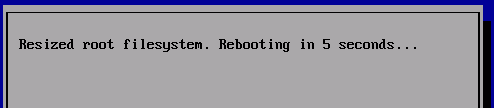
* Plug in the factor unit and it should boot up to the flash drive. It may restart automatically once or twice to configure everything.

<figure><img src="https://3062424488-files.gitbook.io/~/files/v0/b/gitbook-x-prod.appspot.com/o/spaces%2FlLHqs7kbNoKOFTwGOfH6%2Fuploads%2Fgit-blob-5e1e82191db973f42bba85e4e40f0f1640f4a620%2F9b785b8ddb7dcda065086841d358f81b97d006c51fae9581c2d92d5a4f56c8ef.png?alt=media" alt="" height="351" width="489"><figcaption></figcaption></figure>

* Complete the setup wizard with the desired settings.

<figure><img src="https://3062424488-files.gitbook.io/~/files/v0/b/gitbook-x-prod.appspot.com/o/spaces%2FlLHqs7kbNoKOFTwGOfH6%2Fuploads%2Fgit-blob-969235328a937bae705e1485cbfcb20bd05d277e%2F9fc6fcbbca285ee6c37a235eb4bd0f7fd8a8573d7e4c0ea524b9955100e03ee6.png?alt=media" alt="" height="353" width="488"><figcaption></figcaption></figure>

* Configure localization information

<figure><img src="https://3062424488-files.gitbook.io/~/files/v0/b/gitbook-x-prod.appspot.com/o/spaces%2FlLHqs7kbNoKOFTwGOfH6%2Fuploads%2Fgit-blob-b695eb5a5a0f3e6694f13876dbb4c79953f445b7%2F718fee9f8383f0f225898e92a9144cb5483c53da585aa04dfd4952730cc87656.png?alt=media" alt="" height="354" width="488"><figcaption></figcaption></figure>

* Click next if you wish to keep the current password (default: raspberry)

<figure><img src="https://3062424488-files.gitbook.io/~/files/v0/b/gitbook-x-prod.appspot.com/o/spaces%2FlLHqs7kbNoKOFTwGOfH6%2Fuploads%2Fgit-blob-dd7098cbe438206f9ef96a30c6aca8249a5f1bce%2F8984b4e203196986b3b48610d8a6332bfc9e87d295361dca9be426b79db05a01.png?alt=media" alt="" height="165" width="250"><figcaption></figcaption></figure>

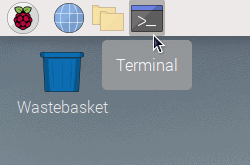
* Launch terminal from the panel in the top left

<figure><img src="https://3062424488-files.gitbook.io/~/files/v0/b/gitbook-x-prod.appspot.com/o/spaces%2FlLHqs7kbNoKOFTwGOfH6%2Fuploads%2Fgit-blob-567302d40bdb856000b751618c5e4389d101c026%2Fc563c39cd0885886941ac9a14c3b477fa8aea61e744ae7b6e7ef3835b54b28a3.png?alt=media" alt="" height="235" width="398"><figcaption></figcaption></figure>

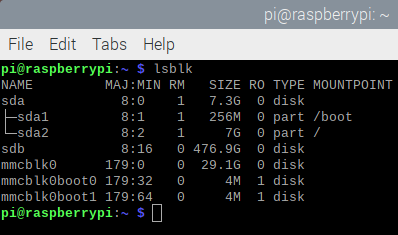
* Run the “lsblk” command
* In this example, our flash drive is SDA M.2 drive is SDB, and onboard eMMC storage is mmcblk0.

<figure><img src="https://3062424488-files.gitbook.io/~/files/v0/b/gitbook-x-prod.appspot.com/o/spaces%2FlLHqs7kbNoKOFTwGOfH6%2Fuploads%2Fgit-blob-0608e6391066bd13e6088078923697590c8a696f%2Fed24aa096a18245e6b317e6b8aceed485ff5334d3d13132d217362e8318a4b6c.png?alt=media" alt="" height="19" width="562"><figcaption></figcaption></figure>

* We will now clone the flash drive onto the desired storage drives. Following the example above, run a DD command:
* **Install to SATA M.2:** sudo dd if=/dev/sda of=/dev/sdb status=progress
* **Install to eMMC:** sudo dd if=/dev/sda of=/dev/mmcblk0 status=progress

<figure><img src="https://3062424488-files.gitbook.io/~/files/v0/b/gitbook-x-prod.appspot.com/o/spaces%2FlLHqs7kbNoKOFTwGOfH6%2Fuploads%2Fgit-blob-58ed55d899d46b39ad789508b2655dcff031fc9f%2Fbd98c41929dc7d2134689ac9d7350f5b8155e859aad9b910e83f42c3536e9467.png?alt=media" alt="" height="128" width="617"><figcaption></figcaption></figure>

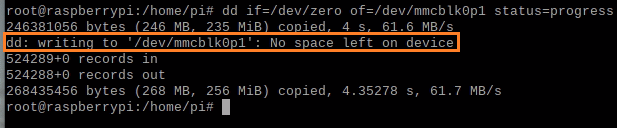
* An error saying “no space left on device” means that your flash drive was too big. It needs to be smaller than the drive you are installing to.

<figure><img src="https://3062424488-files.gitbook.io/~/files/v0/b/gitbook-x-prod.appspot.com/o/spaces%2FlLHqs7kbNoKOFTwGOfH6%2Fuploads%2Fgit-blob-d1f8c68f18f1d0bd0ba26d87ff26988f39952063%2F980427c70e40d115cbd377683f535043f1d7abfb7873482582eb0705a7f91125.png?alt=media" alt="" height="300" width="564"><figcaption></figcaption></figure>

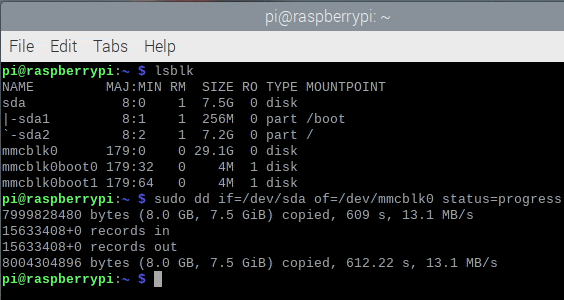
* Success!
* The terminal will show the amount of data copied and then drop to a prompt.
* Shut down the system and unplug your flash drive.
* Power the system back on and it will boot up into the operating system. The installation is now complete.

### **Raspberry Pi OS (eMMC)** <a href="#installing-raspberry-pi-os-to-emmc" id="installing-raspberry-pi-os-to-emmc"></a>

Follow this method if your Factor unit is equipped with onboard eMMC storage.

<figure><img src="https://3062424488-files.gitbook.io/~/files/v0/b/gitbook-x-prod.appspot.com/o/spaces%2FlLHqs7kbNoKOFTwGOfH6%2Fuploads%2FBqyp2vMOE0hPaxaXXfUy%2Fimage.png?alt=media&#x26;token=d04f298e-6e8c-46a4-a24c-be606f392d96" alt=""><figcaption></figcaption></figure>

* Remove the 3 M3x4mm screws from the bottom of the system.

<figure><img src="https://3062424488-files.gitbook.io/~/files/v0/b/gitbook-x-prod.appspot.com/o/spaces%2FlLHqs7kbNoKOFTwGOfH6%2Fuploads%2Fgit-blob-21c4e7cd25800391671c37f61a113d30f4eafa10%2Fb90648d84a7b0946ec16b3a827d10cd6756093cf8a1de07390e2f3cd34d3119d.png?alt=media" alt="" height="678" width="1000"><figcaption></figcaption></figure>

* Lift up the bottom lid starting from the side with the OnLogic label

<figure><img src="https://3062424488-files.gitbook.io/~/files/v0/b/gitbook-x-prod.appspot.com/o/spaces%2FlLHqs7kbNoKOFTwGOfH6%2Fuploads%2Fgit-blob-4c2ed9e045e9b28d2fbf8a4f762decd9af16f3b0%2Ffac0004da84babebae7addc9321bcf90cf818794cd5739e667e6e9fa02c4f17a.png?alt=media" alt="" height="504" width="800"><figcaption></figcaption></figure>

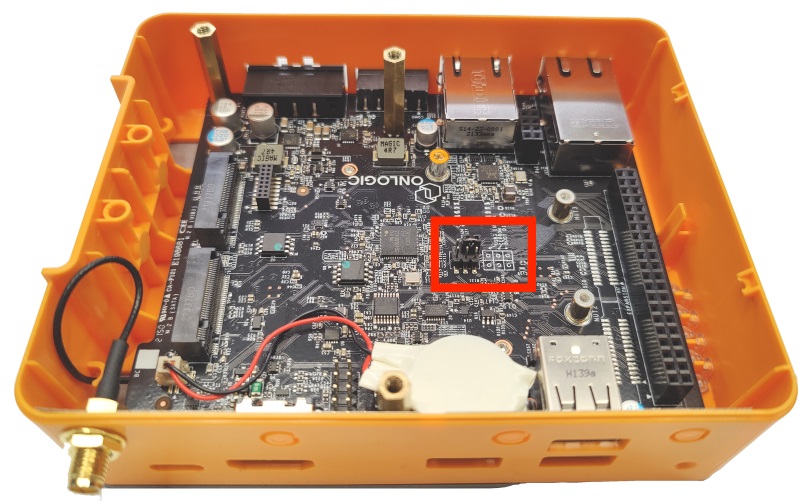
* Locate the 6 pin jumper block.
* It should already have a jumper installed on it.

<figure><img src="https://3062424488-files.gitbook.io/~/files/v0/b/gitbook-x-prod.appspot.com/o/spaces%2FlLHqs7kbNoKOFTwGOfH6%2Fuploads%2Fgit-blob-f32eed327b94272d44a14090774fc402f6cc2c17%2Fb41a3674b0471d147d6f4bafd5f13105dc30946dde99b4af96ff06aa213e62b2.png?alt=media" alt="" height="336" width="426"><figcaption></figcaption></figure>

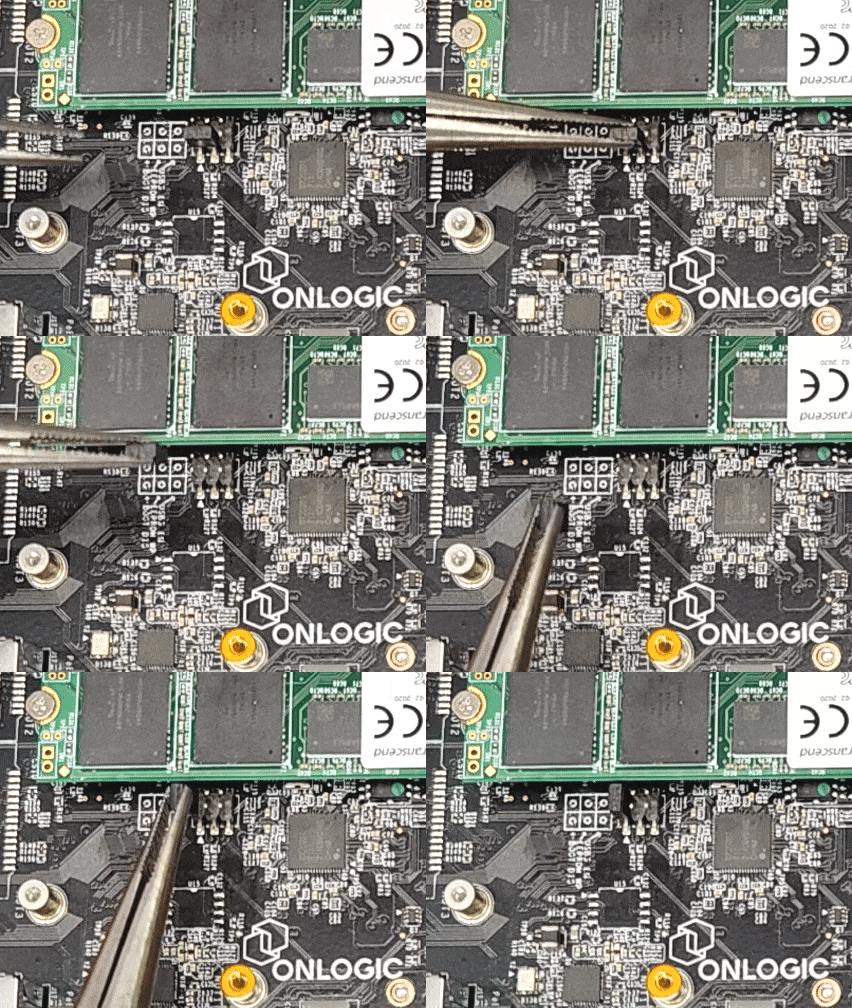
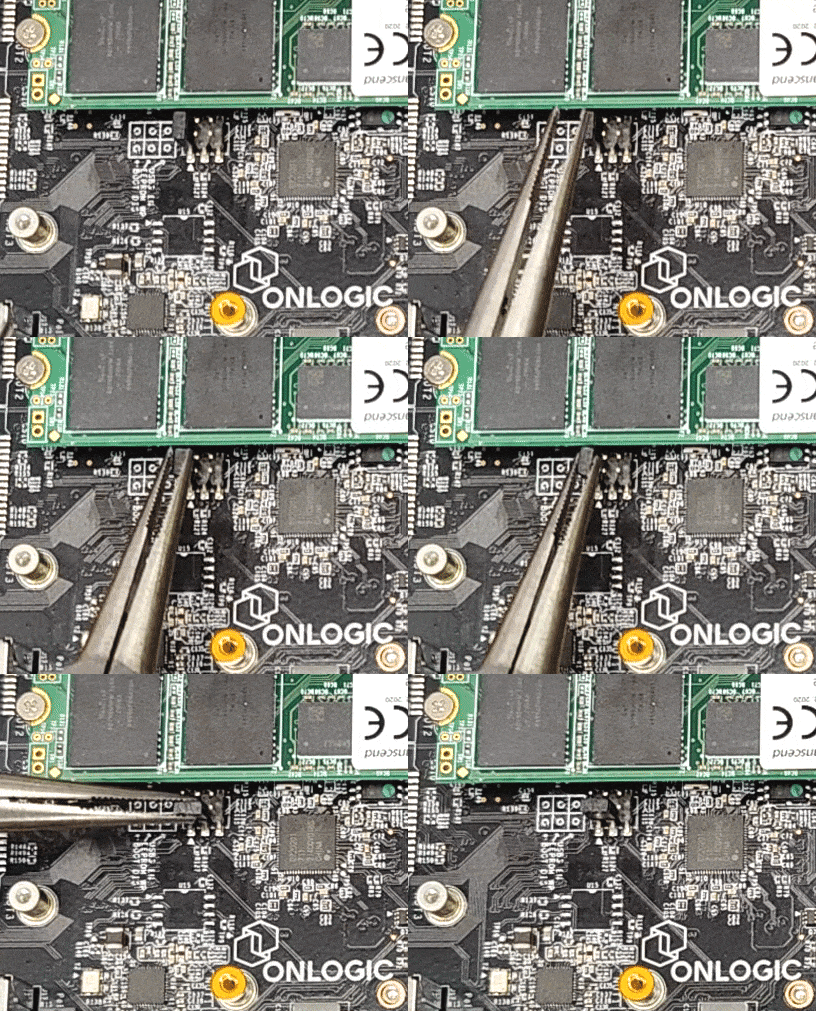
* Move the jumper from its default position onto the “Boot DIS” pins as shown.
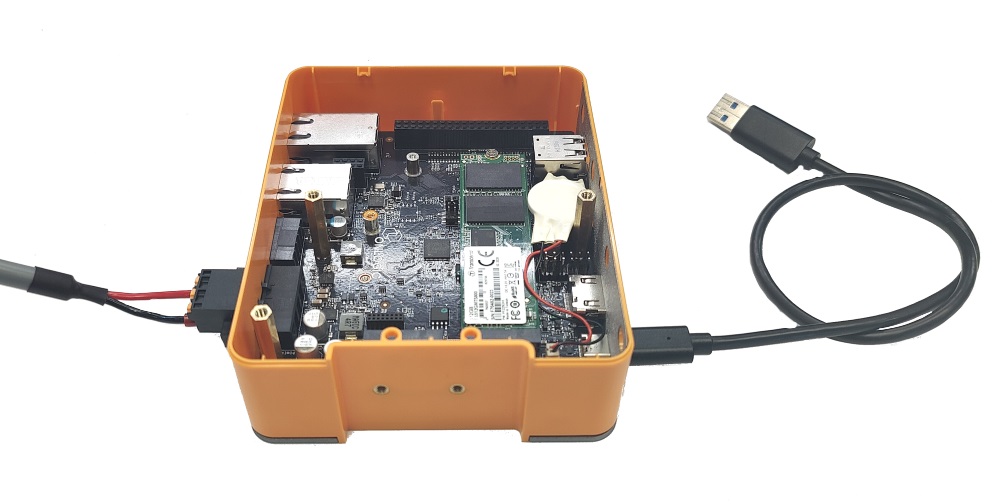
* This tells the CM4 module to go into bootloader mode and allows flashing of the internal storage over USB-C.

<figure><img src="https://3062424488-files.gitbook.io/~/files/v0/b/gitbook-x-prod.appspot.com/o/spaces%2FlLHqs7kbNoKOFTwGOfH6%2Fuploads%2Fgit-blob-83fb4b4abf237779307fa44842c5643eee26ee1b%2Fe3b1b0b0c15d76cbb5fd28e8fa0b5fedcfee15f4d2fe06f57d720d4531ae87fa.png?alt=media" alt="" height="504" width="1000"><figcaption></figcaption></figure>

* Connect the USB-C port to another computer.
* Connect power to the unit.

<figure><img src="https://3062424488-files.gitbook.io/~/files/v0/b/gitbook-x-prod.appspot.com/o/spaces%2FlLHqs7kbNoKOFTwGOfH6%2Fuploads%2Fgit-blob-6721dbd917d1f763e0d3b534d08b56c1472ed3f8%2F2a90e734403aaf22e4fac826d9d92292991a9de1d6ba77ded8f40d46385139f7.png?alt=media" alt="" height="60" width="242"><figcaption></figcaption></figure>

* Download and install the [Raspberry Pi Firmware Tool](https://github.com/raspberrypi/usbboot/raw/master/win32/rpiboot_setup.exe) from the links at the top of this page.

<figure><img src="https://3062424488-files.gitbook.io/~/files/v0/b/gitbook-x-prod.appspot.com/o/spaces%2FlLHqs7kbNoKOFTwGOfH6%2Fuploads%2Fgit-blob-d138883eb7d21591da686ff54d385648d19aa326%2F4a1e4e7879067a7c9d38a371e4e51b3d03d96a02891ed09905d5aedf8a3270e1.png?alt=media" alt="" height="93" width="159"><figcaption></figcaption></figure>

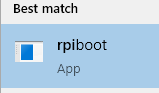
* Type rpiboot into the start menu and launch the rpiboot program

<figure><img src="https://3062424488-files.gitbook.io/~/files/v0/b/gitbook-x-prod.appspot.com/o/spaces%2FlLHqs7kbNoKOFTwGOfH6%2Fuploads%2Fgit-blob-86e6810bb0c36a8fe69094694ad8836281b0fc7c%2F790afe83d572c0790ed2202ede52d911e4fa310fe0182983ca4c84c83c33dbee.png?alt=media" alt="" height="125" width="317"><figcaption></figcaption></figure>

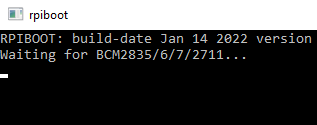
* A terminal window will appear. It will automatically run a few commands and then close.
* If the terminal stays at this stage, that means the PI was not detected. Double check jumper placement. Confirm power is connected to the unit and try a different USB cable.

<figure><img src="https://3062424488-files.gitbook.io/~/files/v0/b/gitbook-x-prod.appspot.com/o/spaces%2FlLHqs7kbNoKOFTwGOfH6%2Fuploads%2Fgit-blob-552d5d0764fcdbdced29cdd8d6541637d5dfc2d4%2F0f4c2fba545e97f67c78fed055d3332f70991cb319a7a0886f03f5a0f9830b0e.png?alt=media" alt="" height="59" width="218"><figcaption></figcaption></figure>

* If successful, the eMMC storage will be given a drive letter. Windows can not read it as it contains a Linux filesystem. Do not format it. The Raspberry PI imaging tool will be used instead.

<figure><img src="https://3062424488-files.gitbook.io/~/files/v0/b/gitbook-x-prod.appspot.com/o/spaces%2FlLHqs7kbNoKOFTwGOfH6%2Fuploads%2Fgit-blob-ea8aaea2e75dc97faa71f554d9e3be6a73a328e2%2F7ddb74e8f1f8f98f6cbe2e7de27489d42092a61996e037f5cf3fd7aed692d6bb.png?alt=media" alt="" height="104" width="207"><figcaption></figcaption></figure>

* Download the Raspberry Pi imager using the link at the top of this page.
* Launch it from the start menu

<figure><img src="https://3062424488-files.gitbook.io/~/files/v0/b/gitbook-x-prod.appspot.com/o/spaces%2FlLHqs7kbNoKOFTwGOfH6%2Fuploads%2Fgit-blob-f64267684f20d7ac1672ca5048ad73b9caac4dcd%2Fb0c3a58886a0e3b6a47c3f5f9050805b0232527dbd7b6ee19e0482ddeb23d8de.png?alt=media" alt="" height="454" width="682"><figcaption></figcaption></figure>

* Click on “CHOOSE OS”

<figure><img src="https://3062424488-files.gitbook.io/~/files/v0/b/gitbook-x-prod.appspot.com/o/spaces%2FlLHqs7kbNoKOFTwGOfH6%2Fuploads%2Fgit-blob-32f4e25cac82722c02353c39182eaaa0ba26631b%2F831c96438631179c66c037dc48908bb341c0251bff2a3025330b07b5c0b49ac7.png?alt=media" alt="" height="454" width="685"><figcaption></figcaption></figure>

* Select your desired image. In most cases, you will want the default “Raspberry Pi OS”

<figure><img src="https://3062424488-files.gitbook.io/~/files/v0/b/gitbook-x-prod.appspot.com/o/spaces%2FlLHqs7kbNoKOFTwGOfH6%2Fuploads%2Fgit-blob-4074c25c446e964486b07501911f16bd220a6b7f%2F8d6705f9e909964dbdfaea51e1cad55fb487f6722ceea3e21b3af98dace79a29.png?alt=media" alt="" height="454" width="682"><figcaption></figcaption></figure>

* Click on “CHOOSE STORAGE”

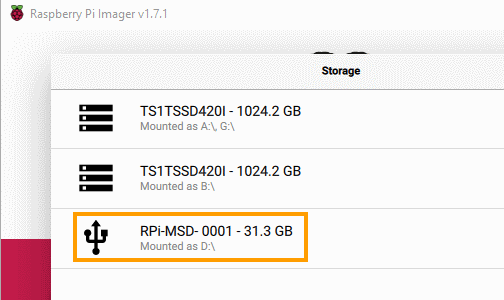
<figure><img src="https://3062424488-files.gitbook.io/~/files/v0/b/gitbook-x-prod.appspot.com/o/spaces%2FlLHqs7kbNoKOFTwGOfH6%2Fuploads%2Fgit-blob-628efa8d230484f49dbad6a37c6b2c2772903e3f%2F795568672060d1ff1b4ed3e9b1da8b1541a6ce6d671c31bbfedbf842360d4676.png?alt=media" alt="" height="300" width="504"><figcaption></figcaption></figure>

* Select the RPI-MSD disk from the list. This is the Pi’s internal eMMC storage.

<figure><img src="https://3062424488-files.gitbook.io/~/files/v0/b/gitbook-x-prod.appspot.com/o/spaces%2FlLHqs7kbNoKOFTwGOfH6%2Fuploads%2Fgit-blob-5c0a7fcd7b9d00a5cf423a04c427bc3b606f447f%2F790a1b4d90c93473f2489c74a701bf45a591e190ee8d904c042f67b977e37704.png?alt=media" alt="" height="453" width="683"><figcaption></figcaption></figure>

* Click “WRITE”

<figure><img src="https://3062424488-files.gitbook.io/~/files/v0/b/gitbook-x-prod.appspot.com/o/spaces%2FlLHqs7kbNoKOFTwGOfH6%2Fuploads%2Fgit-blob-e0fcbbe15ae4b9c7a75f99e6ac492d10e64ec99c%2F12b485001a58cf45aaf2ab8e50d6a5d2550d84178b097e4e625eea0fd7fea834.png?alt=media" alt="" height="458" width="687"><figcaption></figcaption></figure>

* Double check that this is the correct drive and choose “YES”

<figure><img src="https://3062424488-files.gitbook.io/~/files/v0/b/gitbook-x-prod.appspot.com/o/spaces%2FlLHqs7kbNoKOFTwGOfH6%2Fuploads%2Fgit-blob-4e4c119576ab3e00063d8dd2257d8f391087377b%2F99d95ebcfeea054f3ddc3e82ad64a75c6297b5667bfd6578f729cfd421429296.png?alt=media" alt="" height="457" width="687"><figcaption></figcaption></figure>

* If an error occurs, try using the erase function from the imager’s “operating system” menu

<figure><img src="https://3062424488-files.gitbook.io/~/files/v0/b/gitbook-x-prod.appspot.com/o/spaces%2FlLHqs7kbNoKOFTwGOfH6%2Fuploads%2Fgit-blob-d0e47508d7ff9a98e878cef3ab680906a4abb11a%2F2e127850f570bc5fc083a5644675abc1af7c3f418c20958204056e96046ae75f.png?alt=media" alt="" height="441" width="672"><figcaption></figcaption></figure>

* Erase function shown

<figure><img src="https://3062424488-files.gitbook.io/~/files/v0/b/gitbook-x-prod.appspot.com/o/spaces%2FlLHqs7kbNoKOFTwGOfH6%2Fuploads%2Fgit-blob-57b8cdee23fdf0bfbb8440fbb1747ddf6f6ff40f%2F297d3af705a00bf6b08ca205ca6b24e0569507e5b8f86d387e150086d30deddb.png?alt=media" alt="" height="455" width="686"><figcaption></figcaption></figure>

* The image writing process will begin. This takes some time.

<figure><img src="https://3062424488-files.gitbook.io/~/files/v0/b/gitbook-x-prod.appspot.com/o/spaces%2FlLHqs7kbNoKOFTwGOfH6%2Fuploads%2Fgit-blob-60928ffe659b54093abf1b914b73ba9e28e3ab33%2F93834949f1e0de48523d051513676d0ae4301ba96d06f66b0535fce0d08cc3d6.png?alt=media" alt="" height="455" width="684"><figcaption></figcaption></figure>

* Success!
* Unplug the USB-C cable and then plug it back in.

Access the “boot” partition in your file browser and locate the **config.txt** file. You will need to replace the config.txt with the OnLogic one, and add **usercfg.txt** to the “boot” directory. Note that there are differences between 32 bit and 64 bit, so download your preferred file from here:

Bullseye 32bit files- [**Download**](https://static.onlogic.com/resources/firmware/utilities/FR200_OS-32/FR200_OS-32.zip)\
Bullseye 64bit files – [**Download**](https://static.onlogic.com/resources/firmware/utilities/FR200_UBUNTU-64/FR200_UBUNTU-64.zip)

Bookworm 32bit files- [**Download**](https://static.onlogic.com/resources/firmware/utilities/FR200_OS-32/BookWorm_32bit.zip)\
Bookworm 64bit files – [**Download**](https://static.onlogic.com/resources/firmware/utilities/FR200_UBUNTU-64/BookWorm_64bit.zip)

<figure><img src="https://3062424488-files.gitbook.io/~/files/v0/b/gitbook-x-prod.appspot.com/o/spaces%2FlLHqs7kbNoKOFTwGOfH6%2Fuploads%2Fgit-blob-26d01d2b333aa73a1be653fe7adc0f684fdad770%2Fe6b8d9f7b91245d4615712cd8eb8d2445fa22dfb9107f9248eb4875f033ec06d.png?alt=media" alt="" height="337" width="408"><figcaption></figcaption></figure>

* Restore the jumper to its original position.

<figure><img src="https://3062424488-files.gitbook.io/~/files/v0/b/gitbook-x-prod.appspot.com/o/spaces%2FlLHqs7kbNoKOFTwGOfH6%2Fuploads%2Fgit-blob-2eb80f0918187f6fd17a32c773640f035ee7209b%2F45420221518a06984ba096af939dc073b9969dfe9e127042f4c5547b2a6567dc.png?alt=media" alt="" height="1024" width="975"><figcaption></figcaption></figure>

* Line up the two pegs of the bottom plate first, then hinge it into place.

<figure><img src="https://3062424488-files.gitbook.io/~/files/v0/b/gitbook-x-prod.appspot.com/o/spaces%2FlLHqs7kbNoKOFTwGOfH6%2Fuploads%2F5ORBr6K8O9IZfY6COHxe%2Fimage.png?alt=media&#x26;token=d2a4b427-daf7-4628-a864-e4cd3541f505" alt=""><figcaption></figcaption></figure>

* Re-install the M3 screws into the bottom of the chassis.

<figure><img src="https://3062424488-files.gitbook.io/~/files/v0/b/gitbook-x-prod.appspot.com/o/spaces%2FlLHqs7kbNoKOFTwGOfH6%2Fuploads%2Fgit-blob-1b0784773f3b315eafe9b3ff6512696468ccb7d0%2F5f7d623976bd37196427166b47124292b06a63ab0b88b1051ae88145c7ed6bdd.png?alt=media" alt="" height="108" width="494"><figcaption></figcaption></figure>

* Boot up the Factor unit. It will reboot once or twice to configure itself.

<figure><img src="https://3062424488-files.gitbook.io/~/files/v0/b/gitbook-x-prod.appspot.com/o/spaces%2FlLHqs7kbNoKOFTwGOfH6%2Fuploads%2Fgit-blob-5e1e82191db973f42bba85e4e40f0f1640f4a620%2F9b785b8ddb7dcda065086841d358f81b97d006c51fae9581c2d92d5a4f56c8ef.png?alt=media" alt="" height="351" width="489"><figcaption></figcaption></figure>

* You will be greeted with the Raspbian welcome screen.

<figure><img src="https://3062424488-files.gitbook.io/~/files/v0/b/gitbook-x-prod.appspot.com/o/spaces%2FlLHqs7kbNoKOFTwGOfH6%2Fuploads%2Fgit-blob-969235328a937bae705e1485cbfcb20bd05d277e%2F9fc6fcbbca285ee6c37a235eb4bd0f7fd8a8573d7e4c0ea524b9955100e03ee6.png?alt=media" alt="" height="353" width="488"><figcaption></figcaption></figure>

* Configure localization information

<figure><img src="https://3062424488-files.gitbook.io/~/files/v0/b/gitbook-x-prod.appspot.com/o/spaces%2FlLHqs7kbNoKOFTwGOfH6%2Fuploads%2Fgit-blob-b695eb5a5a0f3e6694f13876dbb4c79953f445b7%2F718fee9f8383f0f225898e92a9144cb5483c53da585aa04dfd4952730cc87656.png?alt=media" alt="" height="354" width="488"><figcaption></figcaption></figure>

* Click next if you wish to keep the current password (default: raspberry)
* Compete the setup wizard and the unit is ready for use.

### **Ubuntu (SATA M.2)** <a href="#installing-ubuntu-to-sata-m-2-storage" id="installing-ubuntu-to-sata-m-2-storage"></a>

A USB flash drive smaller than the system’s storage is required for this method. Example: The Factor system has 32GB storage. The flash drive must be 16GB or smaller.\
\
The **Factor** series systems are compatible with Ubuntu versions 20.04, 22.04, and 24.04 (both Desktop and Server). Other versions are not supported and may present errors during installation or general use. You can review the supported OS in the [FAQs section above](https://support.onlogic.com/support-articles/faqs).

<figure><img src="https://3062424488-files.gitbook.io/~/files/v0/b/gitbook-x-prod.appspot.com/o/spaces%2FlLHqs7kbNoKOFTwGOfH6%2Fuploads%2Fgit-blob-ea8aaea2e75dc97faa71f554d9e3be6a73a328e2%2F7ddb74e8f1f8f98f6cbe2e7de27489d42092a61996e037f5cf3fd7aed692d6bb.png?alt=media" alt="" height="104" width="207"><figcaption></figcaption></figure>

* Download the Raspberry Pi imager using the link at the top of this page.
* Launch it from the start menu

<figure><img src="https://3062424488-files.gitbook.io/~/files/v0/b/gitbook-x-prod.appspot.com/o/spaces%2FlLHqs7kbNoKOFTwGOfH6%2Fuploads%2Fgit-blob-f64267684f20d7ac1672ca5048ad73b9caac4dcd%2Fb0c3a58886a0e3b6a47c3f5f9050805b0232527dbd7b6ee19e0482ddeb23d8de.png?alt=media" alt="" height="454" width="682"><figcaption></figcaption></figure>

* Click on “CHOOSE OS”

<figure><img src="https://support.onlogic.com/wp-content/uploads/2022/03/Screenshot_10.png" alt="" height="81" width="364"><figcaption></figcaption></figure>

* Select the “Other general-purpose OS” category

<figure><img src="https://support.onlogic.com/wp-content/uploads/2022/03/Screenshot_11.png" alt="" height="80" width="381"><figcaption></figcaption></figure>

* Click On Ubuntu

<figure><img src="https://support.onlogic.com/wp-content/uploads/2022/03/Screenshot_12.png" alt="" height="78" width="398"><figcaption></figcaption></figure>

* Select a supported version of Ubuntu

<figure><img src="https://3062424488-files.gitbook.io/~/files/v0/b/gitbook-x-prod.appspot.com/o/spaces%2FlLHqs7kbNoKOFTwGOfH6%2Fuploads%2Fgit-blob-4074c25c446e964486b07501911f16bd220a6b7f%2F8d6705f9e909964dbdfaea51e1cad55fb487f6722ceea3e21b3af98dace79a29.png?alt=media" alt="" height="454" width="682"><figcaption></figcaption></figure>

* Click on “CHOOSE STORAGE”

<figure><img src="https://3062424488-files.gitbook.io/~/files/v0/b/gitbook-x-prod.appspot.com/o/spaces%2FlLHqs7kbNoKOFTwGOfH6%2Fuploads%2Fgit-blob-e20f5184276929e98fdfa5b3dc4acba9ce949b43%2F2c1a4ec3b79c2f0f7697148446bedcef440cbb85794ca8e67e414865ec11e8d2.png?alt=media" alt="" height="455" width="684"><figcaption></figcaption></figure>

* Select your flash drive from the list

<figure><img src="https://support.onlogic.com/wp-content/uploads/2022/03/Screenshot-28-1.png" alt="" height="453" width="683"><figcaption></figcaption></figure>

* Click “WRITE”

<figure><img src="https://3062424488-files.gitbook.io/~/files/v0/b/gitbook-x-prod.appspot.com/o/spaces%2FlLHqs7kbNoKOFTwGOfH6%2Fuploads%2Fgit-blob-e0fcbbe15ae4b9c7a75f99e6ac492d10e64ec99c%2F12b485001a58cf45aaf2ab8e50d6a5d2550d84178b097e4e625eea0fd7fea834.png?alt=media" alt="" height="458" width="687"><figcaption></figcaption></figure>

* Double check that this is the correct drive and choose “YES”

<figure><img src="https://3062424488-files.gitbook.io/~/files/v0/b/gitbook-x-prod.appspot.com/o/spaces%2FlLHqs7kbNoKOFTwGOfH6%2Fuploads%2Fgit-blob-4e4c119576ab3e00063d8dd2257d8f391087377b%2F99d95ebcfeea054f3ddc3e82ad64a75c6297b5667bfd6578f729cfd421429296.png?alt=media" alt="" height="457" width="687"><figcaption></figcaption></figure>

* If an error occurs, try using the erase function from the imager’s “operating system” menu

<figure><img src="https://3062424488-files.gitbook.io/~/files/v0/b/gitbook-x-prod.appspot.com/o/spaces%2FlLHqs7kbNoKOFTwGOfH6%2Fuploads%2Fgit-blob-d0e47508d7ff9a98e878cef3ab680906a4abb11a%2F2e127850f570bc5fc083a5644675abc1af7c3f418c20958204056e96046ae75f.png?alt=media" alt="" height="441" width="672"><figcaption></figcaption></figure>

* Erase function shown

<figure><img src="https://3062424488-files.gitbook.io/~/files/v0/b/gitbook-x-prod.appspot.com/o/spaces%2FlLHqs7kbNoKOFTwGOfH6%2Fuploads%2Fgit-blob-57b8cdee23fdf0bfbb8440fbb1747ddf6f6ff40f%2F297d3af705a00bf6b08ca205ca6b24e0569507e5b8f86d387e150086d30deddb.png?alt=media" alt="" height="455" width="686"><figcaption></figcaption></figure>

* The image writing process will begin. This takes some time.

<figure><img src="https://3062424488-files.gitbook.io/~/files/v0/b/gitbook-x-prod.appspot.com/o/spaces%2FlLHqs7kbNoKOFTwGOfH6%2Fuploads%2Fgit-blob-60928ffe659b54093abf1b914b73ba9e28e3ab33%2F93834949f1e0de48523d051513676d0ae4301ba96d06f66b0535fce0d08cc3d6.png?alt=media" alt="" height="455" width="684"><figcaption></figcaption></figure>

* Success! but the configuration needs to be modified to boot properly.
* Unplug the flash drive and then plug it back in.

<figure><img src="https://support.onlogic.com/wp-content/uploads/2022/03/sb.png" alt="" height="57" width="253"><figcaption></figcaption></figure>

* The boot partition should show up with a drive letter.
* If it doesn’t, you may need to assign one manually via Disk Management or Diskpart.
* Download the the zipped file below and copy them to the boot partition, overwriting the existing two files

Ubuntu Config Files: [Download](https://static.onlogic.com/resources/firmware/utilities/FR200_UBUNTU-64/FR200_UBUNTU-64.zip)

<figure><img src="https://support.onlogic.com/wp-content/uploads/2022/03/copy.png" alt="" height="60" width="497"><figcaption></figcaption></figure>

<figure><img src="https://support.onlogic.com/wp-content/uploads/2022/03/eject.png" alt="" height="102" width="425"><figcaption></figcaption></figure>

* Eject the boot partition

<figure><img src="https://3062424488-files.gitbook.io/~/files/v0/b/gitbook-x-prod.appspot.com/o/spaces%2FlLHqs7kbNoKOFTwGOfH6%2Fuploads%2Fgit-blob-42a4d1fc0d4822b4117c0e4390f3ccfd54736a53%2F1c12dcee968299c4256e5d501ab36c7f4942ef864828b9a91149505c62580cb6.png?alt=media" alt="" height="431" width="600"><figcaption></figcaption></figure>

* Unplug the flash drive from the computer and plug it into the single blue USB 3 port on the Factor unit.
* Power on the Factor unit and wait for the login prompt.

Log in to the newly installed OS. See default credentials referenced in [First Boot](#first-boot) section above (typically ubuntu/ubuntu)

<figure><img src="https://support.onlogic.com/wp-content/uploads/2022/03/lsblk-userver-m2.png" alt="" height="210" width="446"><figcaption></figcaption></figure>

* Open a terminal
* Run the “lsblk” command
* In this example, our flash drive is SDA, the M.2 drive is SDB, and onboard eMMC storage is mmcblk0.

<figure><img src="https://3062424488-files.gitbook.io/~/files/v0/b/gitbook-x-prod.appspot.com/o/spaces%2FlLHqs7kbNoKOFTwGOfH6%2Fuploads%2Fgit-blob-0608e6391066bd13e6088078923697590c8a696f%2Fed24aa096a18245e6b317e6b8aceed485ff5334d3d13132d217362e8318a4b6c.png?alt=media" alt="" height="19" width="562"><figcaption></figcaption></figure>

* We will now clone the flash drive onto the desired storage drives. Following the example above, run a DD command:
* **Install to M.2:** sudo dd if=/dev/sda of=/dev/sdb status=progress
* **Install to eMMC:** sudo dd if=/dev/sda of=/dev/mmcblk0 status=progress

<figure><img src="https://3062424488-files.gitbook.io/~/files/v0/b/gitbook-x-prod.appspot.com/o/spaces%2FlLHqs7kbNoKOFTwGOfH6%2Fuploads%2Fgit-blob-58ed55d899d46b39ad789508b2655dcff031fc9f%2Fbd98c41929dc7d2134689ac9d7350f5b8155e859aad9b910e83f42c3536e9467.png?alt=media" alt="" height="128" width="617"><figcaption></figcaption></figure>

* *An error saying “no space left on device” means that your flash drive was too big. It needs to be smaller than the drive you are installing to. Use a different flash drive and set it up again.*

<figure><img src="https://support.onlogic.com/wp-content/uploads/2022/03/ubuntian.png" alt="" height="109" width="563"><figcaption></figcaption></figure>

* If completed successfully, the terminal will show the amount of data copied and then drop to a prompt.
* Shut down the system and unplug your flash drive.
* Power the system back on and it will boot up into the operating system. The installation is now complete.

### **Ubuntu (eMMC)** <a href="#installing-ubuntu-to-emmc" id="installing-ubuntu-to-emmc"></a>

Installing Ubuntu is a bit more involved than Raspberry Pi OS. Configuration files need to be edited manually or the operating system will not boot properly.

The **Factor** series systems are compatible with Ubuntu versions 20.04 and 22.04 (both Desktop and Server). Other versions are not supported and may present errors during installation or general use. You can review the supported OS in the [FAQs section above](https://support.onlogic.com/support-articles/faqs).

Follow this method if your Factor unit is equipped with onboard eMMC storage.

<figure><img src="https://3062424488-files.gitbook.io/~/files/v0/b/gitbook-x-prod.appspot.com/o/spaces%2FlLHqs7kbNoKOFTwGOfH6%2Fuploads%2FDj1vihUyK3JcRYtAJ8OF%2Fimage.png?alt=media&#x26;token=22628000-f3b7-4aaf-b590-6a791406262c" alt=""><figcaption></figcaption></figure>

* Remove the 3 M3x4mm screws from the bottom of the system.

<figure><img src="https://3062424488-files.gitbook.io/~/files/v0/b/gitbook-x-prod.appspot.com/o/spaces%2FlLHqs7kbNoKOFTwGOfH6%2Fuploads%2Fgit-blob-21c4e7cd25800391671c37f61a113d30f4eafa10%2Fb90648d84a7b0946ec16b3a827d10cd6756093cf8a1de07390e2f3cd34d3119d.png?alt=media" alt="" height="678" width="1000"><figcaption></figcaption></figure>

* Lift up the bottom lid starting from the side with the OnLogic label

<figure><img src="https://3062424488-files.gitbook.io/~/files/v0/b/gitbook-x-prod.appspot.com/o/spaces%2FlLHqs7kbNoKOFTwGOfH6%2Fuploads%2Fgit-blob-4c2ed9e045e9b28d2fbf8a4f762decd9af16f3b0%2Ffac0004da84babebae7addc9321bcf90cf818794cd5739e667e6e9fa02c4f17a.png?alt=media" alt="" height="504" width="800"><figcaption></figcaption></figure>

* Locate the 6 pin jumper block.
* It should already have a jumper installed on it.

<figure><img src="https://3062424488-files.gitbook.io/~/files/v0/b/gitbook-x-prod.appspot.com/o/spaces%2FlLHqs7kbNoKOFTwGOfH6%2Fuploads%2Fgit-blob-f32eed327b94272d44a14090774fc402f6cc2c17%2Fb41a3674b0471d147d6f4bafd5f13105dc30946dde99b4af96ff06aa213e62b2.png?alt=media" alt="" height="336" width="426"><figcaption></figcaption></figure>

* Move the jumper from its default position onto the “Boot DIS” pins as shown.
* This tells the CM4 module to go into bootloader mode and allows flashing of the internal storage over USB-C.

<figure><img src="https://3062424488-files.gitbook.io/~/files/v0/b/gitbook-x-prod.appspot.com/o/spaces%2FlLHqs7kbNoKOFTwGOfH6%2Fuploads%2Fgit-blob-83fb4b4abf237779307fa44842c5643eee26ee1b%2Fe3b1b0b0c15d76cbb5fd28e8fa0b5fedcfee15f4d2fe06f57d720d4531ae87fa.png?alt=media" alt="" height="504" width="1000"><figcaption></figcaption></figure>

* Connect the USB-C port to another computer.
* Connect power to the unit.

<figure><img src="https://3062424488-files.gitbook.io/~/files/v0/b/gitbook-x-prod.appspot.com/o/spaces%2FlLHqs7kbNoKOFTwGOfH6%2Fuploads%2Fgit-blob-6721dbd917d1f763e0d3b534d08b56c1472ed3f8%2F2a90e734403aaf22e4fac826d9d92292991a9de1d6ba77ded8f40d46385139f7.png?alt=media" alt="" height="60" width="242"><figcaption></figcaption></figure>

* Download and install the “Firmware Tool” from the links at the top of this page.

<figure><img src="https://3062424488-files.gitbook.io/~/files/v0/b/gitbook-x-prod.appspot.com/o/spaces%2FlLHqs7kbNoKOFTwGOfH6%2Fuploads%2Fgit-blob-d138883eb7d21591da686ff54d385648d19aa326%2F4a1e4e7879067a7c9d38a371e4e51b3d03d96a02891ed09905d5aedf8a3270e1.png?alt=media" alt="" height="93" width="159"><figcaption></figcaption></figure>

* Type rpiboot into the start menu and launch the rpiboot program

<figure><img src="https://3062424488-files.gitbook.io/~/files/v0/b/gitbook-x-prod.appspot.com/o/spaces%2FlLHqs7kbNoKOFTwGOfH6%2Fuploads%2Fgit-blob-86e6810bb0c36a8fe69094694ad8836281b0fc7c%2F790afe83d572c0790ed2202ede52d911e4fa310fe0182983ca4c84c83c33dbee.png?alt=media" alt="" height="125" width="317"><figcaption></figcaption></figure>

* A terminal window will appear. It will automatically run a few commands and then close.
* If the terminal stays at this stage, that means the PI was not detected. Double check jumper placement. Confirm power is connected to the unit and try a different USB cable.

<figure><img src="https://3062424488-files.gitbook.io/~/files/v0/b/gitbook-x-prod.appspot.com/o/spaces%2FlLHqs7kbNoKOFTwGOfH6%2Fuploads%2Fgit-blob-552d5d0764fcdbdced29cdd8d6541637d5dfc2d4%2F0f4c2fba545e97f67c78fed055d3332f70991cb319a7a0886f03f5a0f9830b0e.png?alt=media" alt="" height="59" width="218"><figcaption></figcaption></figure>

* If successful, the eMMC storage will be given a drive letter. Windows can not read it as it contains a Linux filesystem. Do not format it. The Raspberry PI imaging tool will be used instead.

<figure><img src="https://3062424488-files.gitbook.io/~/files/v0/b/gitbook-x-prod.appspot.com/o/spaces%2FlLHqs7kbNoKOFTwGOfH6%2Fuploads%2Fgit-blob-ea8aaea2e75dc97faa71f554d9e3be6a73a328e2%2F7ddb74e8f1f8f98f6cbe2e7de27489d42092a61996e037f5cf3fd7aed692d6bb.png?alt=media" alt="" height="104" width="207"><figcaption></figcaption></figure>

* Download the Raspberry Pi imager using the link at the top of this page.
* Launch it from the start menu

<figure><img src="https://3062424488-files.gitbook.io/~/files/v0/b/gitbook-x-prod.appspot.com/o/spaces%2FlLHqs7kbNoKOFTwGOfH6%2Fuploads%2Fgit-blob-f64267684f20d7ac1672ca5048ad73b9caac4dcd%2Fb0c3a58886a0e3b6a47c3f5f9050805b0232527dbd7b6ee19e0482ddeb23d8de.png?alt=media" alt="" height="454" width="682"><figcaption></figcaption></figure>

* Click on “CHOOSE OS”

<figure><img src="https://support.onlogic.com/wp-content/uploads/2022/03/Screenshot_10.png" alt="" height="81" width="364"><figcaption></figcaption></figure>

* Select the “Other general-purpose OS” category

<figure><img src="https://support.onlogic.com/wp-content/uploads/2022/03/Screenshot_11.png" alt="" height="80" width="381"><figcaption></figcaption></figure>

* Click On Ubuntu

<figure><img src="https://support.onlogic.com/wp-content/uploads/2022/03/Screenshot_12.png" alt="" height="78" width="398"><figcaption></figcaption></figure>

* Scroll down to and select a [supported version](https://support.onlogic.com/documentation/factor/#supported-operating-systems) of Ubuntu
* For 32-bit Ubuntu installations, select **Server** even if you want Ubuntu Desktop. The desktop will be installed later.

<figure><img src="https://3062424488-files.gitbook.io/~/files/v0/b/gitbook-x-prod.appspot.com/o/spaces%2FlLHqs7kbNoKOFTwGOfH6%2Fuploads%2Fgit-blob-4074c25c446e964486b07501911f16bd220a6b7f%2F8d6705f9e909964dbdfaea51e1cad55fb487f6722ceea3e21b3af98dace79a29.png?alt=media" alt="" height="454" width="682"><figcaption></figcaption></figure>

* Click on “CHOOSE STORAGE”

<figure><img src="https://3062424488-files.gitbook.io/~/files/v0/b/gitbook-x-prod.appspot.com/o/spaces%2FlLHqs7kbNoKOFTwGOfH6%2Fuploads%2Fgit-blob-628efa8d230484f49dbad6a37c6b2c2772903e3f%2F795568672060d1ff1b4ed3e9b1da8b1541a6ce6d671c31bbfedbf842360d4676.png?alt=media" alt="" height="300" width="504"><figcaption></figcaption></figure>

* Select the RPI-MSD disk from the list. This is the Pi’s internal eMMC storage.

<figure><img src="https://support.onlogic.com/wp-content/uploads/2022/03/Screenshot-28-1.png" alt="" height="453" width="683"><figcaption></figcaption></figure>

* Click “WRITE”

<figure><img src="https://3062424488-files.gitbook.io/~/files/v0/b/gitbook-x-prod.appspot.com/o/spaces%2FlLHqs7kbNoKOFTwGOfH6%2Fuploads%2Fgit-blob-e0fcbbe15ae4b9c7a75f99e6ac492d10e64ec99c%2F12b485001a58cf45aaf2ab8e50d6a5d2550d84178b097e4e625eea0fd7fea834.png?alt=media" alt="" height="458" width="687"><figcaption></figcaption></figure>

* Double check that this is the correct drive and choose “YES”

<figure><img src="https://3062424488-files.gitbook.io/~/files/v0/b/gitbook-x-prod.appspot.com/o/spaces%2FlLHqs7kbNoKOFTwGOfH6%2Fuploads%2Fgit-blob-4e4c119576ab3e00063d8dd2257d8f391087377b%2F99d95ebcfeea054f3ddc3e82ad64a75c6297b5667bfd6578f729cfd421429296.png?alt=media" alt="" height="457" width="687"><figcaption></figcaption></figure>

* If an error occurs, try using the erase function from the imager’s “operating system” menu

<figure><img src="https://3062424488-files.gitbook.io/~/files/v0/b/gitbook-x-prod.appspot.com/o/spaces%2FlLHqs7kbNoKOFTwGOfH6%2Fuploads%2Fgit-blob-d0e47508d7ff9a98e878cef3ab680906a4abb11a%2F2e127850f570bc5fc083a5644675abc1af7c3f418c20958204056e96046ae75f.png?alt=media" alt="" height="441" width="672"><figcaption></figcaption></figure>

* Erase function shown

<figure><img src="https://3062424488-files.gitbook.io/~/files/v0/b/gitbook-x-prod.appspot.com/o/spaces%2FlLHqs7kbNoKOFTwGOfH6%2Fuploads%2Fgit-blob-57b8cdee23fdf0bfbb8440fbb1747ddf6f6ff40f%2F297d3af705a00bf6b08ca205ca6b24e0569507e5b8f86d387e150086d30deddb.png?alt=media" alt="" height="455" width="686"><figcaption></figcaption></figure>

* The image writing process will begin. This takes some time.

<figure><img src="https://3062424488-files.gitbook.io/~/files/v0/b/gitbook-x-prod.appspot.com/o/spaces%2FlLHqs7kbNoKOFTwGOfH6%2Fuploads%2Fgit-blob-60928ffe659b54093abf1b914b73ba9e28e3ab33%2F93834949f1e0de48523d051513676d0ae4301ba96d06f66b0535fce0d08cc3d6.png?alt=media" alt="" height="455" width="684"><figcaption></figcaption></figure>

* Success! but the configuration needs to be modified to boot properly.
* Unplug the USB-C cable and then plug it back in.

<figure><img src="https://support.onlogic.com/wp-content/uploads/2022/03/sb.png" alt="" height="57" width="253"><figcaption></figcaption></figure>

* The boot partition should show up with a drive letter.\
  \&#xNAN;***If it doesn’t, you may need to assign one manually via Disk Management or Diskpart.***
* Download the the zipped file below and copy them to the boot partition, overwriting the existing two files

Ubuntu Config Files: [Download](https://static.onlogic.com/resources/firmware/utilities/FR200_UBUNTU-64/FR200_UBUNTU-64.zip)

<figure><img src="https://support.onlogic.com/wp-content/uploads/2022/03/copy.png" alt="" height="60" width="497"><figcaption></figcaption></figure>

<figure><img src="https://support.onlogic.com/wp-content/uploads/2022/03/eject.png" alt="" height="102" width="425"><figcaption></figcaption></figure>

* Eject the boot partition
* Unplug the power and USB cable from the Factor unit

<figure><img src="https://3062424488-files.gitbook.io/~/files/v0/b/gitbook-x-prod.appspot.com/o/spaces%2FlLHqs7kbNoKOFTwGOfH6%2Fuploads%2Fgit-blob-26d01d2b333aa73a1be653fe7adc0f684fdad770%2Fe6b8d9f7b91245d4615712cd8eb8d2445fa22dfb9107f9248eb4875f033ec06d.png?alt=media" alt="" height="337" width="408"><figcaption></figcaption></figure>

* Restore the jumper to its original position.

<figure><img src="https://3062424488-files.gitbook.io/~/files/v0/b/gitbook-x-prod.appspot.com/o/spaces%2FlLHqs7kbNoKOFTwGOfH6%2Fuploads%2Fgit-blob-2eb80f0918187f6fd17a32c773640f035ee7209b%2F45420221518a06984ba096af939dc073b9969dfe9e127042f4c5547b2a6567dc.png?alt=media" alt=""><figcaption></figcaption></figure>

* Line up the two pegs of the bottom plate first, then hinge it into place.

<figure><img src="https://3062424488-files.gitbook.io/~/files/v0/b/gitbook-x-prod.appspot.com/o/spaces%2FlLHqs7kbNoKOFTwGOfH6%2Fuploads%2FIpikW6lDS3ho6KrDkAdc%2Fimage.png?alt=media&#x26;token=edf58659-9f5d-4865-acc0-0915690f94b5" alt=""><figcaption></figcaption></figure>

* Re-install the M3 screws into the bottom of the chassis.
* Power up the unit and it will boot into Ubuntu. Log in with the following credentials:
* username: ubuntu
* password: ubuntu

You will be prompted to change the password. Enter a new password. Your system is now set up and ready to use.

<figure><img src="https://support.onlogic.com/wp-content/uploads/2022/03/Capture-Capture_2022-03-15_09-19-49.png" alt=""><figcaption></figcaption></figure>

### **32Bit Ubuntu Desktop** <a href="#id-32bit-ubuntu-desktop" id="id-32bit-ubuntu-desktop"></a>

32bit Ubuntu Desktop can not be installed directly. You must first install Ubuntu Server using one of the methods above. Once server is up and running, the following procedure will install the desktop environment.

<figure><img src="https://support.onlogic.com/wp-content/uploads/2022/03/Capture-Capture_2022-03-15_09-35-19.png" alt="" height="180" width="561"><figcaption></figcaption></figure>

* Log in to the system
* Run ‘sudo apt update’
* Run ‘sudo apt install ubuntu-desktop’

<figure><img src="https://support.onlogic.com/wp-content/uploads/2022/03/Capture-Capture_2022-03-15_09-35-40.png" alt="" height="55" width="385"><figcaption></figcaption></figure>

* Type Y and press enter at the prompt.
* Sit tight while the installation proceeds. This will take at least 10 minutes.

<figure><img src="https://support.onlogic.com/wp-content/uploads/2022/03/Capture-Capture_2022-03-15_09-52-24.png" alt="" height="79" width="449"><figcaption></figcaption></figure>

* After the installation completes, type ‘sudo reboot’ and press enter.

<figure><img src="https://support.onlogic.com/wp-content/uploads/2022/03/Capture-Capture_2022-03-15_09-53-27.png" alt="" height="536" width="764"><figcaption></figcaption></figure>

* The unit will reboot into the desktop environment.

## <mark style="color:blue;">Storage Management</mark> <a href="#wiping-the-emmc-or-sata-m-2-storage-drive" id="wiping-the-emmc-or-sata-m-2-storage-drive"></a>

The CM4 module has a hardcoded boot order of eMMC > SATA M.2 > USB. This can be problematic if the image on the eMMC or SATA M.2 becomes corrupted or needs to be erased for other reasons. The simple solution is to erase the boot partition. This can be done one of two ways.

### eMMC/SATA M.2 Wipe (Other PC) <a href="#wiping-emmc-using-another-computer" id="wiping-emmc-using-another-computer"></a>

Note that this method can only by used to wipe eMMC storage, not a SATA M.2

<figure><img src="https://3062424488-files.gitbook.io/~/files/v0/b/gitbook-x-prod.appspot.com/o/spaces%2FlLHqs7kbNoKOFTwGOfH6%2Fuploads%2FHQGEIKCIcHINStX5iOJj%2Fimage.png?alt=media&#x26;token=065820a6-98d5-475d-9c97-b796a737815b" alt=""><figcaption></figcaption></figure>

* Remove the 3 M3x4mm screws from the bottom of the system.

<figure><img src="https://3062424488-files.gitbook.io/~/files/v0/b/gitbook-x-prod.appspot.com/o/spaces%2FlLHqs7kbNoKOFTwGOfH6%2Fuploads%2Fgit-blob-21c4e7cd25800391671c37f61a113d30f4eafa10%2Fb90648d84a7b0946ec16b3a827d10cd6756093cf8a1de07390e2f3cd34d3119d.png?alt=media" alt="" height="678" width="1000"><figcaption></figcaption></figure>

* Lift up the bottom lid starting from the side with the OnLogic label

<figure><img src="https://3062424488-files.gitbook.io/~/files/v0/b/gitbook-x-prod.appspot.com/o/spaces%2FlLHqs7kbNoKOFTwGOfH6%2Fuploads%2Fgit-blob-4c2ed9e045e9b28d2fbf8a4f762decd9af16f3b0%2Ffac0004da84babebae7addc9321bcf90cf818794cd5739e667e6e9fa02c4f17a.png?alt=media" alt="" height="504" width="800"><figcaption></figcaption></figure>

* Locate the 6 pin jumper block.
* It should already have a jumper installed on it.

<figure><img src="https://3062424488-files.gitbook.io/~/files/v0/b/gitbook-x-prod.appspot.com/o/spaces%2FlLHqs7kbNoKOFTwGOfH6%2Fuploads%2Fgit-blob-f32eed327b94272d44a14090774fc402f6cc2c17%2Fb41a3674b0471d147d6f4bafd5f13105dc30946dde99b4af96ff06aa213e62b2.png?alt=media" alt="" height="336" width="426"><figcaption></figcaption></figure>

* Move the jumper from its default position onto the “Boot DIS” pins as shown.
* This tells the CM4 module to go into bootloader mode and allows flashing of the internal storage over USB-C.

<figure><img src="https://3062424488-files.gitbook.io/~/files/v0/b/gitbook-x-prod.appspot.com/o/spaces%2FlLHqs7kbNoKOFTwGOfH6%2Fuploads%2Fgit-blob-83fb4b4abf237779307fa44842c5643eee26ee1b%2Fe3b1b0b0c15d76cbb5fd28e8fa0b5fedcfee15f4d2fe06f57d720d4531ae87fa.png?alt=media" alt="" height="504" width="1000"><figcaption></figcaption></figure>

* Connect the USB-C port to another computer.
* Connect power to the unit.

<figure><img src="https://3062424488-files.gitbook.io/~/files/v0/b/gitbook-x-prod.appspot.com/o/spaces%2FlLHqs7kbNoKOFTwGOfH6%2Fuploads%2Fgit-blob-6721dbd917d1f763e0d3b534d08b56c1472ed3f8%2F2a90e734403aaf22e4fac826d9d92292991a9de1d6ba77ded8f40d46385139f7.png?alt=media" alt="" height="60" width="242"><figcaption></figcaption></figure>

* Download and install the “Firmware Tool” from the links at the top of this page.

<figure><img src="https://3062424488-files.gitbook.io/~/files/v0/b/gitbook-x-prod.appspot.com/o/spaces%2FlLHqs7kbNoKOFTwGOfH6%2Fuploads%2Fgit-blob-d138883eb7d21591da686ff54d385648d19aa326%2F4a1e4e7879067a7c9d38a371e4e51b3d03d96a02891ed09905d5aedf8a3270e1.png?alt=media" alt="" height="93" width="159"><figcaption></figcaption></figure>

* Type rpiboot into the start menu and launch the rpiboot program

<figure><img src="https://3062424488-files.gitbook.io/~/files/v0/b/gitbook-x-prod.appspot.com/o/spaces%2FlLHqs7kbNoKOFTwGOfH6%2Fuploads%2Fgit-blob-86e6810bb0c36a8fe69094694ad8836281b0fc7c%2F790afe83d572c0790ed2202ede52d911e4fa310fe0182983ca4c84c83c33dbee.png?alt=media" alt="" height="125" width="317"><figcaption></figcaption></figure>

* A terminal window will appear. It will automatically run a few commands and then close.
* If the terminal stays at this stage, that means the PI was not detected. Double check jumper placement. Confirm power is connected to the unit and try a different USB cable.

<figure><img src="https://3062424488-files.gitbook.io/~/files/v0/b/gitbook-x-prod.appspot.com/o/spaces%2FlLHqs7kbNoKOFTwGOfH6%2Fuploads%2Fgit-blob-552d5d0764fcdbdced29cdd8d6541637d5dfc2d4%2F0f4c2fba545e97f67c78fed055d3332f70991cb319a7a0886f03f5a0f9830b0e.png?alt=media" alt="" height="59" width="218"><figcaption></figcaption></figure>

* If successful, the eMMC storage will be given a drive letter. Windows can not read it as it contains a Linux filesystem. Do not format it. The Raspberry PI imaging tool will be used instead.

<figure><img src="https://3062424488-files.gitbook.io/~/files/v0/b/gitbook-x-prod.appspot.com/o/spaces%2FlLHqs7kbNoKOFTwGOfH6%2Fuploads%2Fgit-blob-ea8aaea2e75dc97faa71f554d9e3be6a73a328e2%2F7ddb74e8f1f8f98f6cbe2e7de27489d42092a61996e037f5cf3fd7aed692d6bb.png?alt=media" alt="" height="104" width="207"><figcaption></figcaption></figure>

* Download the Raspberry Pi imager using the link at the top of this page.
* Launch it from the start menu

<figure><img src="https://3062424488-files.gitbook.io/~/files/v0/b/gitbook-x-prod.appspot.com/o/spaces%2FlLHqs7kbNoKOFTwGOfH6%2Fuploads%2Fgit-blob-f64267684f20d7ac1672ca5048ad73b9caac4dcd%2Fb0c3a58886a0e3b6a47c3f5f9050805b0232527dbd7b6ee19e0482ddeb23d8de.png?alt=media" alt="" height="454" width="682"><figcaption></figcaption></figure>

* Click on “CHOOSE OS”

<figure><img src="https://3062424488-files.gitbook.io/~/files/v0/b/gitbook-x-prod.appspot.com/o/spaces%2FlLHqs7kbNoKOFTwGOfH6%2Fuploads%2Fgit-blob-d0e47508d7ff9a98e878cef3ab680906a4abb11a%2F2e127850f570bc5fc083a5644675abc1af7c3f418c20958204056e96046ae75f.png?alt=media" alt="" height="441" width="672"><figcaption></figcaption></figure>

* Scroll down and click on “erase”

<figure><img src="https://3062424488-files.gitbook.io/~/files/v0/b/gitbook-x-prod.appspot.com/o/spaces%2FlLHqs7kbNoKOFTwGOfH6%2Fuploads%2Fgit-blob-4074c25c446e964486b07501911f16bd220a6b7f%2F8d6705f9e909964dbdfaea51e1cad55fb487f6722ceea3e21b3af98dace79a29.png?alt=media" alt="" height="454" width="682"><figcaption></figcaption></figure>

* Click on “CHOOSE STORAGE”

<figure><img src="https://3062424488-files.gitbook.io/~/files/v0/b/gitbook-x-prod.appspot.com/o/spaces%2FlLHqs7kbNoKOFTwGOfH6%2Fuploads%2Fgit-blob-628efa8d230484f49dbad6a37c6b2c2772903e3f%2F795568672060d1ff1b4ed3e9b1da8b1541a6ce6d671c31bbfedbf842360d4676.png?alt=media" alt="" height="300" width="504"><figcaption></figcaption></figure>

* Select the RPI-MSD disk from the list. This is the Pi’s internal eMMC storage.

<figure><img src="https://3062424488-files.gitbook.io/~/files/v0/b/gitbook-x-prod.appspot.com/o/spaces%2FlLHqs7kbNoKOFTwGOfH6%2Fuploads%2Fgit-blob-e0fcbbe15ae4b9c7a75f99e6ac492d10e64ec99c%2F12b485001a58cf45aaf2ab8e50d6a5d2550d84178b097e4e625eea0fd7fea834.png?alt=media" alt="" height="458" width="687"><figcaption></figcaption></figure>

* click “WRITE”
* Double check that this is the correct drive and choose “YES”

<figure><img src="https://support.onlogic.com/wp-content/uploads/2022/03/erased.png" alt="" height="447" width="677"><figcaption></figcaption></figure>

* The storage has now been erased.
* Proceed to one of the operating system installation guides on this page.

### eMMC/SATA M.2 Wipe (DD Command) <a href="#wiping-emmc-or-sata-m-2-using-dd" id="wiping-emmc-or-sata-m-2-using-dd"></a>

If the Linux image on the Factor unit is still bootable, you can use the terminal to erase the boot partition.

<figure><img src="https://support.onlogic.com/wp-content/uploads/2022/03/Capture-Capture_2022-03-07_10-21-52.png" alt="" height="252" width="657"><figcaption></figcaption></figure>

* Run the lsblk command to list the storage devices
* In this example, the boot partition is stored on /dev/mmcblk0p1
* The following command will copy zeroes over that partition, effectively wiping it and preventing the Pi from booting to it.

> sudo dd if=/dev/zero of=/dev/mmcblk0 status=progress

A SATA M.2 storage drive will likely show up as sdb, so this command will wipe the M.2’s boot partition:

> sudo dd if=/dev/zero of=/dev/sdb status=progress

Once the drive wipe has completed, proceed to one of the operating system installation guides on this page.

## <mark style="color:blue;">Factor Features</mark> <a href="#factor-series-features" id="factor-series-features"></a>

### Serial Mode Configuration <a href="#setting-the-serial-mode-rs232-rs422-rs485" id="setting-the-serial-mode-rs232-rs422-rs485"></a>

The FR200 series serial mode can be controlled by configuring the embedded FTDI EEPROM. You will need to install the utility before updating the serial mode.

#### **EEPROM Tool Installation**

* Install required libraries: `sudo apt install libconfuse-dev libusb-1.0-0-dev`\
  and build tools: `sudo apt install cmake build-essential`
* Download the latest libFTDI **Source .tar.bz2** from the Intra2Net page here:\
  <https://www.intra2net.com/en/developer/libftdi/download.php>|\
  **Example**:\
  `wget https://www.intra2net.com/en/developer/libftdi/download/libftdi1-1.5.tar.bz2`
* Extract the download to a folder.\
  **Example**:\
  `tar -xf libftdi1-1.5.tar.bz2`
* Build the library and the FTDI EEPROM tool:
  * `mkdir libftdi1-1.5/build && cd libftdi1-1.5/build`
  * `cmake -DCMAKE_INSTALL_PREFIX="/usr" ../`
  * `make && sudo make install`
* Alternatively, you can also clone libFTDI with git: `git clone git://developer.intra2net.com/libftdi`

#### **Configuration Settings**

* Download the configuration file for your required mode:
  * [RS232](https://static.onlogic.com/resources/firmware/documentation/configs/FR200_RS232.conf) – `wget static.onlogic.com/resources/firmware/documentation/configs/FR200_RS232.conf`
  * [RS422](https://static.onlogic.com/resources/firmware/documentation/configs/FR200_RS422.conf) – `wget static.onlogic.com/resources/firmware/documentation/configs/FR200_RS422.conf`
  * [RS485](https://static.onlogic.com/resources/firmware/documentation/configs/FR200_RS485.conf) – `wget static.onlogic.com/resources/firmware/documentation/configs/FR200_RS485.conf`
* Flash the EEPROM image: `sudo ftdi`\_`eeprom --flash-eeprom FR200_<protocol>.conf`
  * **RS232 Example**: `sudo ftdi`\_`eeprom --flash-eeprom FR200_`**`RS232`**`.conf`
* Reboot for changes to take effect: `sudo shutdown -r now`

With the serial port configuration enabled, the port will now enumerate as **`/dev/ttyUSB[x]`**, where \[x] is the port number. This is typically **`/dev/ttyUSB0`**, but may be enumerated differently depending on other USB devices connected. You can also identify the serial port chip via the hardware ID, which is **`F81439A`**.

### TPM <a href="#tpm" id="tpm"></a>

The TPM is an optional Nuvoton-based hardware add-on for the FR200 series systems.

You can download the required Device Tree files and Readme installation instructions from here:

[FR200 Series TPM Files](https://static.onlogic.com/resources/firmware/utilities/FR200-tpm-files_r2.zip)

### PoE <a href="#poe" id="poe"></a>

Important notes about Factor PoE (Power Over Ethernet) PD setup and the various revisions of the module.

* Do not connect both power inputs at the same time. Only connect x1 power connection (either PoE OR terminal block).
* Review specific details in the specific models below\\

#### **ADP125**

The ADP125 is an isolated PoE PD (powered device) modules. Factor series systems configured and shipped in **August 2024** or later have this version of the module. This offers isolation/protection from transient voltage of up to 100KV.

#### **ADP122**

Factor Series systems configured with PoE PD modules and shipped **before August 2024** will use the ADP122. Important notes about Factor PoE (Power Over Ethernet) setup when using the **ADP122** addon module:

* Do not connect both power inputs at the same time. Only connect x1 power connection (either PoE OR terminal block).\\

The **ADP122** is a non-isolated PoE PD (powered device) module. The FR200 product family provides a ground scheme that isolates digital and chassis ground. Downstream equipment may modify this ground scheme by shorting chassis and digital ground together within the cabling or attached circuitry. Downstream or upstream devices that depend on isolated digital and shield/chassis grounds may experience performance degradation as a result of this equipment.
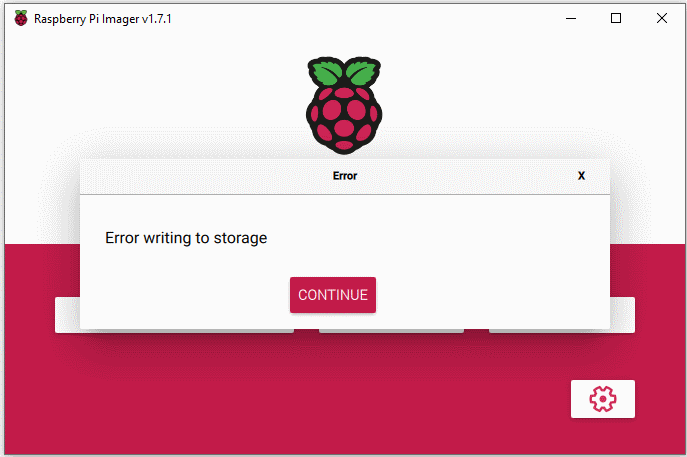
In the event of a break in ground scheme due to installation environment and connected equipment, there is no safety concern. However, equipment that depends on ground isolation for protection or measurement may experience loss of performance including, but not limited to, inaccuracy of power measurement or power delivery or equipment damage.

You can review additional details in the Errata document below:

{% file src="<https://3062424488-files.gitbook.io/~/files/v0/b/gitbook-x-prod.appspot.com/o/spaces%2FlLHqs7kbNoKOFTwGOfH6%2Fuploads%2FJ9HQ2Sy1hQCwaiA3F7om%2FFactor-PoE-Errata-RP-01.pdf?alt=media&token=1b609f31-6826-4971-8f98-9488be061e0a>" %}

### Enabling the Real Time Clock (RTC)

If you are having issues accessing the RTC, especially after installing a new operating system, you will need to add these lines to your config.txt file:

```
dtoverlay=i2c1,pins_44_45=on
dtoverlay=i2c-rtc,pcf85063a=on
```

You can also refer to the Raspberry PI CM4 documentation for more info. **Section 2.13** under "Real time clock (RTC)" at this link:\
<https://datasheets.raspberrypi.com/cm4io/cm4io-datasheet.pdf>

## <mark style="color:blue;">FR202 Features</mark>

Functions listed in this **FR202 Features** section are in addition to the **Factor Series Features** section above, and for the FR202 system only. The below features and not available on the FR201 platform.

***Note:** For the best experience, always update to the latest firmware version before testing these commands.*

### **Firmware Updates** <a href="#firmware-updates" id="firmware-updates"></a>

| Version | Release Date   | Link                                                                                                | Release Notes                                      |
| ------- | -------------- | --------------------------------------------------------------------------------------------------- | -------------------------------------------------- |
| 1.3.1.0 | 09/15/2023     | [Download](https://static.onlogic.com/resources/firmware/binaries/FR202/fr202_dio_v1.3.1.0.app.bin) | Improves the stability of the “byte mode” protocol |
| 1.2.5.1 | Initial launch | [Download](https://static.onlogic.com/resources/firmware/binaries/FR202/fr202_dio_v1.2.5.1.app.bin) | Initial launch                                     |

### **Digital IO (DIO)** <a href="#digital-io-dio" id="digital-io-dio"></a>

The FR202 Digital IO is connected to the CM4 via a virtual USB-CDC-ACM serial port; you can see that the USB device is detected using `lsusb` and OnLogic’s USB Vendor ID:

`lsusb -d 353f:`

Data can be sent to the device over its virtual serial port, which will be available in `/dev` :

`ls /dev | grep ACM`

The serial port can operate either as an interactive UART terminal, or as an endpoint for raw byte commands.

#### **UART Terminal**

The FR202’s UART shell supports line editing, history, and TAB completion. Digital inputs and outputs are collected into groups, and dio commands are performed on those groups.

For instance, `DO_G0` is “Digital Output Group 0”. A complete list of devices can be produced by running `device list`. Once you have selected a device, `dio` commands may be run:

<table><thead><tr><th width="148.5">Subcommand</th><th width="246">Example</th><th>Description</th></tr></thead><tbody><tr><td><code>set</code></td><td><code>dio set DO_G0 0 true</code></td><td>Set the logical state of a digital output to <code>true</code> or <code>false</code></td></tr><tr><td><code>get</code></td><td><code>dio get DO_G0 output 0</code></td><td>Get the current logical state of a digital input or ouput</td></tr><tr><td><code>num</code></td><td><code>dio num DO_G0 ouputs</code></td><td>Report the number of input/output pins available to an IO bank</td></tr><tr><td><code>mode</code></td><td><code>dio mode DO_G0 open-drain</code></td><td>Configure digital outputs to source or sink current, when supported</td></tr><tr><td><code>pwm</code></td><td><code>dio pwm DO_G0 0 1000000 50</code></td><td>Set an output as PWM with period in microseconds, and duty in percent</td></tr><tr><td><code>edge</code></td><td><code>dio edge DO_G0 0</code></td><td>Get the number of rising and falling edges detected by a digital input</td></tr></tbody></table>

To exit the interactive terminal and enter byte-processing mode, run the `byte_mode` command.
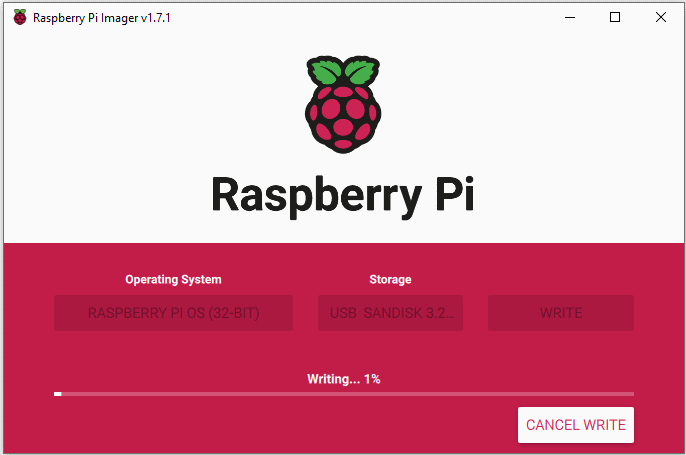
For information about other terminal commands, see: [Shell Commands](https://static.onlogic.com/resources/firmware/documentation/shell.html)

#### **Byte Mode**

When using byte mode, DIO commands are sent in the form of command packets, and each command will receive a status (and optional data) as a response.

The command header is eight bytes in length:

<table><thead><tr><th width="103">Bytes</th><th width="219">Description</th><th>Options</th></tr></thead><tbody><tr><td>0</td><td>The message ‘start of frame’ byte.</td><td>Must be 0x01, or the message will be rejected. For non request/response frames, it is instead set as 0x02</td></tr><tr><td>1</td><td>Indicates the kind of command transmitted</td><td>Must be one of the Valid Command Kinds</td></tr><tr><td>2 – 3</td><td>The status of the last command</td><td>Should be zero when sending a command, one of Status Codes when receiving</td></tr><tr><td>4</td><td>The length of the transfered command data</td><td>Must be less than 56, and equal to the length of the command body in bytes</td></tr><tr><td>5-7</td><td>Reserved</td><td>Must be 0x00</td></tr></tbody></table>
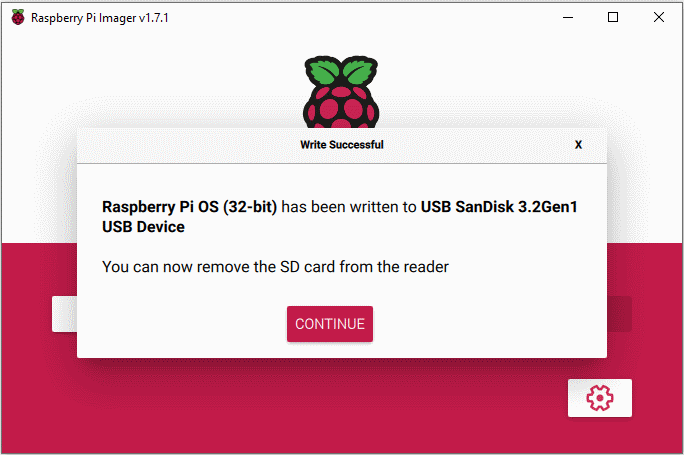
All command headers must indicate the type of data to follow, by setting the command kind:

<table><thead><tr><th width="84">Kind</th><th width="102">Value (u8)</th><th width="89">Size</th><th>Description</th></tr></thead><tbody><tr><td>DIO</td><td>0x00</td><td>8 bytes</td><td>Commands that get and set the state of MCU controlled digital IO banks</td></tr><tr><td>CAN</td><td>0x01</td><td>6 bytes</td><td>Sideband configuration and reporting for CAN devices</td></tr><tr><td>Reset</td><td>0x02</td><td>0 bytes</td><td>Causes a cold-reset of the microcontroller</td></tr><tr><td>Version</td><td>0x03</td><td>8 bytes</td><td>Reports the firmware version of the running application image</td></tr><tr><td>Ignition</td><td>0x04</td><td>10 bytes</td><td>Configures automotive and power features on supported devices</td></tr><tr><td>Disable</td><td>0x05</td><td>0 bytes</td><td>Disables byte processing of incoming data, and returns to an interactive shell</td></tr></tbody></table>

Each command sent will recieve a response from the microcontroller. This response may contain data, but can always be examined to determine if the command succeeded.
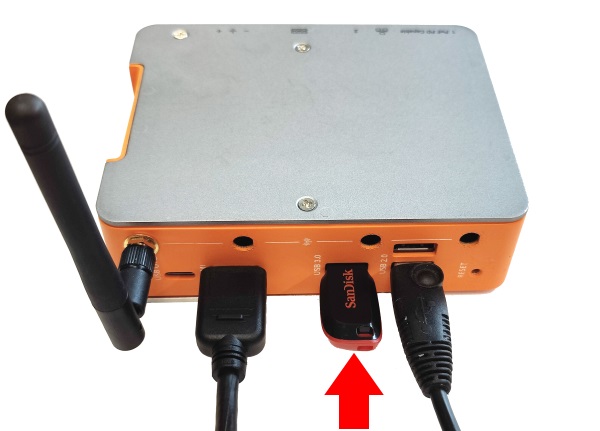
<table><thead><tr><th width="154.5">Code</th><th width="102">Value</th><th>Description</th></tr></thead><tbody><tr><td>Success</td><td>0x0000</td><td>The last command was processed successfully</td></tr><tr><td>Invalid Device</td><td>0x0001</td><td>The device indicated by the command exceeded the number of devices available to the system</td></tr><tr><td>Unbound Device</td><td>0x0002</td><td>The device targetted exists, but the MCU was unable to attach to and communicate with it</td></tr><tr><td>DIO – Invalid Pin</td><td>0x0003</td><td>The target pin exceeded the number of inputs or outputs actually present</td></tr><tr><td>DIO – Pin Read Failed</td><td>0x0004</td><td>Reading the state of the targetted pin failed for an unknown reason</td></tr><tr><td>DIO – Pin Write Faield</td><td>0x0005</td><td>Writing the state of the targetted pin failed for an unknown reason</td></tr><tr><td>DIO – Set Mode Unsupported</td><td>0x0006</td><td>Setting the DIO mode to push-pull or sink-source is not supported</td></tr><tr><td>Invalid Command</td><td>0x0007</td><td>The subcommand requested was outside of the valid range for the message kind</td></tr><tr><td>Bad Message Kind</td><td>0x0008</td><td>The message kind was not one of Valid Command Kinds</td></tr><tr><td>Version – Read Failed</td><td>0x0009</td><td>Reading the application version failed for an unknown reason</td></tr></tbody></table>

The DIO command format is as follows:

<table><thead><tr><th width="68.5">Bytes</th><th>Description</th><th>Options</th></tr></thead><tbody><tr><td>0</td><td>The DIO action to perform on the device</td><td>Must be one of DIO Actions</td></tr><tr><td>1</td><td>The bank of digital IO to target, or the number of devices</td><td>Must be between 0 and the number of DIO banks available on the platform</td></tr><tr><td>2</td><td>The pin index to get or set</td><td>The output pin index starts at 0, the input index starts at 0 + n-outputs</td></tr><tr><td>3</td><td>The current state of the pin (if read), or the state to set (if written), or the mode to set (mode 0=sourcing, mode 1=sinking)</td><td>0 or 1</td></tr><tr><td>4 – 7</td><td>The edge-count of the pin, or the number of inputs/outputs</td><td>0 – MAX_UNSIGNED_INT (u32)</td></tr></tbody></table>

The digital IO command supports the following actions:

<table><thead><tr><th width="100.5">Action</th><th width="97.5">Value (u8)</th><th>Description</th></tr></thead><tbody><tr><td>Get</td><td>0x00</td><td>Read the state and count of an input, or just the state of an output</td></tr><tr><td>Set</td><td>0x01</td><td>Set the logical state of a digital output</td></tr><tr><td>Set Count</td><td>0x02</td><td>Set the edge count of a digital input to the passed value</td></tr><tr><td>Set Mode</td><td>0x03</td><td>Switch between sink-source and open-collector drive mode on supported hardware</td></tr><tr><td>Num Devices</td><td>0x04</td><td>Reports the number of DIO banks available on the device</td></tr><tr><td>Num Outputs</td><td>0x05</td><td>Reports the number of outputs available to the indicated device</td></tr><tr><td>Num Inputs</td><td>0x06</td><td>Reports the number of inputs available to the indicated device</td></tr></tbody></table>

### **Front Display** <a href="#front-display" id="front-display"></a>

#### **Demo Application**

A sample application demonstrating some simple features of the display is provided for each of the supported Operating systems here:

[Bullseye\
Demo Program](https://static.onlogic.com/resources/firmware/utilities/fr202-display-demo-r4.zip)

[Bookworm\
DEMO Program](https://static.onlogic.com/resources/firmware/utilities/demo-display-bookworm.tar.gz)

On systems pre-installed with an OS from OnLogic, the display demo files are located under **`/usr/sbin/demo-display`** and **`/etc/systemd/system/demo-display.service`**

Pieces of this sample package are referenced in the display sections following. It also ships on all OnLogic-provided Pi OS and Ubuntu software images, enabled by default. To disable it, run `sudo systemctl disable demo-display` from a terminal window.

If you have deployed Bookworm onto your Factor unit since receiving it you may see the demo program not work right away. If you see this behavior please type \`raspi-config\` in the Linux terminal, select \`Interface Options\` then select \`I2C\` and enable it.

#### **Display IC Part Numbers**

Display Controller: [ST7789V](https://www.orientdisplay.com/wp-content/uploads/2020/11/ST7789V.pdf)

Controlling the Backlight

Touch Controller: [ST1633i](https://www.orientdisplay.com/wp-content/uploads/2021/12/ST1633i_datasheet_v1.6.pdf)

Display backlight is controlled by an i2c expander at 0x3C on I2C1.

The OnLogic-provided utility “fr202-i2c” can control the backlight with the commands:

**Enable:** `fr202-i2c set p7v6_shdn 0`

**Disable:** `fr202-i2c set p7v6_shdn 1`

A list of other controllable signals is available in the help text for the tool. It is provided with the display code samples as well as

The backlight can also be enabled using the i2ctools utilities as follows:

**Configure GPIO IC:** `i2cset -y 1 0x3c 0x03 0x81`

**Enable:** `i2cset -y 1 0x3c 0x01 0xbf`

**Disable:** `i2cset -y 1 0x3c 0x01 0xff`

#### **Images, Text, and Touch via Python**

`pip install st7789`

`apt install python3-rpi.gpio python3-spidev python3-pil python3-numpy`

The provided python example “demo-display” demonstrates the use of Python’s PIL and the ST7789 display library to display static images and text. It runs as a service in OnLogic-provided Pi OS and Ubuntu installations as well.

#### **Video via Python**

`pip install opencv-python`

`apt install libatlas-base-dev`

`pip install -U numpy`

The separately provided [example](https://static.onlogic.com/resources/firmware/utilities/fr202-video.zip) “st7789-video” demonstrates the use of opencv’s video library to show a video on-screen. By default, the sample is configured to read and display a video called “test.avi” in the same folder as the application. A video is not provided.

#### **ADC (Analog/Digital Converter)** <a href="#adc-analog-digital-converter" id="adc-analog-digital-converter"></a>

The ADC is attached to SPI 4 CS0. Look for this device name in your OS hardware list.\
Example:

`/dev/spidev4.0`

The ADC part number is LTC2448; a description of the SPI protocol can be found in the device manual [here](https://www.analog.com/media/en/technical-documentation/data-sheets/2444589fc.pdf).

An example of accessing the ADC can be found in the **`FR202-demo`** program as well. You can download it from [**here**](https://static.onlogic.com/resources/firmware/utilities/fr202-demo.zip). Search for “adc” in the **`demo-display`** file for examples.

All ADC channels are differential and configured as follows:\
ANALOG IN 0: Channel 0+1

ANALOG IN 1: Channel 2+3

ANALOG IN 2: Channel 4+5

ANALOG IN 3: Channel 6+7

TEMPERATURE 0: SENSOR Channel 8+9, REFERENCE Channel 10+11

TEMPERATURE 0: SENSOR Channel 12+13, REFERENCE Channel 14+15

## <mark style="color:blue;">Troubleshooting</mark> <a href="#troubleshooting" id="troubleshooting"></a>

### Demo Display Service Disclaimer <a href="#general-os-system-issues" id="general-os-system-issues"></a>

\*\*\***This has been resolved with a new image deployment as of Mid-August 2025 but systems from January-August 2025 may still experience this issue and will require the workaround below or a reimage**\*\*\*

Starting in the beginning of 2025, our Raspberry Pi OS image files had an automatic service included to help manage the FR202 display. Services are programs that automatically launch and run in the background in Linux operating systems. This service is included in both the FR201 and FR202 as they utilize the same motherboard/processing units, and therefore have the same image files.  We had found that this specific service can lead to error messages on the FR201 as it is searching for hardware that is not present in the system. This can lead to larger than necessary log files, which can consume storage space unnecessarily.

On the FR202 this service makes the LCD screen show the screen-test outputs, and the demo-display files can be modified to match the specific use case. This service identifies the FR202 hardware and runs properly, but on FR201s it fails since that hardware is not present. When it fails, this results in repeated lines of errors captured in the OS error logs. Essentially, it can consume storage space, and may cause concerns for those who are unaware.

The OS images this affects are our Raspberry Pi OS images (full/lite, and 32/64 bit). The original revision images were used through the end of December 2024, with the new revision that includes this service starting to be used at the beginning of January 2025. Ubuntu does not have the service included.

Because of our OS file management, FR201s and FR202s use the same image files. This means that the demo-display and service setup always happen, regardless of the system model. We recommend disabling the service in the following cases:

* User has an FR201
* User has an FR202 and doesn't have/want to use the LCD

For those that want to see if the service is running, they can run the following command:

systemctl list-units --type=service --state=running

If the service is running, and it needs to be disabled, the following two commands should be run:

sudo systemctl stop demo-display.service\
sudo systemctl disable demo-display.service

To check if the demo-display file is installed, it is located under the /usr/sbin directory.

### General OS/System Issues <a href="#general-os-system-issues" id="general-os-system-issues"></a>

If you are encountering general issues with your FR200 series system, such as the Real-Time-Clock (RTC) disconnecting, various ports not being detected, or features not working as expected, make sure you’re using the OnLogic provided config.txt and usercfg.txt files. These add additional functionality to the system, and allow the Raspberry Pi CM4 module to properly interface with the OnLogic designed FR200 series daughterboards. You can download the files from the [Manual and Downloads](https://support.onlogic.com/documentation/factor/#manuals-and-downloads) section above.

You should make sure that any Factor (FR201 and FR202) units have the following lines in the config.txt file:

```
# Enable the audio output, I2C and SPI interfaces on the GPIO header. As these
# parameters related to the base device-tree they must appear *before* any
# other dtoverlay= specification
dtparam=audio=on
dtparam=i2c_arm=on
#dtparam=spi=on
```

For the FR202 specifically, you will also need to ensure the config.txt file includes:

```
dtoverlay=spi4-1cs
dtoverlay=spi3-1cs,cs0_pin=24
dtoverlay=i2c5,pins12_13=on,baudrate=40000
```

### CPU Panic error messages

CPU Panic error messages may be see during/after an OS installation due to using an older or malfunctioning USB drive. Please make sure to use a USB 3.0 drive or newer, installed into the USB 3.0 slot on the Factor system. A different USB drive may also need to be used.

### Missing/Disabled Ethernet (Ubuntu) <a href="#missing-disabled-ethernet-port-in-ubuntu" id="missing-disabled-ethernet-port-in-ubuntu"></a>

If one of the Ethernet ports is not detected or shows as Disabled in Ubuntu, you can follow these steps to add it into Netplan and enable it.

1. Run the following command:

```
lshw
Network: DISABLED
```

2. Look for the Logical name, which is required in the next step, and run the following commands

```
cd /etc
cd netplan
sudo nano 50-cloud-init.yaml
```

3. Add the logical name (found in Step 2) to the 50-cloud-init.yaml file. See an example below:

<figure><img src="https://3062424488-files.gitbook.io/~/files/v0/b/gitbook-x-prod.appspot.com/o/spaces%2FlLHqs7kbNoKOFTwGOfH6%2Fuploads%2Fhy73GMyxkVFnWi4qDOZL%2Fyaml_file.png?alt=media&#x26;token=0f24091b-f075-4c90-be4c-f2d34088dde3" alt=""><figcaption></figcaption></figure>

4. Close and save, then run the following commands

```
sudo netplan apply
reboot
```

***

### TPM Module Issues <a href="#tpm-module-not-working-detected" id="tpm-module-not-working-detected"></a>

If the TPM modules is not working properly, refer to the [#tpm](#tpm "mention") section above for installing and configuring the necessary files.

***

### USB Boot Black Screen <a href="#booting-via-usb-results-in-black-screen" id="booting-via-usb-results-in-black-screen"></a>

Booting Ubuntu via USB may result in a black screen if the eMMC has an OS image on it. Wiping the eMMC and/or M.2 drive is recommended if that is encountered.

***

### Power LED Off <a href="#power-led-does-not-turn-on" id="power-led-does-not-turn-on"></a>

Some operating system versions require different config.txt settings to make the power indicator light function. If your Factor unit is otherwise functional, but the power indicator light is not lighting up, this is likely an issue with the **config.txt** file. Look for the following lines in the file:

```
dtparam=pwr_led_trigger=backlight
drparam=pwr_led_activelow=on
```

Replace those lines with

```
dtparam=pwr_led_trigger=default-on
dtparam=pwr_led_activelow=off
```

***

### Display Demo Issues <a href="#display-demo-program-not-working" id="display-demo-program-not-working"></a>

If you’re seeing issues using the FR202 LCD display, or seeing errors when running the `FR202-demo` scripts, make the following changes to your **config.txt** file:

**Delete/comment out:**

dtparam=spi=on

**Add:**

dtoverlay=spi4-1cs\
dtoverlay=spi3-1cs,cs0\_pin=24\
dtoverlay=i2c5,pins12\_13=on,baudrate=40000

After making any changes, save and restart the operating system.

### Slow Wi-Fi Speeds <a href="#experiencing-slow-wi-fi-speeds" id="experiencing-slow-wi-fi-speeds"></a>

The Factor’s CM4 compute module has a built-in Wi-Fi antenna that it uses by default instead of the attached external antenna. The config file /boot/firmware/config.txt (or /boot/config.txt depending on your OS) may need to be updated for the CM4 to use the external antenna to connect to Wi-Fi instead of its internal one. To do this, open the specified config file and add the line ‘dtparam=ant2’, save, and then reboot your system. This should provide a noticeable improvement in Wi-Fi speeds.

### Wi-Fi/Modem Connectivity <a href="#wi-fi-or-modem-not-connecting-to-internet" id="wi-fi-or-modem-not-connecting-to-internet"></a>

In a Factor with 4G LTE and Wi-Fi, there can be an issue where the devices “compete” for priority over each other, preventing them from connecting properly to the internet. To resolve this, you will need to set the priorities for the devices in the ‘/etc/dhcpcd.conf’ file for the Raspberry Pi OS and in the netplan configuration for the Ubuntu OS. You can do this by entering the following into the configuration file:

<p align="center">interface wlan0<br>metric 100<br>interface eth0<br>metric 200</p>

The lower the metric, the higher priority. So in this example, the WIFI device (wlan0) will take priority over the ethernet. What that is doing is ensuring that the WIFI device’s default route is being used to route network traffic. The customer may need to set priorities for each network device, which for Factor is eth0, eth1, wlan0, and usb0, where usb0 is the AMIT card.

### NWK300 Modem Issues

The Out-of-Box version of the following operating systems on the FR200 systems can encounter issues with the NWK300 modem where you may not be able to set up the modem properly:

* Raspberry Pi (Bullseye)
* Raspberry Pi Lite (Bullseye)
* Ubuntu Desktop/Server 20.04 - 32 Bit
* Ubuntu Desktop/Server 22.04

The issue can be resolved by running an OS update. Run the command:

'sudo apt update && sudo apt upgrade'

And the system should be able to use the modem normally. This issue is not present in the Bookworm or Ubuntu 24.04 operating systems.