> For the complete documentation index, see [llms.txt](https://support.onlogic.com/llms.txt). Markdown versions of documentation pages are available by appending `.md` to page URLs; this page is available as [Markdown](https://support.onlogic.com/support-articles/how-tos/more/system-serial-number-retrieval.md).
# System Serial Number Retrieval
How to locate your system's serial number via physical labels or software commands
## Serial Number Retrieval
### Physical Label
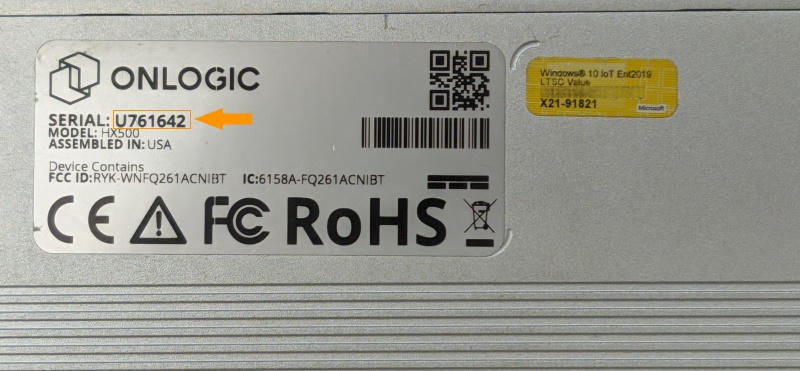
The OnLogic serial number can be found on a label applied to the bottom of the system, or the rear of the display for Panel PCs. Our serial numbers will begin with U or E, followed by 6 digits.
Since 2018, OnLogic has written the serial number of the system into the SMBIOS data on all products except for Raspberry Pi systems (i.e the Factor Series). This means that the serial number can be retrieved without physically looking at the unit. This can be useful if the system is deployed in the field or mounted in an enclosure.
\*Note that the Factor Series systems (FR201 and FR202) do not have a BIOS or SMBIOS, and do **not** support the below software commands. The systems’ serial number need to be identified via the physical label on the bottom of the case.
### Windows
Open CMD from the start menu and run the following commands. One of them should return the correct serial.
```
WMIC BIOS get serialnumber
```
```
WMIC baseboard get serialnumber
```
### Linux
Run the following commands in terminal.
```
dmidecode -s system-serial-number
```
```
cat /sys/devices/virtual/dmi/id/product_serial
```