# Update System Drivers

## <mark style="color:blue;">Updating a single driver via Device Manager</mark>

Some drivers do not come with an installer and need to be installed manually. This can be done via Device Manager. This guide will show you how.

<figure><img src="https://3062424488-files.gitbook.io/~/files/v0/b/gitbook-x-prod.appspot.com/o/spaces%2FlLHqs7kbNoKOFTwGOfH6%2Fuploads%2Fgit-blob-ad72a29d98257d2322a032ee8647e29ff3c7cab7%2F8567645e7517c595f7bcb084eb1d124afc4488f7dbc75a6e3e57fb77d526b934.png?alt=media" alt="" height="201" width="596"><figcaption></figcaption></figure>

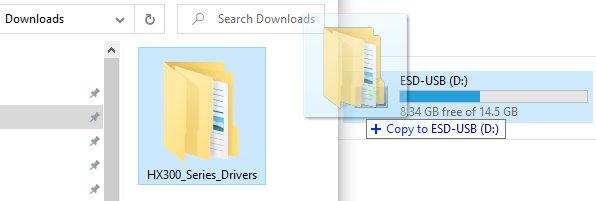
* Copy the driver files to a USB flash drive.
* If the drivers are contained inside a .zip file, extract them first.
* In this example, we use the same flash drive we installed Windows 10 from
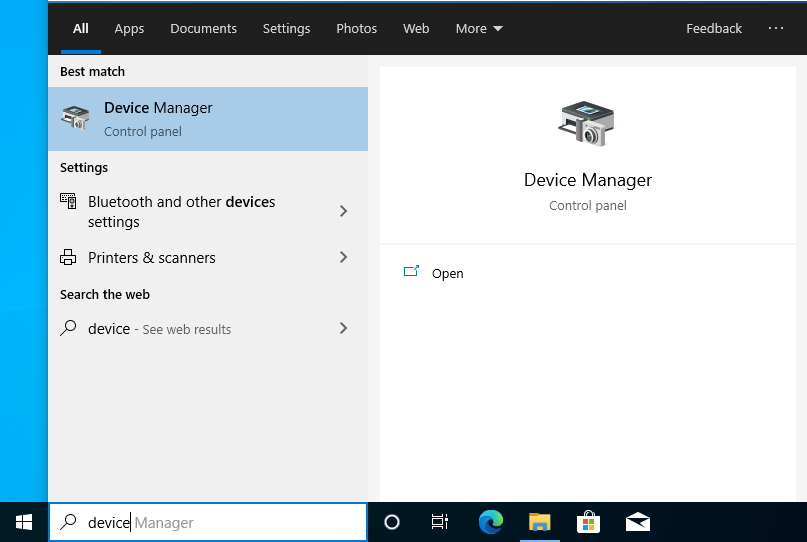
* Eject the flash drive and connect it to the OnLogic PC. Type “Device Manager” into the start menu and launch Device Manager.

<figure><img src="https://3062424488-files.gitbook.io/~/files/v0/b/gitbook-x-prod.appspot.com/o/spaces%2FlLHqs7kbNoKOFTwGOfH6%2Fuploads%2Fgit-blob-79baa1d5bc902fec37153f7375f22dc16cbe1750%2F993c66c73c8accba3fa9c5bcfc4eea3c1ae1773d4ec5bfba9524572ad1ca9421.png?alt=media" alt="" height="542" width="807"><figcaption></figcaption></figure>

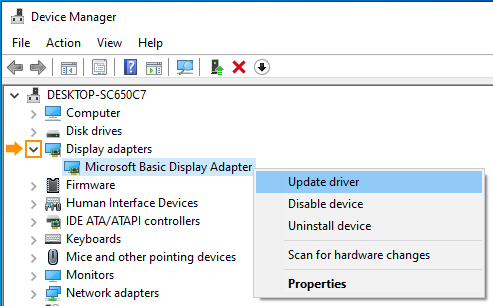
* Expand the Display adapters menu. If you see “Microsoft Basic Display Adapter”, that means you are missing the driver. Right click and choose “Update driver”.

<figure><img src="https://3062424488-files.gitbook.io/~/files/v0/b/gitbook-x-prod.appspot.com/o/spaces%2FlLHqs7kbNoKOFTwGOfH6%2Fuploads%2Fgit-blob-ebf61c97bb10fdcd43401c49df102723aa1888ed%2F89c017b6a4ecdf22b31de1c441542d71b46b708ed5abca02acc47761a5148125.png?alt=media" alt="" height="306" width="493"><figcaption></figcaption></figure>

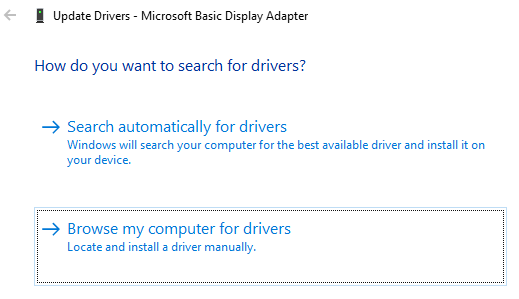
* Select the “Browse my computer for drivers” option

<figure><img src="https://3062424488-files.gitbook.io/~/files/v0/b/gitbook-x-prod.appspot.com/o/spaces%2FlLHqs7kbNoKOFTwGOfH6%2Fuploads%2Fgit-blob-80157d52450dc929e9337da880d3fe2c220f5390%2F93e2cb6ff0a53366b9c2396bee775f681f847d05b171119710a954573561cd7b.png?alt=media" alt="" height="299" width="519"><figcaption></figcaption></figure>

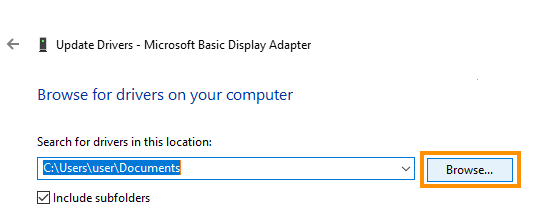
* Click on “Browse…”

<figure><img src="https://3062424488-files.gitbook.io/~/files/v0/b/gitbook-x-prod.appspot.com/o/spaces%2FlLHqs7kbNoKOFTwGOfH6%2Fuploads%2Fgit-blob-f691aec3ed7cc8d2cb0b0db100b048e2733386e4%2F9ce0875b70ab0fac81ecbbc3c886bfb3312a6d8a2ef8fc96d3be3e26e9509202.png?alt=media" alt="" height="216" width="539"><figcaption></figcaption></figure>

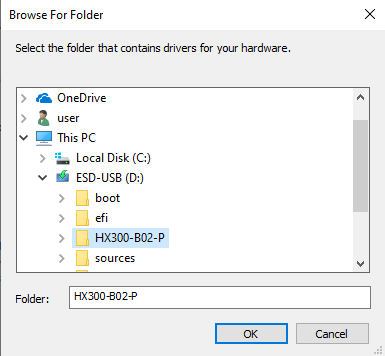
* Locate the folder on your flash drive with the drivers inside it. Click on the folder and click OK.

<figure><img src="https://3062424488-files.gitbook.io/~/files/v0/b/gitbook-x-prod.appspot.com/o/spaces%2FlLHqs7kbNoKOFTwGOfH6%2Fuploads%2Fgit-blob-6738a20ae6219a7e37fdef6cf22653273a4d5f35%2F5a936df274e7fc3e23262096cd6ca4a14516cf32159bdde76ff144851f2d70d1.png?alt=media" alt="" height="356" width="385"><figcaption></figcaption></figure>

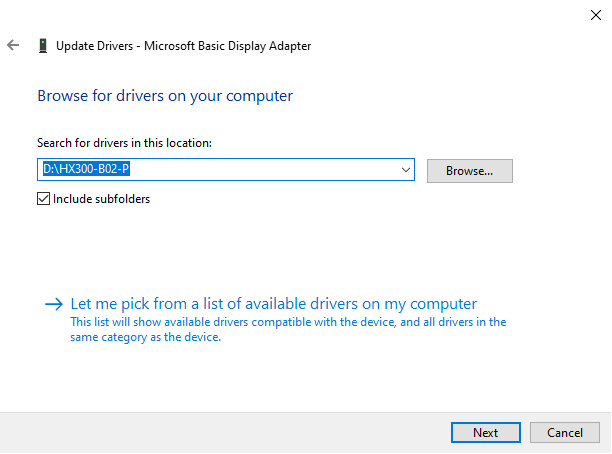
* Now that the location shows where your driver folder is, click Next

<figure><img src="https://3062424488-files.gitbook.io/~/files/v0/b/gitbook-x-prod.appspot.com/o/spaces%2FlLHqs7kbNoKOFTwGOfH6%2Fuploads%2Fgit-blob-4238804670488587c5b9e161a7a1c36e486c591f%2Fc054ec8dc2a3b297a4bff8fd080c57a9a88b9449e1e5d3da736e431d6c91a4e6.png?alt=media" alt="" height="454" width="612"><figcaption></figcaption></figure>

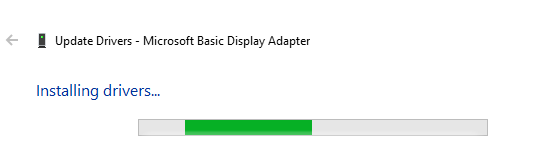
* Windows will now search that folder for the correct drivers and install them automatically.

<figure><img src="https://3062424488-files.gitbook.io/~/files/v0/b/gitbook-x-prod.appspot.com/o/spaces%2FlLHqs7kbNoKOFTwGOfH6%2Fuploads%2Fgit-blob-f01b522b8cf45c3f9394f62294c71088899adb5e%2Fdc74d5ed8a89d6d7d143420547b995972c9fd4e31d14ac39db7d53af065fb7e9.png?alt=media" alt="" height="167" width="535"><figcaption></figcaption></figure>

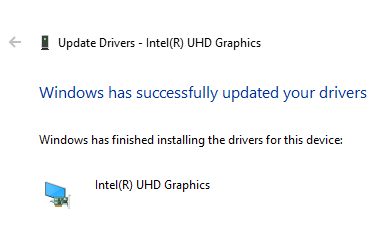
* Success! If you get a failure message, go back and make sure you copied all of the drivers to the flash drive and that they are not still inside a zip file. You need to extract them.

<figure><img src="https://3062424488-files.gitbook.io/~/files/v0/b/gitbook-x-prod.appspot.com/o/spaces%2FlLHqs7kbNoKOFTwGOfH6%2Fuploads%2Fgit-blob-40acd0fdf9ecef4447237a30cd4c1f277c4bee45%2F739f2e25133131eaa35b5df8174b72dd784b7a60d7bfb2438ebb4f08de3d6b81.png?alt=media" alt="" height="233" width="389"><figcaption></figcaption></figure>

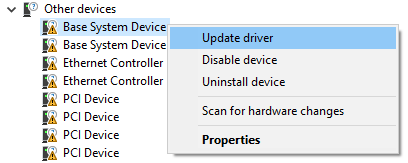
* Repeat this process for all other devices marked with the yellow exclamation point. Typically, they will all be found under the “Other devices” heading.

<figure><img src="https://3062424488-files.gitbook.io/~/files/v0/b/gitbook-x-prod.appspot.com/o/spaces%2FlLHqs7kbNoKOFTwGOfH6%2Fuploads%2Fgit-blob-032f9da1dc0ac6afb25fcab7c8ccf8adb0747a9e%2F5e541a922cad9fde32e7a8d230e248034a191b3ad6be8296f9f18debab55debd.png?alt=media" alt="" height="163" width="408"><figcaption></figcaption></figure>

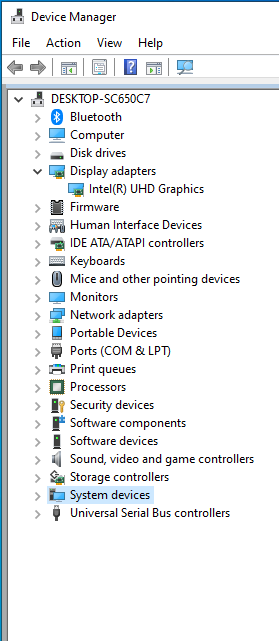
* When you no longer have any marked devices the process is complete. A reboot of the system is recommended.

<figure><img src="https://3062424488-files.gitbook.io/~/files/v0/b/gitbook-x-prod.appspot.com/o/spaces%2FlLHqs7kbNoKOFTwGOfH6%2Fuploads%2Fgit-blob-bf6a42b8813ca8afc7223397e1d4a4fc1f3f290e%2F9632868a36d474ec76b41178d421abee9c5474d3ae55c925957fd7a352a90738.png?alt=media" alt="" height="641" width="279"><figcaption></figcaption></figure>

### <mark style="color:blue;">Updating multiple drivers at once</mark> <a href="#updating-multiple-drivers-at-once" id="updating-multiple-drivers-at-once"></a>

* Copy the driver package to a flash drive and plug it into the Windows machine
* Open Command Prompt and navigate to the flash drive (e.g. >D:)
* Run the command “*pnputil /add-driver \*.inf /subdirs /install*“

*You can also create a batch file and place it at the root of the .zip file that contains the line:*

*pnputil /add-driver \*.inf /subdirs /install*