# Windows 10 Home & Pro Reinstallation

Windows 10 Pro and Home can be reinstalled using a USB flash drive and a tool from Microsoft. This guide will walk you through creating the flash drive and performing the installation.

### <mark style="color:blue;">Prerequisites</mark> <a href="#prerequisites" id="prerequisites"></a>

* An 8GB or larger flash drive (USB 3.0 model recommended for speed)
* A PC running Windows 10
* The Media Creation Tool, [downloadable from here](https://www.microsoft.com/en-us/software-download/windows10).

### <mark style="color:blue;">Creating the flash drive</mark> <a href="#creating-the-flash-drive" id="creating-the-flash-drive"></a>

<figure><img src="https://3062424488-files.gitbook.io/~/files/v0/b/gitbook-x-prod.appspot.com/o/spaces%2FlLHqs7kbNoKOFTwGOfH6%2Fuploads%2Fgit-blob-9fb694e3e5340b4c91828e1fb17c9b351ac9ce8b%2F20b1ec96df7d4af2f8f479b76905f2802f9e75eb2e7bc44e3e96ffafa9e45931.png?alt=media" alt="" height="28" width="188"><figcaption></figcaption></figure>

* Download and run the Media Creation Tool, linked above

<figure><img src="https://3062424488-files.gitbook.io/~/files/v0/b/gitbook-x-prod.appspot.com/o/spaces%2FlLHqs7kbNoKOFTwGOfH6%2Fuploads%2Fgit-blob-f44d74d185e04fd112b6eb0c0473ac6910a2d73d%2F16aaade677035d75efbc22c27a57049358a9657af2be7ae703e3f2024242ffc3.png?alt=media" alt="" width="563"><figcaption></figcaption></figure>

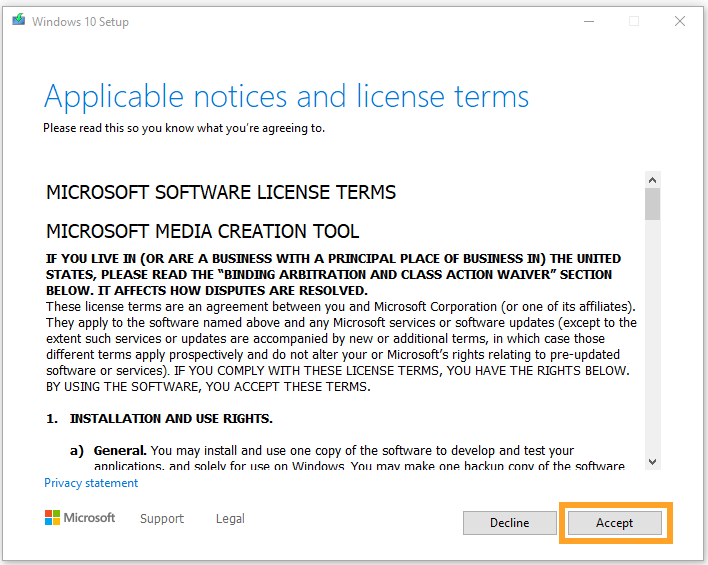
* Accept the license agreement

<figure><img src="https://3062424488-files.gitbook.io/~/files/v0/b/gitbook-x-prod.appspot.com/o/spaces%2FlLHqs7kbNoKOFTwGOfH6%2Fuploads%2Fgit-blob-8775b126d44370e6f7cee0b89a5930a9ca0173f7%2F24a50ea1fbbdf0410e47c488a71358e205295997b83c1e33cfe46f1cdd044cec.png?alt=media" alt="" width="563"><figcaption></figcaption></figure>

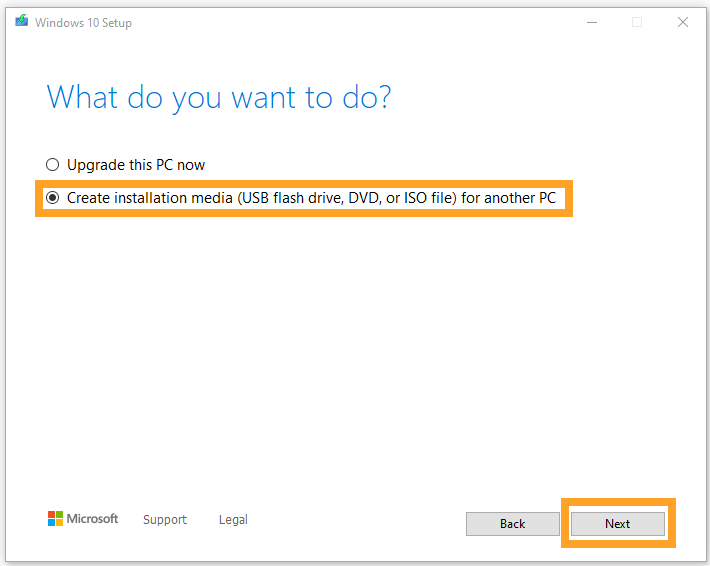
* Choose the 2nd option and click Next

<figure><img src="https://3062424488-files.gitbook.io/~/files/v0/b/gitbook-x-prod.appspot.com/o/spaces%2FlLHqs7kbNoKOFTwGOfH6%2Fuploads%2Fgit-blob-dcc1047b56a0681431f9e1f9c311e38a7b0e25d0%2F05e19c176bdc52789d720ee927e83bc9e101d4b20e1fd250ac2d8ea21ca10317.png?alt=media" alt="" width="563"><figcaption></figcaption></figure>

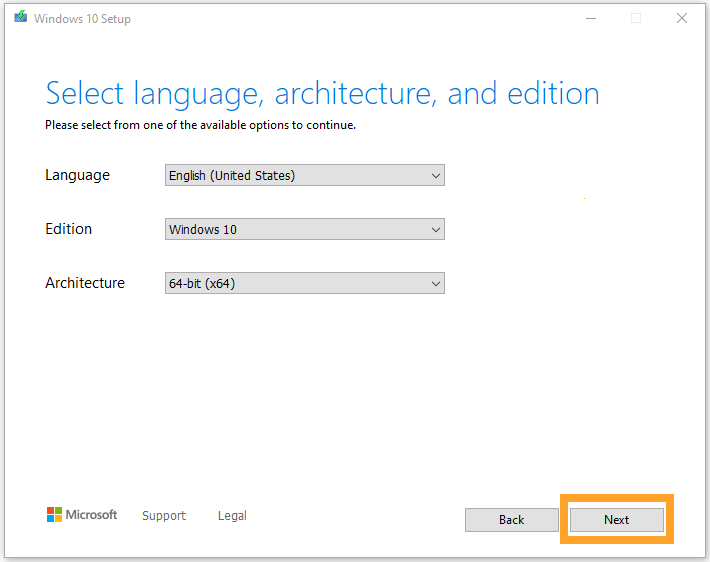
* Specify the architecture. In almost all cases, the default of 64bit is correct.

<figure><img src="https://3062424488-files.gitbook.io/~/files/v0/b/gitbook-x-prod.appspot.com/o/spaces%2FlLHqs7kbNoKOFTwGOfH6%2Fuploads%2Fgit-blob-a0265b1f15e5a6bca3c1a7a78bfd927c44b29692%2F25095681dc9ab7335109840c51d9449a80cd0505bbf1d40c42118df88fa7f180.png?alt=media" alt="" width="563"><figcaption></figcaption></figure>

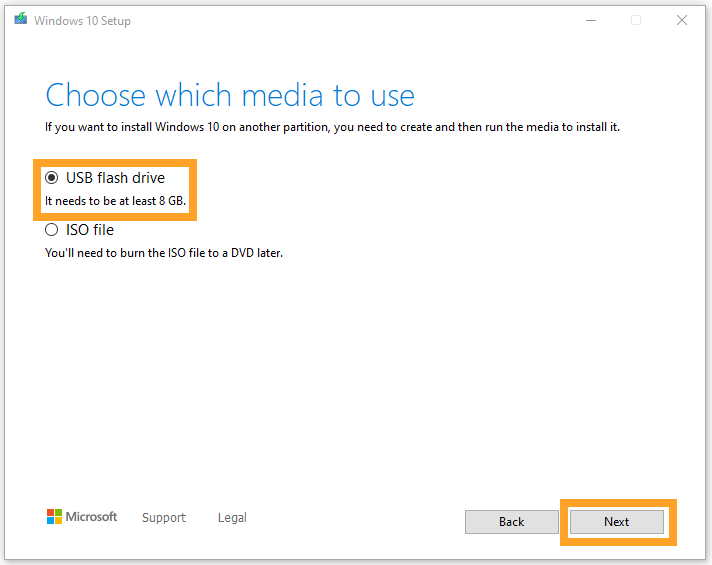
* Select USB flash drive and click Next

<figure><img src="https://3062424488-files.gitbook.io/~/files/v0/b/gitbook-x-prod.appspot.com/o/spaces%2FlLHqs7kbNoKOFTwGOfH6%2Fuploads%2Fgit-blob-3a89b6a4a8dba8730ad6cd9f4bce62089ab94acf%2F541d468b9459a5e7db45066b8c089958832d1e5776f220b1ccc60154e33ad3e8.png?alt=media" alt="" width="563"><figcaption></figcaption></figure>

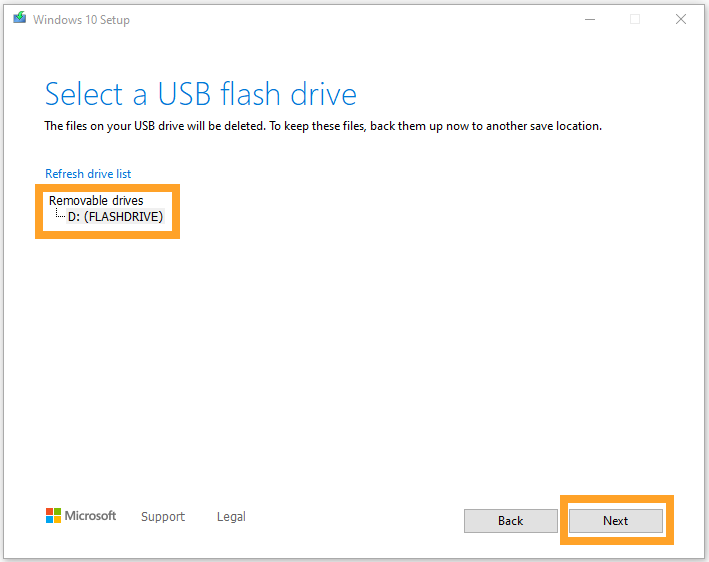
* Choose your flash drive from the list and click Next
* If the drive does not show, ensure it is formatted as FAT32 or try a different drive.

<figure><img src="https://3062424488-files.gitbook.io/~/files/v0/b/gitbook-x-prod.appspot.com/o/spaces%2FlLHqs7kbNoKOFTwGOfH6%2Fuploads%2Fgit-blob-4bdaf03af459789957e90a46b5257fcdba7d44eb%2Fa51fe739dd4ae91549e0afb7073b66aec316e89a7cd7130a6127774c2441579a.png?alt=media" alt="" width="563"><figcaption></figcaption></figure>

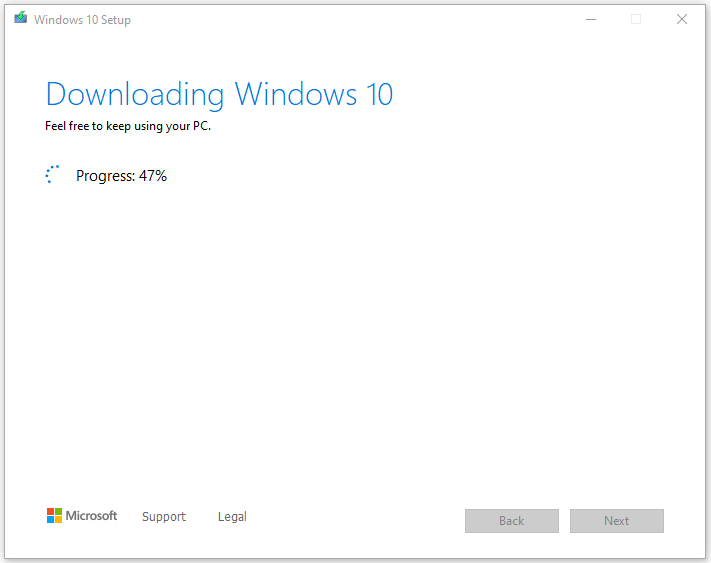
* The Windows 10 installer will now download from the Internet and make the flash drive bootable. This will take several minutes depending on the speed of your flash drive and Internet connection.

<figure><img src="https://3062424488-files.gitbook.io/~/files/v0/b/gitbook-x-prod.appspot.com/o/spaces%2FlLHqs7kbNoKOFTwGOfH6%2Fuploads%2Fgit-blob-5593bac3000956ccb9caa4320afe2357bed2f488%2F291e7038792bba9410dc0146ceac464d82e6eb7a8dc3750f459ced2413dcac5b.png?alt=media" alt="" width="563"><figcaption></figcaption></figure>

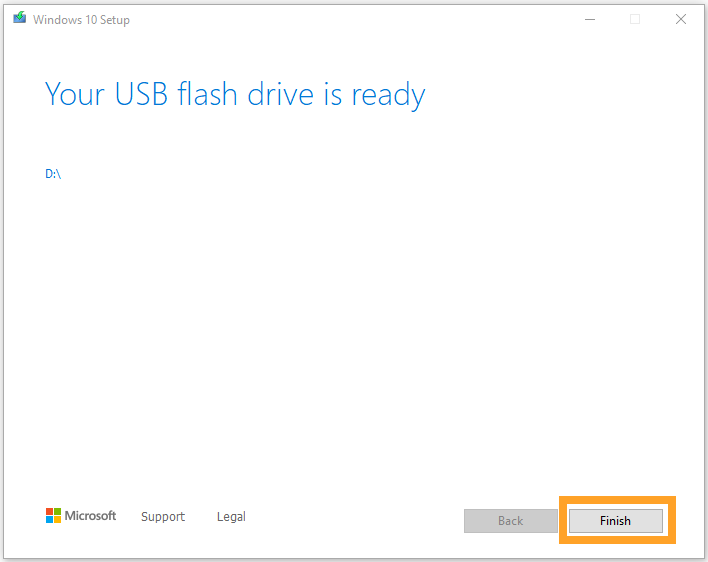
* When the tool finishes, click Finish to close it.

<figure><img src="https://3062424488-files.gitbook.io/~/files/v0/b/gitbook-x-prod.appspot.com/o/spaces%2FlLHqs7kbNoKOFTwGOfH6%2Fuploads%2Fgit-blob-8f3596d1c50fcd5a14ac65c111d7189b341f6f2d%2Fbadaa1d1ed5a970ee76bf39fd10af0d5144b2a1956d38eea55261f996b07b1e7.png?alt=media" alt="" height="122" width="256"><figcaption></figcaption></figure>

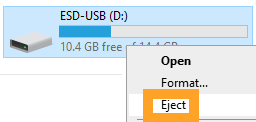
* Safely eject the flash drive and unplug it from the PC.

### <mark style="color:blue;">Installing Windows</mark> <a href="#installing-windows" id="installing-windows"></a>

<figure><img src="https://3062424488-files.gitbook.io/~/files/v0/b/gitbook-x-prod.appspot.com/o/spaces%2FlLHqs7kbNoKOFTwGOfH6%2Fuploads%2Fgit-blob-c6a46700163b196b3e49010b143aed4010b36161%2F52326fc9d7dcb39b7f3f310648442ce7669be34e3c44ae43f4cf7d574e7e44f9.png?alt=media" alt="" width="563"><figcaption></figcaption></figure>

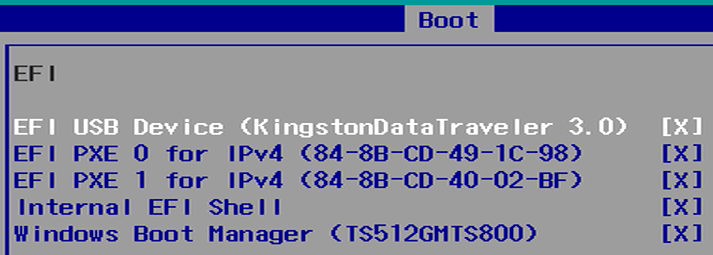
* Connect your newly created flash drive to the OnLogic PC and boot to it.
* Press F2 or Delete to access the BIOS. Under the Boot tab, make it the first boot device.
* Exact boot instructions vary by model. If you need assistance, contact <support@onlogic.com>.

<figure><img src="https://3062424488-files.gitbook.io/~/files/v0/b/gitbook-x-prod.appspot.com/o/spaces%2FlLHqs7kbNoKOFTwGOfH6%2Fuploads%2Fgit-blob-b3438ca38b2856d4daebe346a525f7aa9ada181d%2F69ad297cb051d5bb6378ec6e7e7ca25eaa0b63bde0cf40366ea0bde683bac10b.png?alt=media" alt="" width="563"><figcaption></figcaption></figure>

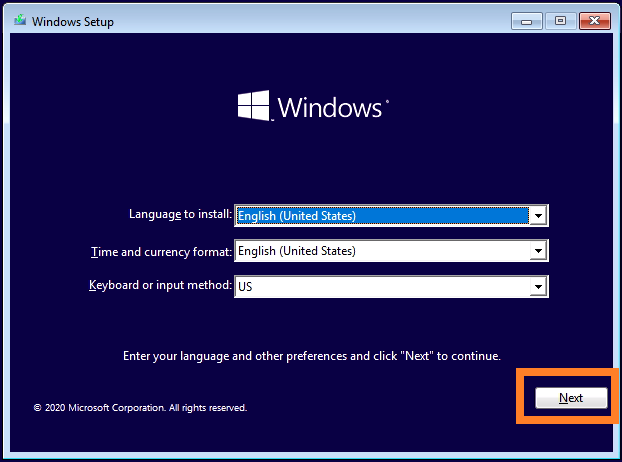
* When the flash drive boots, you will be presented with this screen. Select Next.

<figure><img src="https://3062424488-files.gitbook.io/~/files/v0/b/gitbook-x-prod.appspot.com/o/spaces%2FlLHqs7kbNoKOFTwGOfH6%2Fuploads%2Fgit-blob-2baf3dfe42d18253d5d947d699da3b01117005b3%2F5be98dbb6a8d82e5129299b951700bfd566e236f77df479352c96aee728d38ab.png?alt=media" alt="" width="563"><figcaption></figcaption></figure>

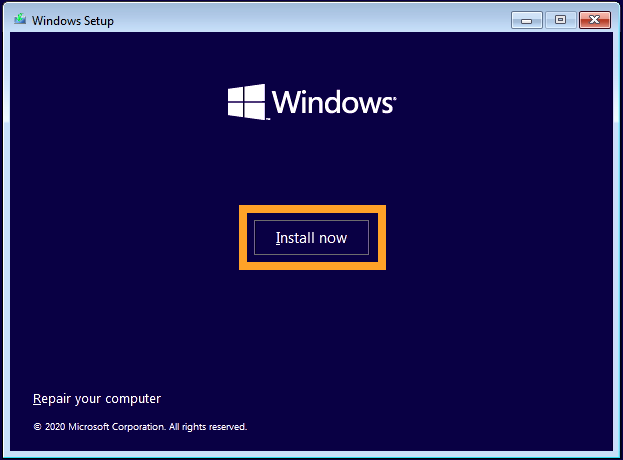
* Click Install now

<figure><img src="https://3062424488-files.gitbook.io/~/files/v0/b/gitbook-x-prod.appspot.com/o/spaces%2FlLHqs7kbNoKOFTwGOfH6%2Fuploads%2Fgit-blob-5844195eac4f4a9fa6c3d2c451a2de3bb439ee57%2F26258420e75177f4c373908f2641aa90deb1ad38cd33ff2b68f3448c04e8d98e.png?alt=media" alt="" width="563"><figcaption></figcaption></figure>

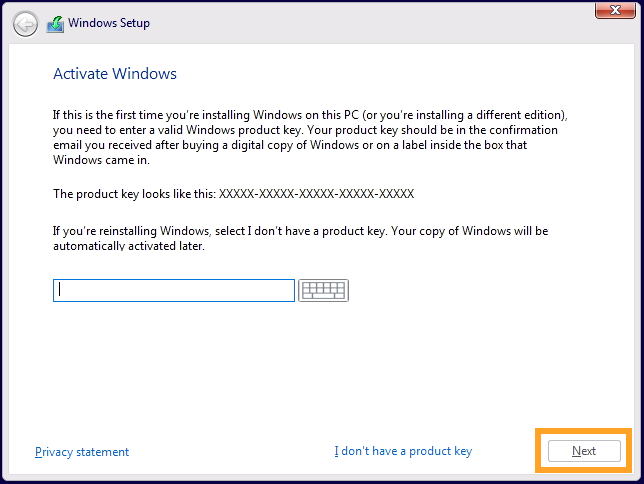
* Enter the product key from the bottom of your OnLogic PC and click Next.

<figure><img src="https://3062424488-files.gitbook.io/~/files/v0/b/gitbook-x-prod.appspot.com/o/spaces%2FlLHqs7kbNoKOFTwGOfH6%2Fuploads%2Fgit-blob-bc71177fcff6fdb04b4c048df3e1cc7056fc25fe%2F0c3c845489675431450c018318a5af19f98e6b805d72f080feb80856c928133d.png?alt=media" alt="" width="563"><figcaption></figcaption></figure>

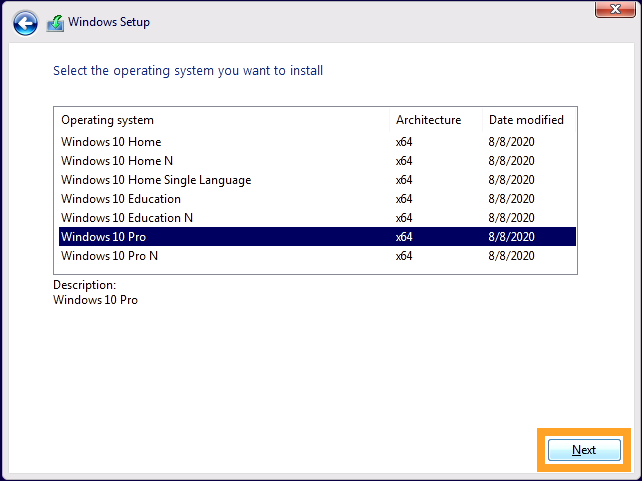
* If prompted (typically when you don’t enter a product key), select your version of Windows.

<figure><img src="https://3062424488-files.gitbook.io/~/files/v0/b/gitbook-x-prod.appspot.com/o/spaces%2FlLHqs7kbNoKOFTwGOfH6%2Fuploads%2Fgit-blob-c4c685d1cdbb74b68134f82306404a9ef885e38b%2Ffc27972cee79272ab66c945c86de963fd4c4537205aa1e3f4ff4d43215f6c1eb.png?alt=media" alt="" width="563"><figcaption></figcaption></figure>

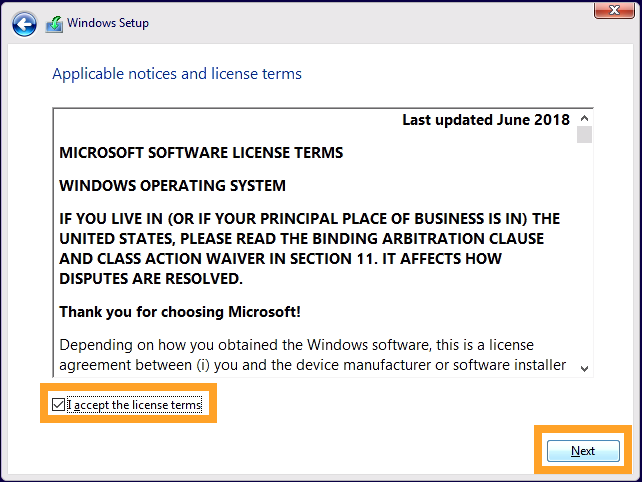
* Accept the license agreement and click Next

<figure><img src="https://3062424488-files.gitbook.io/~/files/v0/b/gitbook-x-prod.appspot.com/o/spaces%2FlLHqs7kbNoKOFTwGOfH6%2Fuploads%2Fgit-blob-c6bade52a2e8391b898a55e7eb6c62fef4159d84%2F06d5f4fad4717933bbb2c45d064a533a4b5896647b6878e3513aa4194580c31b.png?alt=media" alt="" width="563"><figcaption></figcaption></figure>

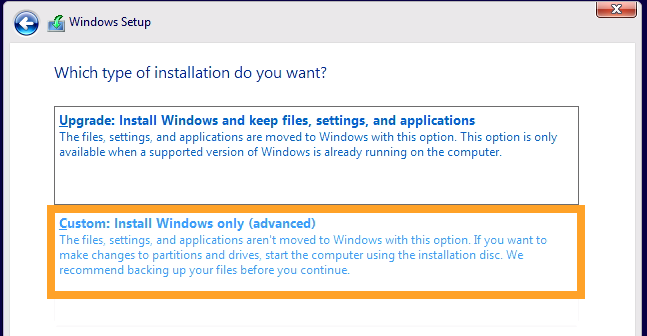
* Choose the option for Custom installation

<figure><img src="https://3062424488-files.gitbook.io/~/files/v0/b/gitbook-x-prod.appspot.com/o/spaces%2FlLHqs7kbNoKOFTwGOfH6%2Fuploads%2Fgit-blob-0a4db51c87b0a26b2c0b284ae362478137151d2a%2Fd129ddbfc8e6dff7b11c4fc71270e0cc8b7775076c0bd60cbbf916bf12ca846d.png?alt=media" alt="" width="563"><figcaption></figcaption></figure>

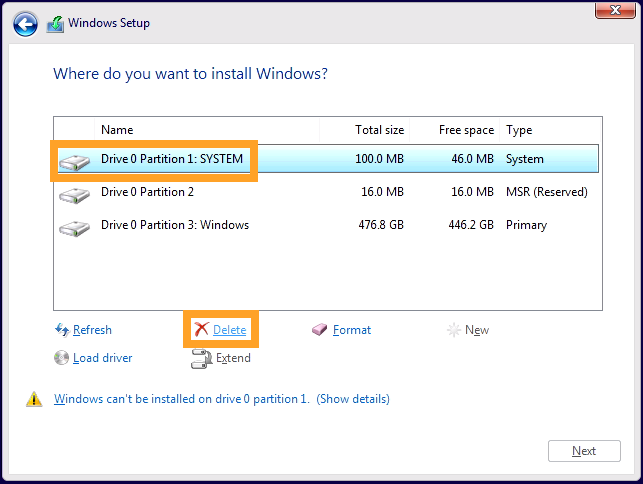
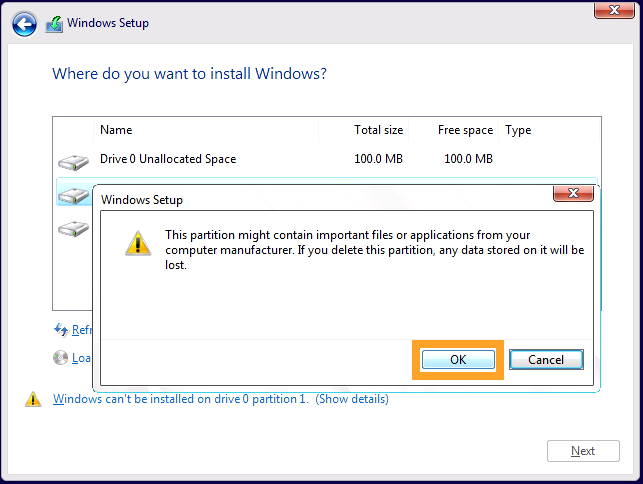
* Delete all partitions from the drive you will be installing Windows 10, typically Drive 0.

<figure><img src="https://3062424488-files.gitbook.io/~/files/v0/b/gitbook-x-prod.appspot.com/o/spaces%2FlLHqs7kbNoKOFTwGOfH6%2Fuploads%2Fgit-blob-b80b6c1c87a068d071b8a0103cd1cffa99012fcb%2F6ad47178ceebf051857c31a62975a96ce2f0db4a76931d691480d75d81b159f0.png?alt=media" alt="" width="563"><figcaption></figcaption></figure>

* Double check that you are deleting the correct partitions and click OK.

<figure><img src="https://3062424488-files.gitbook.io/~/files/v0/b/gitbook-x-prod.appspot.com/o/spaces%2FlLHqs7kbNoKOFTwGOfH6%2Fuploads%2Fgit-blob-74089f51431503acaf9f2372dcdabbdc1fe53a99%2F92963f97bf4eb5b14102214fd3ea17d2b9193c054f5659c3c3ecd3c131efaa16.png?alt=media" alt="" width="563"><figcaption></figcaption></figure>

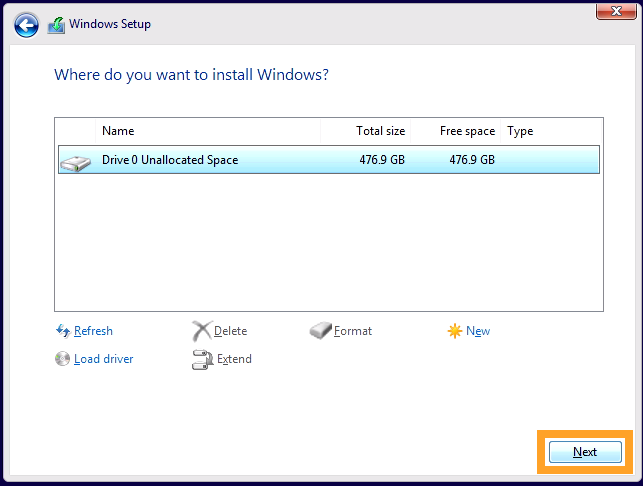
* With all partitions deleted, the Window should look like this. Click Next. New partitions will be created automatically.

<figure><img src="https://3062424488-files.gitbook.io/~/files/v0/b/gitbook-x-prod.appspot.com/o/spaces%2FlLHqs7kbNoKOFTwGOfH6%2Fuploads%2Fgit-blob-65407ab129d041a15cf35c910dc5ac1cc480a2e2%2Fed256e308a0130ae3016b62d493bc0e3bbd769d8622f679abbb457cbfeaf2a20.png?alt=media" alt="" width="563"><figcaption></figcaption></figure>

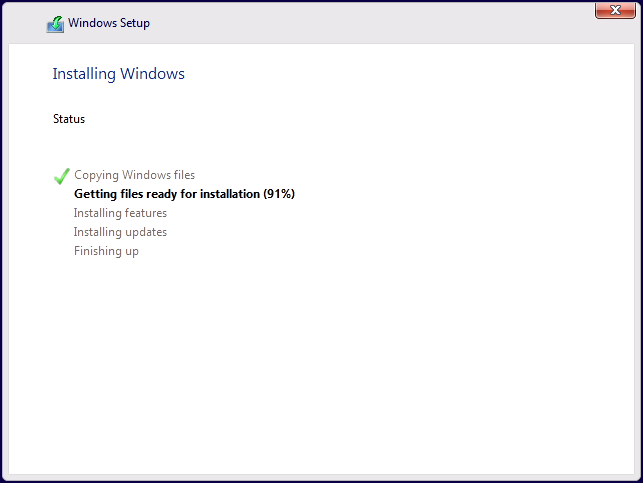
* Take a break while the installation proceeds

### <mark style="color:blue;">First Boot & Setup</mark> <a href="#first-boot-setup" id="first-boot-setup"></a>

<figure><img src="https://3062424488-files.gitbook.io/~/files/v0/b/gitbook-x-prod.appspot.com/o/spaces%2FlLHqs7kbNoKOFTwGOfH6%2Fuploads%2Fgit-blob-5064d1b58f0905360f6606ee7d4d179e84fb0813%2F9e93a6201ff6003ce856c5e35baada124a1cb0bdb4b610675ddf706cec3fb636.png?alt=media" alt="" width="563"><figcaption></figcaption></figure>

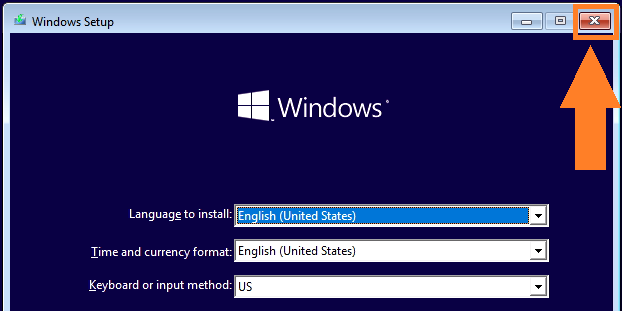
* Depending on the boot settings, the system may boot to the flash drive again. If that happens, click the X to reboot and immediately remove the flash drive.

<figure><img src="https://3062424488-files.gitbook.io/~/files/v0/b/gitbook-x-prod.appspot.com/o/spaces%2FlLHqs7kbNoKOFTwGOfH6%2Fuploads%2Fgit-blob-5d46730bacbe0a07de3145b21b01b72e94245050%2F19ee52167029405653f8473cedcc47053f445015a89bd562399886a42b2954af.png?alt=media" alt="" width="563"><figcaption></figcaption></figure>

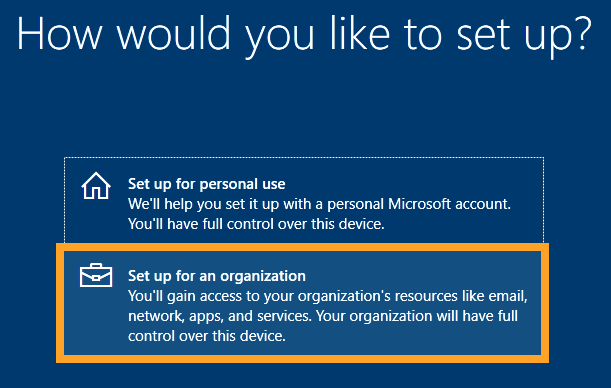
* When booting to your new Windows installation for the first time, you will be presented with this screen

<figure><img src="https://3062424488-files.gitbook.io/~/files/v0/b/gitbook-x-prod.appspot.com/o/spaces%2FlLHqs7kbNoKOFTwGOfH6%2Fuploads%2Fgit-blob-581c2c83454ecda1c2b6981934081384ddf57bb0%2F59d246e65019d9cd6746b829dd0c7cf84e2cb911bf03b9fc36f999d6c241da3d.png?alt=media" alt="" width="563"><figcaption></figcaption></figure>

* Choose :set up for an organization

<figure><img src="https://3062424488-files.gitbook.io/~/files/v0/b/gitbook-x-prod.appspot.com/o/spaces%2FlLHqs7kbNoKOFTwGOfH6%2Fuploads%2Fgit-blob-20b698058ccc1c266b9d0c4b827460f70fb350e7%2Ff03472739eb0fb385e3f3f3ebb34bcc704f2864a97f26966d5722bb05e877490.png?alt=media" alt="" width="563"><figcaption></figcaption></figure>

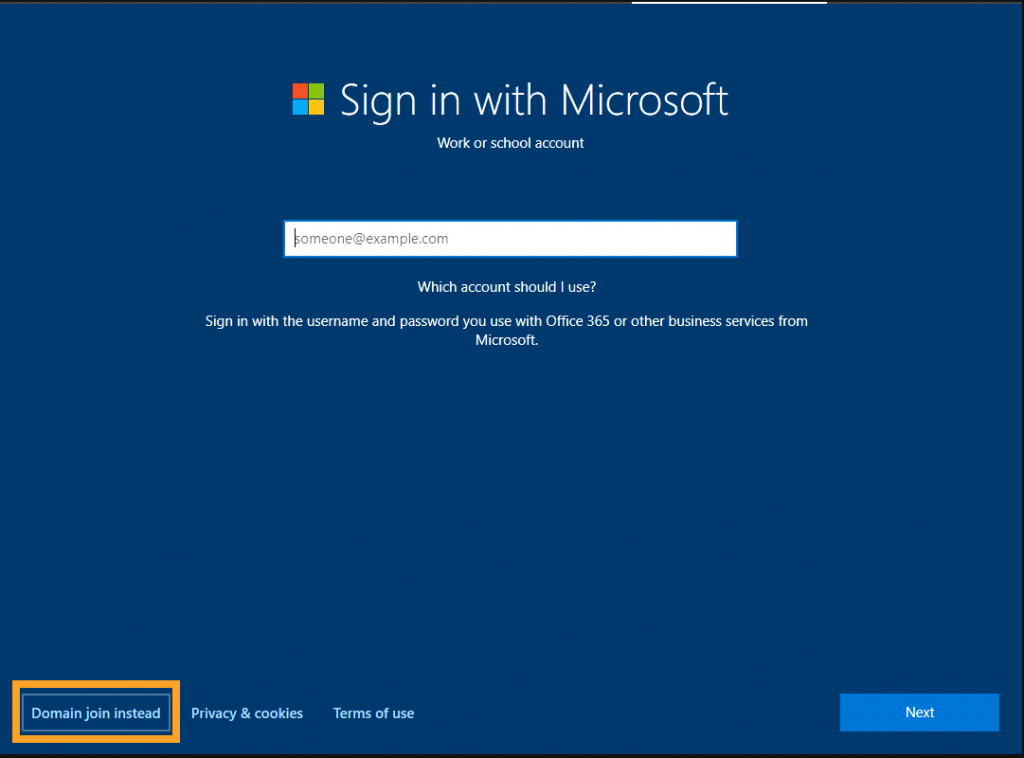
* You may log in with your Microsoft account if desired.
* In many business use cases, that is not desired. You can create a normal account with the “Domain join instead” button.

<figure><img src="https://3062424488-files.gitbook.io/~/files/v0/b/gitbook-x-prod.appspot.com/o/spaces%2FlLHqs7kbNoKOFTwGOfH6%2Fuploads%2Fgit-blob-7f8cfe8f3bc1879f3d3aa3a8fcc7602d1f74cf06%2Ff8e4ae71e05f275d1eb7f41fa37ac6675c4c6cd01172576ff6faf2eb7e0b4786.png?alt=media" alt="" width="563"><figcaption></figcaption></figure>

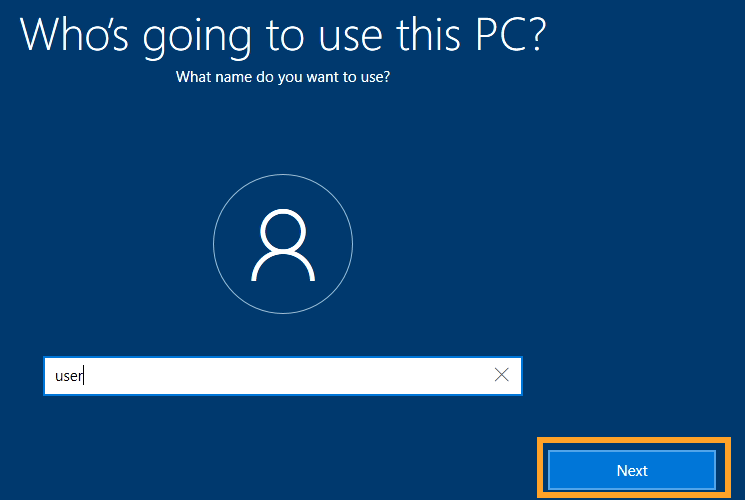
* Enter a username and click next. Set a password if desired.

<figure><img src="https://3062424488-files.gitbook.io/~/files/v0/b/gitbook-x-prod.appspot.com/o/spaces%2FlLHqs7kbNoKOFTwGOfH6%2Fuploads%2Fgit-blob-b14ed45297d78e34c085347b5ee1529fb040a274%2F03c58e7ab47113abaf6d0f15273a95c98a8af7b52a3e82ee66fa23e3fc63fd8e.png?alt=media" alt="" width="563"><figcaption></figcaption></figure>

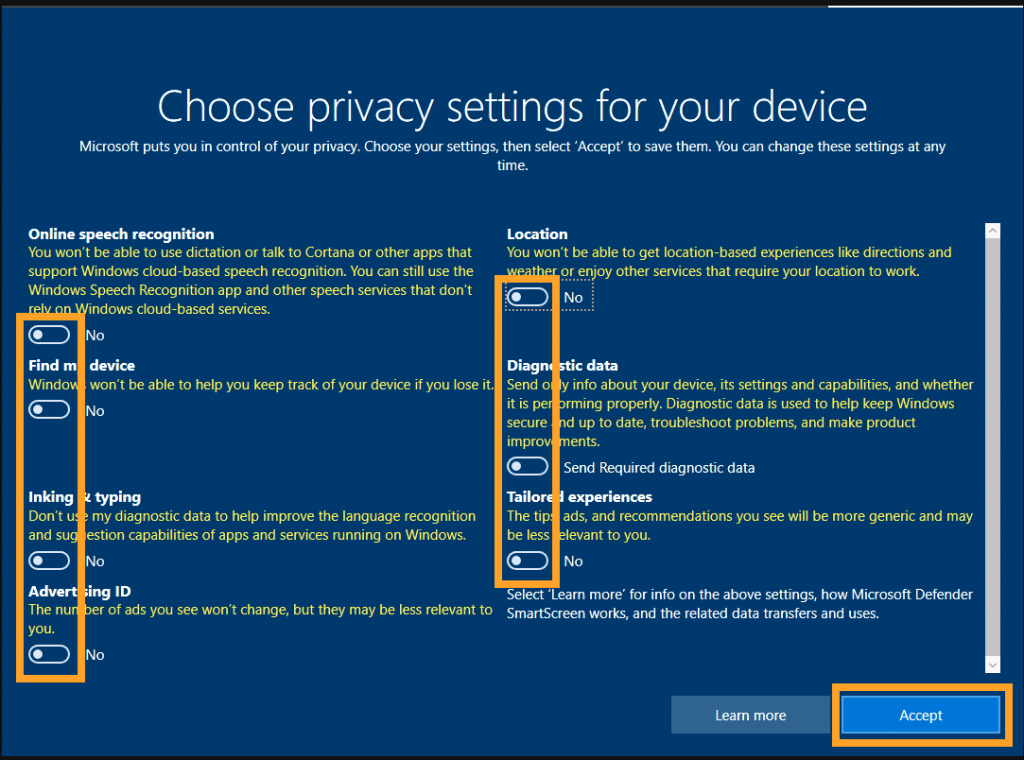
* The options on the next screen primarily affect apps from the Microsoft Store. Disabling all options will minimize intrusions if those apps are not used. This can be changed later.

<figure><img src="https://3062424488-files.gitbook.io/~/files/v0/b/gitbook-x-prod.appspot.com/o/spaces%2FlLHqs7kbNoKOFTwGOfH6%2Fuploads%2Fgit-blob-bedff24b781c37d5d48ee08e626f139b8217dad0%2F126429337bc20f2850da18d9e80708f8c7847da87a544e5505bb3757064f3a1d.png?alt=media" alt="" width="563"><figcaption></figcaption></figure>

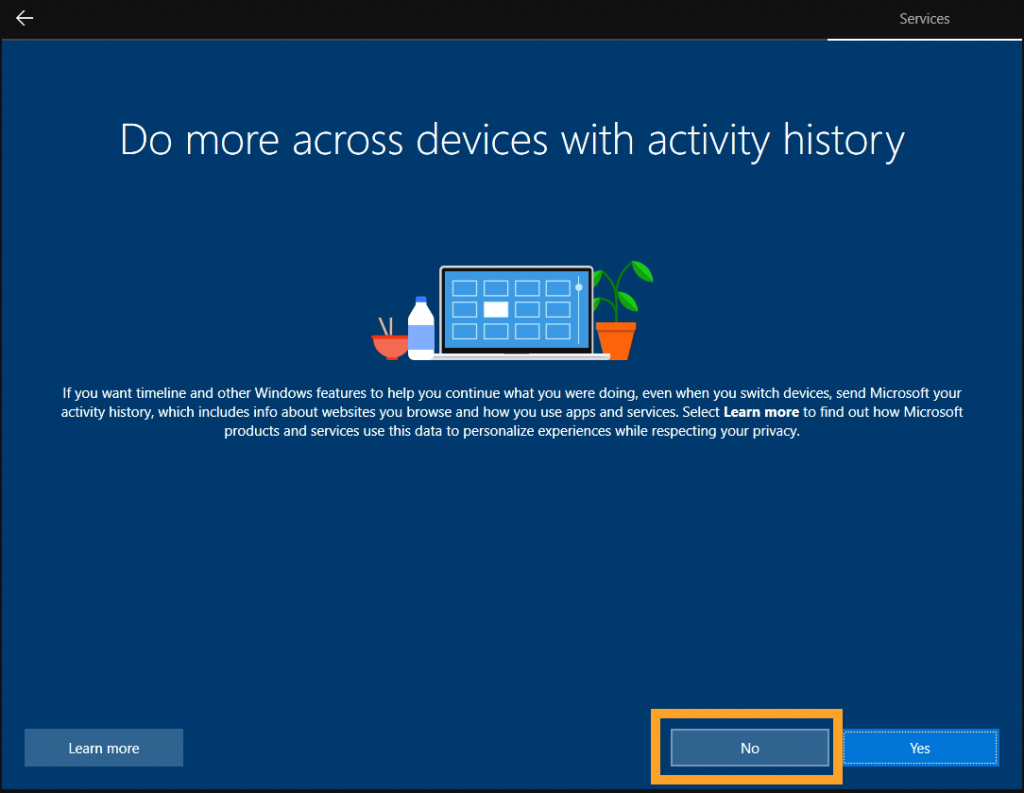
* Unless you signed in with a Microsoft account, click NO on this screen.

<figure><img src="https://3062424488-files.gitbook.io/~/files/v0/b/gitbook-x-prod.appspot.com/o/spaces%2FlLHqs7kbNoKOFTwGOfH6%2Fuploads%2Fgit-blob-668240b9adb0396975117919a9c75096573e49e5%2F8ede6777879faeddc36df450116c434e9381f6a6d75e85f18427dc75e89bb367.png?alt=media" alt="" width="563"><figcaption></figcaption></figure>

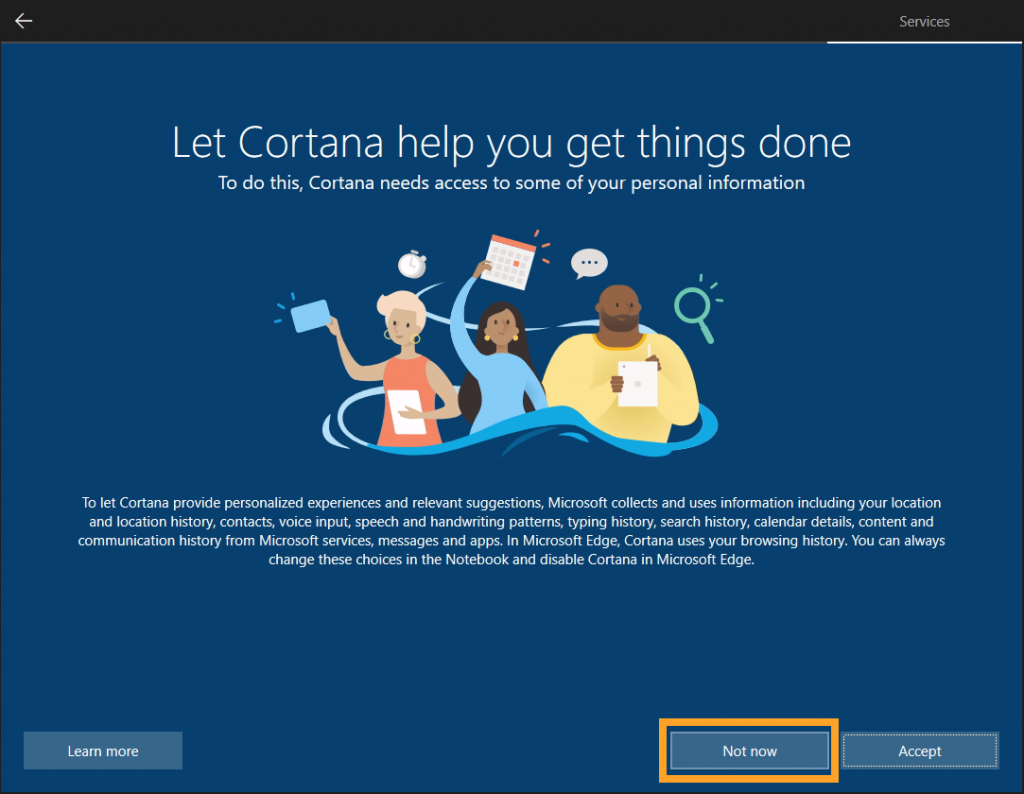
* Cortana is a web search assistant on the desktop. Generally this should be disabled.

<figure><img src="https://3062424488-files.gitbook.io/~/files/v0/b/gitbook-x-prod.appspot.com/o/spaces%2FlLHqs7kbNoKOFTwGOfH6%2Fuploads%2Fgit-blob-c5d57827eb6a120605468304faf6a5537b1e0857%2Fa353b6664c88e3f6e428278a0f323ce99468ec329d9b6029b5fd424dc4509758.png?alt=media" alt="" width="563"><figcaption></figcaption></figure>

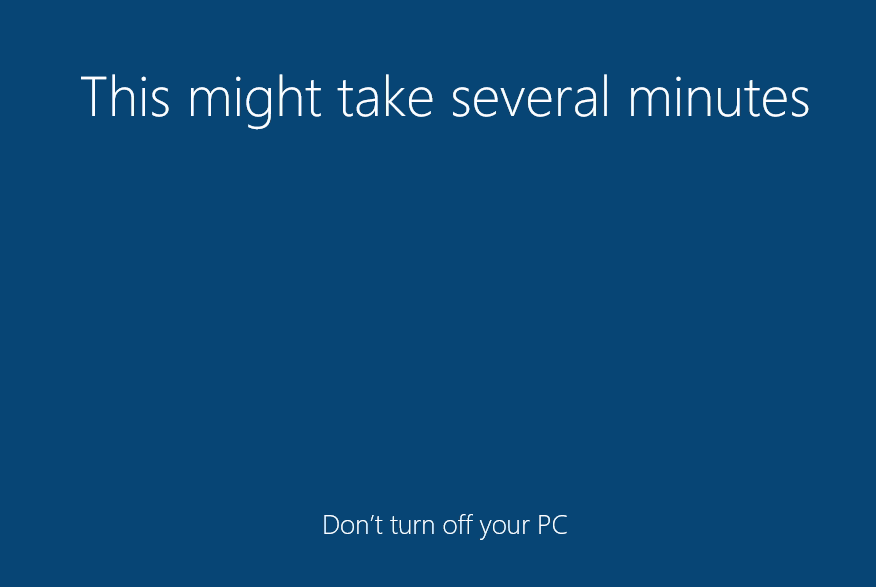
* This loading screen will appear for a few minutes while the user settings are applied.

<figure><img src="https://3062424488-files.gitbook.io/~/files/v0/b/gitbook-x-prod.appspot.com/o/spaces%2FlLHqs7kbNoKOFTwGOfH6%2Fuploads%2Fgit-blob-03a057cd04fff84ba30d30f81e916928b61d2e97%2Fea5aba9cc4c432a50bc46cdcf777e53cc6dcaefb161c60f9acd9bb73f31b7fb5.png?alt=media" alt="" width="563"><figcaption></figcaption></figure>

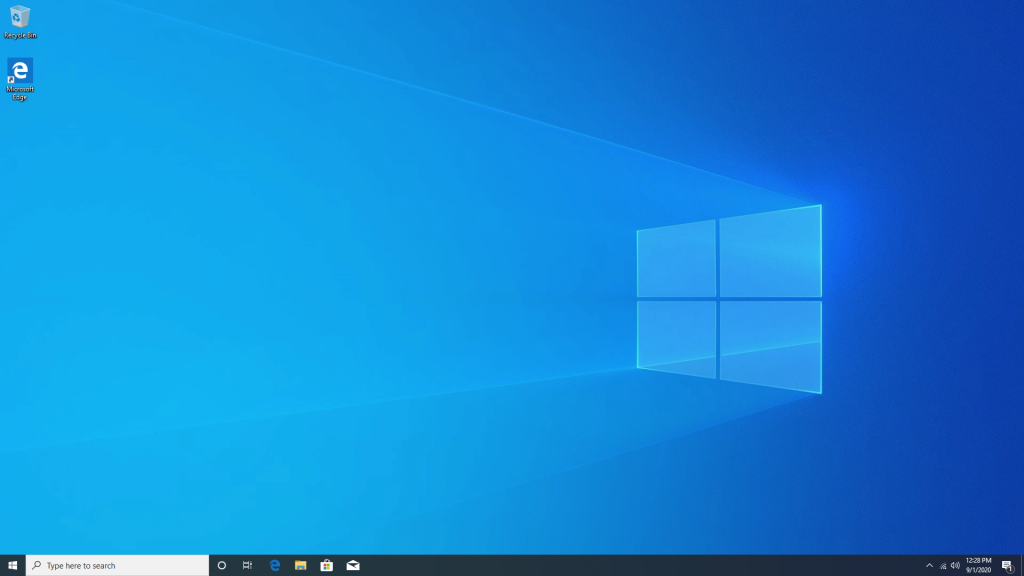
* When completed, you will go straight to the Windows 10 desktop.
* Your installation is complete!
* If you’re missing any drivers, start by running Windows update. It tends to find most of them. Otherwise, use the search box at the top of this page to find the “Technical Resources” page for your model. It will have a link to the drivers.

### <mark style="color:blue;">Activating Windows</mark> <a href="#activating-windows" id="activating-windows"></a>

<figure><img src="https://3062424488-files.gitbook.io/~/files/v0/b/gitbook-x-prod.appspot.com/o/spaces%2FlLHqs7kbNoKOFTwGOfH6%2Fuploads%2Fgit-blob-6b34c4e23fc52eee9dd57f238b84569e613e4359%2F43e1072f667ee3c6b04a717a550a7bd2fac9457a37af354322ec0781c11badb3.png?alt=media" alt="" height="301" width="335"><figcaption></figcaption></figure>

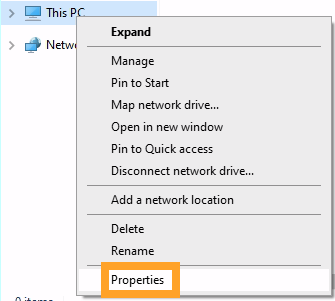
* Open any file explorer window. Right click on “This PC” and choose “Properties”

<figure><img src="https://3062424488-files.gitbook.io/~/files/v0/b/gitbook-x-prod.appspot.com/o/spaces%2FlLHqs7kbNoKOFTwGOfH6%2Fuploads%2Fgit-blob-51b3a541214b71a7590b6929bec33f7916c22ef1%2Fc6d13f00d730b3b27efeac8f8320ad6af5bd1bdcb6e2cae08b15a2a2118d1e55.png?alt=media" alt="" width="563"><figcaption></figcaption></figure>

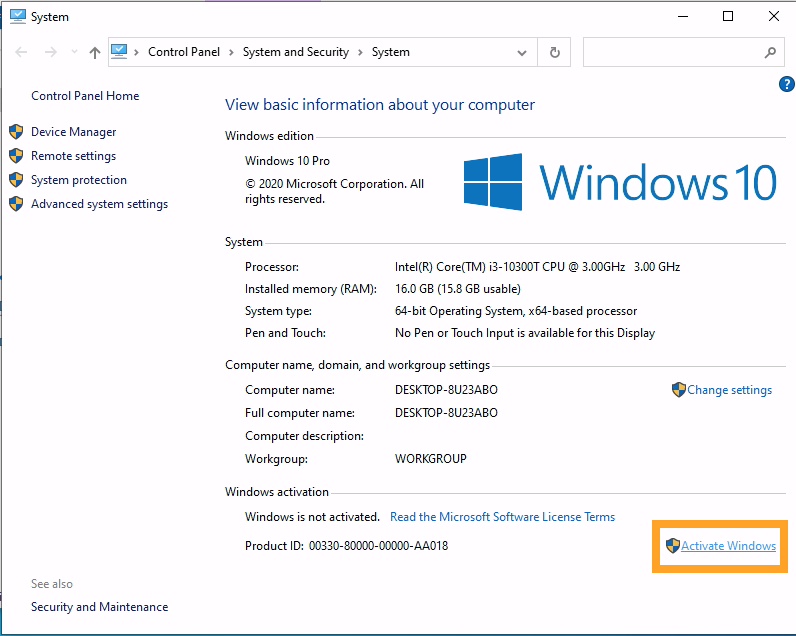
* The activation status is shown at the bottom.
* Click the “Activate Windows” button

<figure><img src="https://3062424488-files.gitbook.io/~/files/v0/b/gitbook-x-prod.appspot.com/o/spaces%2FlLHqs7kbNoKOFTwGOfH6%2Fuploads%2Fgit-blob-fd27fe3dce8b961eee086198c41bd7630aeeb557%2F4f6fcc207ca34d8e8028b1002896a676ac65950b82a0702b3511b80c8de6906e.png?alt=media" alt="" width="563"><figcaption></figcaption></figure>

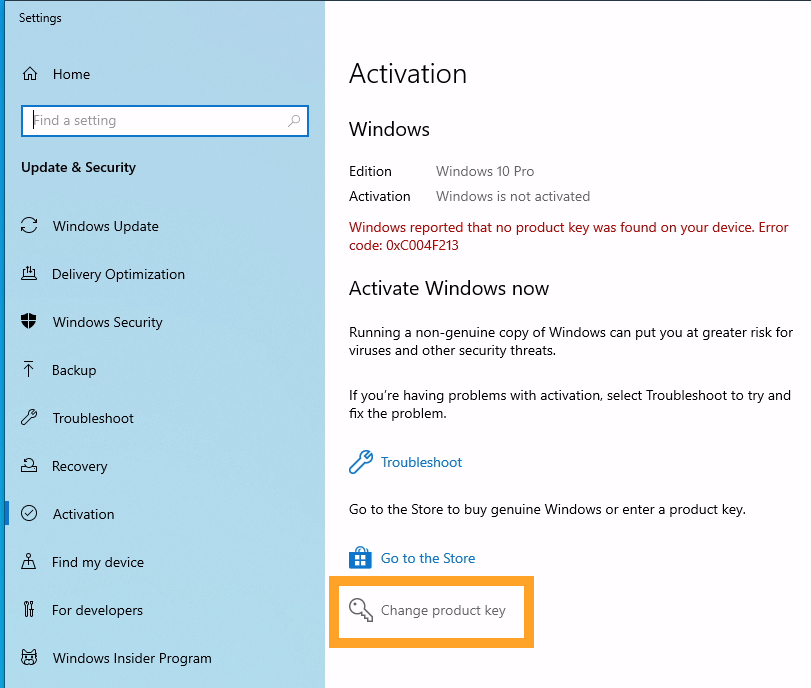
* Click “Change product key”\\
* Note: Some systems will display an error indicating that a “hardware change” has occurred. This can be ignored, and will go away once the OS is activated.

<figure><img src="https://3062424488-files.gitbook.io/~/files/v0/b/gitbook-x-prod.appspot.com/o/spaces%2FlLHqs7kbNoKOFTwGOfH6%2Fuploads%2Fgit-blob-709baff3efe0938a7cccd3c70fa1de1040180540%2Fdf92a18a79742fdf8cda21216a56993b0fbb490ca03568765e8a9d53b4dc6246.png?alt=media" alt="" width="563"><figcaption></figcaption></figure>

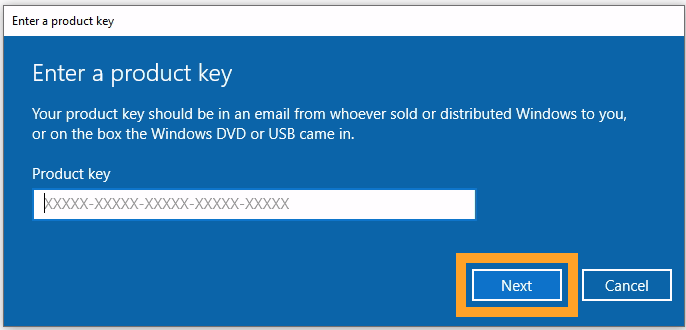
* Enter the product key from the bottom of your OnLogic PC.
* The key may be obscured by a square patch of silver security foil.
* Very gently, scratch the foil off with your fingernail as you would a lottery ticket. The key is underneath.
* Enter the product key in this window, press Next, and Windows will activate online automatically.