> For the complete documentation index, see [llms.txt](https://support.onlogic.com/llms.txt). Markdown versions of documentation pages are available by appending `.md` to page URLs; this page is available as [Markdown](https://support.onlogic.com/product-documentation/components-and-expansion/wireless-connectivity/nwk300.md).
# NWK300
NWK300 4G LTE Modem (Linux & Windows)
## Introduction
The OnLogic NWK300 is an embedded cellular modem powered by the\
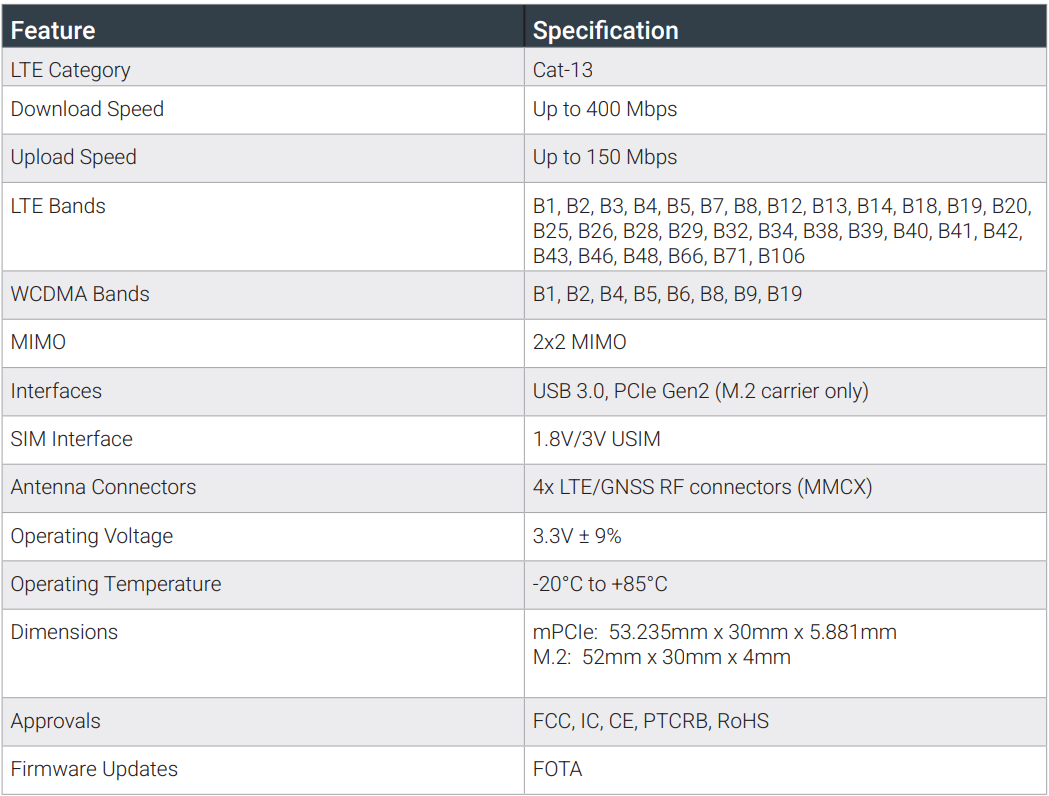
Semtech EM7590 module. This high-performance, industrial-grade 4G LTE-Advanced Pro Cat-13 modem is designed for demanding applications requiring fast, reliable cellular connectivity. It supports a wide range of LTE bands, including CBRS, and offers GNSS capabilities for location services. Ideal for IoT, industrial routers, video surveillance, and public safety applications, this embedded modem is designed to bring high-powered LTE connectivity to your OnLogic device.
This article covers basic setup and troubleshooting for the NWK300, which utilizes the Semtech EM7590 series of cellular modems. The NWK300 supports both mPCIe and M.2 connections via its specially developed carrier board.
### Product Manual
[EM759X Manual](https://static.onlogic.com/resources/manuals/41114425%20EM759X%20Product%20Technical%20Specification%20r9.pdf)
### Key Features
**LTE-Advanced Pro Cat-13:** Peak download speeds up to 400 Mbps and upload speeds up to 150 Mbps.\
**Global LTE Band Support:** Extensive band coverage for worldwide deployment.\
**CBRS Support:** Enables private LTE networks in the 3.5 GHz band.\
**MIMO Support:** 2x2 MIMO for improved data throughput and signal quality.\
**USB 3.0 and PCIe Interfaces:** Flexible integration options.\
**Low Power Consumption:** Optimized for battery-powered devices.\
**Industrial Temperature Range:** -20°C to +85°C.\
**Mobile Software Management:** Firmware Over-The-Air (FOTA)\
**Embedded Software:** Secure boot, Pre-certified firmware.\
**OS Support:** Windows 10, Windows 11, Linux.\
**Dual SIM:** Dual SIM Single Standby (DSSS) support.
## Dimensions
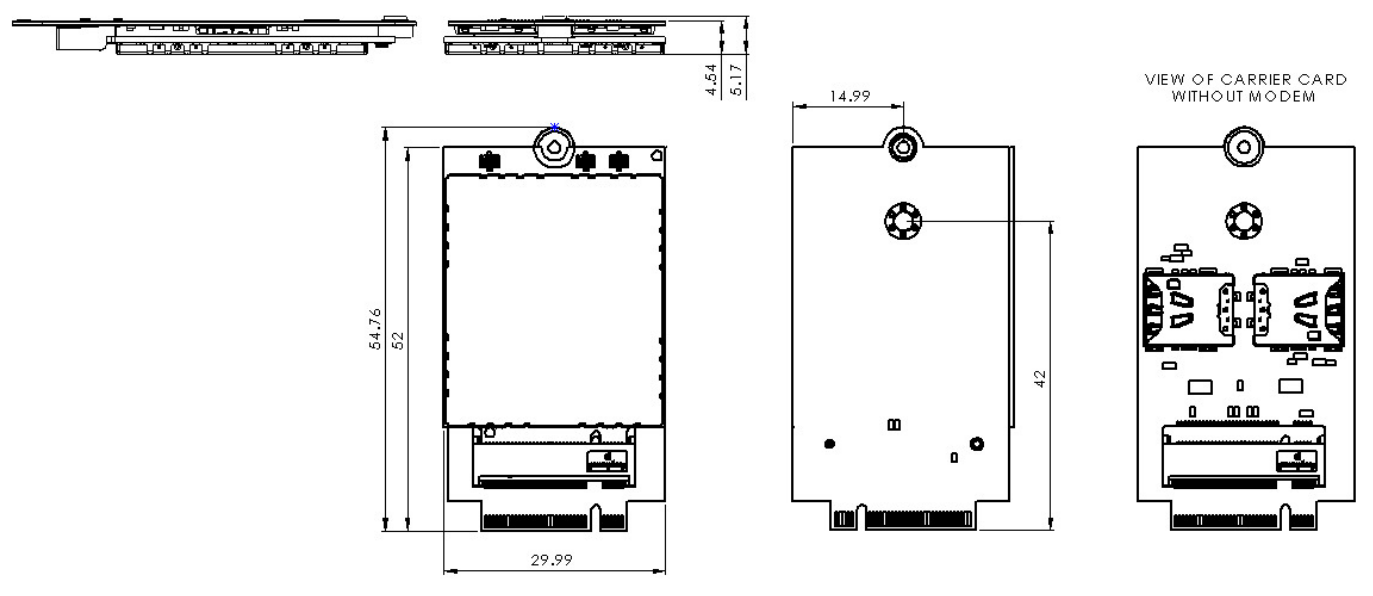
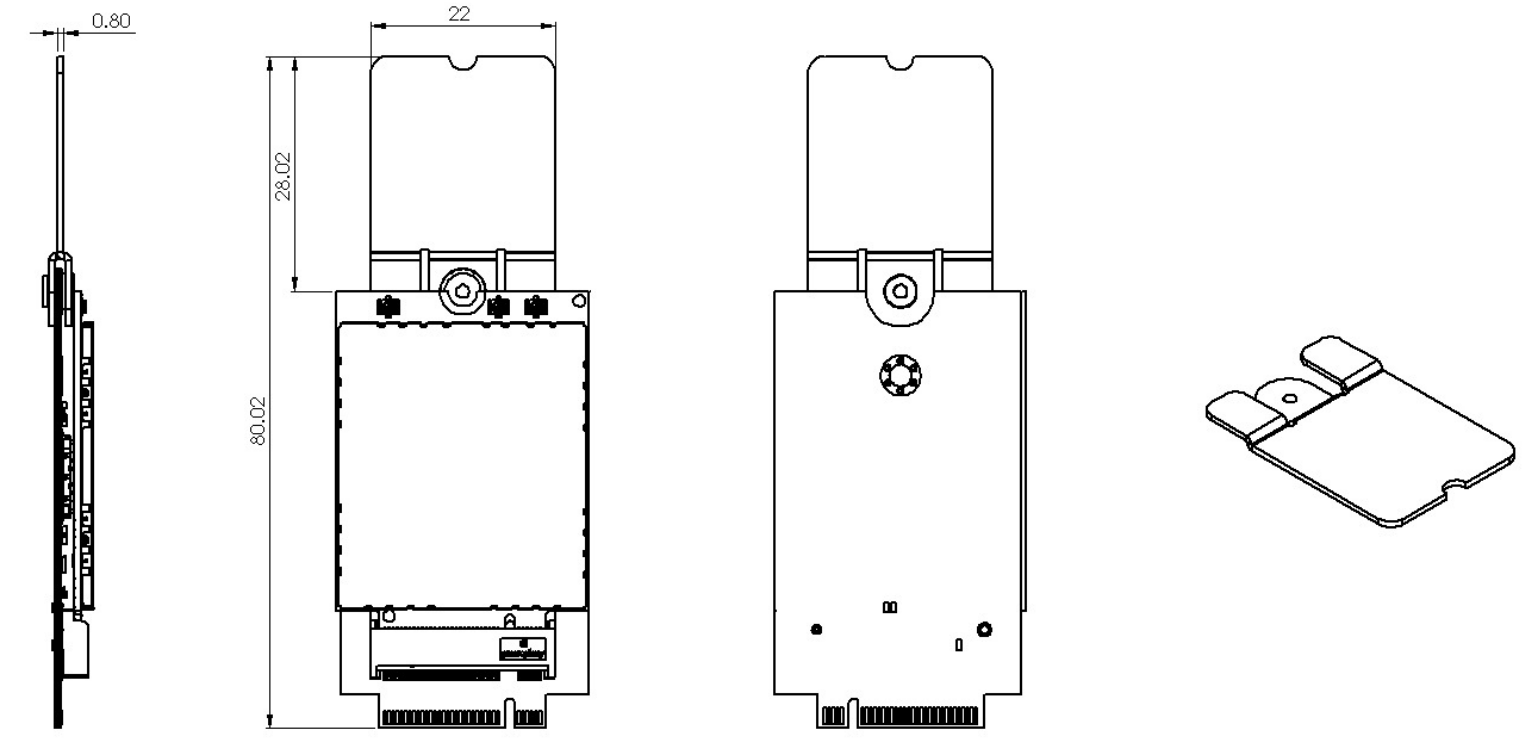
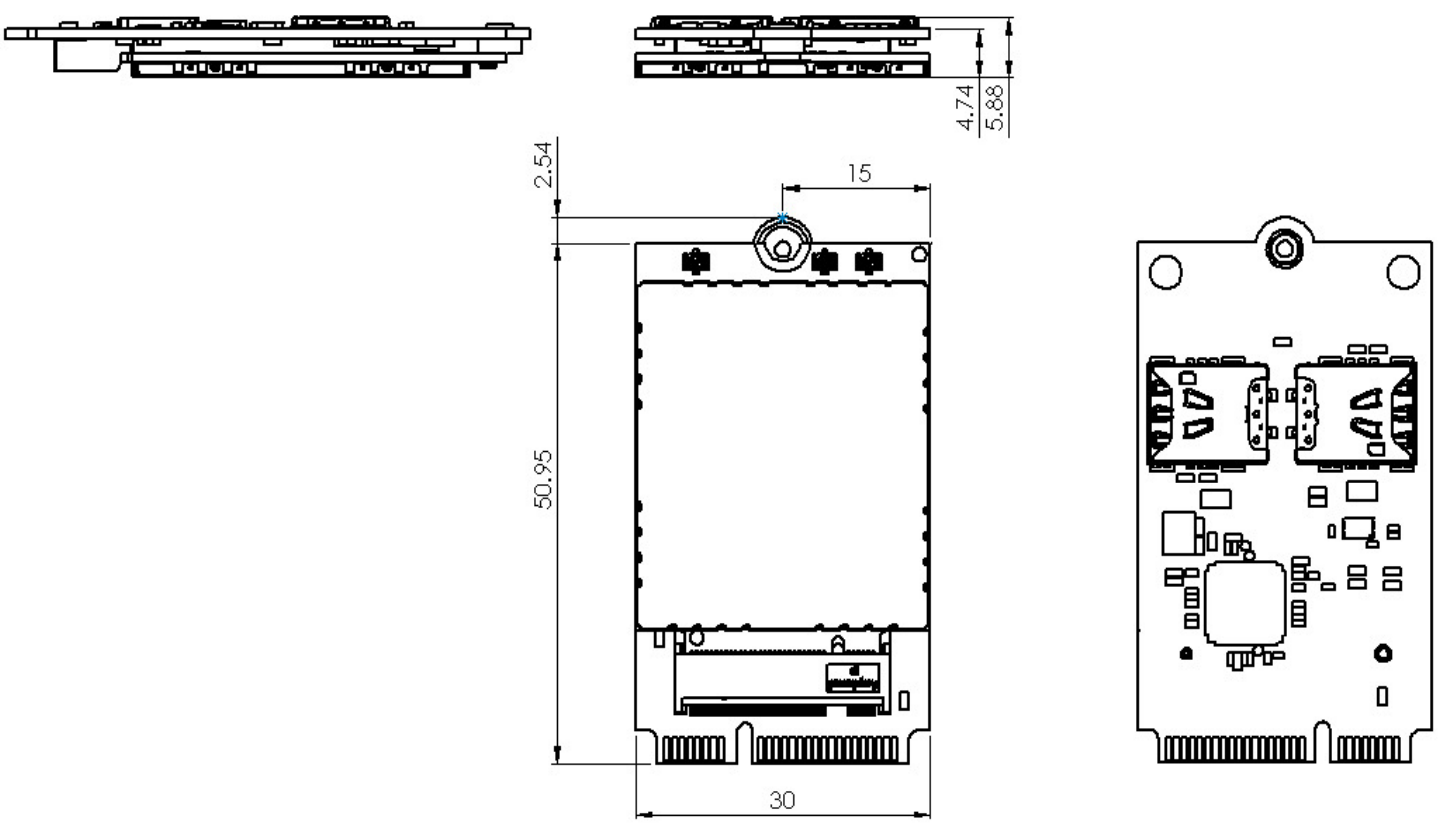
*All measurements are in mm*
### M.2 Carrier Card
### M.2 Carrier Card with Extension Bracket
### mPCIe Carrier Card
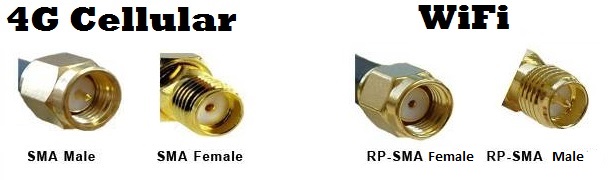
## FAQs Which antenna connectors are for WiFi and which are for 4G?
What bands are supported?
[Supported Bands Table](https://static.onlogic.com/resources/manuals/EM7590%20\(Tamriel%20-%204G%20Replacement\)-20250411T154942Z-001/EM7590%20\(Tamriel%20-%204G%20Replacement\)/EM759X%20Supported%20Bands/EM759X%20Supported%20Bands.pdf)
Is GPS Supported?
Yes! Though not enabled by default, GPS functionality can be added when configuring a new system. Please be sure to mention your need for GPS functionality to our Technical Sales team when placing a new order to make sure that is included in your system.
## Drivers
If you purchased Windows from OnLogic, drivers for the modem are already installed. For user installed OSes or re-installation, you can find downloads for the the drivers below:
* [Windows Driver Package](https://static.onlogic.com/resources/manuals/EM7590%20\(Tamriel%20-%204G%20Replacement\)-20250411T154942Z-001/EM7590%20\(Tamriel%20-%204G%20Replacement\)/EM759X%20Windows%20Drivers%20and%20User%20Guide/759x.2001.000.zip)
* [Release Notes](https://static.onlogic.com/resources/manuals/EM7590%20\(Tamriel%20-%204G%20Replacement\)-20250411T154942Z-001/EM7590%20\(Tamriel%20-%204G%20Replacement\)/EM759X%20Windows%20Drivers%20and%20User%20Guide/EM759x%20Driver%20Package%20for%20Windows%20-%20Release%20Notes%20r8.pdf)
* [Installation Guide](https://static.onlogic.com/resources/manuals/EM7590%20\(Tamriel%20-%204G%20Replacement\)-20250411T154942Z-001/EM7590%20\(Tamriel%20-%204G%20Replacement\)/EM759X%20Windows%20Drivers%20and%20User%20Guide/4134931%20EM759X%20Windows%20User%20Guide%20r2.pdf)
* [Linux Drivers Installation](https://static.onlogic.com/resources/manuals/EM7590%20\(Tamriel%20-%204G%20Replacement\)-20250411T154942Z-001/EM7590%20\(Tamriel%20-%204G%20Replacement\)/EM759X%20Linux%20Drivers%20and%20User%20Guide/Read%20Me%20-%20Linx%20Drivers%20for%20EM759X_.docx)
## SIM Cards & Activation
* Locate the Cellular Module booklet that came with your system.
* If an ICCID number is listed, your system already has a SIM card installed internally and is ready to activate. If not, you will need to provide a SIM card *(Ref: SIM Card Access)*.
* Contact your wireless carrier. State that you want to activate a 4G modem and provide the numbers on the front of the booklet. This should include the IMEI of the modem, and (if a SIM card was included in your order) the ICCID number from the SIM card.
## Modem Setup
* Ensure you are in an area with good signal coverage
* Connect all cellular antennas and boot up the OnLogic PC. If you are unsure which connections are cellular, refer to our FAQ section above.
* Allow the PC to sit for a few minutes and see if a 4G connection is established. If not, continue with the steps below.
### Windows
Opening the AT Command Terminal
* Download and install the latest version of the PuTTY tool. [Download Link](https://www.chiark.greenend.org.uk/~sgtatham/putty/)
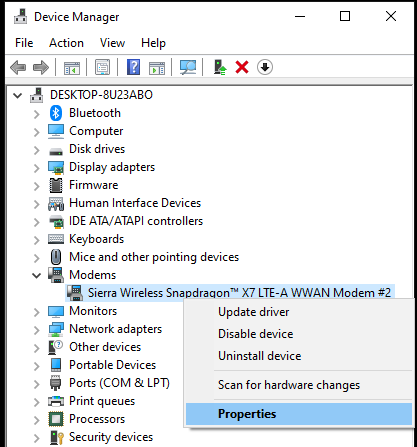
* Open device manager and look for the Sierra modem.
* Right click and open Properties
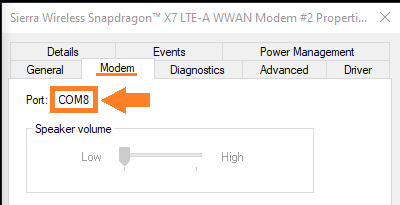
* Go to the Modem tab and note the COM number.
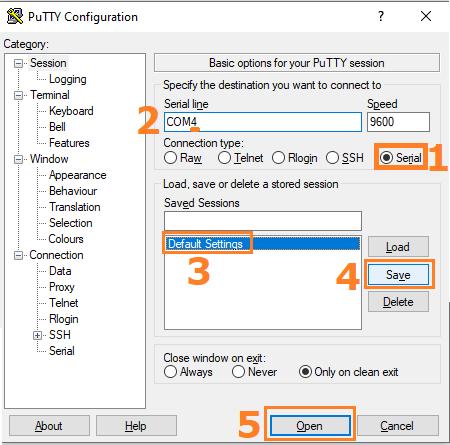
* Open PuTTY and configure these options
1. Select the serial option
2. Change the COM number to match device manager
3. Click on default settings
4. Click Save
5. Click open
This configures PuTTY to automatically choose the correct options next time you run it.
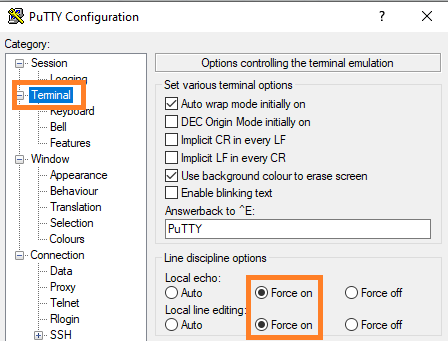
* Begin by typing ATE1 and pressing enter. The terminal should respond with OK. This indicates the modem is ready for commands.
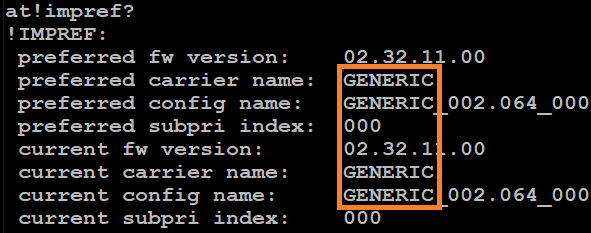
* The first item to check is the firmware setting. It should match the desired carrier.
```
at!impref?
```
* In the example above, the generic firmware is loaded. The carrier specific firmware should be used instead.
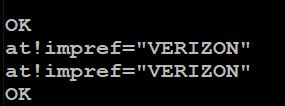
* Run the following commands:
```
at!impref=”CARRIER”
where CARRIER is ATT,VERIZON,SPRINT
```
Note: if your carrier is not listed, download the correct firmware from the following webpage:
```
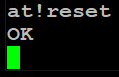
at!reset
```
* Power down and unplug the PC for a moment, then boot it back up.
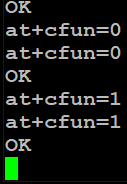
* If no connection is established after 5 minutes, open Putty and run the following 2 commands. Note that the COM port number may change after switching firmware. You may need to check Device Manager and adjust Putty accordingly.
```
AT+CFUN=0
AT+CFUN=1
```
This will place the modem into airplane mode and then take it out of airplane mode, effectively forcing it to retry connecting to the cellular network.
**If the modem is still not working at this point, go back and ensure all previous steps have been completed. If the modem is still not functioning, skip to the Troubleshooting section.**
***
### Linux
Ensure you are in an area with good signal coverage
* Connect both antennas and boot up the OnLogic PC
**Opening the AT Command Terminal (Ubuntu Desktop**\
**24.04)**
* Open a terminal window (ctrl+alt+t)
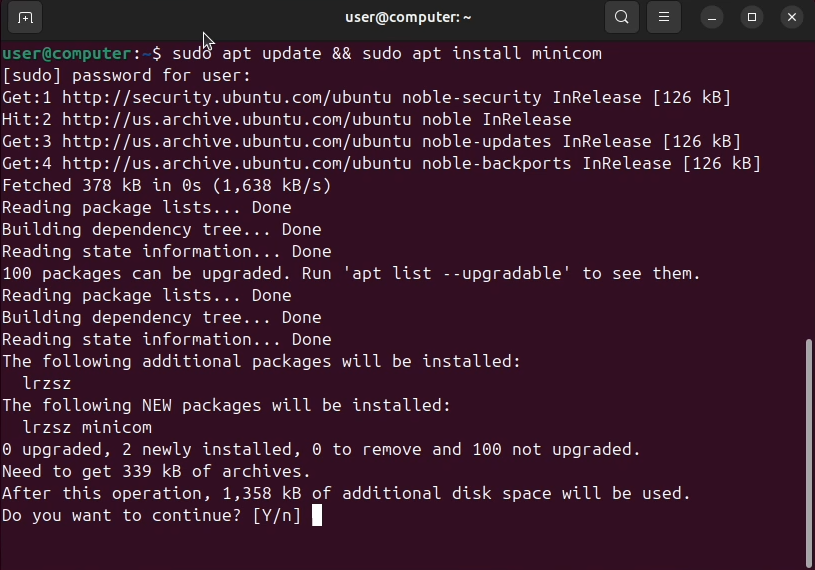
* Install minicom with sudo apt update && sudo apt install minicom
* Run minicom setup via the command sudo minicom -s
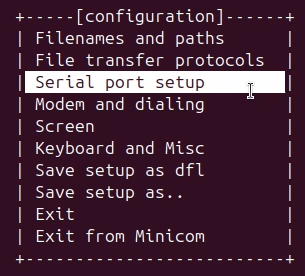
* Select the “Serial port setup” menu option
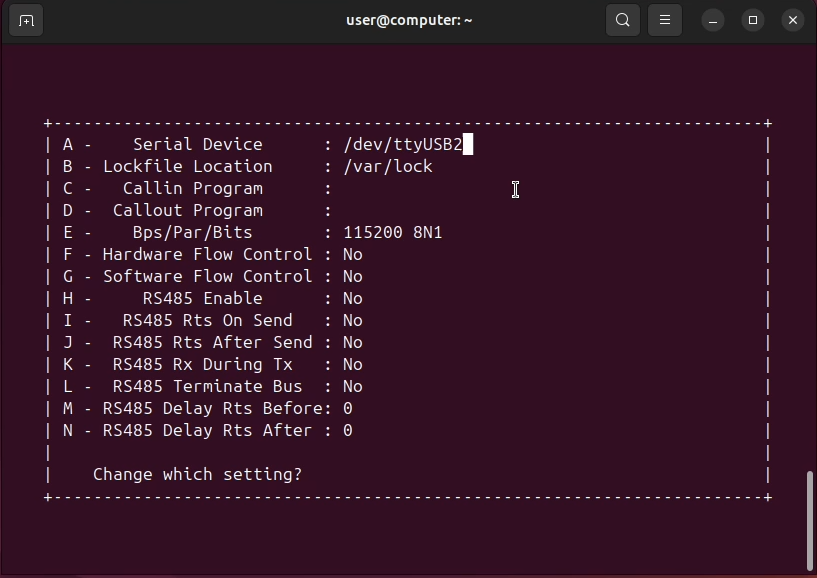
* Press the ‘a’ key and modify serial device from “/dev/modem” to\
“/dev/ttyUSB2”. Press enter twice to exit this submenu
* Note: /dev/ttyUSB2 is the default for a system with no other USB serial devices. You can identify the correct AT port using the command cat/proc/tty/driver/usbserial the AT port will be the highest numbered QUALCOMM USB modem. In the below image this is 2 corresponding to /dev/ttyUSB2
* Select “Save setup as dfl” from the menu, look for the “Configuration Saved”\
popup
* Select “Exit from Minicom” to return to the shell
* While running AT configuration commands ModemManager will need to be\
disabled you can do this with the command sudo systemctl stop\
ModemManger.service
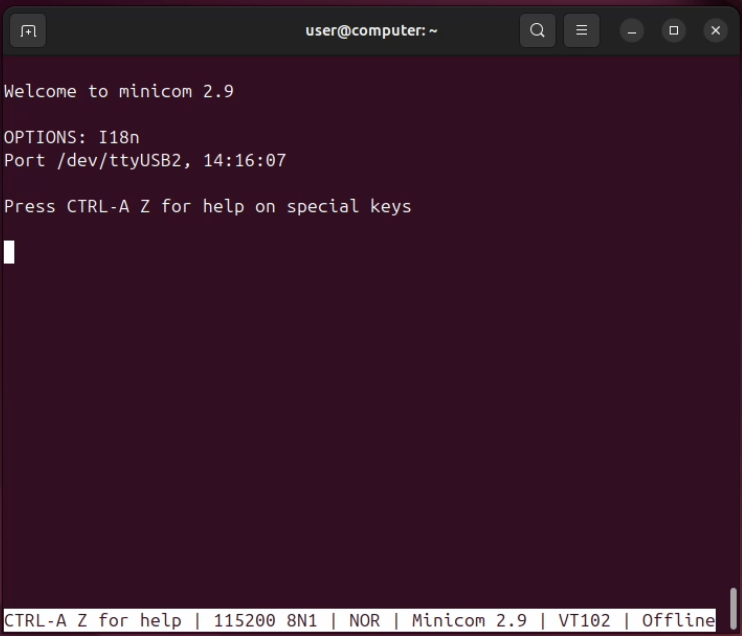
* Open the AT port with the sudo minicom
**Using Modem Manager (Ubuntu Server 24.04)**
For cellular connections, first install the modem-manager snap with:
```
snap install modem-manager
```
Check whether a modem was properly detected via:
```
$ sudo modem-manager.mmcli -L
Found 1 modems:
/org/freedesktop/ModemManager1/Modem/0 [description]
```
In this case we have just one modem, with index 0 (the number at the end of the D-Bus object path).
Show detailed information about the modem using that index:
```
$ sudo modem-manager.mmcli -m 0
/org/freedesktop/ModemManager1/Modem/0 (device id '871faa978a12ccb25b9fa30d15667571ab38ed88')
```
### Firmware
Firmware updates can be downloaded from the Semtech website linked below.
* Firmware versions are carrier specific. Download the version for your carrier. Use Generic if yours is not listed.
* You will need to register for a free account to download.
* [**Firmware Downloads**](https://source.sierrawireless.com/resources/airprime/minicard/75xx/em7590/em7590-approved-fw-packages/#sthash.O6UheZYb.dpbs)
* Run the executable and let it complete. Power down and unplug the system from power for 10 seconds. When you power it back up, the new firmware will be active.
### SIM Card Access
The modem is installed into a carrier board. The carrier boards host x2 nano-SIM slots, which are located on the top of the board. This is the default location to install a SIM card, and OnLogic installs all SIM cards here by default.
* First, use the search box at the top of this site to locate the technical resources page for your model.
* “ML350” for example.
* Disassemble the PC to gain access to the modem
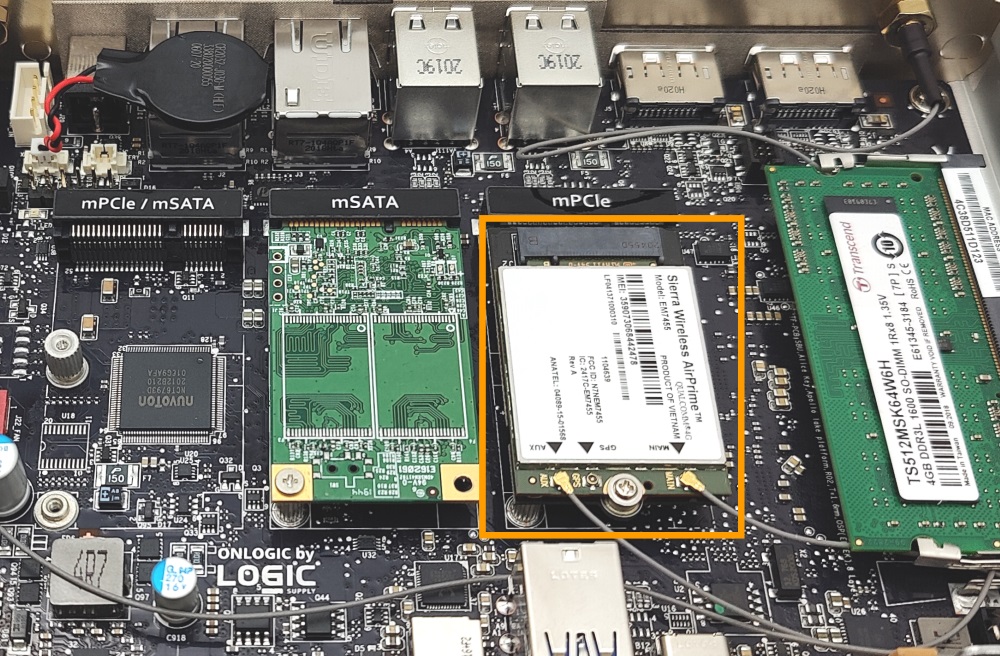
* Once inside, locate the Semtech Modem
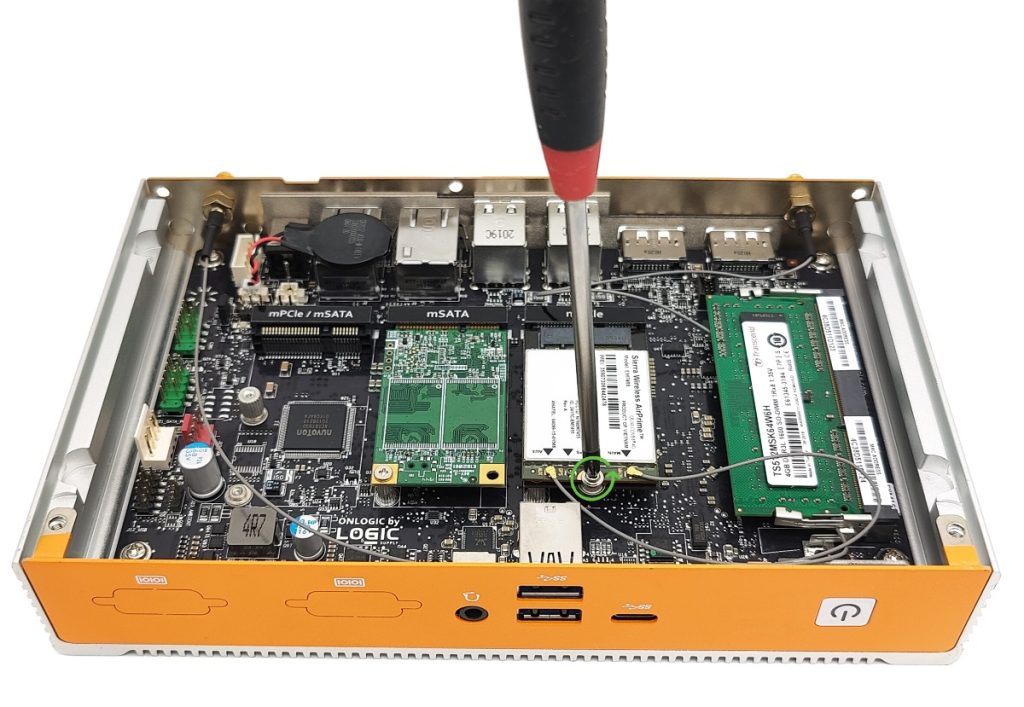
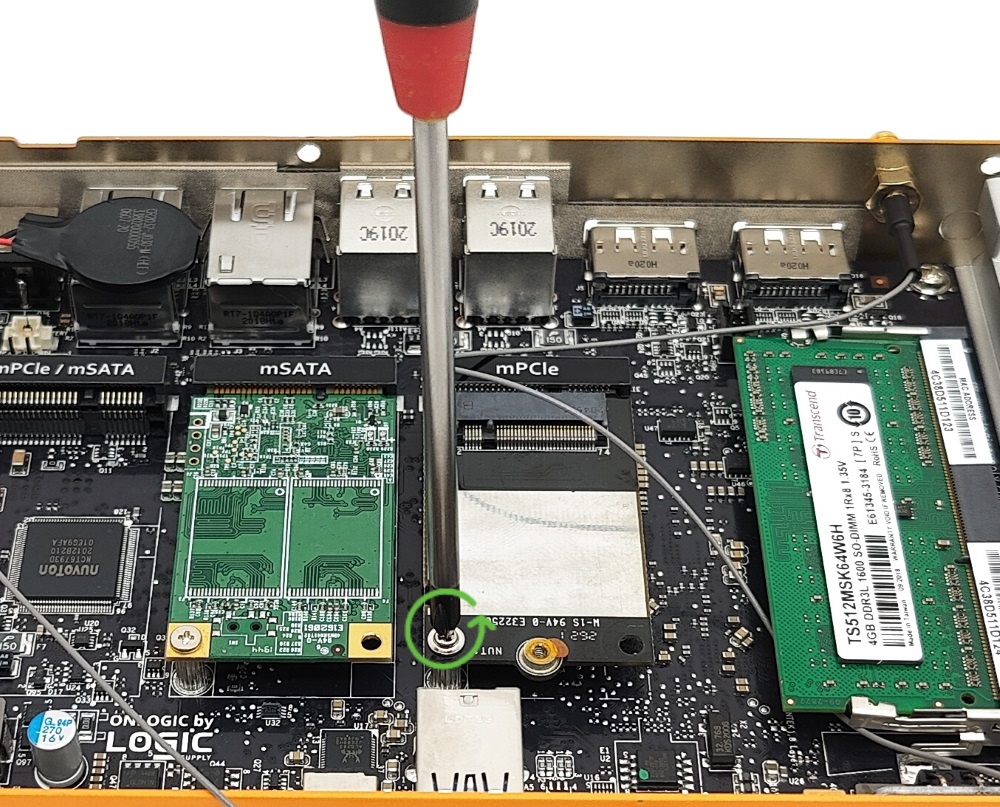
* Remove the 1x retaining screw from the center
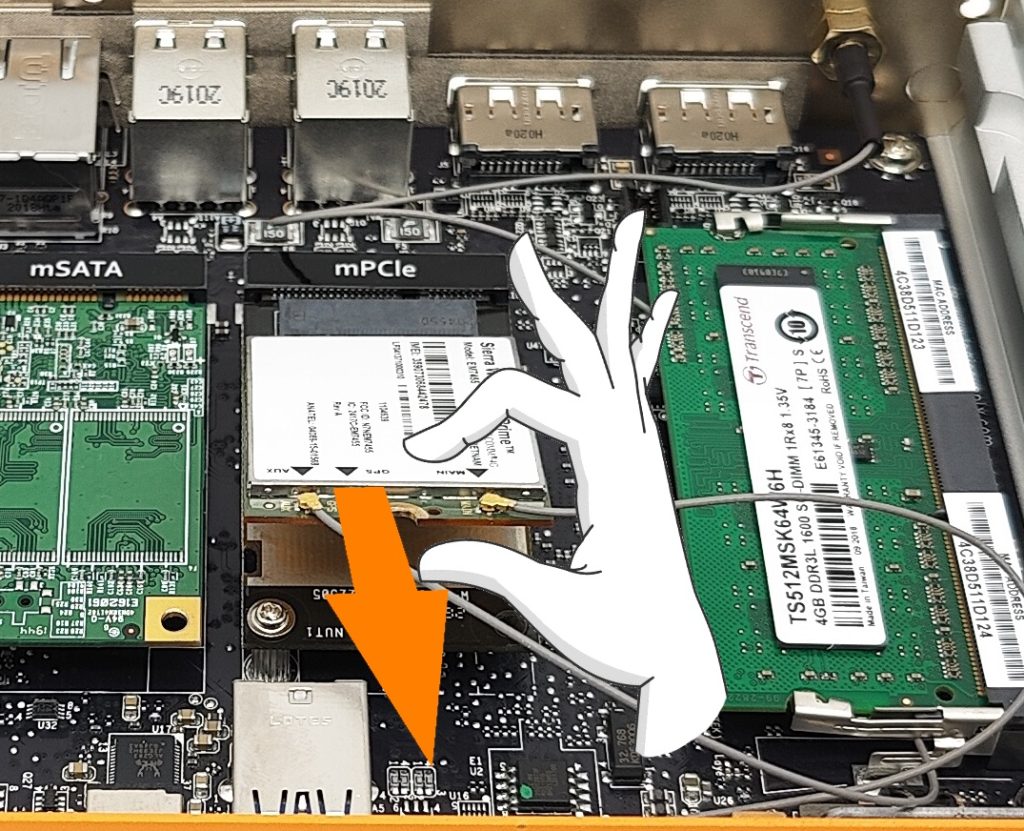
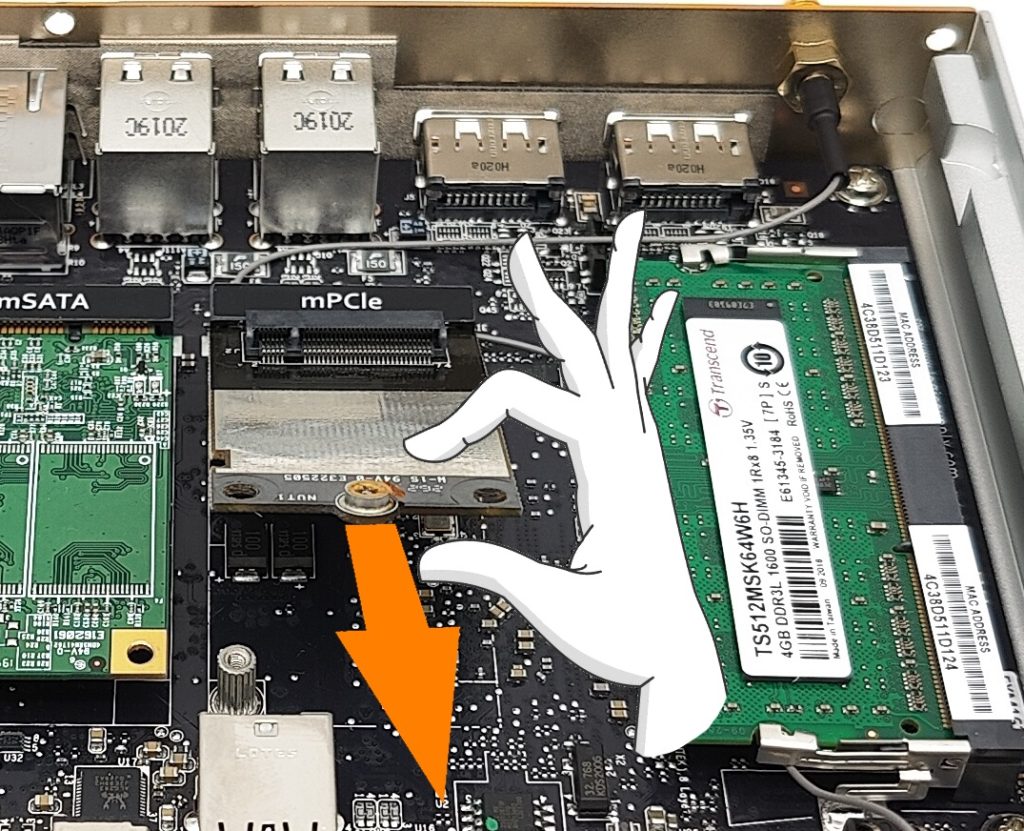
* The modem will pop up to a 45 degree angle. Gently pull it out of the slot.
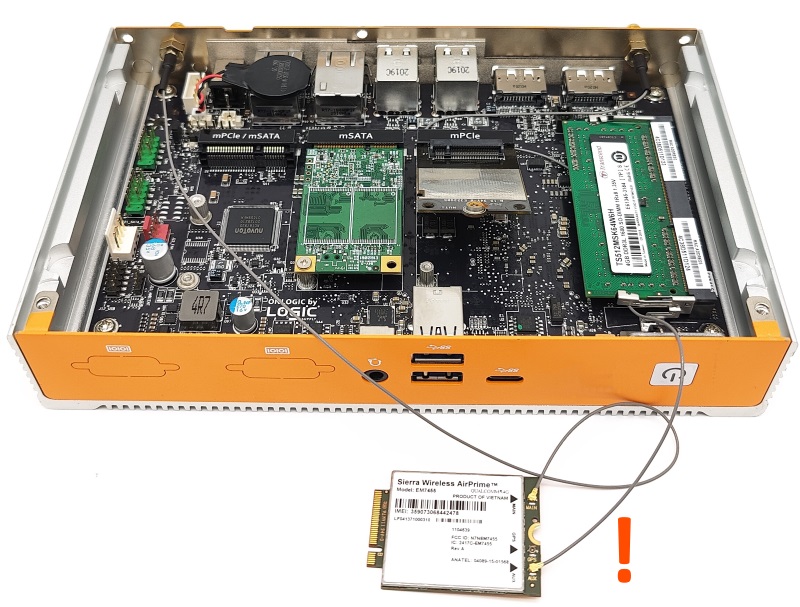
* Set the modem aside and be careful not to disconnect the antenna wires.
* They are tiny and difficult to reattach.
* The mPCIe and M.2 carrier boards have the SIM slots on the top. Removing the card is not necessarily required.
* Remove the retaining screw from the carrier board that was underneath the modem.
* Gently pull the carrier board out of the slot as you did with the modem.
* This device features two fully functional SIM card slots (Slot 0 and Slot 1), allowing you to easily alternate between them by using AT commands via your configuration interface. For proper physical installation, please locate the small, pressed indentation mark on the metal slot casing; this indicator shows exactly where the diagonal notch of your SIM card should align to ensure a secure and correct connection.
* Above is a photo showing the correct SIM orientation and slot position for reference. The slot with SIM card is Slot 1, the empty slot is Slot 2.
***
### External SIM slot
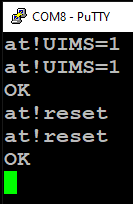
The NWK300 comes with two built-in SIM slots. It does not have any provision for automatic SIM switching, so a user must intervene in order to change SIMs. SIM slot 1 on the card connects to UIM0 on the modem. SIM slot 2 on the card, or any motherboard or external slot, connects to UIM1.
* Open an AT command terminal *(Ref: Opening the AT Command Terminal).*
* Run the following commands in the AT terminal:
```
AT!UIMS=1
AT!RESET
```
* Reboot the PC, and the correct SIM slot will now be active.
***
### 4G and Ethernet
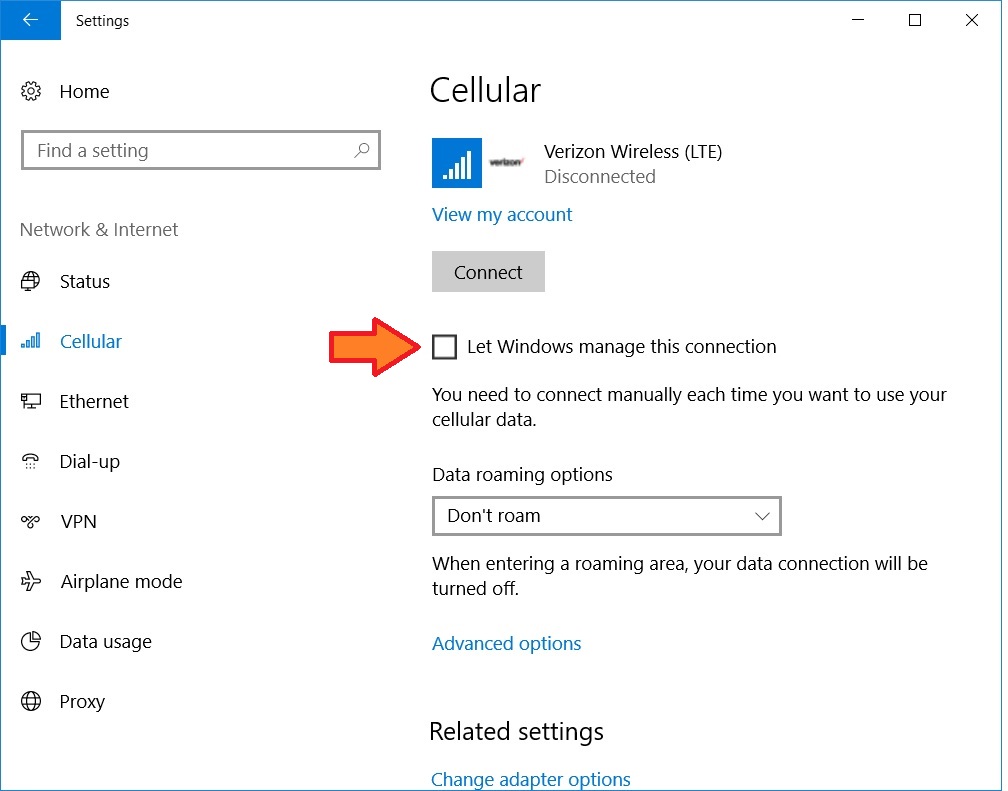
The default behavior of Windows is to prioritize wired connections over wireless connections. The modem will be automatically disabled when an ethernet cable is connected. This behavior may be undesirable if you with to use 4G while having access to the local ethernet network or use PoE cameras. You can override this behavior using one of the options below. But first, you will need to change the following setting under the Windows “Cellular” settings:
You will need to Disable the setting that allows Windows to manage the Cellular connection.
#### 1. Group Policy
* Launch gpedit.msc from the start menu
* Go to Computer Configuration\Administrative Templates\Network\Windows Connection Manager
* Change the Setting of **Minimize the number of simultaneous connections to the Internet or a Windows Domain** to “disabled”
#### 2. Registry Edit
This setting will configure windows to ignore non-routable ethernet connections in network priority.
#### Easy Method
Download and run [this file](https://static.onlogic.com/resources/support/cellular/IgnoreNonRoutableEthernet.reg).
**Manual Method**
Not needed if you use the Easy method.
The registry value is HKLM\Software\Microsoft\WcmSvc\IgnoreNonRoutableEthernet = (DWORD) 0x1
Open the Registry Editor – press Windows key + R, type regedit and press enter.
1 – In the left side of the window expand HKEY\_LOCAL\_MACHINE, expand SOFTWARE, expand Microsoft and select WcmSvc.\
2 – If the value IgnoreNonRoutableEthernet exists it will show up in the right pane of the window. If it does not exist you will have to create it (right click on WcmSvc > New > click DWORD (32 bit) Value, name the value IgnoreNonRoutableEthernet).\
3 – Right click the value IgnoreNonRoutableEthernet and click Modify… in the “Value data” field type 1, leave the Base radio button on Hexadecimal and click ok.\
4 – WcmSvc should now have the value IgnoreNonRoutableEthernet REG\_DWORD 0x00000001 (1)
***
## Troubleshooting
* Before performing any troubleshooting, ensure you have completed all steps under **Modem Setup** and have activated your SIM card.
#### No Connection error
* If no connection is established after 5 minutes, open Putty and run the following 2 commands. Note that the COM port number may change after switching firmware. You may need to check /dev and adjust Putty accordingly.
```
AT+CFUN=0
AT+CFUN=1
```
This will place the modem into airplane mode and then take it out of airplane mode, effectively forcing it to retry connecting to the cellular network.
#### Diagnostic AT Commands
* Open an AT command terminal *(Ref: Opening the AT Command Terminal).*
The commands below can help diagnose various modem issues. Tech support may request screenshots of the output of each of these commands. If you have reached this point and require additional help, please email and include a copy of these screenshots as well as your system serial number.
| AT!ENTERCND=”A710” | Enters the password for certain password protected commands. |
| ------------------ | ------------------------------------------------------------------------------ |
| At!impref? | Display active firmware version |
| AT+CSQ | Display signal quality. Scale from 0-31, 31 being best signal. 99= no signal |
| AT+ICCID | Print SIM card number. If error, SIM is not configured correctly or installed. |
| At+cgdcont? | Shows the active APN |
| AT!GSTATUS? | Prints general status info |
| At+cgact? | Checks if paths to the network are active. Should output 1,1 |
| AT+CGSN | Prints the IMEI of the modem |
| AT!PCINFO | Return the modem’s power control status. |
[Full list of AT Commands](https://static.onlogic.com/resources/manuals/EM7590%20\(Tamriel%20-%204G%20Replacement\)-20250411T154942Z-001/EM7590%20\(Tamriel%20-%204G%20Replacement\)/EM759X%20AT%20Commands/41114426%20EM759X%20Series%20AT%20Command%20Reference%20r7.pdf)
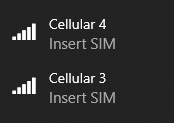
#### Insert SIM Error
* Verify that a SIM card has been installed and is oriented properly.
* If using the external SIM slot, Refer to the **Using the external SIM slot** section for instructions.
#### Connection shows “Turned Off”
* Open Putty and run the following 2 commands. This should force the modem into an online state.
```
AT+CFUN=0
AT+CFUN=1
```