> For the complete documentation index, see [llms.txt](https://support.onlogic.com/llms.txt). Markdown versions of documentation pages are available by appending `.md` to page URLs; this page is available as [Markdown](https://support.onlogic.com/support-articles/how-tos/operating-systems/pse-configuration-ubuntu.md).
# PSE Configuration (Ubuntu)
## Installation (Intel IoT)
Ubuntu Desktop 20.04 and 22.04 for Intel IoT platforms are versions of Ubuntu that are validated to run a ***5.13-intel*** and ***5.15-intel*** kernel version. This version of Ubuntu is available from Canonical at , and can be installed like any other Ubuntu release.
{% hint style="warning" %}
Scroll down to the "**Select Processor**" section, and select the "**Intel® Atom® X6000E Series**
\
**Elkhart Lake**" option.The PSE driver is also supported on current Ubuntu LTS releases up to Ubuntu 26.04. The following versions have been validated:
{% endhint %}
| **Ubuntu release** | **Kernel** |
| ------------------------- | ----------------------- |
| 20.04 / 22.04 (Intel IoT) | 5.13-intel / 5.15-intel |
| 24.04 | 6.x-generic |
| 26.04 | 7.x-generic |
{% hint style="warning" %}
The driver automatically selects the correct configuration for your running kernel. Ubuntu 26.04 is currently the newest validated release.
**Note:** The K400 PSE functionality is supported on Ubuntu 20.04 through 26.04.
{% endhint %}
IMPORTANT In some releases of Ubuntu, the 'pinctrl_elkhartlake' driver will timeout
during startup and crash during shutdown. You can utilize the method below to
address the issue, by disabling this driver module.

One method is to add "modprobe.blacklist=pinctrl_elkhartlake" to the kernel command
line.
## PSE Driver Installation
Several system hardware interfaces, including CAN, DIO, Serial/COM and ignition sensing are managed through the system’s Programmable Services Engine (PSE).
The Elkhart Lake PSE can be managed over ISHTP/HECI from the host processor: This driver creates and manages a `pse` character device, which allows userspace applications to read and write data over the underlying ISHTP bus driver.
The driver can be obtained here:
Then unzip and navigate to the directory with:
```
unzip ubuntu-elkhart-lake-pse-driver-main.zip -d ubuntu-elkhart-lake-pse-driver-main && cd ubuntu-elkhart-lake-pse-driver-main
```
Or clone from the command line with:
```
git clone https://github.com/onlogic/ubuntu-elkhart-lake-pse-driver.git pse_heci
cd pse_heci
```
### Quickstart
To build and install the pse kernel module automatically, simply run:
```
$ sudo chmod +x install.sh && sudo ./install.sh
```
This will check if the pre-compiled kernel modules are compatible with your system, and either install them or compile new ones in-place. If all goes well, you can move on to [Using the PSE](https://app.gitbook.com/o/YTmUofDhDJMJMEH1WaNo/s/lLHqs7kbNoKOFTwGOfH6/~/edit/~/changes/857/support-articles/how-tos/operating-systems/pse-configuration-ubuntu/~/comments#using-the-pse).
### Building
It is also possible to manually build and install the PSE kernel module, which may be required if you intend to run a signed kernel.
#### **Build Preparation**
Install the prerequisites for building kernel modules:
```
$ sudo apt-get install build-essential flex bison libssl-dev libelf-dev
```
Download the kernel headers for the current kernel:
```
$ sudo apt-get install linux-headers-$(uname -r)
```
**Build**
You should now be able to build with:
```
$ make
```
This will generate the kernel modules files, which can be loaded and checked with:
{% code overflow="wrap" %}
```
$ sudo insmod pse.ko && dmesg
$ cd examples
$ make version
$ sudo ./versionVersion: 1.5.0.0
$ sudo rmmod pse
```
{% endcode %}
#### Install
Permanently installing the PSE driver can be done by copying it to your modules directory:
```
$ sudo cp pse.ko /lib/modules/
$(uname -r)/kernel/drivers/hid/intel-ish-hid/
$ echo 'pse' | sudo tee -a /etc/modules-load.d/modules.conf$ sudo depmod -a
```
After this, the PSE module should be loaded and ready for use on each boot. You can confirm this with:
```
$ sudo reboot now
$ sudo lsmod | grep pse
```
## Using the PSE
The programmable services engine consumes commands in the form of packed header and body data structures. The complexity of these structures can be completely ignored by using the pre-compiled command-line application. See the [Hardware Control Application (HWC) download](https://static.onlogic.com/resources/firmware/utilities/hwc_1.2.1.zip) within the system product documentation.
However, for tight application integration, it is possible to interface with the PSE directly from your software stack by reading and writing to the PSE character file (`/dev/pse`). A complete example that establishes a connection to the PSE and reads the firmware version information is included in the `examples` directory, and can be compiled with:
```
$ cd examples
$ make version
$ sudo ./version
```
All source code referenced in the instructions below is included in full context in the `examples` directory. Additional example code is provided for using the CAN and DIO peripherals, as well as sample code for configuring the system’s automotive features. You can build all targets with:
```
$ make all
```
### 1. Establish Connection
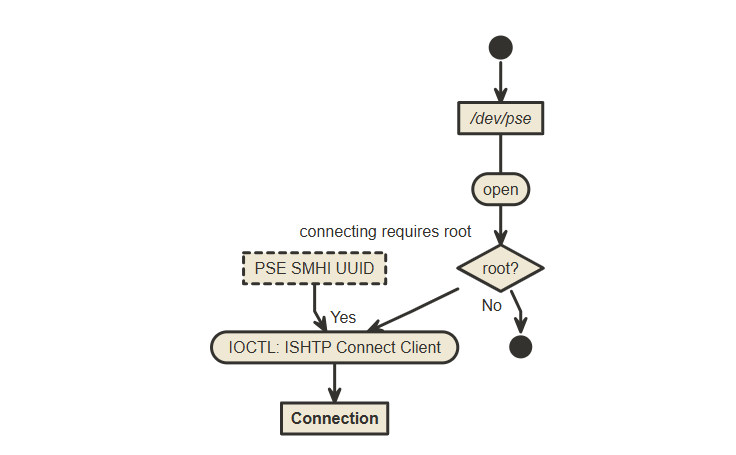
Before communication with the PSE can begin, the host client must establish a connection with the firmware client. This is performed by sending the ‘client connection’ IOCTL to the device file:
```clike
/// ... int pse_client_connect(void)
int fd, ret;
struct ishtp_cc_data cc_data;
/// Prep input connection data
memcpy(&(cc_data.in_client_uuid), &pse_smhi_guid, sizeof(pse_smhi_guid));
/// Open the pse character device (fails if not root)
fd = open(PSE_CHRDEV, O_RDWR);
if (fd <= 0) {
printf("Failed to open the pse device file\n");
return fd;
}
/// Send the connection IOCTL
ret = ioctl(fd, IOCTL_ISHTP_CONNECT_CLIENT, &cc_data);
if (ret) {
printf("Failed to connect to the PSE over ISHTP/HECI\n");
return ret;
}
/// Return the file descriptor for use
return fd;
```
Once the connection has been established and returned, it is possible to send commands to the PSE.
### 2. Send a Command
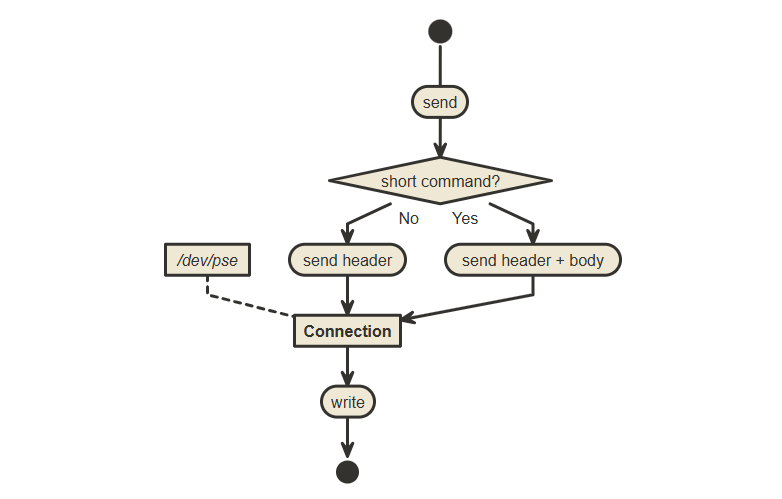
Commands sent to the programmable services engine can either be header-only ‘short’ commands, or complete header + body ‘long’ commands.
The header portion of the command is as 48-bit wide structure that is transmitted as raw data to the PSE:
NOTE When sending a command the 'is response' and 'status' bytes are ignored; these are only set by the firmware endpoint when sending data back to the host.
The command header can be easily described as a packed struct in C:
```clike
typedef struct {
// The command 'class' of this message
uint8_t command;
// True when the message is a response from the PSE
bool is_response;
// If this command has follow-on body data
bool has_next;
// The packed command argument; exact data depends on the command
uint16_t argument;
// Status of the received command when responding; zero on success
uint8_t status;
} __packed heci_header_t;
```
The possible valid system commands are enumerated by the `heci_command_id_t`, and include:
| Command | Value | Description |
| ----------- | ------ | ---------------------------------------------------------------------- |
| System Info | `0x01` | Report the system firmware version number |
| Digital IO | `0x02` | Set and read the system’s digital IO and LEDs |
| UART | `0x03` | Send data over an attached UART. Allows control of automotive features |
| CAN Bus | `0x04` | Send and receive CAN messages |
| PWM | `0x05` | Manage the Pulse Width Modulation of a DIO configured as PWM |
| I2C | `0x06` | Send/receive I2C data (not recommended for end-user configuration) |
| QEP | `0x07` | Configure a group of DIOs set as a Quadrature Encoder Peripheral |
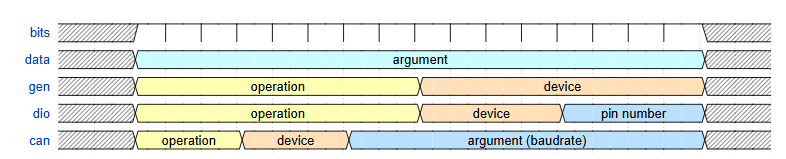
The `argument` packing depends on this command, and is described by the `*_command_t` structures.
UART, I2C, PWM, and QEP all use a generic ‘operation + device’ scheme, while DIO and CAN have separate formats:
The ‘body’ portion of each command is described by another structure:
```clike
typedef struct {
/// Indicates the format of the following data
heci_data_kind_t kind: 8;
/// Length, in bytes, of the data portion
uint32_t length;
uint32_t padding;
/// Packed message body data
uint8_t data[MAX_HECI_DATA_LEN];
} __packed heci_body_t;
```
The actual data format depends on the command sent; the `can_send` example function in `examples/can.c` shows one method for populating message data.
Once a message’s `header` and optional `body` portions are prepared, sending the command is as simple as writing to the open PSE device:
{% code overflow="wrap" %}
```clike
/// pse_send_command(int fd, heci_command_id_t command, uint16_t data, heci_body_t * body)
size_t len;
/// Create the initial header
heci_header_t header = {
.status = 0,
.is_response = 0,
.has_next = body != NULL ? 1 : 0,
.command = (uint8_t)command,
.argument = data
};
/// Copy the header into the transmit buffer
memcpy(heci_tx_buffer, &header, sizeof(heci_header_t));
/// Add a body to the command if one is present
if (header.has_next) {
memcpy(heci_tx_buffer + sizeof(heci_header_t), body, sizeof(heci_body_t));
len = sizeof(heci_header_t) + sizeof(heci_body_t);
} else {
len = sizeof(heci_header_t);
}
write(fd, heci_tx_buffer, len);
```
{% endcode %}
### 3. Read the Response
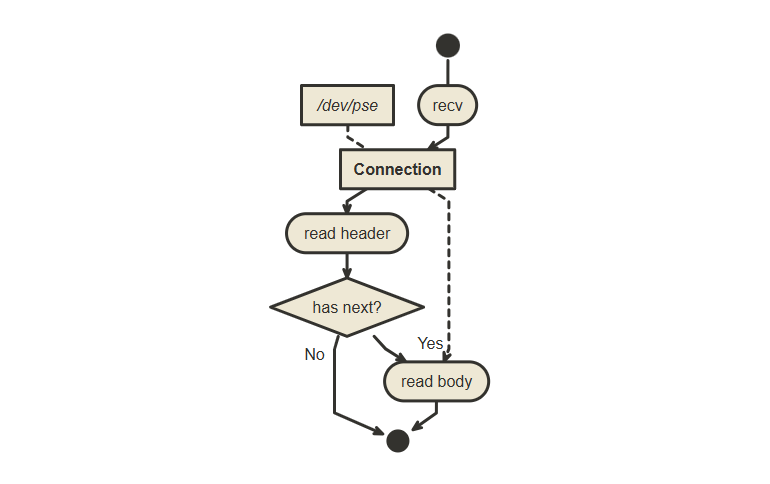
Any message sent to the PSE will receive a response from the embedded controller. The response message format is identical to the transmit format, and will always include the status of the last command received.
Some commands (like reading a CAN message), will result in additional data being returned, as indicated by the `has_next` flag. Application code may check this flag to determine if it should continue reading data:
```clike
/// pse_read_response(int fd, heci_header_t *header, heci_body_t *body)
/// NOTE: Some file preparation occurs here; check sample code
/// Read the message header
length = read(fd, data, sizeof(heci_header_t));
if (length <= 0 || length != sizeof(heci_header_t)) {
printf("Failed reading header from the pse file (%i)\n", length);
return length;
}
memcpy(header, data, sizeof(heci_header_t));
/// If the header has followup data, read it
if (header->has_next && !body) {
printf("Warning: Returned body data was dropped!\n");
return length;
} else if (header->has_next) {
length = read(fd, data + sizeof(heci_header_t), sizeof(heci_body_t));
if (length <= 0 || length != sizeof(heci_body_t)) {
printf("Failed reading body from the pse file (%i)\n", length);
return length;
}
memcpy(body, data + sizeof(heci_header_t), sizeof(heci_body_t));
length = sizeof(heci_body_t) + sizeof(heci_header_t);
} else {
length = sizeof(heci_header_t);
}
```
#### 4. Minimal Example
In the provided sample code, the files `examples/pse.c` and `examples/pse.h` provide some helpful abstraction to simplify this process. For instance, reading the PSE firmware version can be performed with the following code:
{% code overflow="wrap" %}
```clike
#include
#include // close
#include "pse.h" // pse_client_connect, pse_send_command, pse_read_response, heci_types
static int get_version(int fd) {
int ret;
heci_body_t body;
heci_version_t * version;
ret = pse_command_checked(fd, kHECI_SYS_INFO, 0, NULL, &body);
if (ret < 0) {
printf("Could not read the version information: %i\n", ret);
return ret;
} else if (ret == 0) {
printf("No version data returned from the PSE\n");
return -1;
}
version = (heci_version_t *)body.data;
printf("Version: %u.%u.%u.%u\n",
version->major, version->minor, version->hotfix, version->build);
return 0;
}
int main(void) {
int fd;
int ret;
fd = pse_client_connect();
if (fd <= 0) {
printf("Failed to establish a connection with the PSE\n");
return -1;
}
ret = get_version(fd);
close(fd);
return ret;
}
```
{% endcode %}
## PSE Driver Installation (Former - Up to 12/16/2025)
Several system hardware interfaces, including CAN, DIO, Serial/COM and ignition sensing are managed through the system’s Programmable Services Engine (PSE).
The Elkhart Lake PSE can be managed over ISHTP/HECI from the host processor: This driver creates and manages a `pse` character device, which allows userspace applications to read and write data over the underlying ISHTP bus driver.
You can download the driver files and installation bundle here: [PSE HECI Driver v1.0.0](https://static.onlogic.com/resources/firmware/utilities/pse_heci_v100.zip).
Or download and extract them from the command line:
{% code overflow="wrap" %}
```
$ wget https://static.onlogic.com/resources/firmware/utilities/pse_heci_v100.zip && unzip pse_heci_v100.zip -d pse_heci && cd pse_heci
```
{% endcode %}
NOTE This driver was written for the 5.13.0-intel kernel. Running it against any other kernel version may require modification. At a minimum, the system requires an ISHTP bus device with UUID bb579a2e-cc54-4450-b1d0-5e7520dcad25, and the bundled additional source headers (intel-ish-hid-5.13) will need to be updated.