# CL250 / CL210 / CL200

<figure><img src="https://3062424488-files.gitbook.io/~/files/v0/b/gitbook-x-prod.appspot.com/o/spaces%2FlLHqs7kbNoKOFTwGOfH6%2Fuploads%2Fgit-blob-3c7afd154b8b785d47f4343e0d5219df20ff717b%2Ff9db0f990fdda69748a0ecc5af9abbaacfa278920550941bad7799a015fd08e5.png?alt=media" alt=""><figcaption></figcaption></figure>

## <mark style="color:blue;">1- Product Overview</mark>

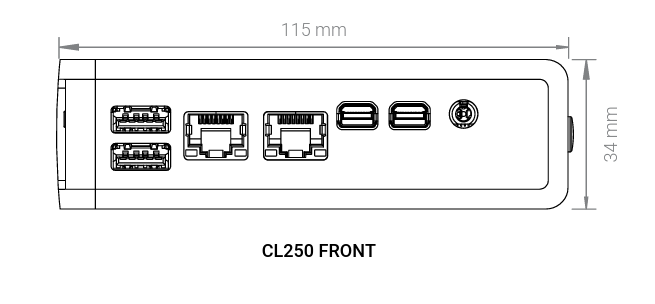
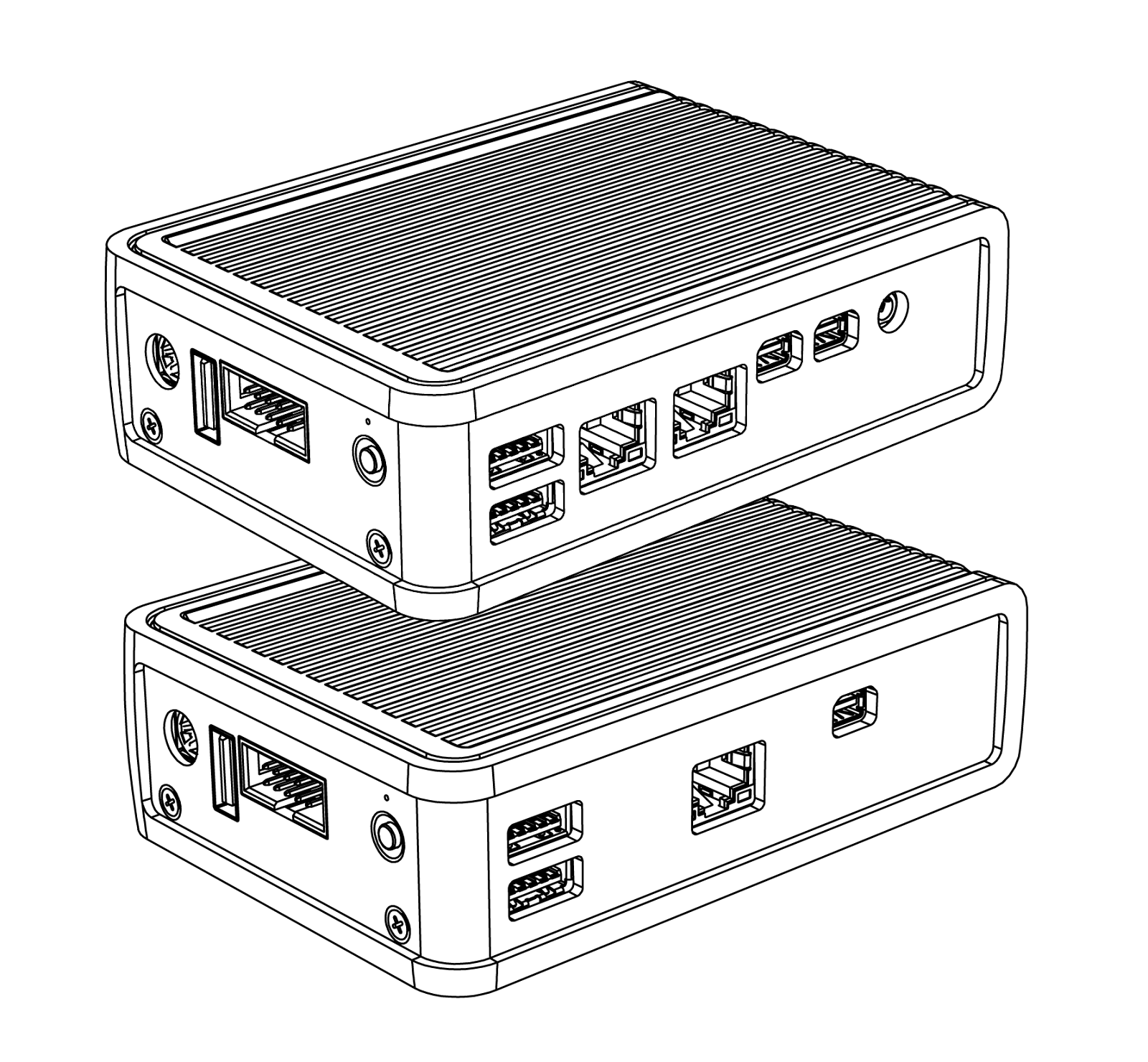
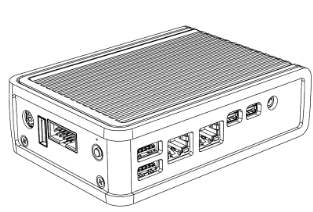
Ultra-small form factor computers that are designed to be reliable and feature-rich, with a fanless and ventless design for durability and effective cooling. The CL200 series are IoT-ready with configurable options for 4G LTE, Wi-Fi/Bluetooth, and advanced functionalities like Movidius and multi-CEC. Measuring just 34 mm x 115 mm x 82 mm, the CL200 can be installed in compact spaces while maintaining connectivity.

### <mark style="color:blue;">1.1- Box Contents & Accessories</mark>

<figure><img src="https://3062424488-files.gitbook.io/~/files/v0/b/gitbook-x-prod.appspot.com/o/spaces%2FlLHqs7kbNoKOFTwGOfH6%2Fuploads%2FfMIs03JK0SPSM4qsrRRq%2Fimage.png?alt=media&#x26;token=b8773bf4-724e-4740-9b98-f75c11681d54" alt=""><figcaption><p>CL200 Assembly</p></figcaption></figure>

<figure><img src="https://3062424488-files.gitbook.io/~/files/v0/b/gitbook-x-prod.appspot.com/o/spaces%2FlLHqs7kbNoKOFTwGOfH6%2Fuploads%2FFCNFeSGdkUULUAQZQxdm%2Fimage.png?alt=media&#x26;token=6f8efc63-0492-46ef-ad4e-8c6afe4ecb1d" alt=""><figcaption><p>CL210 &#x26; CL250 Assembly</p></figcaption></figure>

**Accessories**

* Power Adapter
* Thermal Pads

Thermal Pads are used to assist with cooling expansion mSATA and mPCIe cards. If you purchased your system with expansion cards pre-installed, the thermal pads will already be installed inside the system. If you purchased additional items such as mounting brackets, power supplies, or antennas, they will be located in the system box or within the outer shipping carton.

### <mark style="color:blue;">1.2- System Specifications</mark>

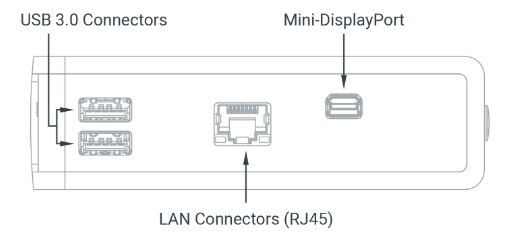
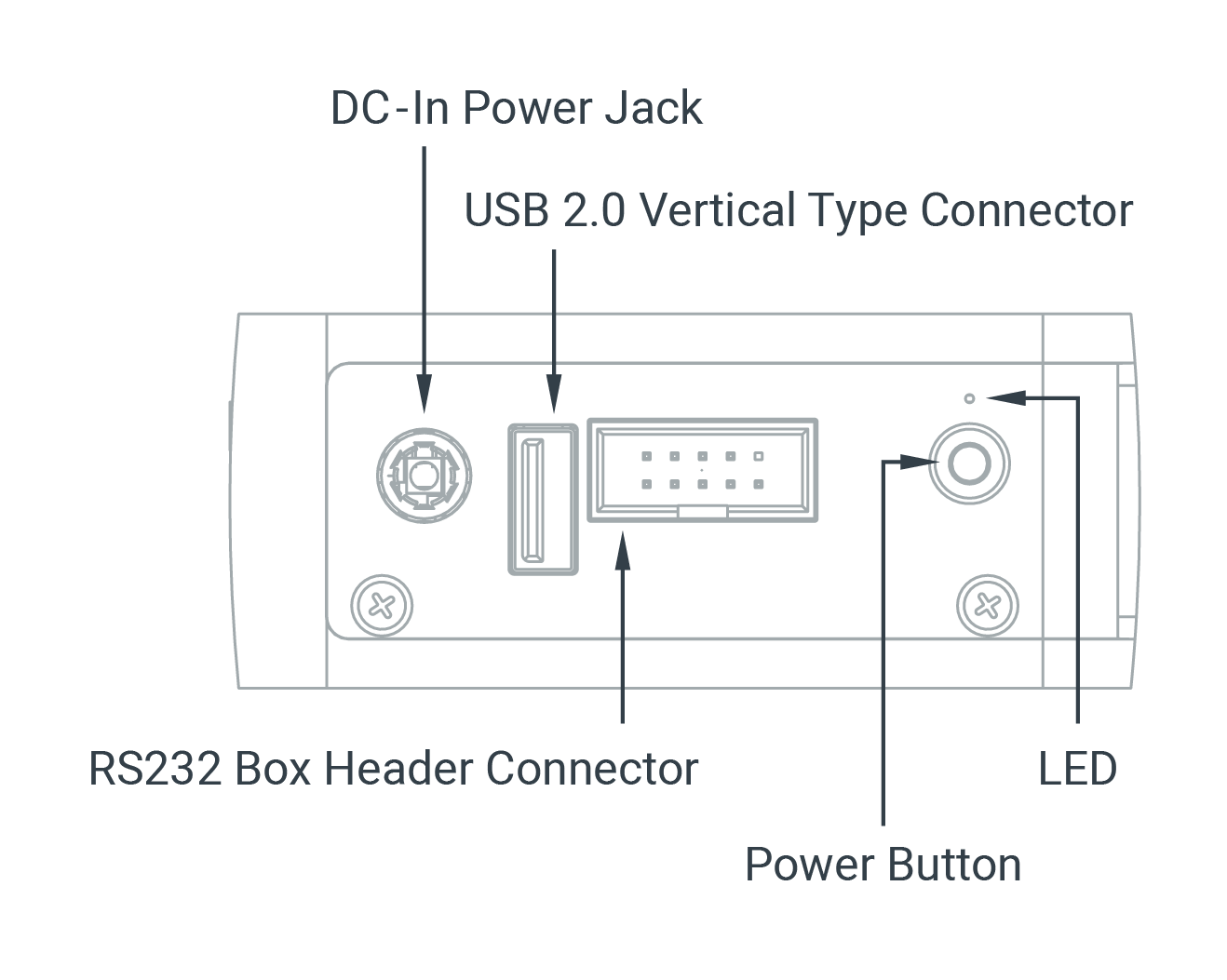
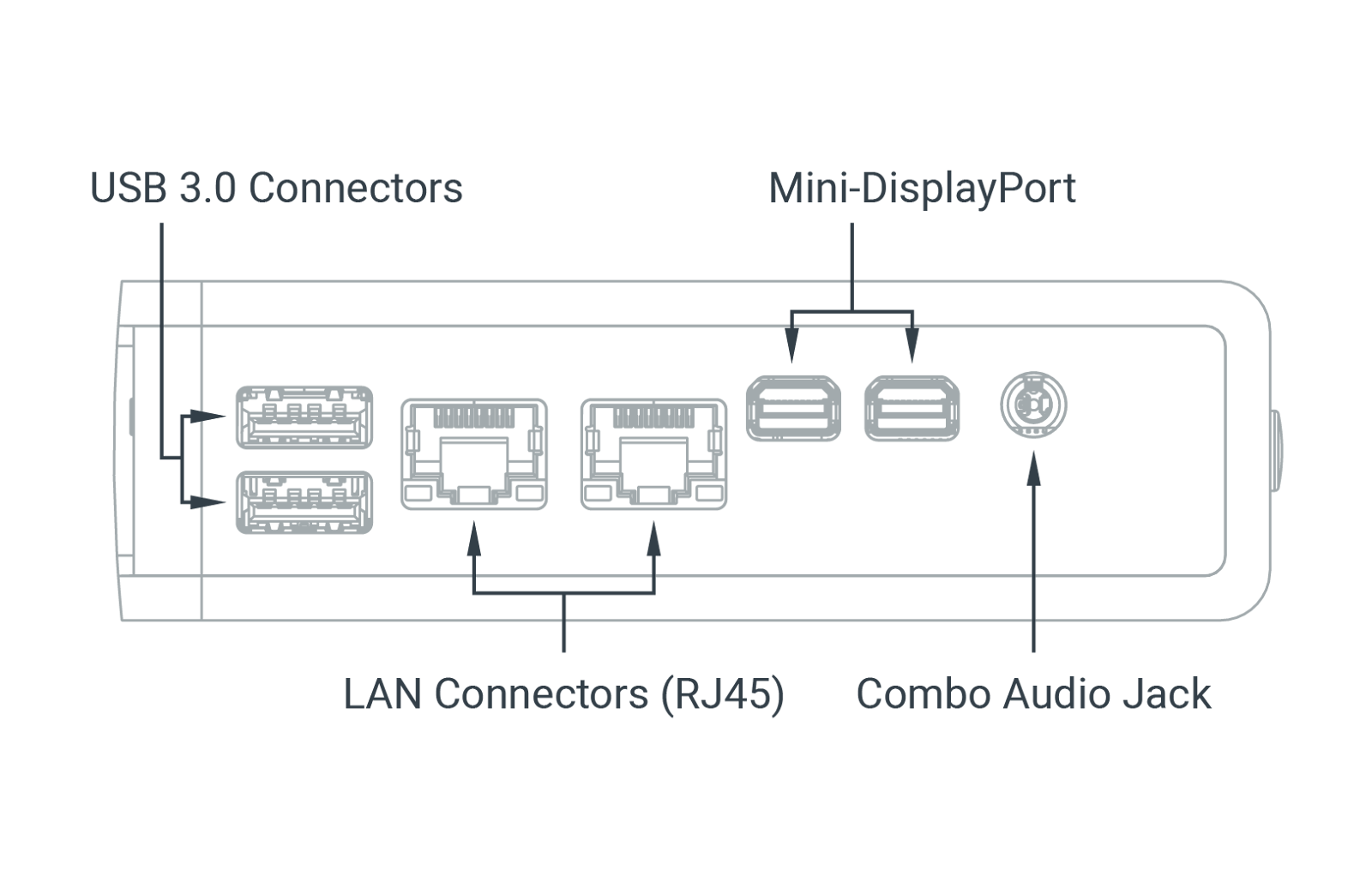
<table><thead><tr><th width="144.5999755859375">Feature</th><th>CL200 (Standard-Basic)</th><th>CL210 (Standard-Advanced)</th><th>CL250</th></tr></thead><tbody><tr><td><strong>Form Factor</strong></td><td>Pico ITX (100mm x 72mm)</td><td>Pico ITX (100mm x 72mm)</td><td>Pico ITX (100mm x 72mm)</td></tr><tr><td><strong>Processor</strong></td><td>Intel® Celeron® N3350</td><td>Intel® Celeron® N3350</td><td>Intel® Celeron® J3455</td></tr><tr><td><strong>System Memory</strong></td><td>2GB LPDDR4 onboard</td><td>4GB LPDDR4 onboard</td><td>8GB LPDDR4 onboard</td></tr><tr><td><strong>Graphics</strong></td><td>Intel® HD Graphics 500</td><td>Intel® HD Graphics 500</td><td>Intel® HD Graphics 500</td></tr><tr><td><strong>Audio</strong></td><td>Realtek ALC233</td><td>Realtek ALC233</td><td>Realtek ALC233</td></tr><tr><td><strong>Super I/O</strong></td><td>Nuvoton NCT 5524</td><td>Nuvoton NCT 5524</td><td>Nuvoton NCT 5524</td></tr><tr><td><strong>LAN (1 &#x26; 2)</strong></td><td>Realtek RTL8111H</td><td>Realtek RTL8111H</td><td>Realtek RTL8111H</td></tr><tr><td><strong>Expansion 1</strong></td><td>Full-length mPCIe slot (PCIe/USB/mSATA signal)</td><td>Full-length mPCIe slot (PCIe/USB/mSATA signal)</td><td>Full-length mPCIe slot (PCIe/USB/mSATA signal)</td></tr><tr><td><strong>Expansion 2</strong></td><td>Half-length mPCIe slot (PCIe/USB signal)</td><td>Half-length mPCIe slot (PCIe/USB signal)</td><td>Half-length mPCIe slot (PCIe/USB signal)</td></tr><tr><td><strong>WiFi Antenna</strong></td><td>4 x Antenna holes</td><td>4 x Antenna holes</td><td>4 x Antenna holes</td></tr><tr><td><strong>Onboard Storage</strong></td><td>8GB eMMC</td><td>32GB eMMC</td><td>None</td></tr><tr><td><strong>Rear I/O</strong></td><td>Micro SD slot</td><td>Micro SD slot</td><td>Micro SD slot</td></tr><tr><td><strong>Front I/O: Audio</strong></td><td>Jack (Mic-in/Line-out)</td><td>Jack (Mic-in/Line-out)</td><td>Jack (Mic-in/Line-out)</td></tr><tr><td><strong>Front I/O: mDP</strong></td><td>1 x mini-Display Port</td><td>2 x mini-Display Port</td><td>2 x mini-Display Port</td></tr><tr><td><strong>Front I/O: LAN</strong></td><td>1 x Gb LAN port</td><td>2 x Gb LAN port</td><td>2 x Gb LAN port</td></tr><tr><td><strong>Front I/O: USB</strong></td><td>2 x USB 3.0</td><td>2 x USB 3.0</td><td>2 x USB 3.0</td></tr><tr><td><strong>Bottom I/O</strong></td><td>1 x Power button<br>1 x LED (on the backside of PCB)<br>1 x USB2.0 vertical type<br>1 x 12V DC-in barrel<br>RS 232 Box Header Connector</td><td>1 x Power button<br>1 x LED (on the backside of PCB)<br>1 x USB2.0 vertical type<br>1 x 12V DC-in barrel<br>RS 232 Box Header Connector</td><td>1 x Power button<br>1 x LED (on the backside of PCB)<br>1 x USB2.0 vertical type<br>1 x 12V DC-in barrel<br>RS 232 Box Header Connector</td></tr><tr><td><strong>Onboard Headers and Connectors</strong></td><td>1 x RTC battery header<br>1 x CEC header (module population is optional)<br>1 x clear CMOS, AT/ATX Jumper</td><td>1 x RTC battery header<br>1 x CEC header (module population is optional)<br>1 x clear CMOS, AT/ATX Jumper</td><td>1 x RTC battery header<br>1 x CEC header (module population is optional)<br>1 x clear CMOS, AT/ATX Jumper</td></tr></tbody></table>
## <mark style="color:blue;">2- Technical Specifications</mark>

### <mark style="color:blue;">2.1- External Features</mark>

#### <mark style="color:blue;">CL200 Exterior</mark>

<figure><img src="https://3062424488-files.gitbook.io/~/files/v0/b/gitbook-x-prod.appspot.com/o/spaces%2FlLHqs7kbNoKOFTwGOfH6%2Fuploads%2Fgit-blob-79285971e9e56e6510301b1b205c878a43e8b833%2F268ce61418e589928399c4eb108ecf404220cd24282e102047e87a0d8339fa2b.png?alt=media" alt="" width="563"><figcaption><p>CL200 Back</p></figcaption></figure>

<figure><img src="https://3062424488-files.gitbook.io/~/files/v0/b/gitbook-x-prod.appspot.com/o/spaces%2FlLHqs7kbNoKOFTwGOfH6%2Fuploads%2FqpDkPb1RFFwhk9TZO4Fo%2Fcl2.png?alt=media&#x26;token=33792b8f-fa69-4102-9d49-1fdac824746d" alt=""><figcaption><p>CL200 Front</p></figcaption></figure>

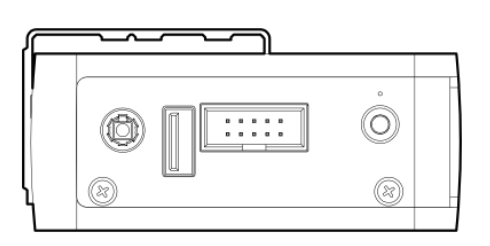
<figure><img src="https://3062424488-files.gitbook.io/~/files/v0/b/gitbook-x-prod.appspot.com/o/spaces%2FlLHqs7kbNoKOFTwGOfH6%2Fuploads%2Fgit-blob-1e6177e4f0b0334465911d01c06ee6a5bf2e5e94%2F458e67785e3593f5c1f11888b68eb688fa4d01a38f985efc60c52371d69d4358.png?alt=media" alt="" width="563"><figcaption><p>CL200 Side</p></figcaption></figure>

<mark style="color:blue;">**CL210 & CL250 Exterior**</mark>

<figure><img src="https://3062424488-files.gitbook.io/~/files/v0/b/gitbook-x-prod.appspot.com/o/spaces%2FlLHqs7kbNoKOFTwGOfH6%2Fuploads%2Fgit-blob-2c9e22ab1d948d541651e021adbe6613aebaee5e%2F71828d2dbf2087965f1b144ebd5c6614d605c73334625018026be478663a01f0.png?alt=media" alt="" width="563"><figcaption><p>CL210 &#x26; CL250 Front</p></figcaption></figure>

<figure><img src="https://3062424488-files.gitbook.io/~/files/v0/b/gitbook-x-prod.appspot.com/o/spaces%2FlLHqs7kbNoKOFTwGOfH6%2Fuploads%2Fgit-blob-1e6177e4f0b0334465911d01c06ee6a5bf2e5e94%2F458e67785e3593f5c1f11888b68eb688fa4d01a38f985efc60c52371d69d4358.png?alt=media" alt="" width="563"><figcaption><p>CL210 &#x26; CL250 Side</p></figcaption></figure>

### <mark style="color:blue;">2.2- Motherboard Overview</mark>

#### <mark style="color:blue;">Core Design - Motherboard</mark>

<figure><img src="https://3062424488-files.gitbook.io/~/files/v0/b/gitbook-x-prod.appspot.com/o/spaces%2FlLHqs7kbNoKOFTwGOfH6%2Fuploads%2FwFyELfj9y73OZV6d6x7C%2FEPM161-Illustation-top-02-02.jpg?alt=media&#x26;token=22e3c1fd-d8fa-42bc-b807-2dcd234f4414" alt=""><figcaption></figcaption></figure>

<table><thead><tr><th width="108">Item</th><th>Functional Description</th></tr></thead><tbody><tr><td>A1</td><td>Combo Audio JACK connector (optional)</td></tr><tr><td>A2</td><td>miniDisplay Port connector - J54-DDI0 1st display<br>miniDisplay Port connector - J55-DDI1 2nd display (optional)</td></tr><tr><td>A3</td><td>RJ45 LAN connector - J_Lan_1<br>RJ45 LAN connector - J_Lan_2 (optional)</td></tr><tr><td>A4</td><td>Dual USB3.0 connector</td></tr><tr><td>A5</td><td>Power Button</td></tr><tr><td>A6</td><td>Battery Header</td></tr><tr><td>A7</td><td>HDMI CEC Header (Optional)</td></tr><tr><td>A8</td><td>RS-232 COM Box Header</td></tr><tr><td>A9</td><td>Clear CMOS + AT/ATX Mode Header</td></tr><tr><td>A10</td><td>USB2.0 Verticle Type Connector </td></tr><tr><td>A11</td><td>DC-IN Power Jack </td></tr><tr><td>A12</td><td>Half-Height mPCIE Slot</td></tr><tr><td>A13</td><td>mPCIE Slot/mSATA Slot</td></tr></tbody></table>

<figure><img src="https://3062424488-files.gitbook.io/~/files/v0/b/gitbook-x-prod.appspot.com/o/spaces%2FlLHqs7kbNoKOFTwGOfH6%2Fuploads%2Fgit-blob-01e4da328b75e8a8995eedd77ad96ffc6ca34877%2F1ba83a9e7faf6d792977833b89ca171108b3c0e537e7579038c7b661e9e73305.png?alt=media" alt=""><figcaption></figcaption></figure>

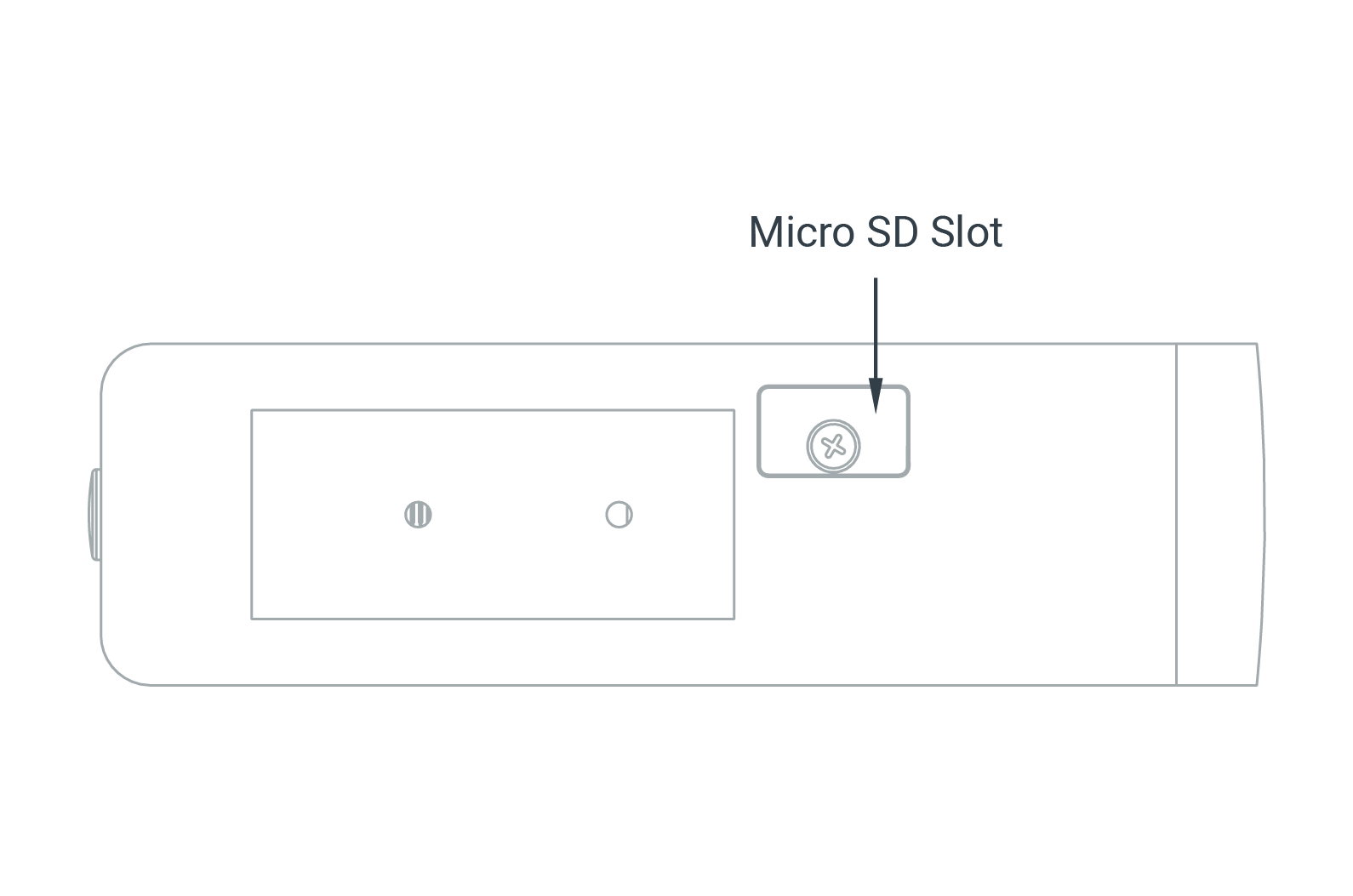
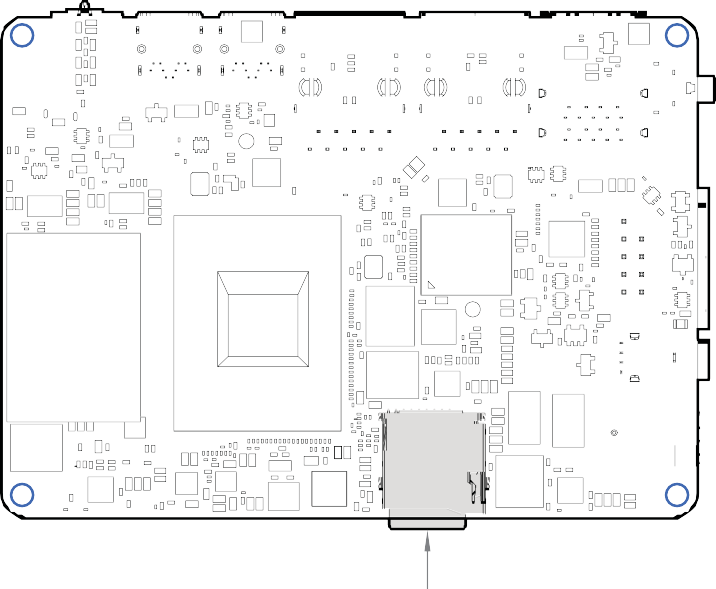
<table><thead><tr><th width="108">Item</th><th>Functional Description</th></tr></thead><tbody><tr><td>B1</td><td>Micro SD Connector</td></tr></tbody></table>

#### <mark style="color:blue;">Memory & Storage</mark>

Memory and storage are soldered on the motherboard for the CL200 Series computers. Memory for both systems are LPDDR4 dual channel RAM. Both systems use industrial-grade eMMC onboard storage. Manufacturers and part numbers are subject to change, so please check the system pages for updates. Additional storage is available using the uSD card Revision 3.01 (SDXC) supporting up to 2TB.

| System    | Storage | Manufacturer | Part Number    | Size  |
| --------- | ------- | ------------ | -------------- | ----- |
| CL200G-10 | eMMC    | San Disk     | SD1NBDG4-8G    | 8 GB  |
| CL210G-10 | eMMC    | Samsung      | KLMG2JETD-B041 | 32 GB |

| System    | Memory | Manufacturer | Part Number     | Size     |
| --------- | ------ | ------------ | --------------- | -------- |
| CL200G-10 | LPDDR4 | Samsung      | K4F8E304HB-MGCH | 1 GB x 2 |
| CL210G-10 | LPDDR4 | Samsung      | K4F6E304HB-MGCJ | 2 GB x 2 |

#### <mark style="color:blue;">Combo Audio Jack</mark>

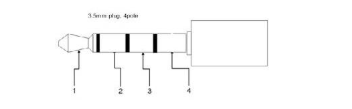
The audio jack is implemented using the Realtek ALC233-VB2 and supports Nokia and Apple headset connectors.

<figure><img src="https://3062424488-files.gitbook.io/~/files/v0/b/gitbook-x-prod.appspot.com/o/spaces%2FlLHqs7kbNoKOFTwGOfH6%2Fuploads%2FxCM9yuwgi8mWfXrnGNUn%2Fimage.png?alt=media&#x26;token=ccfb4e2d-63a2-4260-bcbf-bb60f97062ea" alt=""><figcaption><p>CL200 Series Combo Audio Jack</p></figcaption></figure>

| Pin | Nokia Headset Connector | Standard Connector |
| --- | ----------------------- | ------------------ |
| 1   | Left                    | Left               |
| 2   | Right                   | Right              |
| 3   | Mic                     | Ground             |
| 4   | Ground                  | Mic                |

#### <mark style="color:blue;">LAN Port</mark>

<figure><img src="https://3062424488-files.gitbook.io/~/files/v0/b/gitbook-x-prod.appspot.com/o/spaces%2FlLHqs7kbNoKOFTwGOfH6%2Fuploads%2FQNii23a2TFsgkRDoEq4v%2Fimage.png?alt=media&#x26;token=a8cc4ddd-d5da-410f-b6ed-2a81fe776fb8" alt=""><figcaption></figcaption></figure>

#### <mark style="color:blue;">Serial Port</mark>

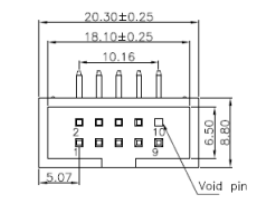
The serial port header is 2x5, 2.54 mm pitch, colored black and keyed at pin 10.

<figure><img src="https://3062424488-files.gitbook.io/~/files/v0/b/gitbook-x-prod.appspot.com/o/spaces%2FlLHqs7kbNoKOFTwGOfH6%2Fuploads%2FIWZHaSuehcjA0w6N5bI0%2Fimage.png?alt=media&#x26;token=fe1c6c93-475f-4ef6-bd04-2eaa06338e23" alt=""><figcaption></figcaption></figure>

<figure><img src="https://3062424488-files.gitbook.io/~/files/v0/b/gitbook-x-prod.appspot.com/o/spaces%2FlLHqs7kbNoKOFTwGOfH6%2Fuploads%2FVVXDnm67WpvWYnAieKqu%2Fimage.png?alt=media&#x26;token=5797aec4-58b2-428b-95cf-cbc18b520755" alt=""><figcaption></figcaption></figure>

#### <mark style="color:blue;">Mini-PCI Express Expansion Slots</mark>

Standard pin-out supports half-height PCIe/USB and full-height PCIe/USB/mSATA signal.

### <mark style="color:blue;">2.3- Jumpers and Headers</mark>

<mark style="color:blue;">**Jumper Set Up**</mark>

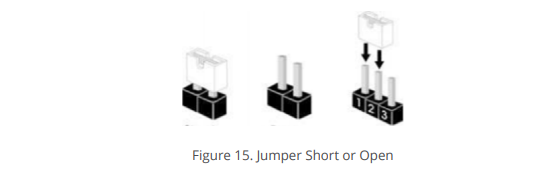
The following illustration shows how to use jumpers.

<figure><img src="https://3062424488-files.gitbook.io/~/files/v0/b/gitbook-x-prod.appspot.com/o/spaces%2FlLHqs7kbNoKOFTwGOfH6%2Fuploads%2Fgit-blob-afb3b9259ecc1d7009a1c113eebfccaca8600eb2%2F6d9a278d9a6491600c5c78c526d43ae1a7c795961caf0c86b5e446d0708fc4f9.png?alt=media" alt=""><figcaption></figcaption></figure>

“Short” pins together by placing the jumper shunt on pins. Pins not capped with jumpers are “open”. With the illustrated 3-pin jumper, the shunt shorts pins 1 and 2. Check the corresponding header pin attributes to see what functionality is supported by shorting different pin pairs.

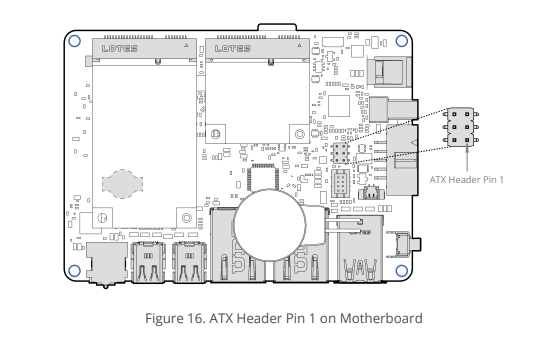
#### <mark style="color:blue;">**AT/ATX, CMOS Jumper**</mark>

<figure><img src="https://3062424488-files.gitbook.io/~/files/v0/b/gitbook-x-prod.appspot.com/o/spaces%2FlLHqs7kbNoKOFTwGOfH6%2Fuploads%2Fgit-blob-28ea66d694b780f0f092d700c97a0c1b964e365f%2F53ca9518d6cac668cf637154f1ef326efc224daf751dcff4cdbe09b253f8229d.png?alt=media" alt=""><figcaption></figcaption></figure>

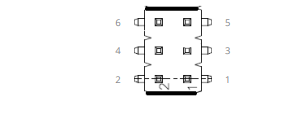
The following illustration shows the header without any jumpers.&#x20;

<figure><img src="https://3062424488-files.gitbook.io/~/files/v0/b/gitbook-x-prod.appspot.com/o/spaces%2FlLHqs7kbNoKOFTwGOfH6%2Fuploads%2Fgit-blob-4129a018d5e4bb2b4f25abf7d635821a522dd409%2Fcfbfcc9d6cb3cd6311b684094a039b4f7c63735c3c75cfb7f41b9c1350faa6d2.png?alt=media" alt=""><figcaption></figcaption></figure>

This illustration shows jumpers in the default 6-4 and 5-3 positions.

<figure><img src="https://3062424488-files.gitbook.io/~/files/v0/b/gitbook-x-prod.appspot.com/o/spaces%2FlLHqs7kbNoKOFTwGOfH6%2Fuploads%2Fgit-blob-5a699b53dbc4b18d43eb0b0b1efe8df70416a875%2F20f0f0b2f6a5bfe5e5b3f95244d2c5f8da4e5ab7a55b0875b100855551303e27.png?alt=media" alt=""><figcaption></figcaption></figure>

| Function           | Setting |
| ------------------ | ------- |
| Clear CMOS         | 2-4     |
| Normal (default)   | 4-6     |
| AT Mode            | 1-3     |
| ATX Mode (default) | 3-5     |

<mark style="color:blue;">**Clearing the CMOS**</mark>

Setting the jumper with the Clear CMOS jumper shunt allows you to clear the data in the CMOS. **NOTE:** Do not clear the CMOS right after updating the BIOS. You must boot up the system first and then shut it down before clearing the CMOS. **NOTE:** The password, date, time user default profile will be cleared only if the CMOS battery is removed.

To clear and reset system parameters to the default setup, follow these steps:

1. Turn off the computer and unplug the power cord from the power supply.
2. Wait 15 seconds.
3. Remove the jumper shunt from pins 6 and 4 and use it to short pins 2 and 4 on the header for 5 seconds.
4. Remove the jumper shunt and return it to short pins 6 and 4.

#### <mark style="color:blue;">2-Pin Battery Cable Header</mark>

The 3V Battery coin cell cable header is clearly labeled:&#x20;

<figure><img src="https://3062424488-files.gitbook.io/~/files/v0/b/gitbook-x-prod.appspot.com/o/spaces%2FlLHqs7kbNoKOFTwGOfH6%2Fuploads%2Fgit-blob-c4437a2732eafdcdc9d6e3043b4d0bbfcce16b57%2F66d87dea2de1e8dd282d5a763618a504d5bab8c7eb796d01d3ae55bcd7e67851.png?alt=media" alt=""><figcaption></figcaption></figure>

<table><thead><tr><th width="374">Function</th><th>Setting</th></tr></thead><tbody><tr><td>3V Power</td><td>Pin 1</td></tr><tr><td>GND</td><td>Pin 2</td></tr></tbody></table>

#### <mark style="color:blue;">HDMI CEC Header</mark>

If it was selected and configured in the build, the chip will be populated. CEC functionality will work with an HDMI adapter. Please see series pages for additional information.

<figure><img src="https://3062424488-files.gitbook.io/~/files/v0/b/gitbook-x-prod.appspot.com/o/spaces%2FlLHqs7kbNoKOFTwGOfH6%2Fuploads%2FDYtD6C7UIPJ90GzUm665%2Fimage.png?alt=media&#x26;token=6a1681a4-c426-4528-8282-79cfb65b406d" alt=""><figcaption></figcaption></figure>

### <mark style="color:blue;">2.4- Processor</mark>

#### <mark style="color:blue;">Processor Core Design</mark>

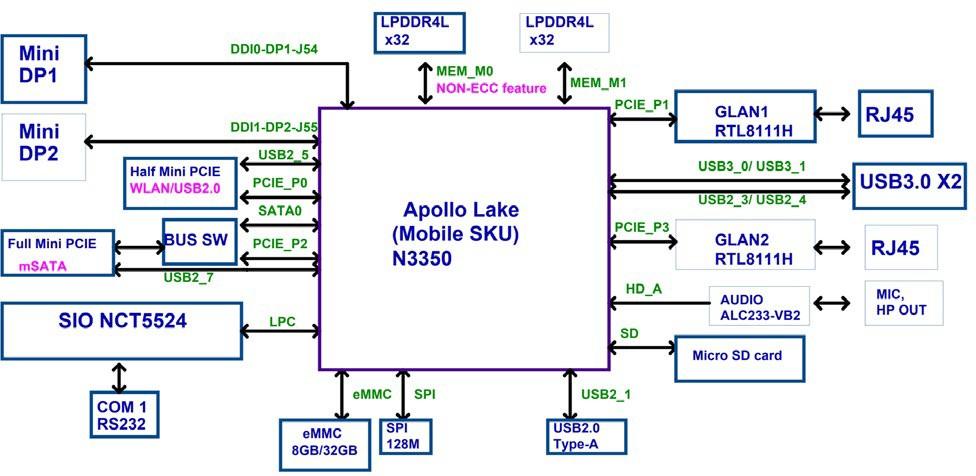
<figure><img src="https://3062424488-files.gitbook.io/~/files/v0/b/gitbook-x-prod.appspot.com/o/spaces%2FlLHqs7kbNoKOFTwGOfH6%2Fuploads%2Fgit-blob-a4ea5e3cff54d3c63642f24b1b081628dfa93501%2F70a217d3909759434fc9a7b1d1699b86ed0bf84a68659dc4b4992224290741f0.png?alt=media" alt=""><figcaption></figcaption></figure>

#### <mark style="color:blue;">Processor Graphics</mark>

Onboard Intel HD Graphics 500 processing circuitry is integrated into the processor. Single Display supports a maximum resolution of up to 3840x2160 (4K) @ 60 Hz. Dual independent displays are achieved through the optional second Mini-Display Port. Up to three mirrored displays are achieved via Display Port v1.2 daisy chaining.

### <mark style="color:blue;">2.5- Power Management</mark>

The CL200 Series supports multiple power states. These states can be configured on the motherboard. This section describes the power management functions you can perform.

#### <mark style="color:blue;">Unexpected Shutdown Function</mark>

An unexpected shutdown does not necessarily cause a loss of data, but it can make access to some of your data difficult. To remedy this possibility, follow this procedure to power up the system again after the system power has been off for more than 4 seconds:

* If the SOC BIOS mode is set to AT mode, press the Power button once to power on the system.
* If the SOC BIOS mode is set to ATX mode, press the Power button twice to power on the system.

#### <mark style="color:blue;">Wake-Up Events</mark>

The motherboard supports the following wake-up events.

| Wake-Up Event | From ACPI State | Comments                                   |
| ------------- | --------------- | ------------------------------------------ |
| Power Button  | S3, S4, S5      |                                            |
| RTC Alarm     | S3, S4, S5      | monitor to remain in sleep state           |
| LAN           | S3, S4, S5      |                                            |
| USB           | S3              |                                            |
| PCIe          | S3, S4, S5      | via WAKE; monitor to remain in sleep state |

Notes: S4 implies OS support only. USB ports must be turned off during S4/S5 states.

## <mark style="color:blue;">3- Installation & Mechanical</mark>

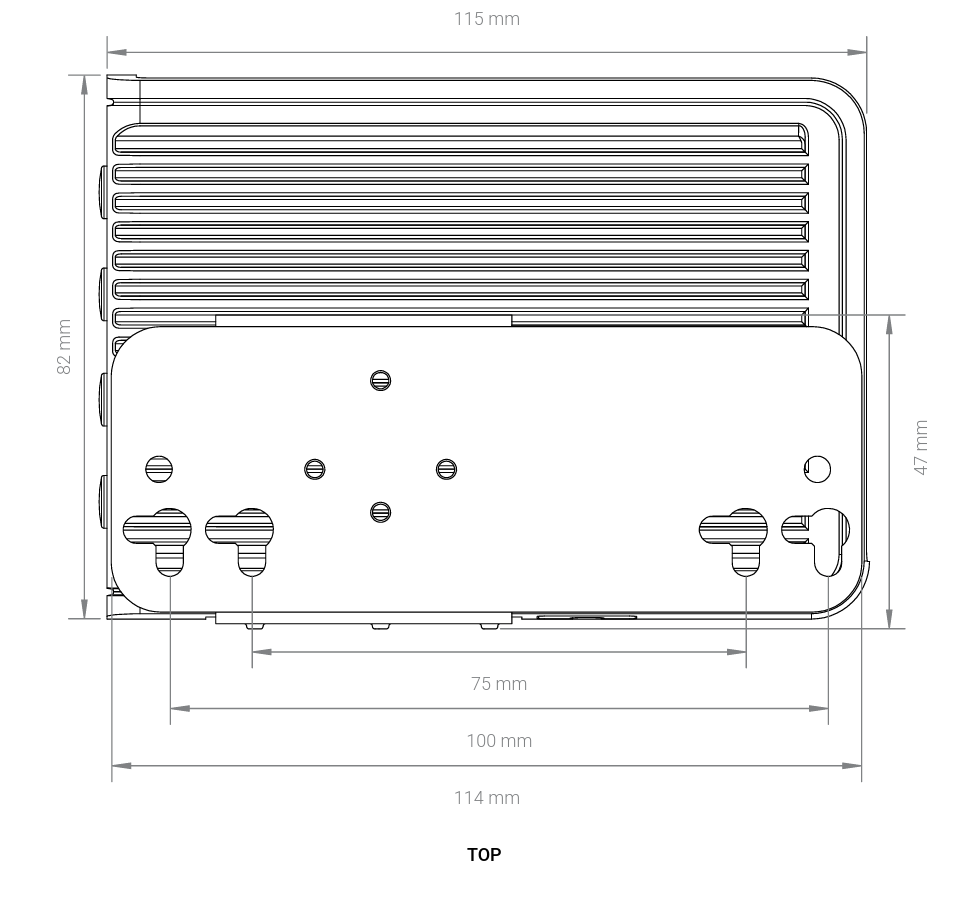
### <mark style="color:blue;">3.1- Dimensions</mark>

<figure><img src="https://3062424488-files.gitbook.io/~/files/v0/b/gitbook-x-prod.appspot.com/o/spaces%2FlLHqs7kbNoKOFTwGOfH6%2Fuploads%2FbJr5Uq2n6I8L3Ijy6dT2%2Fimage.png?alt=media&#x26;token=d4f47c84-fe86-42d8-b890-fd79acaa0cf5" alt=""><figcaption></figcaption></figure>

<figure><img src="https://3062424488-files.gitbook.io/~/files/v0/b/gitbook-x-prod.appspot.com/o/spaces%2FlLHqs7kbNoKOFTwGOfH6%2Fuploads%2FjhMUlZ5mUaQVjZmxCuU3%2Fimage.png?alt=media&#x26;token=7f00e592-ed36-47fa-9998-348c8671dc98" alt=""><figcaption></figcaption></figure>

<figure><img src="https://3062424488-files.gitbook.io/~/files/v0/b/gitbook-x-prod.appspot.com/o/spaces%2FlLHqs7kbNoKOFTwGOfH6%2Fuploads%2FDMzdH5tx66YUf8hVBMMp%2Fimage.png?alt=media&#x26;token=590608c6-be98-4d48-a56a-b8519e11c31f" alt=""><figcaption></figcaption></figure>

<figure><img src="https://3062424488-files.gitbook.io/~/files/v0/b/gitbook-x-prod.appspot.com/o/spaces%2FlLHqs7kbNoKOFTwGOfH6%2Fuploads%2FFk38pHnowlYzjUhlnsEJ%2Fimage.png?alt=media&#x26;token=aade6fcd-808d-48c2-b7f3-054a8d85f4ab" alt=""><figcaption></figcaption></figure>

### <mark style="color:blue;">3.2- Mounting</mark>

#### Clip Installation & Wall Mounting

1. **Step 1:** Mark and prep holes in surface for mounting.
2. **Step 2:** Attach wall mount brackets to chassis.
3. **Step 3:** Fasten system to surface.

<figure><img src="https://3062424488-files.gitbook.io/~/files/v0/b/gitbook-x-prod.appspot.com/o/spaces%2FlLHqs7kbNoKOFTwGOfH6%2Fuploads%2Fd01J0MAhiiytgEudwWnZ%2Fimage.png?alt=media&#x26;token=43f6eb9c-3c62-47b4-a77c-d38221f0f3c8" alt=""><figcaption><p>CL200 Mounting Plate Side</p></figcaption></figure>

<figure><img src="https://3062424488-files.gitbook.io/~/files/v0/b/gitbook-x-prod.appspot.com/o/spaces%2FlLHqs7kbNoKOFTwGOfH6%2Fuploads%2FuJd9gk7s4i0FPkqOIQcl%2Fimage.png?alt=media&#x26;token=a17bc91d-610a-49f5-a284-2427524f6d17" alt=""><figcaption><p>CL200 Mounting Plate Back</p></figcaption></figure>

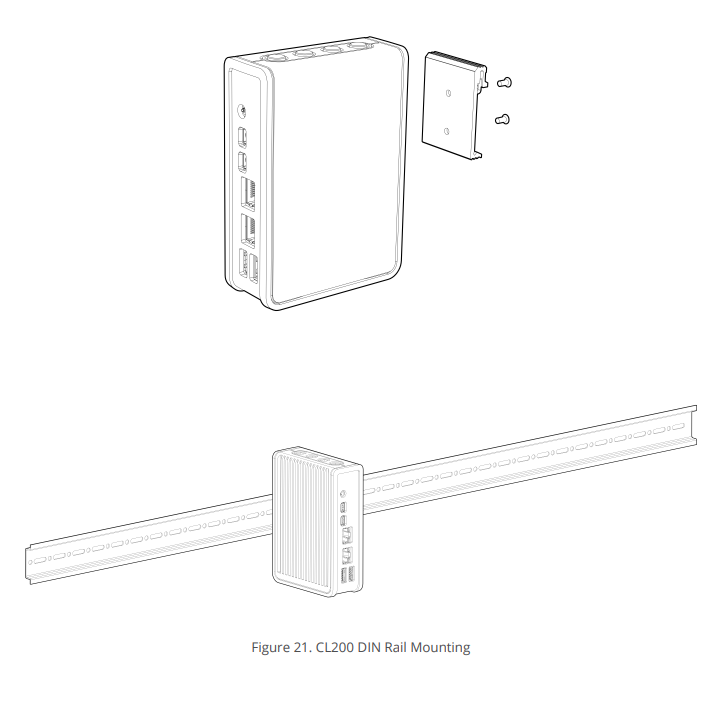
#### DIN Rail Mounting

1. **Step 1:** Attach DIN Rail mounting brackets to the chassis.
2. **Step 2:** Clip system to the DIN Rail.&#x20;

   <figure><img src="https://3062424488-files.gitbook.io/~/files/v0/b/gitbook-x-prod.appspot.com/o/spaces%2FlLHqs7kbNoKOFTwGOfH6%2Fuploads%2Fgit-blob-ed67bb89dfda2a021d5bfc7a0495c148e9bed8fe%2F09f2f7b664fa518764f41978665991bb94689ea3ef0005bee9ec3d3bafabf244.png?alt=media" alt="" width="563"><figcaption></figcaption></figure>

<figure><img src="https://3062424488-files.gitbook.io/~/files/v0/b/gitbook-x-prod.appspot.com/o/spaces%2FlLHqs7kbNoKOFTwGOfH6%2Fuploads%2Fm2dCYw0H4OsLQYegMSzL%2Fimage.png?alt=media&#x26;token=d2fb7032-017b-42d4-ae64-6483d6bcce38" alt=""><figcaption></figcaption></figure>

### <mark style="color:blue;">3.3- Internal Access</mark>

#### <mark style="color:blue;">Pre-Installation Precautions</mark>

It is important to read the following precautions before installing expansion cards into the motherboard:

* Wear a grounding strap attached to a grounded device to avoid damage from static electricity.
* Before opening the system, discharge static electricity by touching the metal case to a grounded object.
* Leave components in the static-proof bags they came in until they can be installed.
* Hold all circuit boards by the edges.
* Do not bend circuit boards.

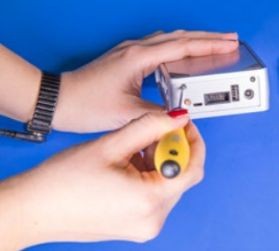
#### <mark style="color:blue;">**Internal Access**</mark> <a href="#disassembly" id="disassembly"></a>

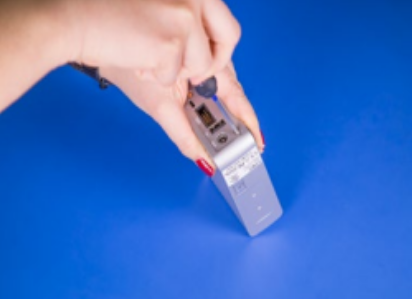
* Remove the two silver Phillips screws
* Use a flathead screwdriver or similar tool to gently lever the bottom cover off

<figure><img src="https://3062424488-files.gitbook.io/~/files/v0/b/gitbook-x-prod.appspot.com/o/spaces%2FlLHqs7kbNoKOFTwGOfH6%2Fuploads%2Fgit-blob-ff65f1ce3b37c6dd108b98e30b3dee08f0c89666%2F6dfceffd42f4d0ffec7797dbab7e46851c63b27b2443af52d202c321979ab637.png?alt=media" alt="" height="251" width="279"><figcaption></figcaption></figure>

<figure><img src="https://3062424488-files.gitbook.io/~/files/v0/b/gitbook-x-prod.appspot.com/o/spaces%2FlLHqs7kbNoKOFTwGOfH6%2Fuploads%2Fgit-blob-68cb6be5f2d140ef95dddbc4bb12a4de13b213ca%2Fd9f9fbc43068a85244400937e6ee44d9a00761b9dadbd7014f5211000a8c71a7.png?alt=media" alt="" width="563"><figcaption></figcaption></figure>

#### <mark style="color:blue;">Reassembly</mark> <a href="#reassembly" id="reassembly"></a>

* Hinge the bottom plate back onto the system by aligning the tabs
* Reinstall the silver Phillips screws

<figure><img src="https://3062424488-files.gitbook.io/~/files/v0/b/gitbook-x-prod.appspot.com/o/spaces%2FlLHqs7kbNoKOFTwGOfH6%2Fuploads%2FeY59ywOHRD7moRkaieNg%2Fimage.png?alt=media&#x26;token=f90bc850-722a-4ebc-942b-8418f79f1342" alt="" width="375"><figcaption></figcaption></figure>

<figure><img src="https://3062424488-files.gitbook.io/~/files/v0/b/gitbook-x-prod.appspot.com/o/spaces%2FlLHqs7kbNoKOFTwGOfH6%2Fuploads%2FTk8hO2B0ZSwGLzKR4HXU%2Fimage.png?alt=media&#x26;token=bfdf8639-fe63-413c-bf75-4c87c769d8e8" alt="" width="375"><figcaption></figcaption></figure>

#### <mark style="color:blue;">Building CL200 Series with Wi-Fi</mark>

To add Wi-Fi to the CL200 Series, follow this procedure.

1. Before starting, ensure that you have read and understand the installation precautions listed above in the "Pre-Installation Precautions" section. \\

   <figure><img src="https://3062424488-files.gitbook.io/~/files/v0/b/gitbook-x-prod.appspot.com/o/spaces%2FlLHqs7kbNoKOFTwGOfH6%2Fuploads%2FwOPEsJQZBxl0nzvgMQYq%2Fimage.png?alt=media&#x26;token=1373f844-b764-418b-8d11-6be943c2d8b6" alt=""><figcaption></figcaption></figure>
2. Remove both screws from the front of the case. Retain screws. \\

   <figure><img src="https://3062424488-files.gitbook.io/~/files/v0/b/gitbook-x-prod.appspot.com/o/spaces%2FlLHqs7kbNoKOFTwGOfH6%2Fuploads%2F2bHI26z3o2XwijghuLv5%2Fimage.png?alt=media&#x26;token=1ccd6928-4b9d-4f66-9514-21a0ee7eeeb3" alt=""><figcaption></figcaption></figure>
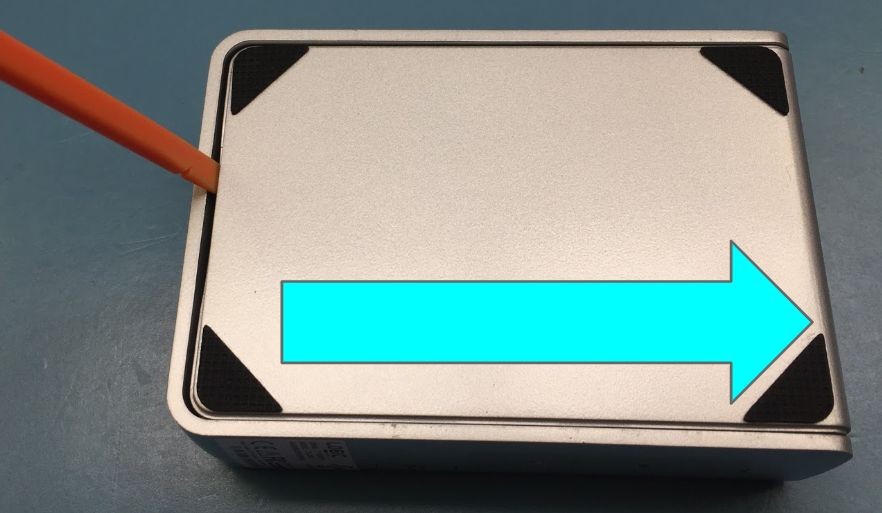
3. Remove the cover of the unit by sliding it toward the rear. \\

   <figure><img src="https://3062424488-files.gitbook.io/~/files/v0/b/gitbook-x-prod.appspot.com/o/spaces%2FlLHqs7kbNoKOFTwGOfH6%2Fuploads%2FzLtGWkWiE7SxPNe5M2kT%2Fimage.png?alt=media&#x26;token=4b90a92e-9d74-4704-92cd-c8fe6779990d" alt=""><figcaption></figcaption></figure>
4. Remove rubber port blockers to install SMA connector through antenna holes. Remove nut first and line up the key. Install nut on the outside to hold connector in place. \\

   <figure><img src="https://3062424488-files.gitbook.io/~/files/v0/b/gitbook-x-prod.appspot.com/o/spaces%2FlLHqs7kbNoKOFTwGOfH6%2Fuploads%2FI3lk1oOHKs8aq8LAX0yw%2Fimage.png?alt=media&#x26;token=3825b51d-368a-4fc0-92eb-48d585cc3151" alt=""><figcaption></figcaption></figure>
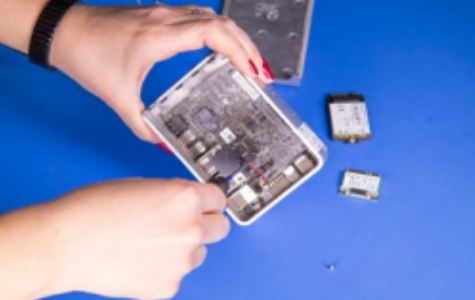
5. Unscrew the screw on the standoff for the card length required. Retain screw. \\

   <figure><img src="https://3062424488-files.gitbook.io/~/files/v0/b/gitbook-x-prod.appspot.com/o/spaces%2FlLHqs7kbNoKOFTwGOfH6%2Fuploads%2FYHoT2cF2EewPaCx8Gkhv%2Fimage.png?alt=media&#x26;token=94296d7d-10aa-4011-a220-3f58d21f0323" alt=""><figcaption></figcaption></figure>
6. Insert card at a 45 degree angle into the mPCIe slot until it snaps in. \\

   <figure><img src="https://3062424488-files.gitbook.io/~/files/v0/b/gitbook-x-prod.appspot.com/o/spaces%2FlLHqs7kbNoKOFTwGOfH6%2Fuploads%2F5K8hOMKMoIUwn87N5J9u%2Fimage.png?alt=media&#x26;token=e4a8debd-38e1-4230-bceb-0309c9b06115" alt=""><figcaption></figcaption></figure>
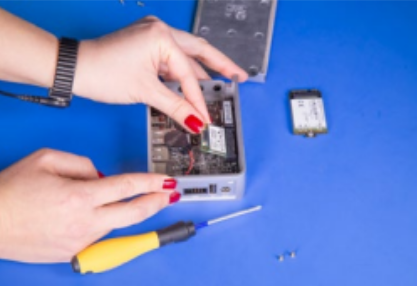
7. Press down on the card's edge and screw down using retained screw into standoff. \\

   <figure><img src="https://3062424488-files.gitbook.io/~/files/v0/b/gitbook-x-prod.appspot.com/o/spaces%2FlLHqs7kbNoKOFTwGOfH6%2Fuploads%2Fqa6imEMh7UAQYupJzguC%2Fimage.png?alt=media&#x26;token=5b712b5d-a90f-4759-9d80-378cef1786d6" alt=""><figcaption></figcaption></figure>
8. Install second card as needed following the same instructions as above. \\

   <figure><img src="https://3062424488-files.gitbook.io/~/files/v0/b/gitbook-x-prod.appspot.com/o/spaces%2FlLHqs7kbNoKOFTwGOfH6%2Fuploads%2F9QzQu25hprL8dJwNWmSd%2Fimage.png?alt=media&#x26;token=c27a84bf-0f06-40a8-881f-c2e2db1814c8" alt=""><figcaption></figcaption></figure>
9. If installing broadcast modules, install MHF4 pigtail cable to the module. Make sure the MHF4 cable maps to the correct port. \\

   <figure><img src="https://3062424488-files.gitbook.io/~/files/v0/b/gitbook-x-prod.appspot.com/o/spaces%2FlLHqs7kbNoKOFTwGOfH6%2Fuploads%2F4hoZqHFug7ovS2Mxn3hg%2Fimage.png?alt=media&#x26;token=be2c9741-250b-4350-a9d1-2d937d6ef620" alt=""><figcaption></figcaption></figure>
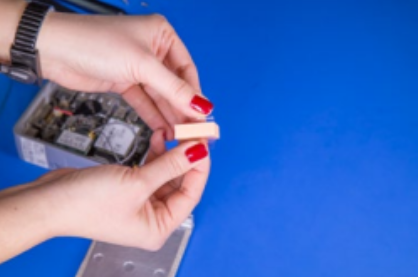
10. Remove clear sticker backing from thermal pads to attach to installed modules. \\

    <figure><img src="https://3062424488-files.gitbook.io/~/files/v0/b/gitbook-x-prod.appspot.com/o/spaces%2FlLHqs7kbNoKOFTwGOfH6%2Fuploads%2F1FS7dAXP1prm5akq59b4%2Fimage.png?alt=media&#x26;token=33b7fc29-7236-48bf-b405-276c2d2e13c3" alt=""><figcaption></figcaption></figure>
11. Install thermal pads onto installed modules, making sure to keep all wires free from pads and other ports.&#x20;

    <figure><img src="https://3062424488-files.gitbook.io/~/files/v0/b/gitbook-x-prod.appspot.com/o/spaces%2FlLHqs7kbNoKOFTwGOfH6%2Fuploads%2FvZr75UDIBGA7KOUHfeoM%2Fimage.png?alt=media&#x26;token=591dfd76-822d-43f7-9135-56aa64f0fe3e" alt=""><figcaption></figcaption></figure>
12. Install cover onto the unit using retained screws. \\

    <figure><img src="https://3062424488-files.gitbook.io/~/files/v0/b/gitbook-x-prod.appspot.com/o/spaces%2FlLHqs7kbNoKOFTwGOfH6%2Fuploads%2FpcfRTxZ9bfDCsEGx1UJt%2Fimage.png?alt=media&#x26;token=d88b563b-a980-4be9-88c9-720ea0d4f555" alt=""><figcaption></figcaption></figure>
13. Install antennas to exposed SMA connector. \\

    <figure><img src="https://3062424488-files.gitbook.io/~/files/v0/b/gitbook-x-prod.appspot.com/o/spaces%2FlLHqs7kbNoKOFTwGOfH6%2Fuploads%2Fq9exxAxf2soQzduCweay%2Fimage.png?alt=media&#x26;token=88352bb6-8306-4468-b87f-d1a49e7d479f" alt=""><figcaption></figcaption></figure>

### <mark style="color:blue;">3.4- CAD & Drawings</mark>

{% file src="<https://3062424488-files.gitbook.io/~/files/v0/b/gitbook-x-prod.appspot.com/o/spaces%2FlLHqs7kbNoKOFTwGOfH6%2Fuploads%2FY8WfRVaef4V3gDoGtCxc%2FCL250%20All%20Mounting.zip?alt=media&token=9428b63d-f60c-41d9-aecb-00fb0120b55c>" %}

## <mark style="color:blue;">4- Software & Firmware</mark>

### <mark style="color:blue;">4.1- BIOS</mark>

#### <mark style="color:blue;">UEFI Overview</mark>

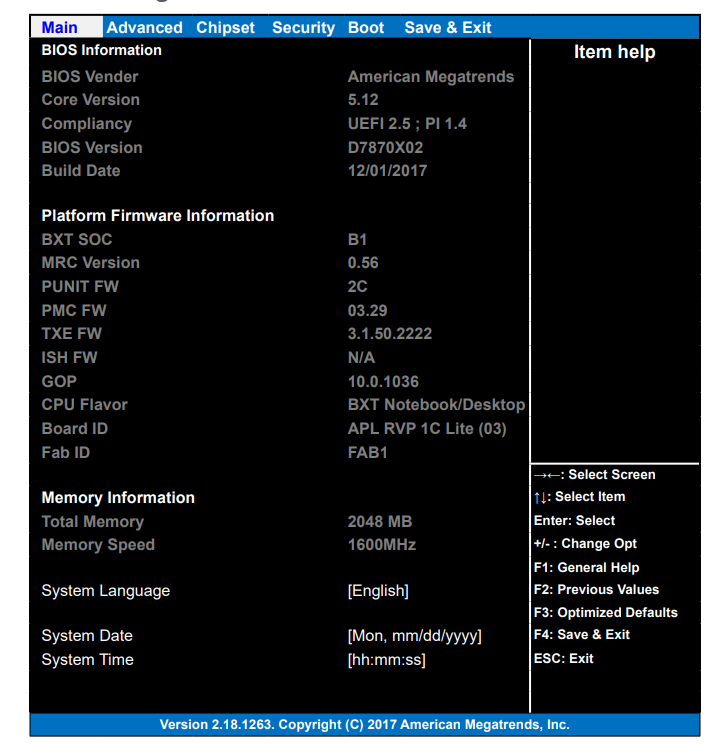
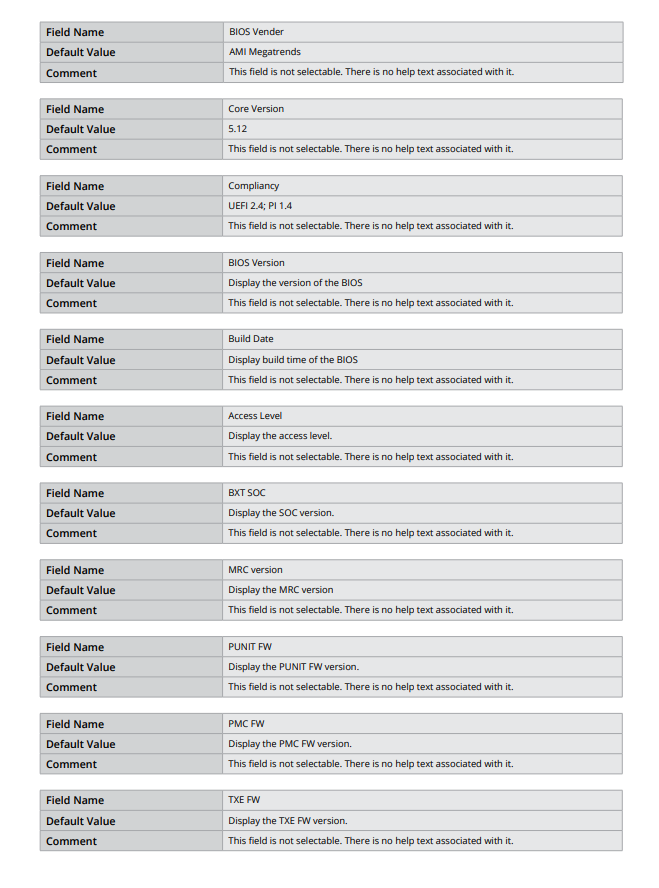
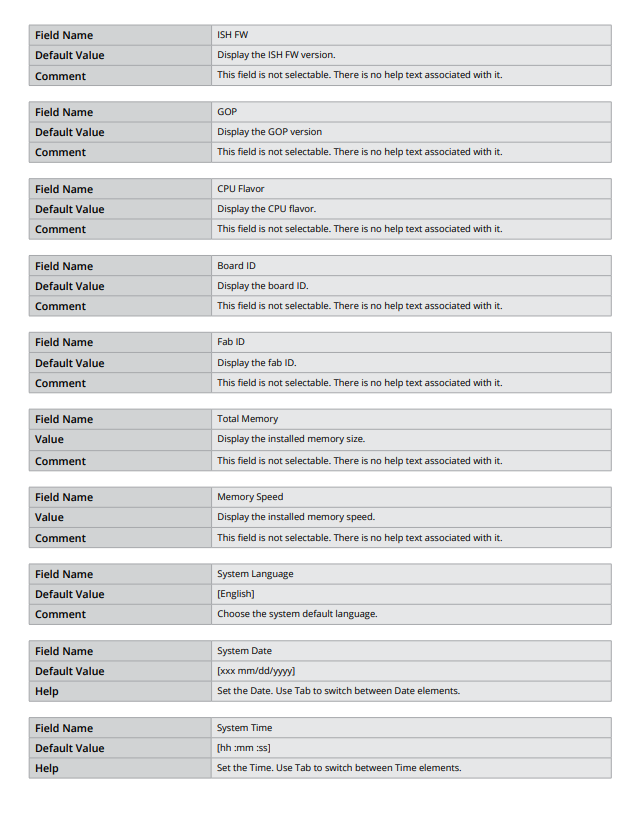
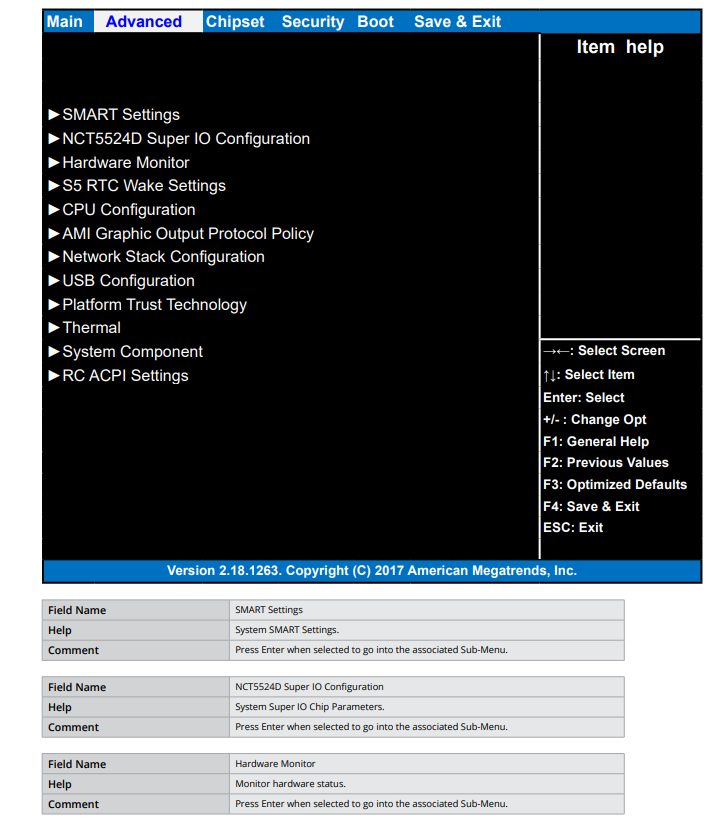
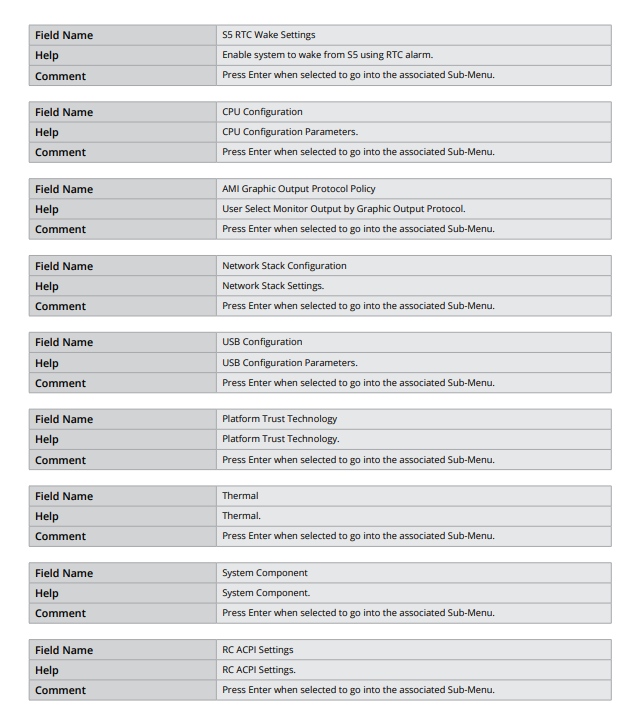
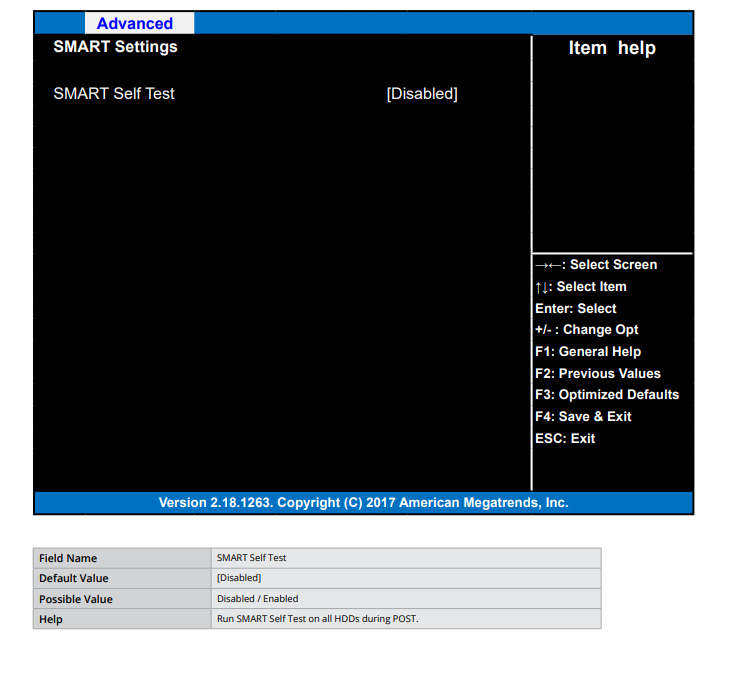
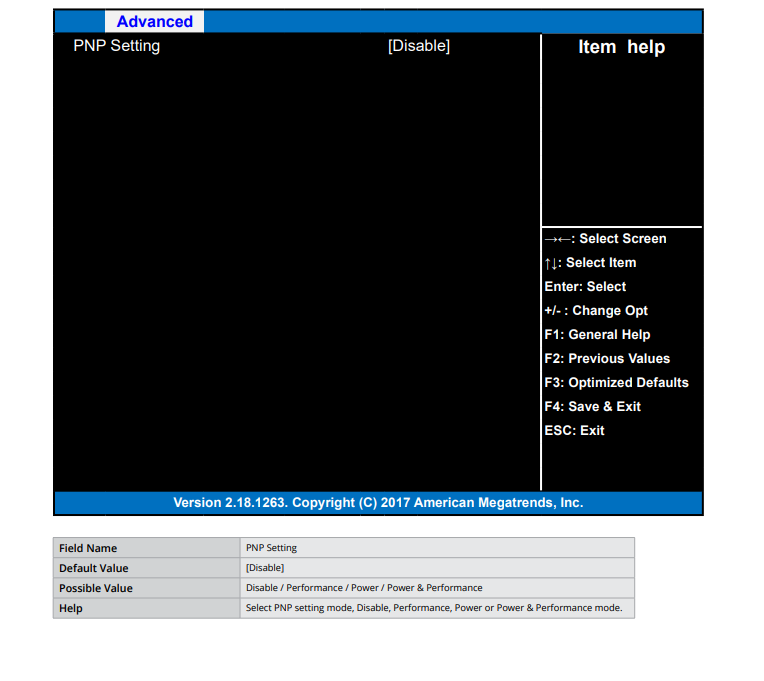
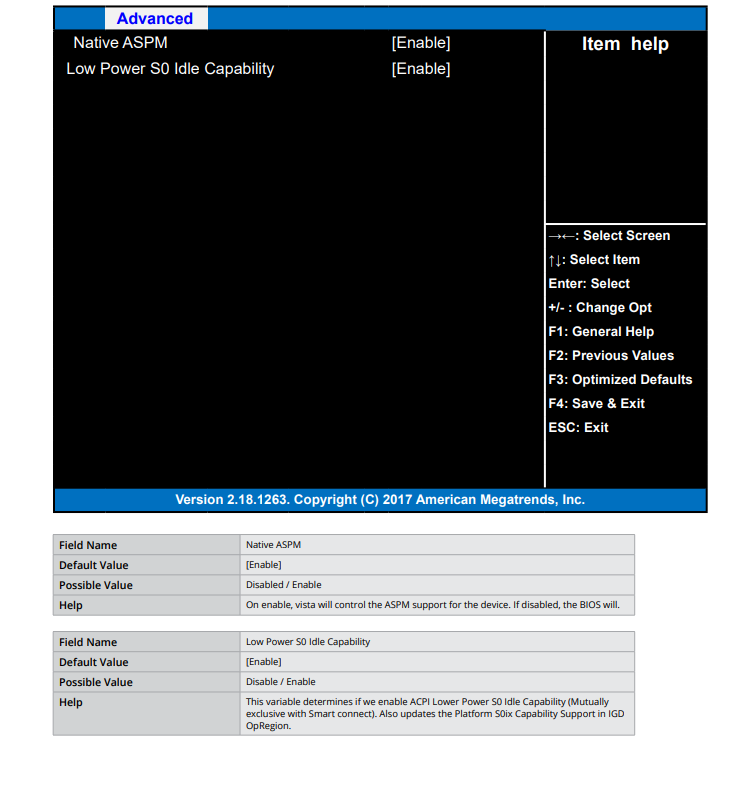
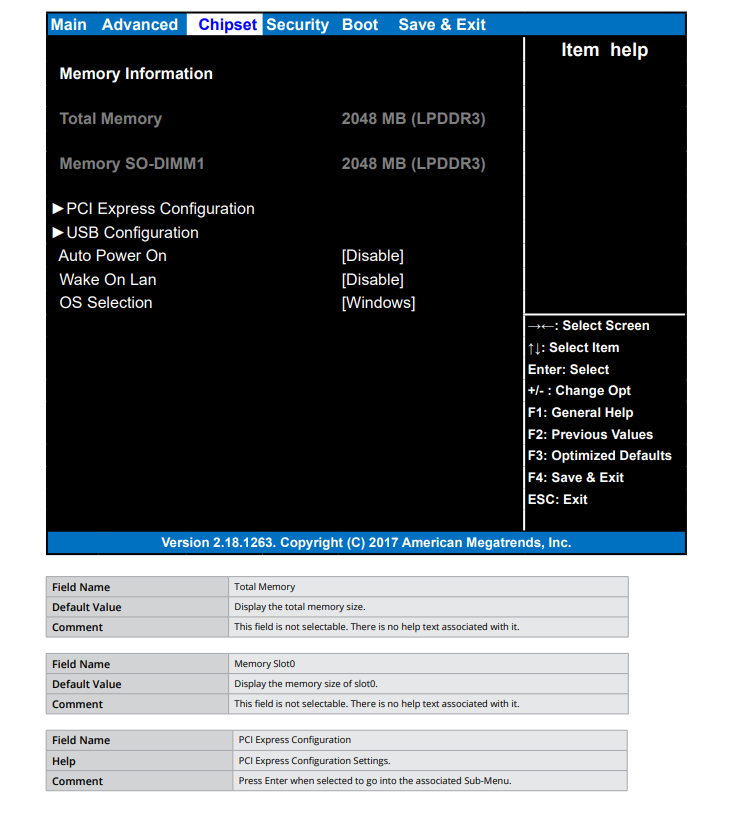
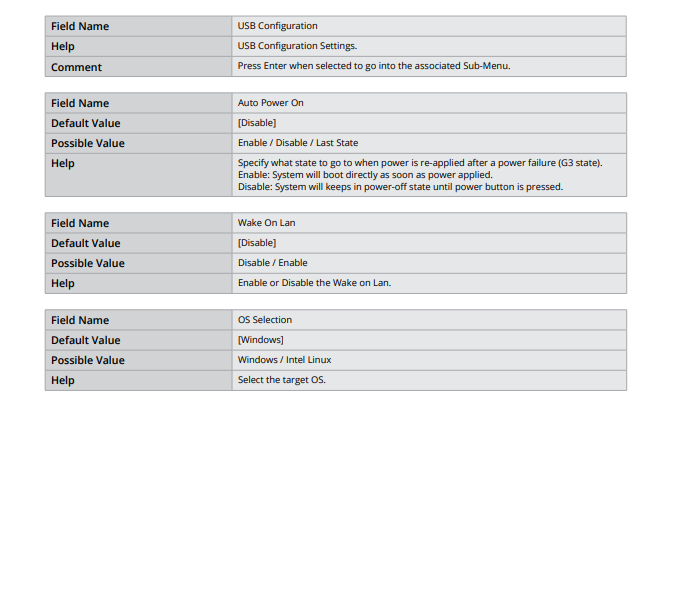
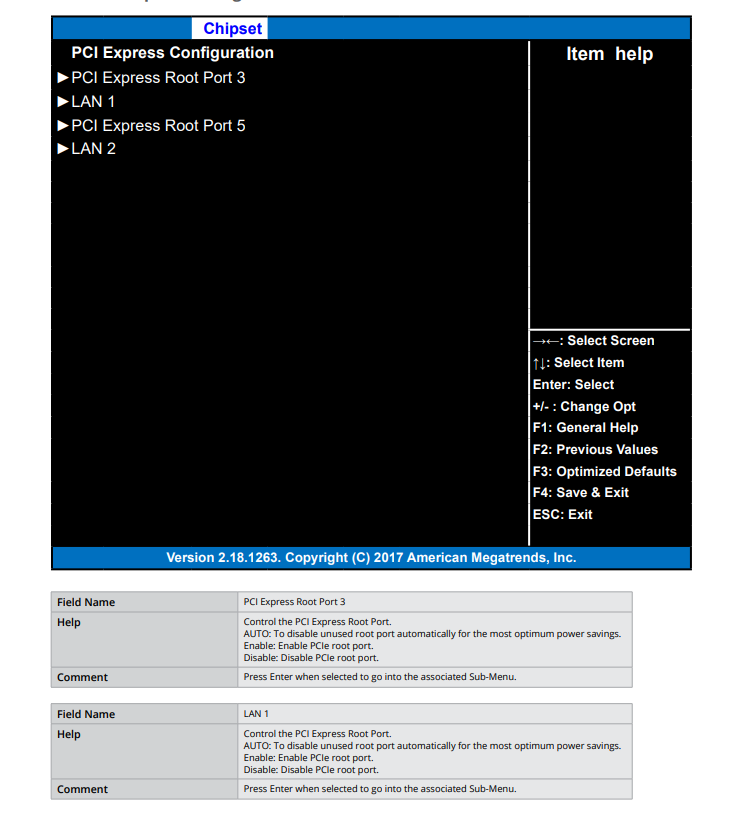
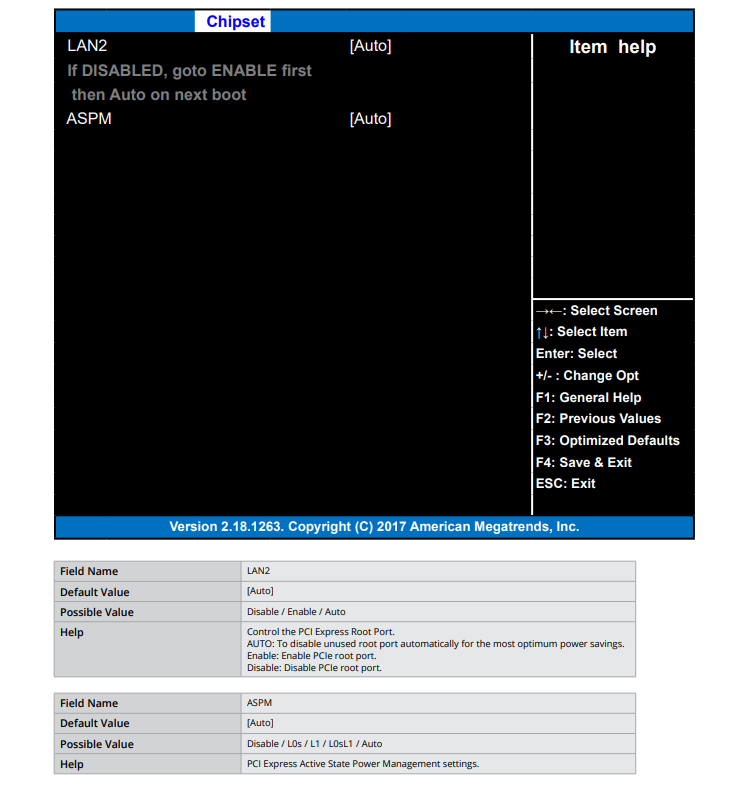
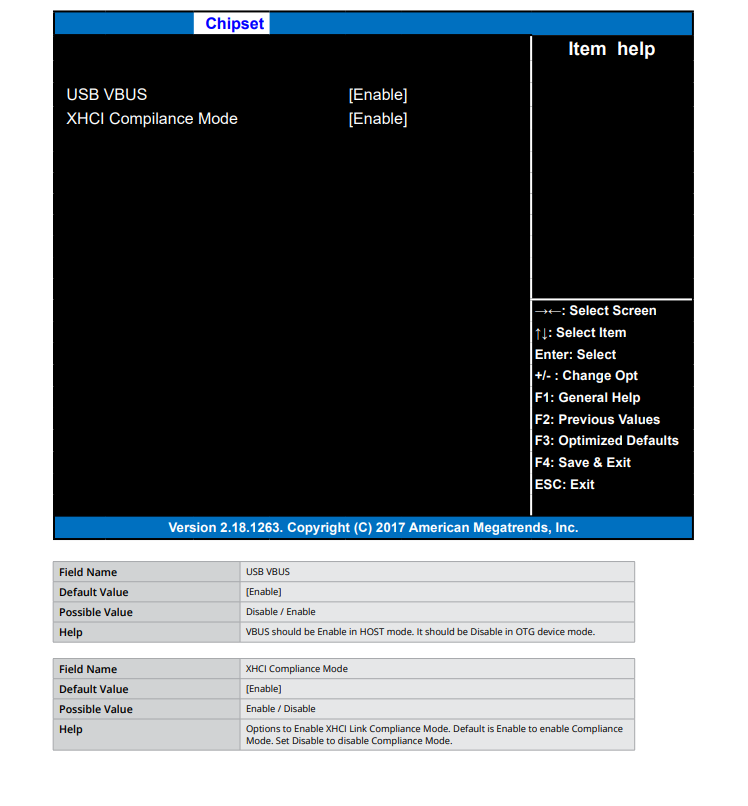
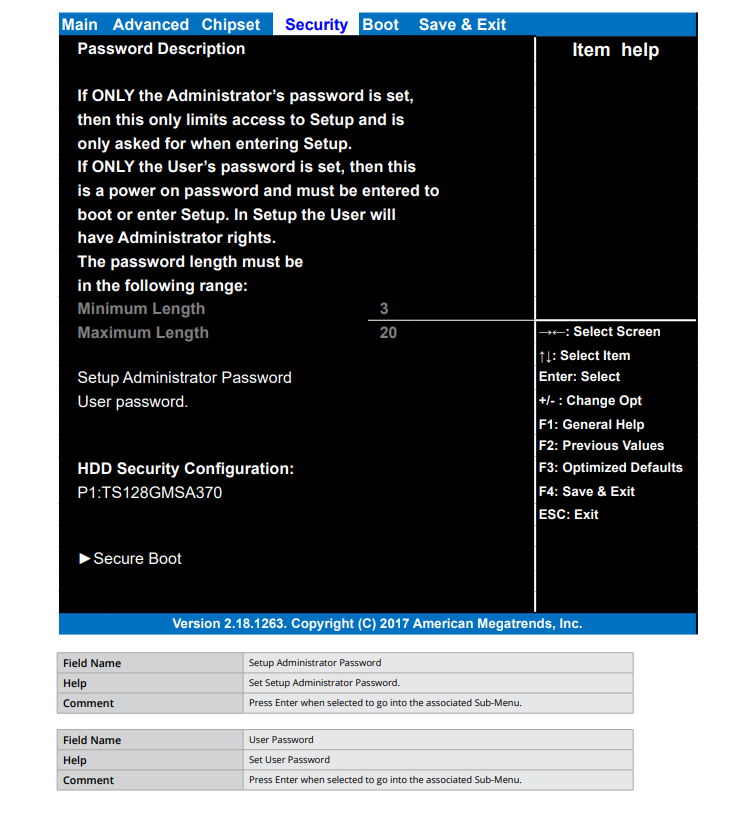
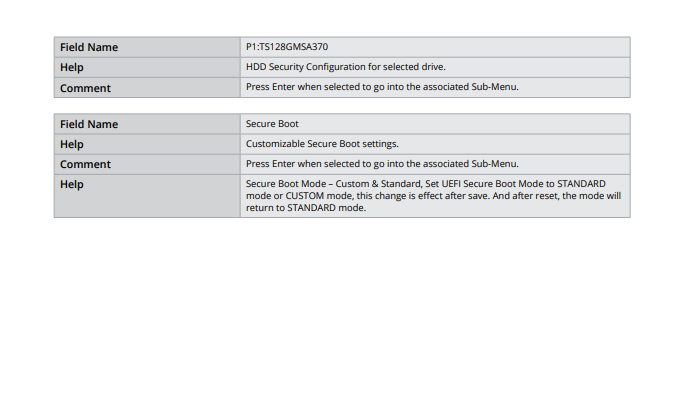
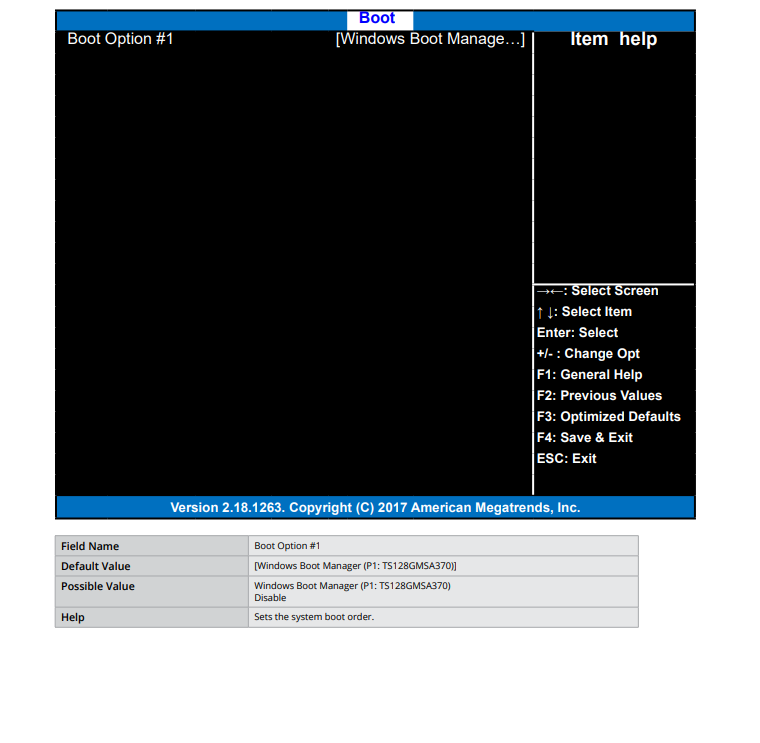
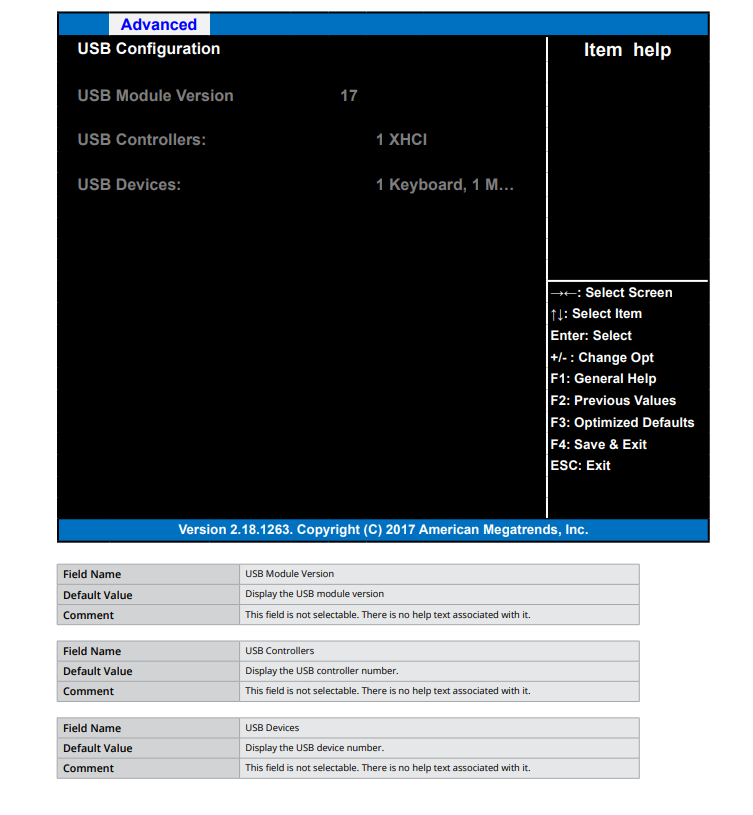
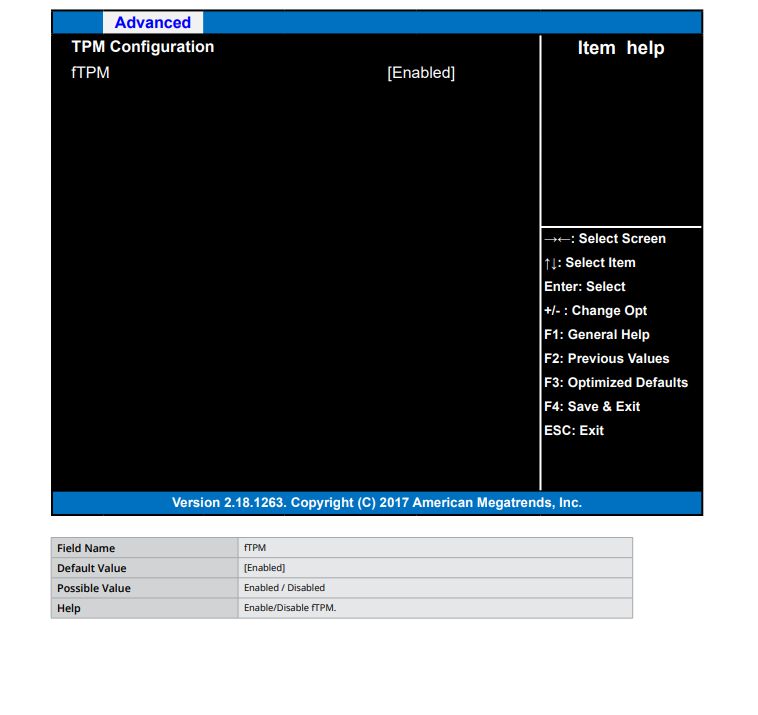
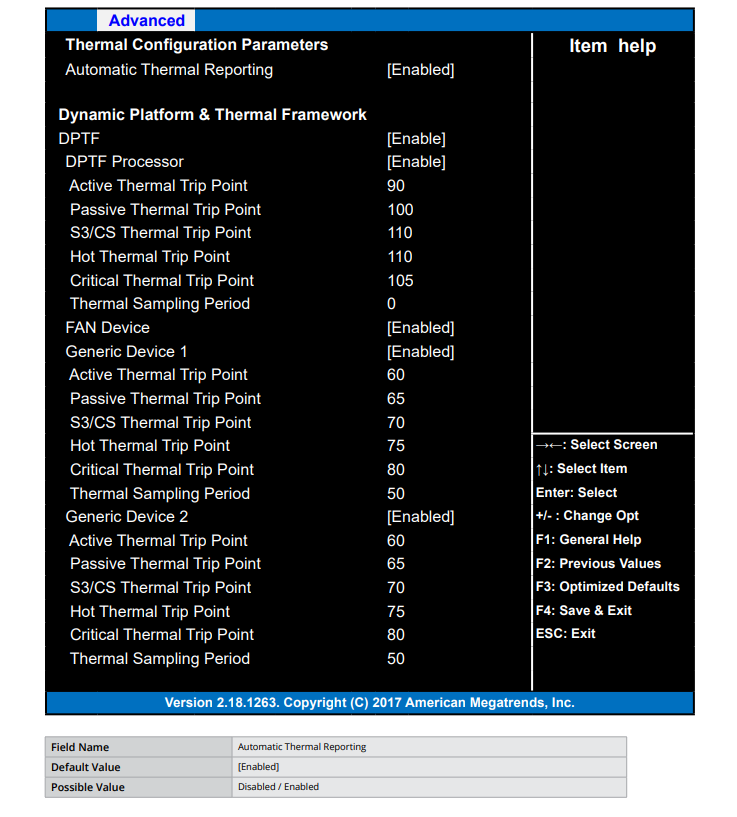
The following section describes the CL200 Series UEFI. It shows each screen menu with a table describing the various fields and values.

#### <mark style="color:blue;">Main Page</mark>

<figure><img src="https://3062424488-files.gitbook.io/~/files/v0/b/gitbook-x-prod.appspot.com/o/spaces%2FlLHqs7kbNoKOFTwGOfH6%2Fuploads%2Fgit-blob-f435260a5368fa7015e25c1b5a28592628f2a69b%2Fe37c1c5d65a7e6f4f8dec1f81aa997ad68395870c4e2d544dc364319a5b6e652.png?alt=media" alt=""><figcaption></figcaption></figure>

<figure><img src="https://3062424488-files.gitbook.io/~/files/v0/b/gitbook-x-prod.appspot.com/o/spaces%2FlLHqs7kbNoKOFTwGOfH6%2Fuploads%2Fgit-blob-104d13227107091f009667116035ca740c416fac%2Fda233a7535436c5a14893cf0d8811334594cd7ead5a031a6da195399d1d6e57a.png?alt=media" alt=""><figcaption></figcaption></figure>

<figure><img src="https://3062424488-files.gitbook.io/~/files/v0/b/gitbook-x-prod.appspot.com/o/spaces%2FlLHqs7kbNoKOFTwGOfH6%2Fuploads%2Fgit-blob-e2c0e4d70e9cef86ed893715a37bbd322b922227%2F9e01a1450eddb3cb1c30e1f1098156e5b66d72ba31476c24f18715af604c5cb5.png?alt=media" alt=""><figcaption></figcaption></figure>

#### <mark style="color:blue;">Advanced Page</mark>

<figure><img src="https://3062424488-files.gitbook.io/~/files/v0/b/gitbook-x-prod.appspot.com/o/spaces%2FlLHqs7kbNoKOFTwGOfH6%2Fuploads%2Fgit-blob-87b9c21715949ad53adc50a031887cf2a7b91408%2F5ee76bc95e95c76cc0e0a1d9d3e8e8dd5644d1e546ce9baf1f949be7b743ecc5.png?alt=media" alt=""><figcaption></figcaption></figure>

<figure><img src="https://3062424488-files.gitbook.io/~/files/v0/b/gitbook-x-prod.appspot.com/o/spaces%2FlLHqs7kbNoKOFTwGOfH6%2Fuploads%2Fgit-blob-99a8c0058eb933a17e978f85b3cf66e146d9f9fc%2F70a768e3854e8e876c8aae450f51d890a0d5a972165b58114d8b4b13dbc50a0e.png?alt=media" alt=""><figcaption></figcaption></figure>

<mark style="color:blue;">**SMART Settings**</mark>

<figure><img src="https://3062424488-files.gitbook.io/~/files/v0/b/gitbook-x-prod.appspot.com/o/spaces%2FlLHqs7kbNoKOFTwGOfH6%2Fuploads%2Fgit-blob-da43bc13b0d3861fa05a055fb9ce9c5ae4e0ac74%2F85f0581bad6ed0182af5a9d0041bc0f7513813546473d534da7089e521c99284.png?alt=media" alt=""><figcaption></figcaption></figure>

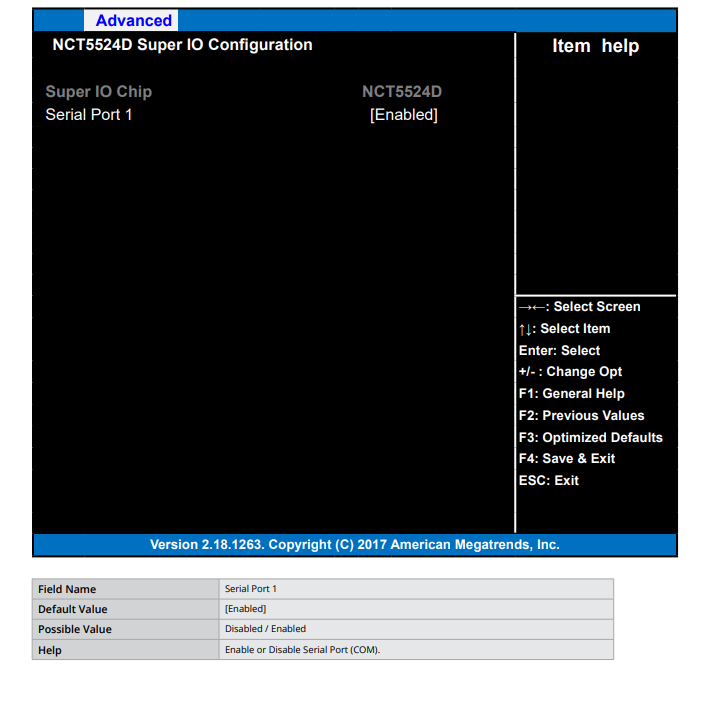
<mark style="color:blue;">**NCT5524D Super IO Configuration**</mark>

<figure><img src="https://3062424488-files.gitbook.io/~/files/v0/b/gitbook-x-prod.appspot.com/o/spaces%2FlLHqs7kbNoKOFTwGOfH6%2Fuploads%2Fgit-blob-1dbfec3a58cd7d0739901290e98e9c553421596d%2F1759c35dd277bcf9d4d18766edd7c9ed2ff14c29d1b2ee5dced2e37258737e05.png?alt=media" alt=""><figcaption></figcaption></figure>

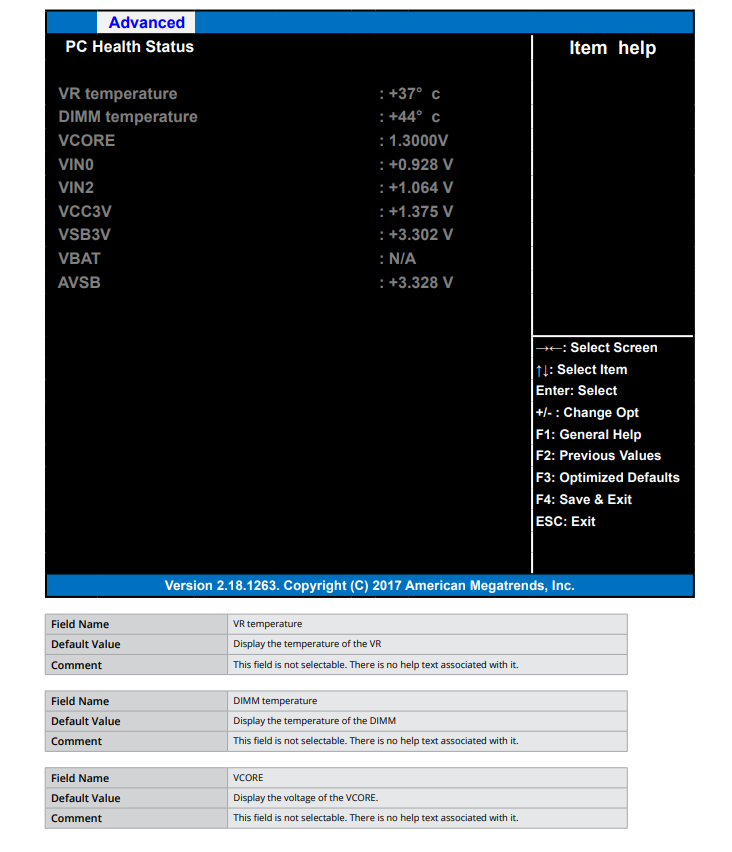
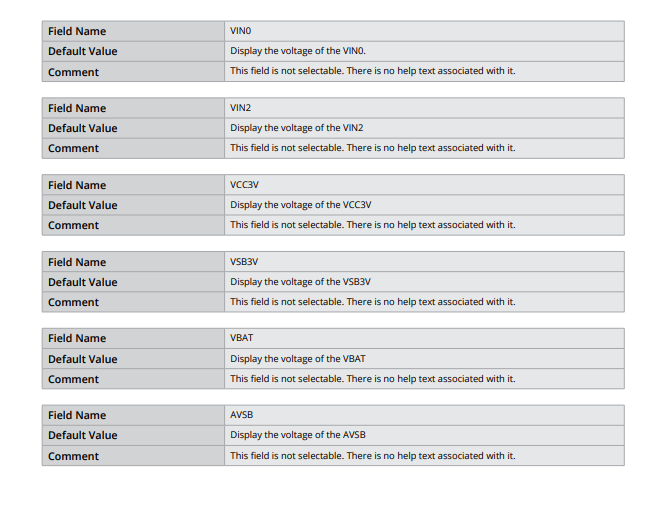
<mark style="color:blue;">**Hardware Monitor**</mark>

<figure><img src="https://3062424488-files.gitbook.io/~/files/v0/b/gitbook-x-prod.appspot.com/o/spaces%2FlLHqs7kbNoKOFTwGOfH6%2Fuploads%2Fgit-blob-e0e30b6175af02da2bad378a627c6068edc13c01%2Fc5779be189d63d6a45cb0651bd2248cf2fb31b53f2ec710f4de13a3ccaee57e2.png?alt=media" alt=""><figcaption></figcaption></figure>

<figure><img src="https://3062424488-files.gitbook.io/~/files/v0/b/gitbook-x-prod.appspot.com/o/spaces%2FlLHqs7kbNoKOFTwGOfH6%2Fuploads%2Fgit-blob-8adeba9a857a58285551deba5d99635c67bed5fc%2F4c51ac2236e70696f03c5aa0739bb0451091a088c8f4398b12a599c079e8f223.png?alt=media" alt=""><figcaption></figcaption></figure>

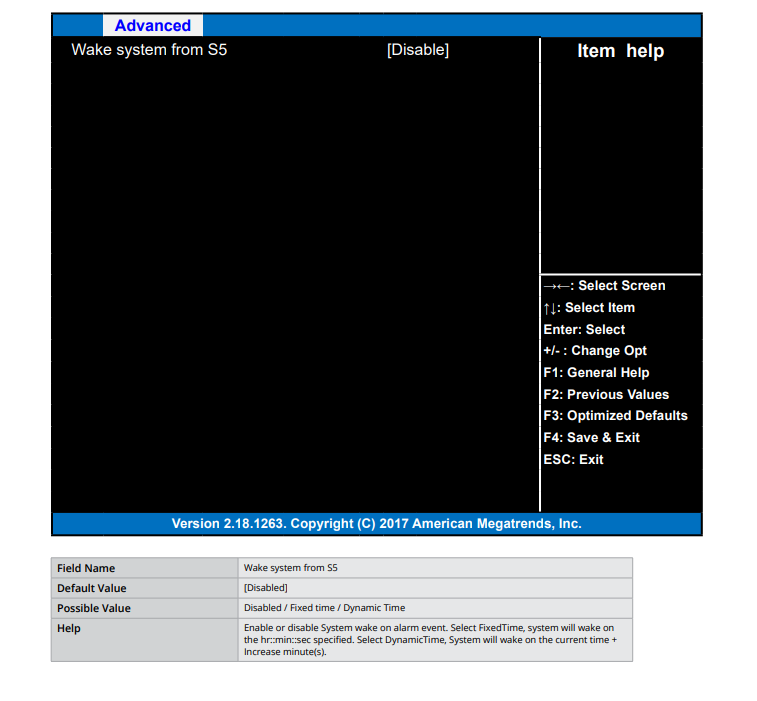
<mark style="color:blue;">**S5 RTC Wake Settings**</mark>

<figure><img src="https://3062424488-files.gitbook.io/~/files/v0/b/gitbook-x-prod.appspot.com/o/spaces%2FlLHqs7kbNoKOFTwGOfH6%2Fuploads%2Fgit-blob-2ea33ded40a7ad64f4ab3bf8984fbcef433eed86%2F916886553db75edf372fadefd27f449a378eb09c53526a4601374f119c9a314d.png?alt=media" alt=""><figcaption></figcaption></figure>

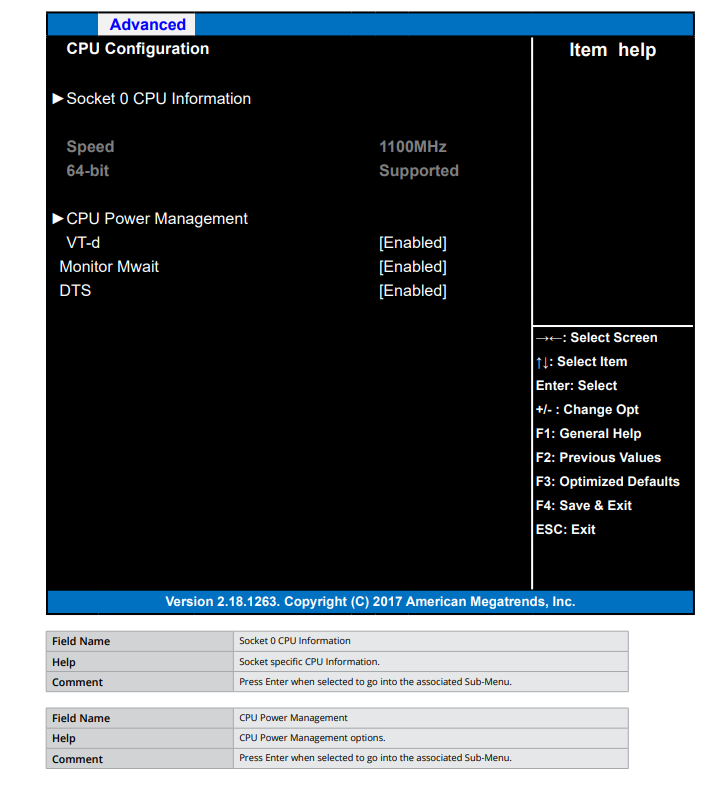
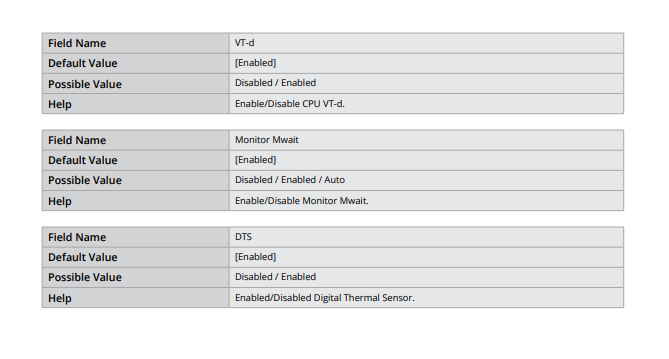
<mark style="color:blue;">**CPU Configuration**</mark>

<figure><img src="https://3062424488-files.gitbook.io/~/files/v0/b/gitbook-x-prod.appspot.com/o/spaces%2FlLHqs7kbNoKOFTwGOfH6%2Fuploads%2Fgit-blob-fe2824c0c5b2bd3acab9fa77bd79417092208dfc%2F4fb402d4f10f78bf85bf04258ca626172b8a933934b7bfc62fffd479fabccec0.png?alt=media" alt=""><figcaption></figcaption></figure>

<figure><img src="https://3062424488-files.gitbook.io/~/files/v0/b/gitbook-x-prod.appspot.com/o/spaces%2FlLHqs7kbNoKOFTwGOfH6%2Fuploads%2Fgit-blob-7222624bb81dfe14b47cdd67f1be4cbbc9bae9a0%2F78f4a73115cda6f303c33ff8f0a92f8e678516c8f152a1acf05a4489a83061da.png?alt=media" alt=""><figcaption></figcaption></figure>

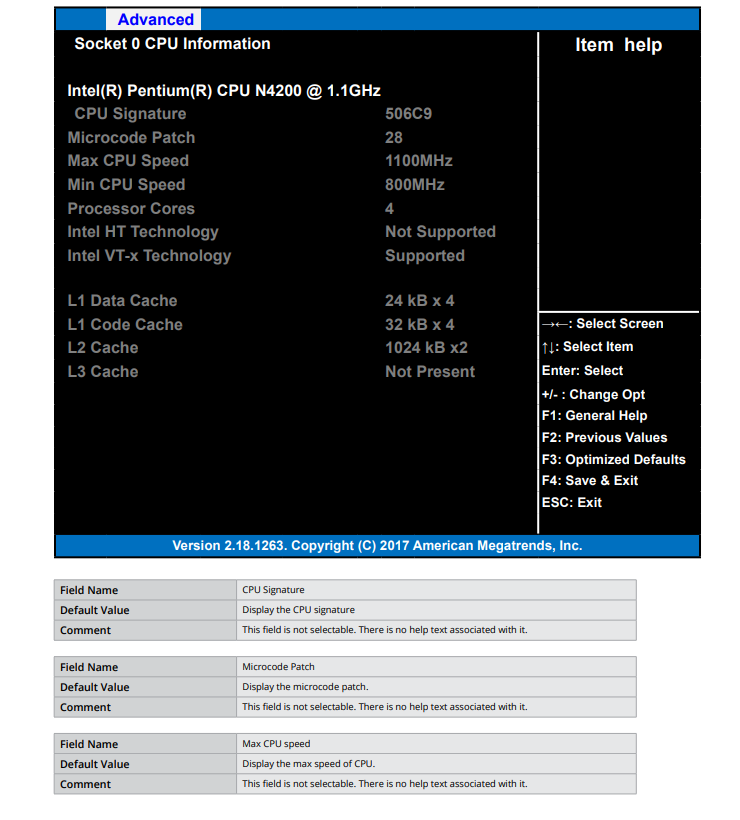
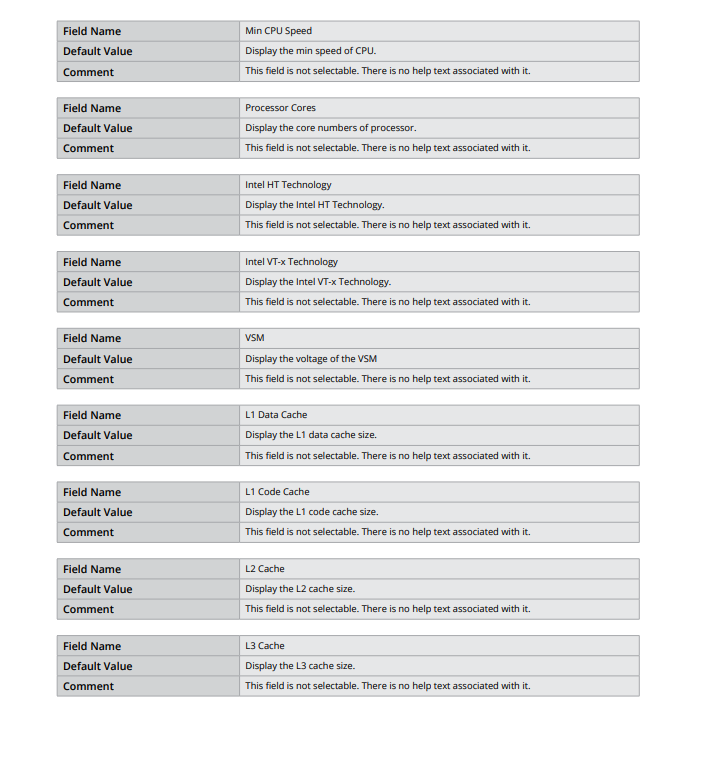
<mark style="color:blue;">**Socket 0 CPU Information**</mark>

<figure><img src="https://3062424488-files.gitbook.io/~/files/v0/b/gitbook-x-prod.appspot.com/o/spaces%2FlLHqs7kbNoKOFTwGOfH6%2Fuploads%2Fgit-blob-5b144a3f4091d59e6571bff3f9ee91a68ca33e43%2F8b0786dfc096f783c760e52461260600c51ce7ec97164f554a85d3748778fa30.png?alt=media" alt=""><figcaption></figcaption></figure>

<figure><img src="https://3062424488-files.gitbook.io/~/files/v0/b/gitbook-x-prod.appspot.com/o/spaces%2FlLHqs7kbNoKOFTwGOfH6%2Fuploads%2Fgit-blob-9c65a7d8d7df642792f9a25bf0a49bcdb925fb3b%2F1f1119f31e0f5b906d6e6e35e627b824c6f52e31097ecd3b3af08a34246e0997.png?alt=media" alt=""><figcaption></figcaption></figure>

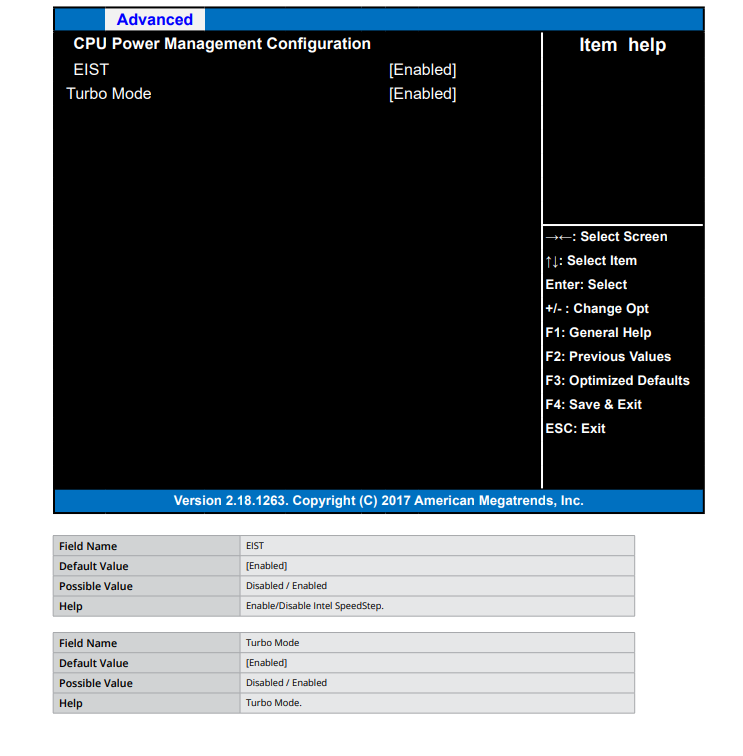
<mark style="color:blue;">**CPU Power Management**</mark>

<figure><img src="https://3062424488-files.gitbook.io/~/files/v0/b/gitbook-x-prod.appspot.com/o/spaces%2FlLHqs7kbNoKOFTwGOfH6%2Fuploads%2Fgit-blob-4cdf860eb3f9d73fa56f6a2e3400144bad9d2083%2F1ec572a99125a015563eebd82aeeb4a33cfb3abb3c52ca67978d217128b475a1.png?alt=media" alt=""><figcaption></figcaption></figure>

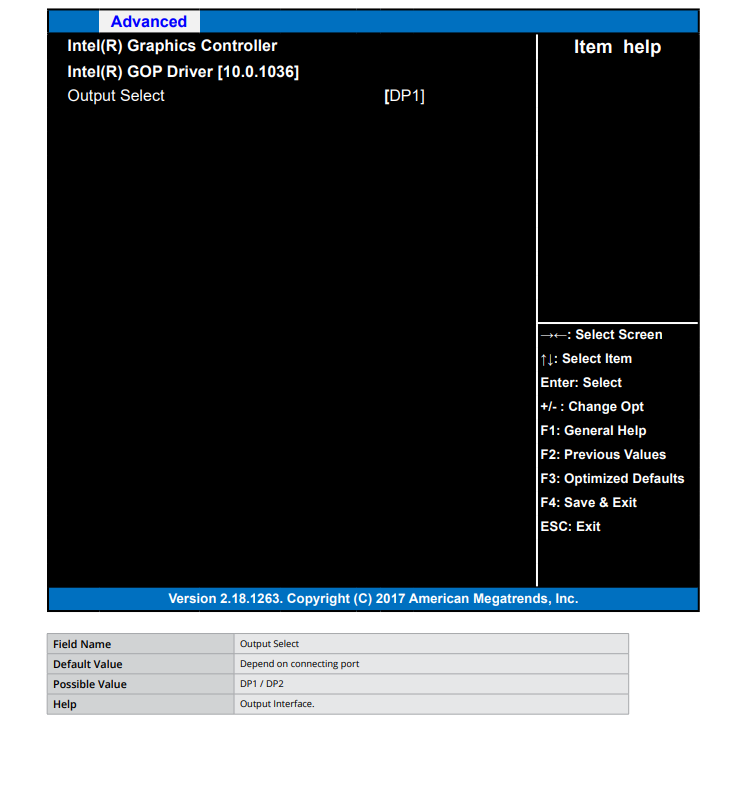
<mark style="color:blue;">**AMI Graphic Output Protocol Policy**</mark>

<figure><img src="https://3062424488-files.gitbook.io/~/files/v0/b/gitbook-x-prod.appspot.com/o/spaces%2FlLHqs7kbNoKOFTwGOfH6%2Fuploads%2Fgit-blob-320f7a022a110dd17e4ad598d7eb19e07912542a%2F2199c5f61dc04b1deabd3e0a3cb84df92b1273ede93bab4bb7601597f2c6ad9f.png?alt=media" alt=""><figcaption></figcaption></figure>

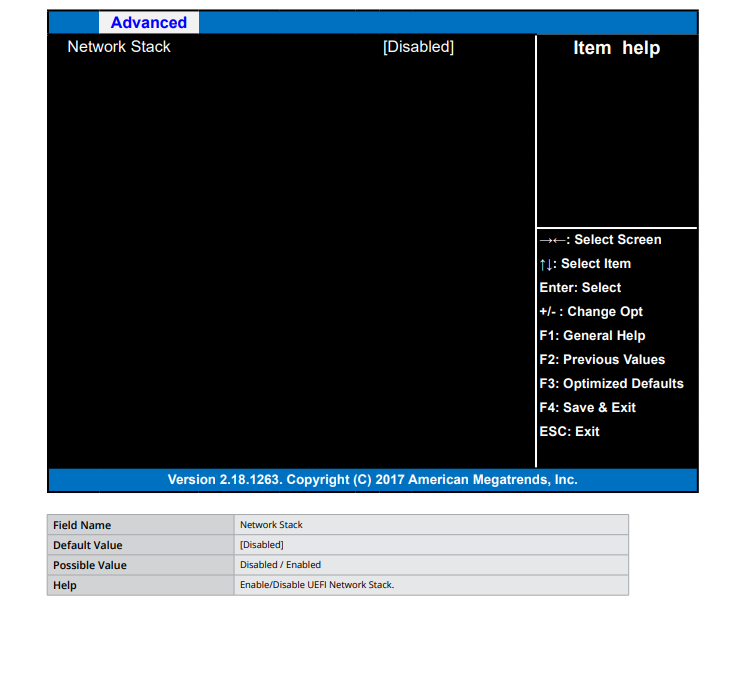
<mark style="color:blue;">**Network Stack Configuration**</mark>

<figure><img src="https://3062424488-files.gitbook.io/~/files/v0/b/gitbook-x-prod.appspot.com/o/spaces%2FlLHqs7kbNoKOFTwGOfH6%2Fuploads%2Fgit-blob-6f1899d567aef5d68e0c95af1f2f681af6dfab37%2Febf06112441023261f6f0c9101d3e11b688b732cae2eef0633f7ae6536326f89.png?alt=media" alt=""><figcaption></figcaption></figure>

<mark style="color:blue;">**USB Configuration**</mark>

<figure><img src="https://3062424488-files.gitbook.io/~/files/v0/b/gitbook-x-prod.appspot.com/o/spaces%2FlLHqs7kbNoKOFTwGOfH6%2Fuploads%2Fgit-blob-bcbd0886505235a341b51f223438e5453413b2dc%2F59c54263750fda32b0a059a6acc07c1ee392ac6c45ebc2de6e6ab6085c7eaa0f.png?alt=media" alt=""><figcaption></figcaption></figure>

<mark style="color:blue;">**Platform Trust Technology**</mark>

<figure><img src="https://3062424488-files.gitbook.io/~/files/v0/b/gitbook-x-prod.appspot.com/o/spaces%2FlLHqs7kbNoKOFTwGOfH6%2Fuploads%2Fgit-blob-bdc517f637f73a1d083ce5e7946d6aff7d74deb8%2F8003a740067c07fa3792b40cb805648c058aa5cab974fa2a916cb1cc7deb13d8.png?alt=media" alt=""><figcaption></figcaption></figure>

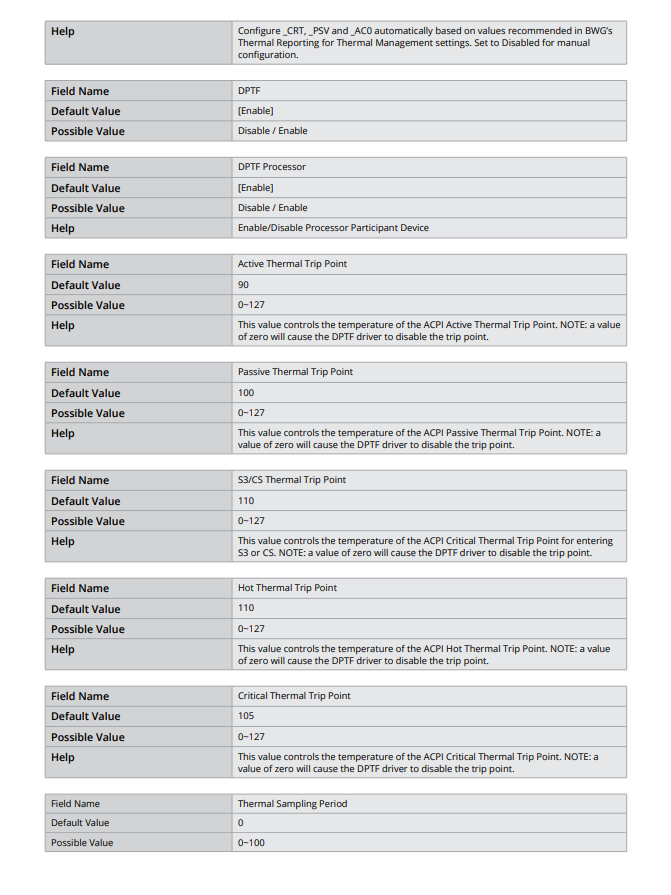
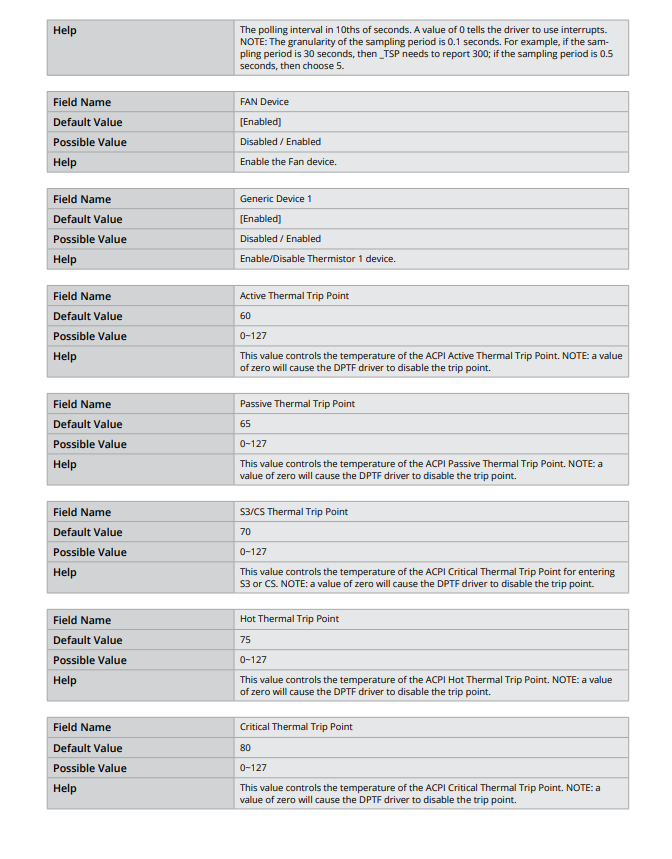
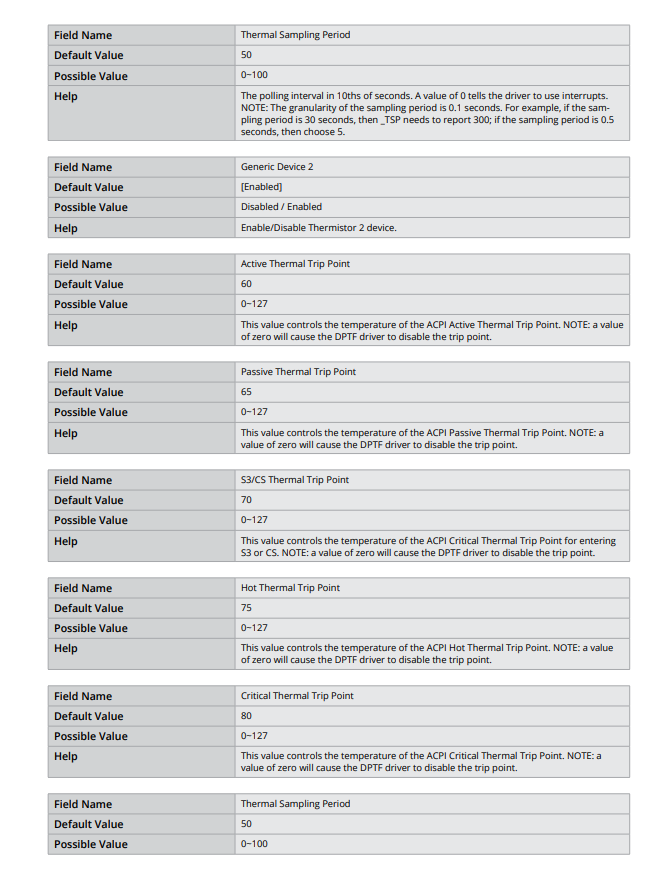
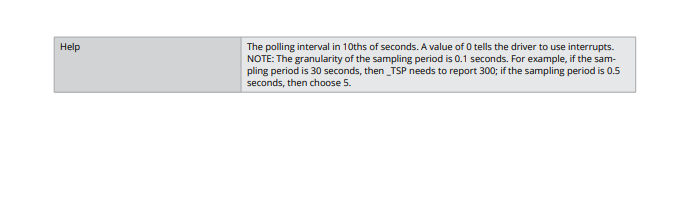
<mark style="color:blue;">**Thermal**</mark>

<figure><img src="https://3062424488-files.gitbook.io/~/files/v0/b/gitbook-x-prod.appspot.com/o/spaces%2FlLHqs7kbNoKOFTwGOfH6%2Fuploads%2Fgit-blob-77462f23ad1d58759dd010287a18fcf6bc3980c9%2F82aec3f784911db3942a078bf7853b61ec2994d6e3295c8468a7846c74309a17.png?alt=media" alt=""><figcaption></figcaption></figure>

<figure><img src="https://3062424488-files.gitbook.io/~/files/v0/b/gitbook-x-prod.appspot.com/o/spaces%2FlLHqs7kbNoKOFTwGOfH6%2Fuploads%2Fgit-blob-6c7bea6e3274ce61bb7aa1c3810fac837176b3de%2F84d11398f9df67846312ebd889e2d87a7ab90254193bae793013c861f54d1a05.png?alt=media" alt=""><figcaption></figcaption></figure>

<figure><img src="https://3062424488-files.gitbook.io/~/files/v0/b/gitbook-x-prod.appspot.com/o/spaces%2FlLHqs7kbNoKOFTwGOfH6%2Fuploads%2Fgit-blob-1ec5ed87b2300599994a314bb3f1fe6c4936cc4c%2Fa9f47151433e73e41b163f7c6cc91388b64b9bceef2f4cb6ff94a08c01ad7002.png?alt=media" alt=""><figcaption></figcaption></figure>

<figure><img src="https://3062424488-files.gitbook.io/~/files/v0/b/gitbook-x-prod.appspot.com/o/spaces%2FlLHqs7kbNoKOFTwGOfH6%2Fuploads%2Fgit-blob-5f342c049cf7c8ecbea18e8d670921357fd67662%2F90daeb63dfeb4209e9547f0779b0bf8aac705190f18b848ac6742fe2bb8769be.png?alt=media" alt=""><figcaption></figcaption></figure>

<figure><img src="https://3062424488-files.gitbook.io/~/files/v0/b/gitbook-x-prod.appspot.com/o/spaces%2FlLHqs7kbNoKOFTwGOfH6%2Fuploads%2Fgit-blob-d1f6f4bbffa97c6f21d1e2ee5bfc75d861ea08f3%2F1d7db86cced45f6c0473454038d5a683a207851ed24b80e2e8237bfd333af903.png?alt=media" alt=""><figcaption></figcaption></figure>

<mark style="color:blue;">**System Component**</mark>

<figure><img src="https://3062424488-files.gitbook.io/~/files/v0/b/gitbook-x-prod.appspot.com/o/spaces%2FlLHqs7kbNoKOFTwGOfH6%2Fuploads%2Fgit-blob-73cc2db0fd7dd3777b55c2d2313c479d4b478d15%2F03b2b713b65ec346eb17fcbdf664197ad7c13a7503379bad2c749f29cff5905b.png?alt=media" alt=""><figcaption></figcaption></figure>

<mark style="color:blue;">**RC ACPI Settings**</mark>

<figure><img src="https://3062424488-files.gitbook.io/~/files/v0/b/gitbook-x-prod.appspot.com/o/spaces%2FlLHqs7kbNoKOFTwGOfH6%2Fuploads%2Fgit-blob-e356bd406978440ff41ceee181516ad3e9e6df45%2F0fd172fe4694157ad8e0e2887401d78ae079e0a7be2ac8c52d8a670d42ff66d7.png?alt=media" alt=""><figcaption></figcaption></figure>

#### <mark style="color:blue;">Chipset</mark>

<figure><img src="https://3062424488-files.gitbook.io/~/files/v0/b/gitbook-x-prod.appspot.com/o/spaces%2FlLHqs7kbNoKOFTwGOfH6%2Fuploads%2Fgit-blob-eef6498bc80523386af6ec5f6562ded4919fb587%2F0a6e219caaeb8faf0e78b0ab145f9004b6974766b1d8d3e6c847c9338bc98b46.png?alt=media" alt=""><figcaption></figcaption></figure>

<figure><img src="https://3062424488-files.gitbook.io/~/files/v0/b/gitbook-x-prod.appspot.com/o/spaces%2FlLHqs7kbNoKOFTwGOfH6%2Fuploads%2Fgit-blob-4f5055223c221d1ccdfb8d5b361465bb3ea874c6%2F5bc01283b29e2e104db9be7a99142607ea91a767dd2f56298ef8eec246ab288a.png?alt=media" alt=""><figcaption></figcaption></figure>

<mark style="color:blue;">**PCI Express Configuration**</mark>

<figure><img src="https://3062424488-files.gitbook.io/~/files/v0/b/gitbook-x-prod.appspot.com/o/spaces%2FlLHqs7kbNoKOFTwGOfH6%2Fuploads%2Fgit-blob-280624b0eaf81ec89223e6eb6e9e732f5cfc9614%2Fcb73634a2f81b3b3dc833f1bf3c3d65347754bd662259d431fe8a7836662b972.png?alt=media" alt=""><figcaption></figcaption></figure>

<figure><img src="https://3062424488-files.gitbook.io/~/files/v0/b/gitbook-x-prod.appspot.com/o/spaces%2FlLHqs7kbNoKOFTwGOfH6%2Fuploads%2Fgit-blob-6ea7b847185f01534b293821a3b6d57af288be90%2Fd59caa90999377958de5787af4c044fe078292867c0978bc4d89f60dc0c52dc7.png?alt=media" alt=""><figcaption></figcaption></figure>

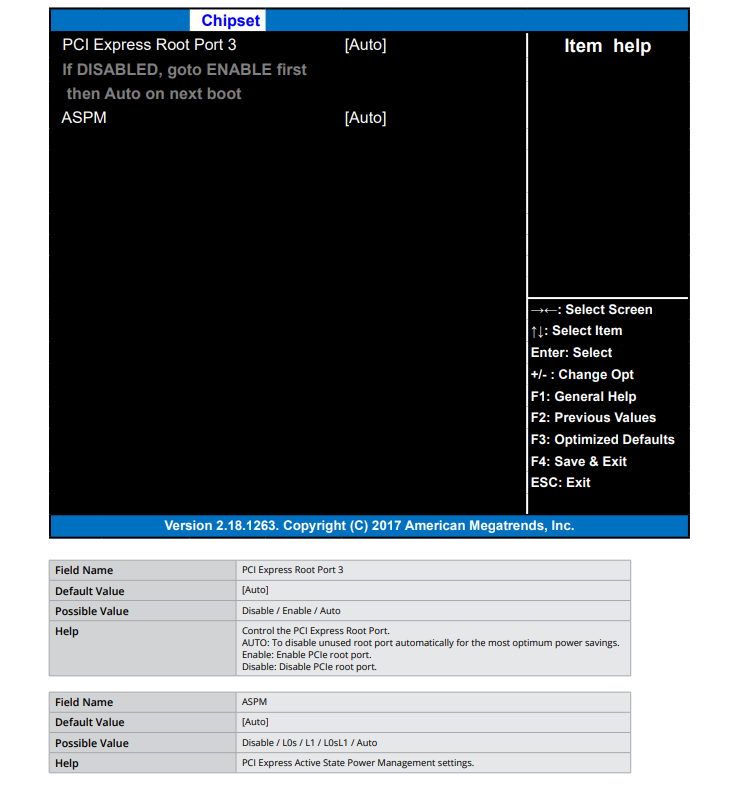
<mark style="color:blue;">**PCI Express Root Port 3**</mark>

<figure><img src="https://3062424488-files.gitbook.io/~/files/v0/b/gitbook-x-prod.appspot.com/o/spaces%2FlLHqs7kbNoKOFTwGOfH6%2Fuploads%2Fgit-blob-2ca1d8d3c746bf6abae6f1fb098c660dbd310f2b%2F0fceac2c947ad832e2a508d43da2d5d5d31df1508228e490ae6b2a6ba1980de9.png?alt=media" alt=""><figcaption></figcaption></figure>

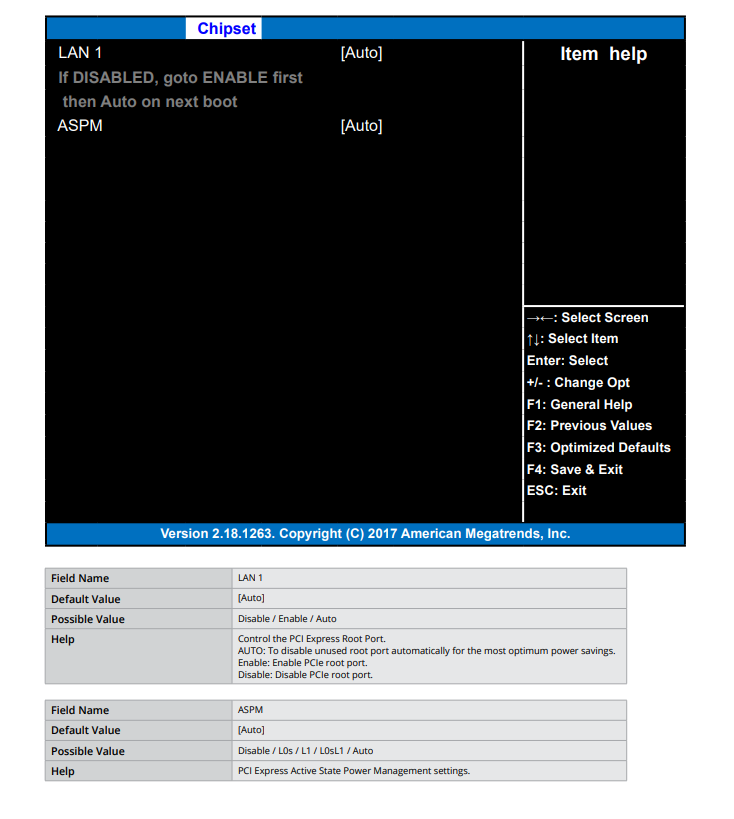
<mark style="color:blue;">**LAN 1**</mark>

<figure><img src="https://3062424488-files.gitbook.io/~/files/v0/b/gitbook-x-prod.appspot.com/o/spaces%2FlLHqs7kbNoKOFTwGOfH6%2Fuploads%2Fgit-blob-d58b9cc00e21a8a27b4114fd73b048a913276cb9%2F2fc3a52950d1951c68a1d0273c00be97e5d715350b7c21a02f3d6cd633858c99.png?alt=media" alt=""><figcaption></figcaption></figure>

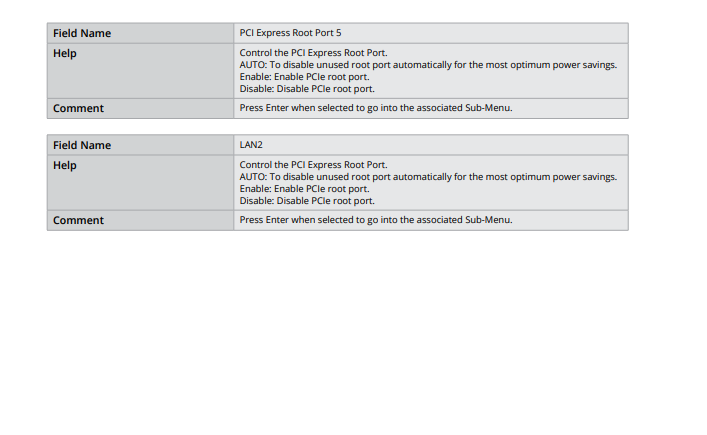
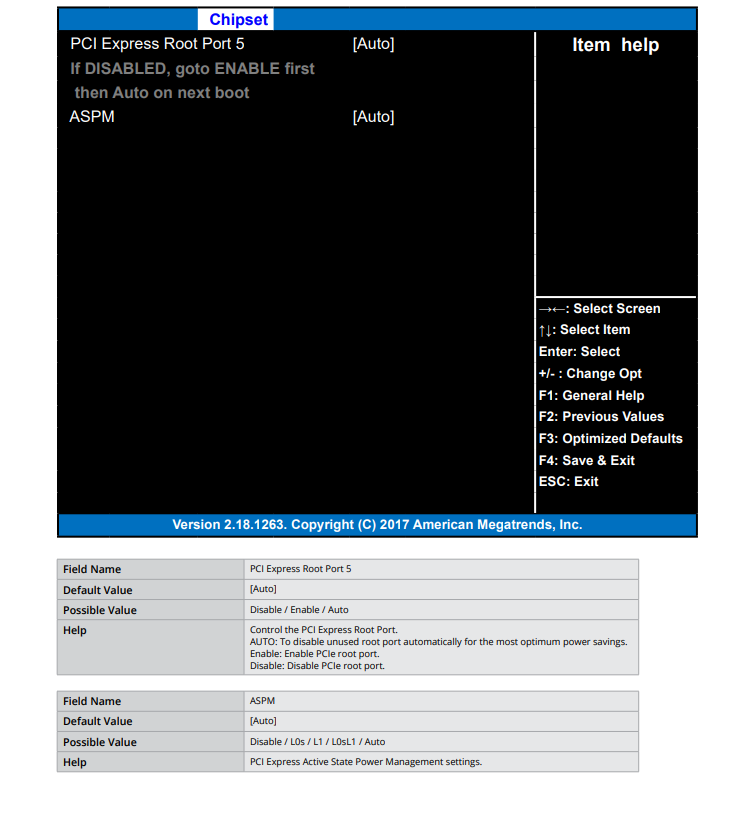
<mark style="color:blue;">**PCI Express Root Port 5**</mark>

<figure><img src="https://3062424488-files.gitbook.io/~/files/v0/b/gitbook-x-prod.appspot.com/o/spaces%2FlLHqs7kbNoKOFTwGOfH6%2Fuploads%2Fgit-blob-3341b2e1d55f624742d2c45edd6eb281daedacaf%2F15b1aa26d1e80c19df088b5a53664c1f3c88b0891608114ff7efa537d5028cd1.png?alt=media" alt=""><figcaption></figcaption></figure>

<mark style="color:blue;">**LAN2**</mark>

<figure><img src="https://3062424488-files.gitbook.io/~/files/v0/b/gitbook-x-prod.appspot.com/o/spaces%2FlLHqs7kbNoKOFTwGOfH6%2Fuploads%2Fgit-blob-2799663a6eec98b28febdb54ae3c41019b970a1d%2F0d08ecf3bac747676ffa73fe09c9c6062f91c1a59d2a52d84484705e88a391b3.png?alt=media" alt=""><figcaption></figcaption></figure>

<mark style="color:blue;">**USB Configuration**</mark>

<figure><img src="https://3062424488-files.gitbook.io/~/files/v0/b/gitbook-x-prod.appspot.com/o/spaces%2FlLHqs7kbNoKOFTwGOfH6%2Fuploads%2Fgit-blob-3cd2068fd65d01a2ec595d44186db364940f901d%2F896b0712e2619c74e5a1c7a42e1c037eecfa4aaabe9b390a61fffebd46e4557d.png?alt=media" alt=""><figcaption></figcaption></figure>

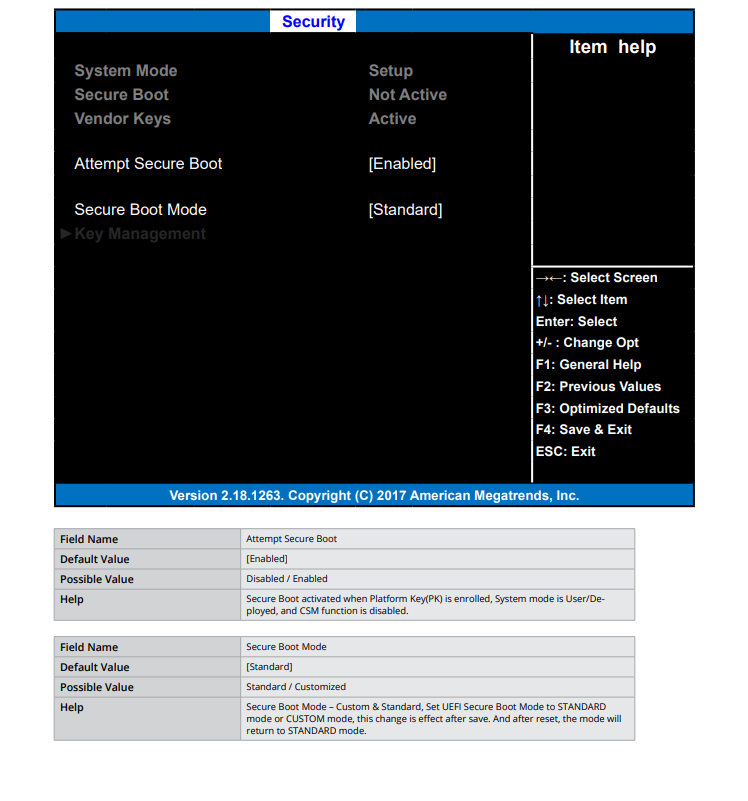
#### <mark style="color:blue;">Security</mark>

<figure><img src="https://3062424488-files.gitbook.io/~/files/v0/b/gitbook-x-prod.appspot.com/o/spaces%2FlLHqs7kbNoKOFTwGOfH6%2Fuploads%2Fgit-blob-8b5cac2412e64d2cb49abe66026289678f2b75ae%2F342c0397b098d0eb0b12c0d0b7e88f6899bc6ad0a3e01622dc438a8522c4f72a.png?alt=media" alt=""><figcaption></figcaption></figure>

<figure><img src="https://3062424488-files.gitbook.io/~/files/v0/b/gitbook-x-prod.appspot.com/o/spaces%2FlLHqs7kbNoKOFTwGOfH6%2Fuploads%2Fgit-blob-3df0a4a9186d3942e62990147f65a9ad5d39e4f1%2Fe1bf96906a3884bde837a4c89d21e0bdae199b123a07f89ac73076cf86d4a771.png?alt=media" alt=""><figcaption></figcaption></figure>

<mark style="color:blue;">**Secure Boot**</mark>

<figure><img src="https://3062424488-files.gitbook.io/~/files/v0/b/gitbook-x-prod.appspot.com/o/spaces%2FlLHqs7kbNoKOFTwGOfH6%2Fuploads%2Fgit-blob-64fef68f1e9e28dba27d2ce0219bb50f4c19382a%2F77850fc6822c567fdad6983a6278a7ea2ed8e80db3a2271baf25db08488e419d.png?alt=media" alt=""><figcaption></figcaption></figure>

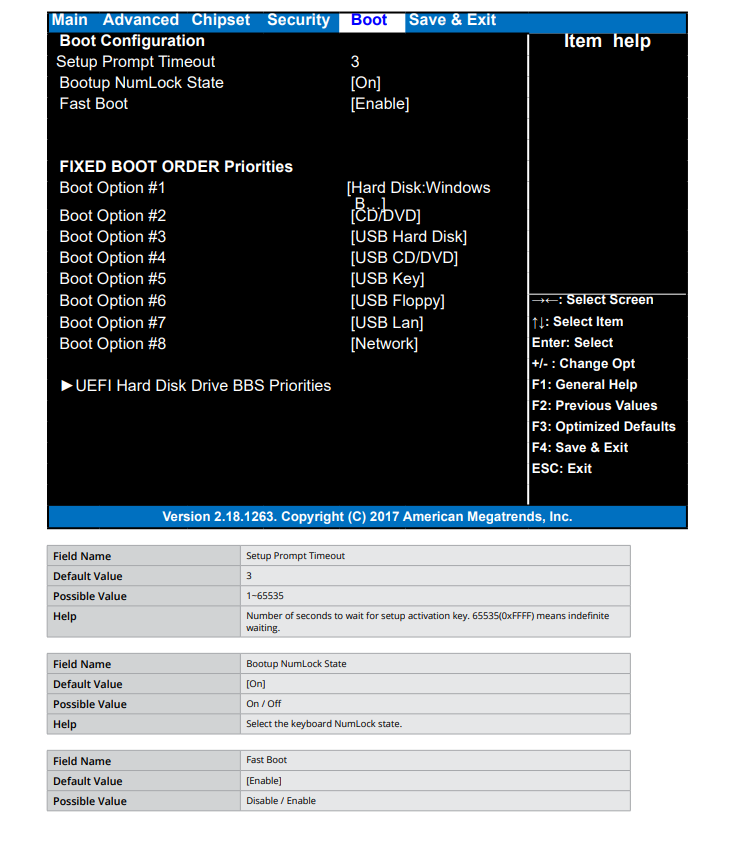
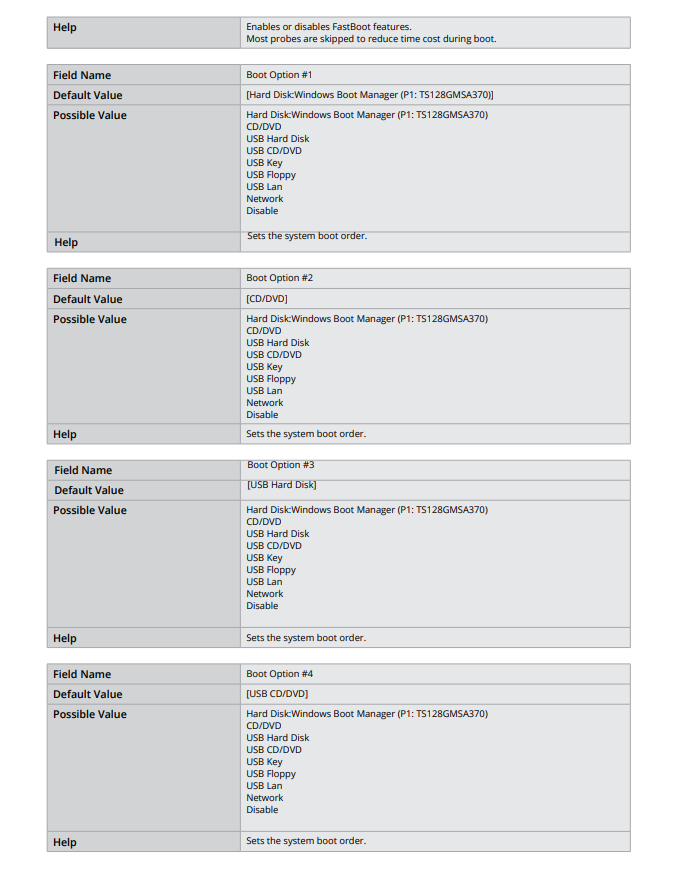
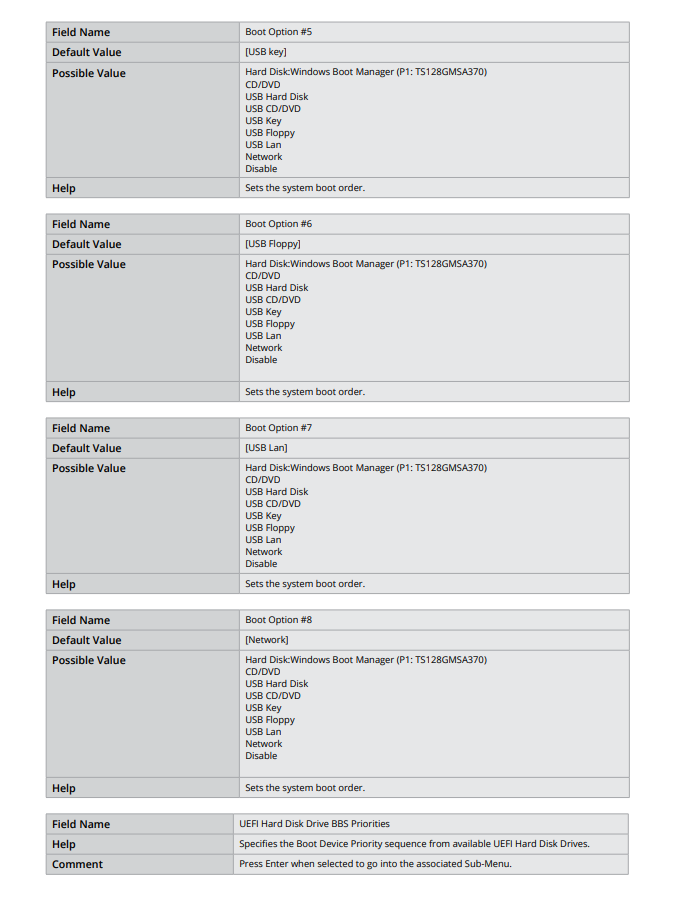
#### <mark style="color:blue;">Boot</mark>

<figure><img src="https://3062424488-files.gitbook.io/~/files/v0/b/gitbook-x-prod.appspot.com/o/spaces%2FlLHqs7kbNoKOFTwGOfH6%2Fuploads%2Fgit-blob-b6d19686a854d974889c49f30043a622d31556b0%2F6731ed3978b7c097fc5411f45f5d83f31f77698dbe93f289a06befa7a32db5eb.png?alt=media" alt=""><figcaption></figcaption></figure>

<figure><img src="https://3062424488-files.gitbook.io/~/files/v0/b/gitbook-x-prod.appspot.com/o/spaces%2FlLHqs7kbNoKOFTwGOfH6%2Fuploads%2Fgit-blob-c864f8422ab1be078aa44825ad60c02325e41b01%2F61e33c218af6cd3be97198ce993acef57f998ea4d086e30b9fc6df7f04135904.png?alt=media" alt=""><figcaption></figcaption></figure>

<figure><img src="https://3062424488-files.gitbook.io/~/files/v0/b/gitbook-x-prod.appspot.com/o/spaces%2FlLHqs7kbNoKOFTwGOfH6%2Fuploads%2Fgit-blob-6d9109667e97955a9ab84bc8c5479ff1942434e4%2Fcd6e764822ccf79c7f4b1f46e29d2d5497807901d2c2e4c405ecb5292718d713.png?alt=media" alt=""><figcaption></figcaption></figure>

<mark style="color:blue;">**UEFI Hard Disk Drive BBS Priorities**</mark>

<figure><img src="https://3062424488-files.gitbook.io/~/files/v0/b/gitbook-x-prod.appspot.com/o/spaces%2FlLHqs7kbNoKOFTwGOfH6%2Fuploads%2Fgit-blob-692aeab99c17c5e3e4201aa1242a6882b0a87239%2Ff4363360adc3fbca7dd08ebfa5d1090622077818618e9b6a9682e26fd432cdf0.png?alt=media" alt=""><figcaption></figcaption></figure>

#### <mark style="color:blue;">Save & Exit</mark>

<figure><img src="https://3062424488-files.gitbook.io/~/files/v0/b/gitbook-x-prod.appspot.com/o/spaces%2FlLHqs7kbNoKOFTwGOfH6%2Fuploads%2FjcRBl1hRXIs2Sm2OWOF9%2Fimage.png?alt=media&#x26;token=6e0f038d-ef56-4863-9b72-5747d3d67d2c" alt=""><figcaption></figcaption></figure>

<figure><img src="https://3062424488-files.gitbook.io/~/files/v0/b/gitbook-x-prod.appspot.com/o/spaces%2FlLHqs7kbNoKOFTwGOfH6%2Fuploads%2FmDAhzeuskb3oOT2jTbZr%2Fimage.png?alt=media&#x26;token=791a6461-39c9-422e-8ee6-bd150026e971" alt=""><figcaption></figcaption></figure>

### <mark style="color:blue;">4.2- Drivers & Downloads</mark>

#### Windows Drivers <a href="#windows-10-drivers" id="windows-10-drivers"></a>

[**Windows 10 Drivers**](https://static.onlogic.com/resources/drivers/CL200_Series/CL200_Win10x64_r2.zip)

#### <mark style="color:blue;">BIOS Updates</mark> <a href="#bios-updates" id="bios-updates"></a>

| Version  | Link                                                                                               |
| -------- | -------------------------------------------------------------------------------------------------- |
| D7870A17 | [Download](https://storage.googleapis.com/ls-public-web-content/resources/bios/CL200/D7870A17.zip) |

*Update the BIOS with the file(s) above. you can follow this* [*How-To guide*](https://support.onlogic.com/support-articles/how-tos/firmware-bios-drivers/update-efi-bios) *for installation instructions.*

### <mark style="color:blue;">4.3- Driver Installation</mark> <a href="#driver-installation" id="driver-installation"></a>

<mark style="color:blue;">**Windows 10**</mark>

Download [the driver archive](https://drive.google.com/file/d/13H6lH0QqLkmCdJNfhSAl6AUWRKEGf4_h/view?usp=sharing) and extract it.\
In the Windows 10 folder, there are two applications required for full functionality, the kernel driver that allows communication with the CEC module, and the user driver that keeps the module up-to-date with the system’s HDMI port addresses.\
To install the kernel driver, right-click on ADP107.inf and select install. Accept any prompts that follow, then restart the system.

<mark style="color:blue;">**Linux**</mark>

Download [the driver archive](https://drive.google.com/file/d/13H6lH0QqLkmCdJNfhSAl6AUWRKEGf4_h/view?usp=sharing) and extract it.\
Install the necessary prerequisites using:\\

```
sudo apt-get install build-essential linux-headers-uname -r make i2c-tools
```

In the Linux folder, you will find a kernel module that can be compiled from the command line.\
From the driver package’s Linux folder, run the following commands:\\

```
make
sudo make install
```

Finally, restart the system. Upon reboot, you should find that a character device is loaded at /dev/adp107 that can be used to communicate with the device using the application codes included in the next section.

#### <mark style="color:blue;">Example Code: Python</mark> <a href="#example-code-python" id="example-code-python"></a>

Ubuntu – Scan for HDMI addresses and power up displays\
Prerequisites: python-smbus

```
import smbus
smbusNumber = 5
adp107Address = 0x20
physAddrOffset = 0x43
powerOnOffset = 0x4f
powerOffOffset = 0x50
ddcNumbers = [0,1]

def apd107ReadHdmiDdc(ddcNumber):
	bus = smbus.SMBus(ddcNumber)
	rawEdid = []
	hdmiAddress = [ddcNumber]
	for i in range(0, 256, 32):
    	try:
        	rawEdid += bus.read_i2c_block_data(0x50, i, 32)
    	except:
        	print "Failed to read DDC-%" % ddcNumber
        	return None
	if rawEdid[126] == 0: #no extensions after main EDID block
    	return None
	if rawEdid[130] == 4: #no data blocks present in extended EDID
    	return None

	edidIndex = 132
	blockType = 0
	blockLen = 0

	while edidIndex < (rawEdid[130] + 128):
    	blockType = rawEdid[edidIndex] >> 5
    	blockLen = rawEdid[edidIndex] & 0x1f
    	if (blockType == 3): #vendor block containing HDMI physical address
        	hdmiAddress.append(rawEdid[edidIndex+4])
        	hdmiAddress.append(rawEdid[edidIndex+5])
        	return hdmiAddress
    	edidIndex = edidIndex + blockLen + 1
    

def adp107ScanSetHdmiAddresses(bus):
	for ddc in ddcNumbers:
    	hdmiAddress = adp107ReadHdmiDdc(ddc)
    	if hdmiAddress is not None:
        	bus.write_i2c_block_data(adp107Address, physAddrOffset, hdmiAddress)

def adp107PowerOnDisplay(bus, displayNum):
	bus.write_i2c_block_data(adp107Address, powerOnOffset, [displayNum])

def adp107PowerOffDisplay(bus, displayNum):
	bus.write_i2c_block_data(adp107Address, powerOffOffset, [displayNum])

adp107Bus = smbus.SMBus(smbusNumber)
adp107ScanSetHdmiAddresses(adp107Bus)
#commands are ignored if ScanSetHdmiAddresses didn't find an HDMI address
adp107PowerOnDisplay(bus, 0)
adp107PowerOnDisplay(bus, 1)
```

## <mark style="color:blue;">5- Troubleshooting & FAQ</mark>

#### <mark style="color:blue;">Auto power on</mark> <a href="#how-to-enable-auto-power-on" id="how-to-enable-auto-power-on"></a>

* Power on the CL200 and press the Esc key a few times to access the BIOS
* Navigate to the Chipset tab
* Change auto power on to \[enable]
* Save & Exit
* The CL200 will now automatically turn on when power is connected

#### <mark style="color:blue;">How to enable Watchdog in Ubuntu (20.04/22.04)</mark> <a href="#how-to-enable-watchdog-in-ubuntu-20-04-22-04" id="how-to-enable-watchdog-in-ubuntu-20-04-22-04"></a>

* Enter the BIOS and ensure that the watchdog timer is enabled. The option is at the top of the Advanced settings page.
* Install the watchdog package using \`*sudo apt-get install watchdog*\`.
* In the terminal, run \`*lsmod | grep wdat\_wdt*\` to see if the watchdog module is loaded. If the command returns nothing, the module is not loaded.
* If the watchdog module is not loaded, it is likely blacklisted by default. Open \`*/usr/lib/modprobe.d/blacklist\_linux-hwe-5.19\_5.12.0-43-generic.conf*\` with a text editor and remove or comment out \`*blacklist wdat\_wdt*\`. If there are other \`*blacklist\_linux…*\` files here, ensure that the blacklist is removed from them as well.
* Open \`*/etc/default/watchdog*\` with a text editor and add or modify the watchdog module line to be as follows: \`*watchdog\_module=”wdat\_wdt”*\`. Other watchdog module settings can be adjusted here as well.
* Open \`*/etc/watchdog.conf*\` and add or modify the watchdog device line to be as follows: \`*watchdog-device = /dev/watchdog* \`(it may also be \`*watchdog0*\`) . There are additional settings here that can be changed as needed, such as the watchdog timeout which controls how long it takes to trigger a system reboot after an event. The timeout defaults to 60s but can be adjusted by adding the line \`*watchdog-timeout = #*\` where \`*#*\` is the desired time in seconds.
* Reboot the system.
* The following commands should be run as the root user. To confirm the watchdog timer is working correctly, you can kill the watchdog process, stopping the watchdog pulse and causing the system to reboot using the following command: \`*killall -STOP watchdog*\`, if \`*killall*\` is not available try \`*pkill -STOP watchdog*\`. A kernel panic can also be triggered and cause the watchdog to reboot the system using the following command: \`*echo c > /proc/sysrq-trigger*\`.

#### <mark style="color:blue;">**Clear CMOS**</mark> <a href="#how-to-clear-the-cmos" id="how-to-clear-the-cmos"></a>

<figure><img src="https://3062424488-files.gitbook.io/~/files/v0/b/gitbook-x-prod.appspot.com/o/spaces%2FlLHqs7kbNoKOFTwGOfH6%2Fuploads%2Fgit-blob-d717f760f63721fc095bd72bf24dd27f680502cf%2F5a0f37dce132d680351042cb58be2eb045a3ce62f37b5933ffa9697cef744920.png?alt=media" alt="" height="396" width="655"><figcaption></figcaption></figure>

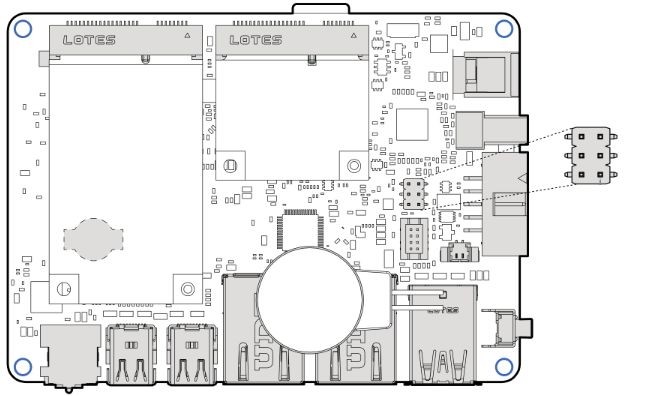
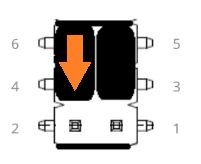
* Locate the Clear CMOS jumpers
* Remove the black jumper from pins 6 and 4
* Install it onto pins 4 and 2, moving it down by 1 pin
* Wait 30 seconds
* Restore the jumper to its original 6-4 position
* The CMOS is now clear

<figure><img src="https://3062424488-files.gitbook.io/~/files/v0/b/gitbook-x-prod.appspot.com/o/spaces%2FlLHqs7kbNoKOFTwGOfH6%2Fuploads%2Fgit-blob-45604a4a38d5d739a1ca65eb0630cc8a954513d7%2F5d32573e16f768731ec5fbf783d2e489c46ec2ce40123bbff93c97d2865ba8d1.png?alt=media" alt="" height="164" width="201"><figcaption></figcaption></figure>

#### <mark style="color:blue;">mSATA/WiFi Card Installation</mark> <a href="#msata-wifi-card-installation" id="msata-wifi-card-installation"></a>

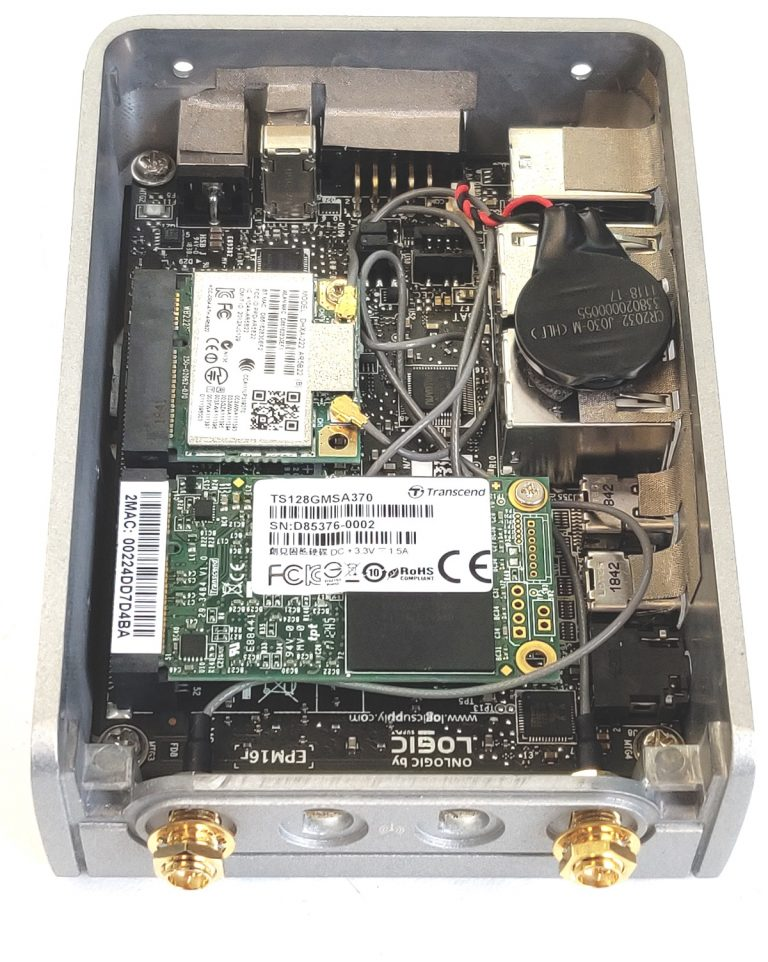
* Open the system following the Disassembly steps above.
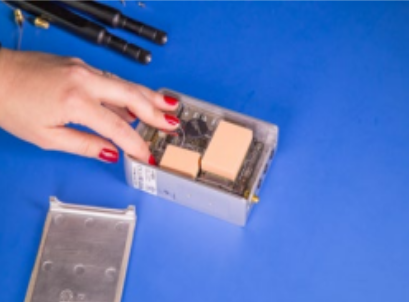
* Install the WiFi and/or mSATA card as shown. Install the WiFi antenna pigtail cables as shown.
* The nuts and washers are loose for illustration purposes. They should be fully hand tightened

<figure><img src="https://3062424488-files.gitbook.io/~/files/v0/b/gitbook-x-prod.appspot.com/o/spaces%2FlLHqs7kbNoKOFTwGOfH6%2Fuploads%2Fe0ARwlODg7cBYRrItxKF%2Fimage.png?alt=media&#x26;token=fbf0830c-e8f8-4d45-b8e8-2767d730cb4b" alt="" width="563"><figcaption></figcaption></figure>

* Apply the thermal pad to the top of the WiFi/mSATA card. This can be located in your system’s accessories.

<figure><img src="https://3062424488-files.gitbook.io/~/files/v0/b/gitbook-x-prod.appspot.com/o/spaces%2FlLHqs7kbNoKOFTwGOfH6%2Fuploads%2FZmlHa61BFrmz4zdvNNwc%2Fimage.png?alt=media&#x26;token=0aa0cc32-3870-40d9-a9b7-86e54aa4065e" alt="" width="563"><figcaption></figcaption></figure>

#### <mark style="color:blue;">Optional CEC module (ADP107)</mark> <a href="#using-the-optional-cec-module-adp107" id="using-the-optional-cec-module-adp107"></a>

The ADP107 is a module that is installed in-line with the DisplayPort outputs on configured OnLogic systems. Its purpose is to enable Consumer Electronics Control (CEC) functionality which manages the connection between the system and any connected displays according to a set of preconfigured rules. This allows command signals to be passed to the displays when the computer starts, stops, wakes, and sleeps, in a user-configurable order after a configurable time delay.

#### <mark style="color:blue;">Default Behavior</mark> <a href="#default-behavior" id="default-behavior"></a>

The device’s default configuration is to power up displays when the system starts/wakes and power them off when the system stops/sleeps. It is also configured by default to start the computer when the connected display powers on, and to power the computer off\
when the displays are powered off. The default startup delay timer is set to 5 seconds.

## <mark style="color:blue;">6- Regulatory Compliance and Safety Information</mark>

This document provides international regulatory and safety compliance information for the OnLogic Fanless computers xxxx-CL2YY-xxxx, (where x can be any alphanumeric character or blank and Y is numeric character) computer system.

For more information on accessories and additional features, visit the product page: <https://www.onlogic.com/store/computers/industrial/fanless/cl200-series/>

<mark style="color:blue;">**FCC**</mark>

This device complies with part 15 of the FCC rules as a Class A device. Operation is subject to the following two conditions: (1) this device may not cause harmful interference and (2) this device must accept any interference received, including interference that might cause undesired operation.

<mark style="color:blue;">**Industry Canada Compliance Statement**</mark>

This Class A digital apparatus complies with Canadian ICES-003.

**Avis de Conformité à la Réglementation d’Industrie Canada**

Cet appareil numérique de la classe A est conforme à la norme NMB-003 du Canada.

<mark style="color:blue;">**CE**</mark>

This equipment complies with all applicable European Union (CE) directives if it has a CE marking. For this device to remain CE compliant, only CE compliant parts can be installed, and proper cables and cabling techniques are required.

#### <mark style="color:blue;">Safe Use and Installation Instructions</mark>

1. Do not open or modify the device. The device uses components that comply with FCC and CE regulations. Modification of the device will void these certifications.
2. Install the device securely. Be careful handling the device to prevent injury and do not drop.
3. Wall or ceiling mounting device requires use of a mounting plate or bracket. Plate or bracket must be of metal construction and have a minimum thickness of 1mm.
4. Use M3x0.5mm Flat Head screws to attach mounting plate or mounting brackets to threaded holes on bottom of chassis. Screws should be a minimum length of 4mm. Add 1mm of screw length for every mm of additional thickness of plate or bracket beyond 1.5mm.
5. Operational temperature must be between 0-50°C with a non-condensing relative humidity of 10-90%. Derated operational temperature of 0-40°C dependent on included power adapter. See Table 1 below.
6. The device can be stored at temperatures between 0-60°C.
7. Keep the device away from liquids and flammable materials.
8. Do not clean the device with liquids. The chassis can be cleaned with a cloth.
9. Allow at least 2 inches of space around all sides of the device for proper cooling. If the device is mounted to a vertical surface then the recommended device orientation is so that heatsink fins allow air to rise unobstructed. Alternative orientations may result in reduced operational temperature range.
10. This device is intended for indoor operation only.
11. Use UL Listed external power supply with rated output 12V d.c., 3A min.
12. Install the device only with shielded network cables.
13. Service and repair of the device must be done by qualified service personnel. This includes but is not limited to replacement of CMOS battery. Replacement CMOS battery must be of same type as original.
14. Proper disposal of CMOS battery must comply with local governance.

WARNING: There is danger of explosion if the CMOS battery is replaced incorrectly. Disposal of battery into fire or a hot oven, or mechanically crushing or cutting of a battery can result in an explosion.

#### Wireless

If this product was configured with a wireless device, the FCC and IC IDs will be detailed on a label on the chassis.

### <mark style="color:blue;">6.2- Regulatory Documents</mark>

{% file src="<https://3062424488-files.gitbook.io/~/files/v0/b/gitbook-x-prod.appspot.com/o/spaces%2FlLHqs7kbNoKOFTwGOfH6%2Fuploads%2FEs0CxA9Aj3JzxeAmGWSH%2FTAA%20Compliance.pdf?alt=media&token=13e92203-b5af-4bdf-aba3-290ed071727f>" %}

{% file src="<https://3062424488-files.gitbook.io/~/files/v0/b/gitbook-x-prod.appspot.com/o/spaces%2FlLHqs7kbNoKOFTwGOfH6%2Fuploads%2FgTKhd8TSXmDY0mM5U0pz%2FIEC.pdf?alt=media&token=4625ea9b-f130-489d-a97d-380c9031f69b>" %}

{% file src="<https://3062424488-files.gitbook.io/~/files/v0/b/gitbook-x-prod.appspot.com/o/spaces%2FlLHqs7kbNoKOFTwGOfH6%2Fuploads%2FKHYKZFnnP1Zw1FzrV9wk%2FCECModuleManual.pdf?alt=media&token=ec893d10-ae81-4563-bdcc-65f0494a92a0>" %}

### <mark style="color:blue;">6.3- Security Advisory</mark>

For the latest security advisories concerning OnLogic products, including vulnerability disclosures and necessary updates, please refer to our official Security Advisories page. It is recommended to regularly check this resource for critical security information.\
[**Access Security Advisories**](https://support.onlogic.com/support-articles/security-advisories)

## <mark style="color:blue;">7- Appendices</mark>

#### Revision History

| Revision History                | Date       |
| ------------------------------- | ---------- |
| First Release of CL200 Manual   | 09/26/2022 |
| Updated Errata and feature list | 06/12/2023 |
| Updated Specs for CL250         | 07/22/2024 |