# Creating a MS-DOS bootable flash drive

Booting MS-DOS from a USB drive can be useful for applying BIOS updates and other tasks.

### <mark style="color:blue;">Required Tools</mark> <a href="#required-tools" id="required-tools"></a>

* USB flash drive (32GB or smaller)
* A Windows 7/10 PC

### <mark style="color:blue;">Creating the drive</mark> <a href="#creating-the-drive" id="creating-the-drive"></a>

<figure><img src="https://3062424488-files.gitbook.io/~/files/v0/b/gitbook-x-prod.appspot.com/o/spaces%2FlLHqs7kbNoKOFTwGOfH6%2Fuploads%2Fgit-blob-db3c8c4b361385d76848a0c885b5db0d43220166%2F59f36dea63c8eb6105687869c926e31f9edd98f024fd5ddf76da2f8612365c8e.png?alt=media" alt="" height="100" width="88"><figcaption></figcaption></figure>

* Download the Rufus tool from [rufus.ie](https://rufus.ie/)

<figure><img src="https://3062424488-files.gitbook.io/~/files/v0/b/gitbook-x-prod.appspot.com/o/spaces%2FlLHqs7kbNoKOFTwGOfH6%2Fuploads%2Fgit-blob-165fdf8ddfc87b8080cc115e5624c8ca2064dff2%2F9e3f5946a0c106abce94413840af8b6376ec575a3117beb6bb834e5367e9aab8.png?alt=media" alt="" height="218" width="474"><figcaption></figcaption></figure>

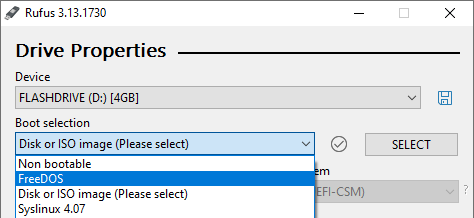
* Launch Rufus
* Under “Device” select your USB drive
* Under “Boot selection” choose “FreeDOS”

<figure><img src="https://3062424488-files.gitbook.io/~/files/v0/b/gitbook-x-prod.appspot.com/o/spaces%2FlLHqs7kbNoKOFTwGOfH6%2Fuploads%2Fgit-blob-46b6fb8fefa6eaa09ff14398a6d3301b30522538%2F2b79819922870cfc943e523e3f0edfe0e568301f79d90b45ba72949f2707b066.png?alt=media" alt="" height="153" width="470"><figcaption></figcaption></figure>

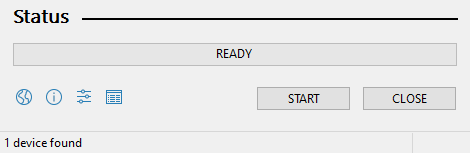
* Click START at the bottom of the window

<figure><img src="https://3062424488-files.gitbook.io/~/files/v0/b/gitbook-x-prod.appspot.com/o/spaces%2FlLHqs7kbNoKOFTwGOfH6%2Fuploads%2Fgit-blob-0bee6a1a4619703cd85e2848ebf8b6fb3b5bc9a2%2Fc889d2b7786a21ba6c94f5fd1b04564091fd02c44e605c472b780179ef66a4d1.png?alt=media" alt="" height="168" width="408"><figcaption></figcaption></figure>

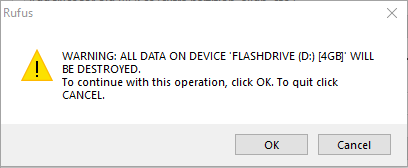
* Double check you have selected the correct drive and press OK to proceed

<figure><img src="https://3062424488-files.gitbook.io/~/files/v0/b/gitbook-x-prod.appspot.com/o/spaces%2FlLHqs7kbNoKOFTwGOfH6%2Fuploads%2Fgit-blob-840df399aa685a2ec29cf5fa38bf932b8cf9c334%2Fcb5b994b60d3f1c54e900df70db170c02fad7caf7838f941faa4c55368e1f800.png?alt=media" alt="" height="74" width="461"><figcaption></figcaption></figure>

* When the status bar says READY, the process is complete

<figure><img src="https://3062424488-files.gitbook.io/~/files/v0/b/gitbook-x-prod.appspot.com/o/spaces%2FlLHqs7kbNoKOFTwGOfH6%2Fuploads%2Fgit-blob-5e2acfd1585019e5ac2e66ec5374b516e00b6c51%2F5e6aa299cb6129226707498caa19ba67e2a320f9dbb63a54dd6a3e3b712e78d2.png?alt=media" alt="" height="361" width="445"><figcaption></figcaption></figure>

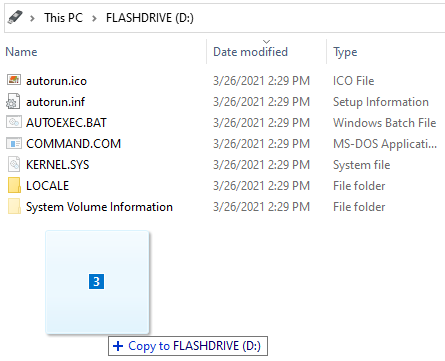
* Copy any files you will need in DOS to the flash drive. If you are applying a BIOS update, copy those files now.
* Eject and unplug the flash drive

### <mark style="color:blue;">Booting to the drive</mark> <a href="#booting-to-the-drive" id="booting-to-the-drive"></a>

<figure><img src="https://3062424488-files.gitbook.io/~/files/v0/b/gitbook-x-prod.appspot.com/o/spaces%2FlLHqs7kbNoKOFTwGOfH6%2Fuploads%2Fgit-blob-2c7c6a961af2ac31f7dd517327aa9a533d623431%2F3827f28c48f0c4a32bcbf41aa7d02ed8bb4b5b18faa95efa1703a09339858a8f.png?alt=media" alt="" height="335" width="466"><figcaption></figcaption></figure>

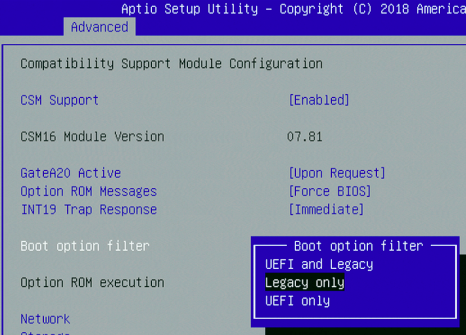
* Connect the flash drive to the target PC and power it on. Go into the BIOS (Typically F2/Del/Esc) and set it as the primary boot device.
* On newer systems, it is necessary to enable CSM / legacy boot mode as shown.

<figure><img src="https://3062424488-files.gitbook.io/~/files/v0/b/gitbook-x-prod.appspot.com/o/spaces%2FlLHqs7kbNoKOFTwGOfH6%2Fuploads%2Fgit-blob-728a5a822a2886547a424586113cf9d5b66aec53%2F5d5770fd223c7d946d8dc1fdd217b37909fb12e816d172593ec58249d91e4040.png?alt=media" alt="" height="418" width="566"><figcaption></figcaption></figure>

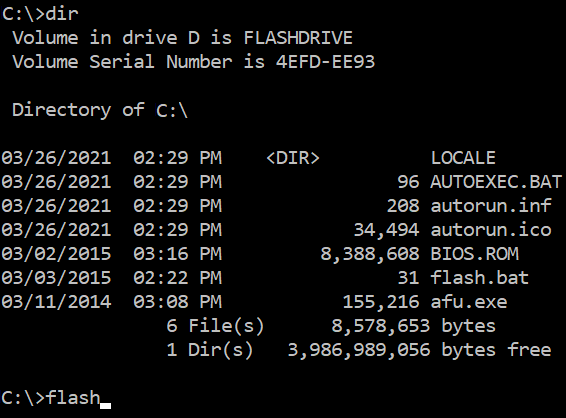
* If successful, you will be greeted with the familiar old DOS prompt.
* Use the dir command to confirm what files are on your USB drive.
* Update .bat files can be executed by typing the filename.